Microsoft Teams is a widely used communication and collaboration platform, especially in work and educational environments. While Microsoft does not provide an official Linux client anymore, an open-source community effort called Teams for Linux offers a native-like experience on Linux systems—including FunOS. In this guide, we’ll walk you through the step-by-step process of installing, launching, and even uninstalling Microsoft Teams on FunOS.
What is Microsoft Teams?
Microsoft Teams is a collaboration platform developed by Microsoft that combines chat, video conferencing, file sharing, and app integration in one place. It’s designed for teamwork and productivity and is widely used by companies, educational institutions, and organizations of all sizes. Teams enables users to:
- Send instant messages and create group chats
- Hold online meetings and video calls
- Collaborate on documents with Microsoft 365 integration
- Share files and workspaces across departments or teams
Although Microsoft has discontinued the official Teams Linux client, the open-source community maintains an unofficial client called Teams for Linux. This application wraps the web version of Teams in an Electron-based desktop app and brings a native desktop experience to Linux users.
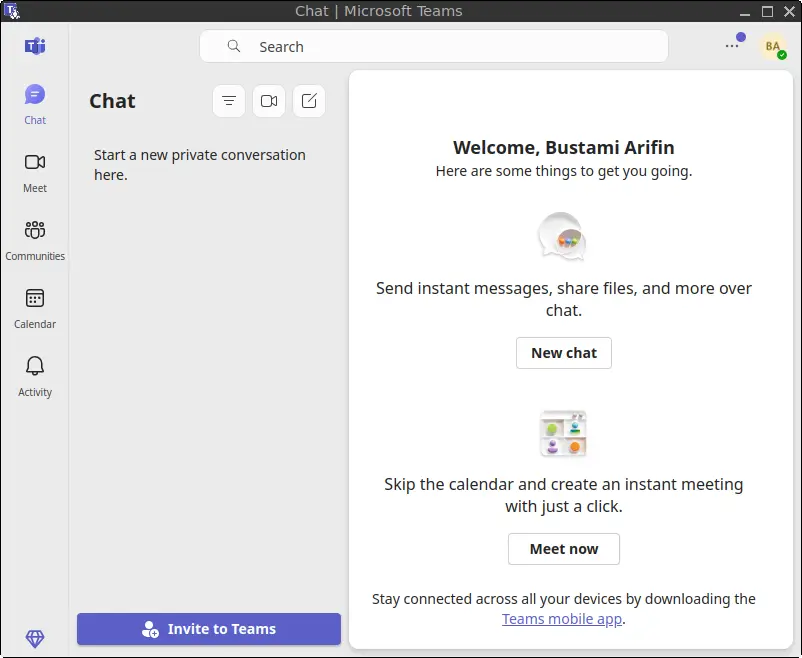
How to Install Microsoft Teams on FunOS
Work on: 22.04.5 ✅ | 24.04.4 ✅ | 25.04 ✅ | 25.10 ✅ | 26.04 ✅
Follow these steps to install the unofficial Microsoft Teams client on FunOS:
Step 1: Open a Terminal
You can open a Terminal using one of the following methods:
- Click the Menu button in the lower-left corner, then click Terminal
- Click the Terminal icon in the Tray
- Press Ctrl + Alt + T on your keyboard
Step 2: Add the GPG Key
Run the following command to add the GPG key used to verify the package:
sudo wget -qO /etc/apt/keyrings/teams-for-linux.asc https://repo.teamsforlinux.de/teams-for-linux.ascStep 3: Add the Repository
Now, add the official repository for Teams for Linux:
sh -c 'echo "Types: deb\nURIs: https://repo.teamsforlinux.de/debian/\nSuites: stable\nComponents: main\nSigned-By: /etc/apt/keyrings/teams-for-linux.asc\nArchitectures: amd64" | sudo tee /etc/apt/sources.list.d/teams-for-linux-packages.sources'Step 4: Update the Package List
Update the local package list to include the newly added repository:
sudo apt updateStep 5: Install Microsoft Teams
Install the Teams for Linux application:
sudo apt install teams-for-linuxStep 6: Reload the Menu
After installation, you need to refresh the application menu so the new entry appears:
- Click the Menu button in the lower-left corner
- Click Reload menu
Launching Microsoft Teams
To launch the app:
- Click the Menu button in the lower-left corner
- Go to the Internet category
- Click Teams for Linux
The app will open in a standalone window and behave similarly to a native application.
How to Uninstall Microsoft Teams on FunOS
If you no longer need Teams for Linux, follow these steps to remove it completely from your system.
Step 1: Open a Terminal
Use the same methods described earlier to open a terminal.
Step 2: Remove Microsoft Teams
Uninstall the application:
sudo apt remove --purge teams-for-linuxStep 3: Remove Any Unused Dependencies
Clean up leftover packages that are no longer needed:
sudo apt autoremove --purgeStep 4: Remove the Repository and Key (Optional)
You can optionally remove the repository and GPG key:
sudo rm -f /etc/apt/sources.list.d/teams-for-linux-packages.sources
sudo rm -f /etc/apt/keyrings/teams-for-linux.asc
Step 5: Update the Package List
Update your system again after removing the repository:
sudo apt updateStep 6: Remove User Data (Optional)
If you want to completely erase all personal settings and cache:
rm -rf $HOME/.config/teams-for-linuxStep 7: Reload the Menu
To update the menu after uninstalling:
- Click the Menu button in the lower-left corner
- Click Reload menu
Conclusion
Although Microsoft no longer maintains an official Linux client for Teams, the community-developed Teams for Linux project offers a solid alternative. It provides Linux users with a convenient and desktop-integrated way to access Teams, complete with chat, calls, and file-sharing functionality. With just a few terminal commands, you can easily install or uninstall Microsoft Teams on FunOS, keeping your workflow smooth and connected.