
The tray, also known as the panel or taskbar, is an important part of the JWM desktop in FunOS. It provides quick access to commonly used applications, displays open windows, shows workspace information, and includes the system tray and clock.
In FunOS, the JWM tray is controlled by a simple XML configuration file:
~/.config/jwm/trayBy editing this file, you can change the tray position, add or remove launcher icons, adjust the clock format, enable autohide, and customize how the panel behaves.

1. Back Up the Tray File
Before editing the tray configuration, it is recommended to create a backup copy of the file. This allows you to restore the original configuration if something goes wrong.
Open a terminal and run:
cp ~/.config/jwm/tray ~/.config/jwm/tray.bakIf needed, you can restore the backup later with:
cp ~/.config/jwm/tray.bak ~/.config/jwm/tray2. Open the Tray Configuration File
You can open the JWM tray configuration file using either the file manager or the terminal.
Method 1: Using the File Manager
- Click Menu in the lower-left corner of the screen.
- Click File Manager.
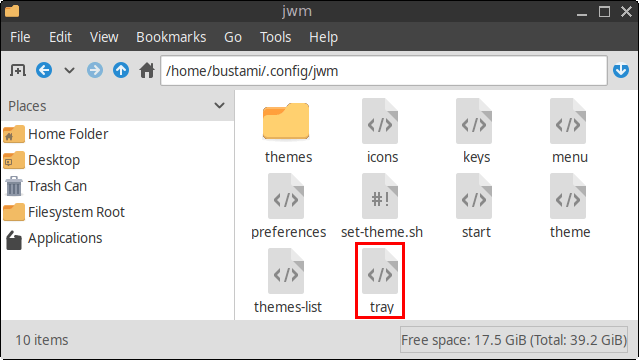
- Press Ctrl + H or click View > Show Hidden to show hidden files and folders.
- Open the
.configfolder. - Open the
jwmfolder. - Open the
trayfile with a text editor.
Method 2: Using the Terminal
Open a terminal and run:
mousepad ~/.config/jwm/trayThis opens the tray configuration file in Mousepad, the default text editor in FunOS.
3. What Is the ~/.config/jwm/tray File?
The ~/.config/jwm/tray file defines the appearance, position, and contents of the JWM tray.
JWM reads this file when the desktop session starts. It uses the settings inside this file to decide where the tray appears, what buttons are shown, how open windows are displayed, where tray applications appear, and how the clock looks.
Because the file uses XML syntax, every tag must be written correctly. A missing closing tag or incorrect quotation mark can prevent JWM from loading the tray properly.
4. Default Tray Configuration in FunOS
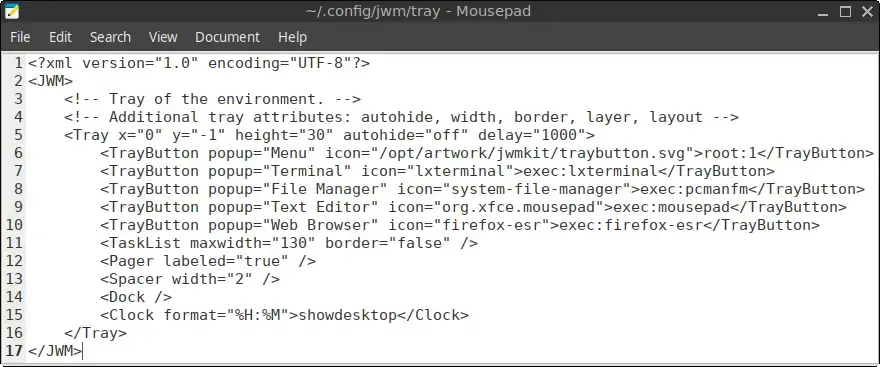
The default ~/.config/jwm/tray file in FunOS looks like this:
<?xml version="1.0" encoding="UTF-8"?>
<JWM>
    <!-- Tray at the bottom. -->
    <Tray x="0" y="-1" height="30" autohide="off" delay="1000">
        <TrayButton popup="Menu" icon="/opt/artwork/jwmkit/traybutton.svg">root:1</TrayButton>
        <TrayButton popup="Terminal" icon="lxterminal">exec:lxterminal</TrayButton>
        <TrayButton popup="File Manager" icon="system-file-manager">exec:pcmanfm</TrayButton>
        <TrayButton popup="Text Editor" icon="org.xfce.mousepad">exec:mousepad</TrayButton>
        <TrayButton popup="Web Browser" icon="firefox-esr">exec:firefox-esr</TrayButton>
        <TaskList maxwidth="130" border="false"/>
        <Pager labeled="true"/>
        <Spacer width="2"/>
        <Dock/>
        <Clock format="%H:%M">showdesktop</Clock>
    </Tray>
</JWM>
This configuration creates a tray at the bottom of the screen with several quick launcher buttons, a task list, a workspace pager, a system tray area, and a clock.
5. Understanding the Tray Configuration
The Main <Tray> Tag
The main tray settings are defined in this line:
<Tray x="0" y="-1" height="30" autohide="off" delay="1000">This tag controls the position and behavior of the tray.
Explanation:
x="0"places the tray at the left edge of the screen.y="-1"places the tray at the bottom of the screen.height="30"sets the tray height to 30 pixels.autohide="off"keeps the tray visible at all times.delay="1000"sets the autohide delay in milliseconds when autohide is enabled.
To move the tray to the top of the screen, change:
y="-1"to:
y="0"Tray Buttons
Tray buttons are used as quick launchers for applications or JWM actions.
Example:
<TrayButton popup="Menu" icon="/opt/artwork/jwmkit/traybutton.svg">root:1</TrayButton>This button opens the JWM root menu.
Explanation:
popup="Menu"displays “Menu” as the tooltip when you hover over the button.icon="/opt/artwork/jwmkit/traybutton.svg"sets the icon used for the button.root:1opens the first root menu defined in the JWM menu configuration.
Another example:
<TrayButton popup="Terminal" icon="lxterminal">exec:lxterminal</TrayButton>This button launches LXTerminal.
Explanation:
popup="Terminal"shows “Terminal” as the tooltip.icon="lxterminal"uses the LXTerminal icon.exec:lxterminalruns thelxterminalcommand when the button is clicked.
The default FunOS tray includes quick launchers for:
- Menu
- Terminal
- File Manager
- Text Editor
- Web Browser
You can remove a launcher by deleting its <TrayButton> line. You can also add a new launcher by creating another <TrayButton> entry.
For example, to add a FileZilla launcher:
<TrayButton popup="FileZilla" icon="filezilla">exec:filezilla</TrayButton>Make sure the application is installed and the command after exec: is correct.
Task List
The task list is defined by this line:
<TaskList maxwidth="130" border="false"/>The task list shows open and minimized windows as buttons on the tray.
Explanation:
maxwidth="130"limits the maximum width of each task button.border="false"removes borders from the task buttons for a cleaner appearance.
If you often work with many open windows, you can reduce the maxwidth value to make more task buttons fit on the tray.
Pager
The workspace pager is defined by this line:
<Pager labeled="true"/>The pager shows available virtual desktops, also called workspaces.
Explanation:
labeled="true"displays labels or numbers for each workspace.- Clicking a workspace in the pager switches to that workspace.
This is useful if you use multiple workspaces to organize your windows.
Spacer
The spacer is defined by this line:
<Spacer width="2"/>A spacer adds empty space between tray elements. It is mainly used to improve spacing and visual balance.
You can increase or decrease the value depending on how much space you want between items.
Dock
The dock area is defined by this line:
<Dock/>The dock is where system tray applications appear.
In FunOS, this area can be used by tray applications such as:
- volume control
- battery indicator
- network indicator
These applications usually start automatically and appear in the tray when running.
Clock
The clock is defined by this line:
<Clock format="%H:%M">showdesktop</Clock>This displays the current time in 24-hour format.
Explanation:
format="%H:%M"displays the time in a format such as14:30.showdesktopmakes the clock act as a Show Desktop button. Clicking the clock minimizes or restores windows.
To show the time in 12-hour format with AM/PM, use:
<Clock format="%I:%M %p">showdesktop</Clock>To include the day and date, use:
<Clock format="%a %d %b %H:%M">showdesktop</Clock>Example output:
Tue 01 Jul 14:306. Common Tray Customizations
Move the Tray to the Top
To move the tray from the bottom of the screen to the top, change the main <Tray> line from:
<Tray x="0" y="-1" height="30" autohide="off" delay="1000">to:
<Tray x="0" y="0" height="30" autohide="off" delay="1000">Enable Autohide
To make the tray hide automatically, change:
autohide="off"to:
autohide="on"Example:
<Tray x="0" y="-1" height="30" autohide="on" delay="1000">With this setting, the tray hides when it is not being used and appears again when the mouse pointer reaches the tray area.
Change the Tray Height
To make the tray taller or smaller, change the height value.
For example:
<Tray x="0" y="-1" height="35" autohide="off" delay="1000">A larger value makes the tray taller. A smaller value makes it more compact.
Add a New Application Launcher
To add a new launcher, insert a new <TrayButton> line inside the <Tray> section.
Example:
<TrayButton popup="GIMP" icon="gimp">exec:gimp</TrayButton>This adds a launcher for GIMP.
Remove an Application Launcher
To remove a launcher, delete the corresponding <TrayButton> line.
For example, to remove the web browser launcher, delete this line:
<TrayButton popup="Web Browser" icon="firefox-esr">exec:firefox-esr</TrayButton>7. Apply the Changes
After editing and saving the tray file, restart JWM to apply the changes.
Run:
jwm -restartThe tray should reload with your new settings.
If the tray does not appear correctly, check the file for XML syntax errors. You can also restore your backup:
cp ~/.config/jwm/tray.bak ~/.config/jwm/tray
jwm -restart
8. Conclusion
The JWM tray in FunOS is lightweight, simple, and highly customizable. By editing the ~/.config/jwm/tray file, you can control how the tray looks and behaves, including its position, height, launchers, task list, workspace pager, system tray area, and clock format.
This flexibility makes it easy to adjust the FunOS desktop to match your workflow while keeping the system fast and minimal.