
Helium Browser is a modern Chromium-based web browser focused on privacy, speed, simplicity, and a clean user experience. Unlike many modern browsers that include telemetry, AI integrations, sponsored content, and various extra features, Helium aims to provide a lightweight browsing experience without unnecessary distractions.
Because FunOS is based on Ubuntu, installing Helium Browser is straightforward using the official Helium repository. In this guide, you will learn how to install Helium Browser on FunOS, launch it from the menu, and completely remove it if you no longer need it.
What is Helium Browser?
Helium Browser is an open-source web browser built on top of Chromium and designed with privacy and minimalism in mind. It removes many Google-related tracking components and unnecessary background services commonly found in mainstream Chromium browsers.
Some notable features of Helium Browser include:
- Privacy-focused design
- Minimal and lightweight interface
- Built-in ad and tracker blocking
- No telemetry or analytics
- Chromium compatibility
- Support for Chrome extensions
- Fast browsing performance
- No built-in AI assistants or sponsored features
Helium Browser is especially attractive to Linux users who prefer clean and lightweight software with strong privacy defaults.
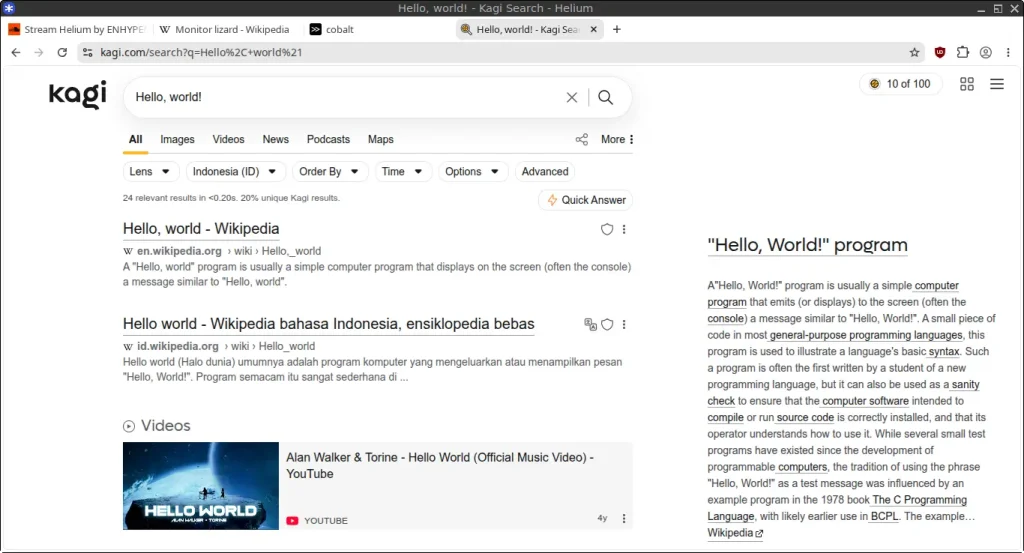
How to Install Helium Browser on FunOS
Work on: 22.04.5 ✅ | 24.04.4 ✅ | 25.10 ✅ | 26.04 ✅
Step 1: Open a Terminal
You can open Terminal in FunOS using one of the following methods:
- Click Menu in the lower-left corner of the screen, then click Terminal
- Click the Terminal icon in the Tray
- Press Ctrl + Alt + T on your keyboard
Step 2: Update the Package List
Before installing new software, it is recommended to refresh the package list.
Run the following command:
sudo apt updateThis ensures your system has the latest package information from all configured repositories.
Step 3: Install the Necessary Dependencies
Helium Browser requires several packages to manage HTTPS repositories and download files securely.
Run:
sudo apt install apt-transport-https curlExplanation:
apt-transport-httpsallows APT to access repositories over HTTPScurlis used to download the repository signing key
When prompted, press Y and then press Enter to continue.
Step 4: Add the GPG Key
Next, add the official Helium Browser repository signing key.
Run:
curl -fsSL https://raw.githubusercontent.com/imputnet/helium-linux/main/pubkey.asc | sudo gpg --dearmor -o /usr/share/keyrings/helium.gpgThis command:
- Downloads the official GPG key
- Converts it into a format usable by APT
- Stores it securely in
/usr/share/keyrings/
The signing key helps verify that packages from the Helium repository are authentic and have not been tampered with.
Step 5: Add the Repository
Now add the official Helium Browser repository to your system.
Run:
echo "deb [arch=amd64,arm64 signed-by=/usr/share/keyrings/helium.gpg] https://pkg.helium.computer/deb stable main" | sudo tee /etc/apt/sources.list.d/helium.listThis command creates a new repository configuration file named /etc/apt/sources.list.d/helium.list
Step 6: Update the Package List Again
After adding the repository, refresh the package list again so APT can detect the Helium Browser packages.
Run:
sudo apt updateIf everything was added correctly, you should see the Helium repository listed in the update output.
Step 7: Install Helium Browser
Now install Helium Browser.
Run:
sudo apt install helium-binAPT will download and install Helium Browser along with any required dependencies.
When prompted, press Y and then press Enter to continue.
Step 8: Reload the Menu
Note: Starting with FunOS 24.04.4 LTS (Build 20260618) and FunOS 26.04 LTS (Build 20260618), the menu updates automatically, so you can skip this step.
After the installation is complete, reload the FunOS menu so the Helium Browser launcher appears correctly.
To reload the menu:
- Click the Menu button in the lower-left corner of the screen
- Click Reload menu
This step is important in FunOS because newly installed applications may not immediately appear in the menu until it is refreshed.
Launching Helium Browser
To launch Helium Browser:
- Click the Menu button in the lower-left corner
- Open the Internet category
- Click Helium
On the first launch, Helium Browser may take a few seconds to initialize its user profile and configuration files.
How to Uninstall Helium Browser on FunOS
If you no longer want to use Helium Browser, you can completely remove it from your system.
Step 1: Open a Terminal
Open Terminal using any of the methods mentioned earlier.
Step 2: Remove Helium Browser
Run:
sudo apt remove --purge helium-binExplanation:
removeuninstalls the package--purgealso removes system-wide configuration files
Step 3: Remove Any Unused Dependencies
After uninstalling the browser, remove packages that are no longer needed.
Run:
sudo apt autoremove --purgeThis helps keep your system clean and reduces unnecessary disk usage.
Step 4: Remove the Repository and Key (Optional)
If you no longer plan to install Helium Browser again, you can remove its repository configuration and signing key.
Run:
sudo rm -f /etc/apt/sources.list.d/helium.list
sudo rm -f /usr/share/keyrings/helium.gpg
This prevents APT from checking the Helium repository during future updates.
Step 5: Update the Package List
Refresh the package list after removing the repository.
Run:
sudo apt updateStep 6: Remove User Data (Optional)
To completely erase Helium Browser user data, cache, and settings, run:
rm -rf $HOME/.cache/net.imput.helium
rm -rf $HOME/.config/net.imput.helium
This step is optional but useful if you want a completely clean removal.
Warning:
These commands permanently delete your Helium Browser settings, browsing data, and cached files for the current user account.
Step 7: Reload the Menu
Note: Starting with FunOS 24.04.4 LTS (Build 20260618) and FunOS 26.04 LTS (Build 20260618), the menu updates automatically, so you can skip this step.
Finally, reload the FunOS menu again.
- Click the Menu button in the lower-left corner of the screen
- Click Reload menu
This removes the Helium Browser launcher from the application menu.
Conclusion
Helium Browser is a lightweight and privacy-focused Chromium-based browser that fits very well with the philosophy of FunOS. It offers a clean browsing experience without telemetry, AI integrations, or unnecessary background services, making it an excellent choice for users who value simplicity and privacy.
By following the steps in this guide, you can easily install Helium Browser on FunOS using the official repository, keep it updated through APT, and fully remove it whenever needed.