
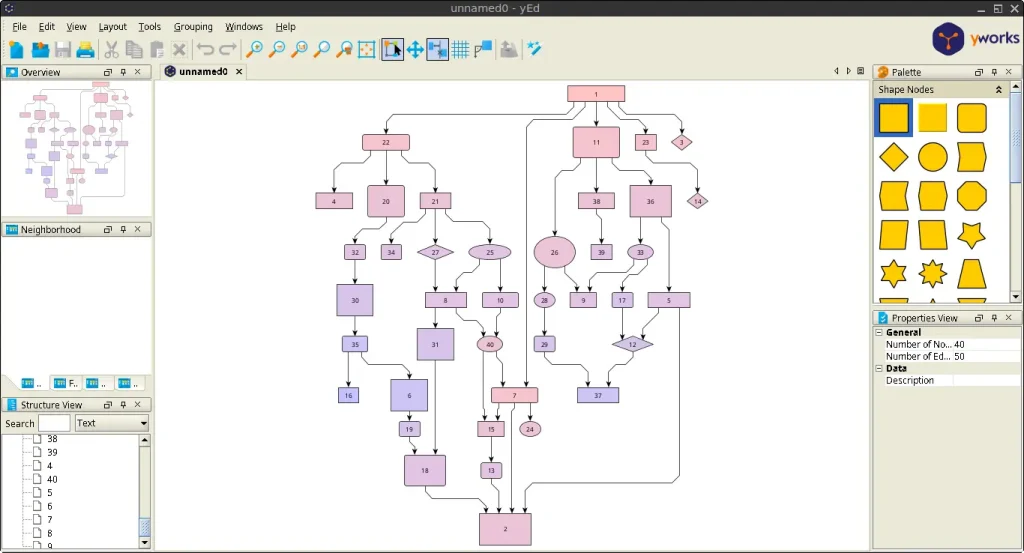
yEd Graph Editor is a powerful diagramming application that allows you to create flowcharts, network diagrams, UML diagrams, organizational charts, mind maps, and many other types of visual diagrams. One of its most notable features is its advanced automatic layout engine, which can automatically arrange complex diagrams into a clean and readable structure.
This guide explains how to download, install, launch, and uninstall yEd Graph Editor on FunOS.
What is yEd Graph Editor?
yEd Graph Editor is a free desktop diagramming application developed by yWorks. It provides an intuitive graphical interface for creating and editing diagrams of various kinds, including flowcharts, entity-relationship diagrams, BPMN diagrams, network topologies, UML diagrams, family trees, and organizational charts.
Unlike many traditional diagram editors, yEd includes sophisticated automatic layout algorithms that can organize diagrams with hundreds or even thousands of elements with just a few clicks. This makes it particularly useful for software developers, system administrators, network engineers, educators, researchers, and business professionals.
Some of the key features of yEd Graph Editor include:
- Automatic diagram layout algorithms
- Flowchart creation
- UML diagram support
- Organizational charts
- Network topology diagrams
- Mind maps and concept maps
- Data import from spreadsheets and other sources
- Export to PDF, SVG, PNG, JPG, and other formats
- Cross-platform support for Linux, Windows, and macOS
How to Install yEd Graph Editor on FunOS
Work on: 22.04.5 ✅ | 24.04.5 ✅ | 25.10 ✅ | 26.04.1 ✅
The Linux version of yEd Graph Editor is distributed as a self-extracting installation script. Follow the steps below to install it on FunOS.
Step 1: Download the Script
First, download the yEd Graph Editor installation script.
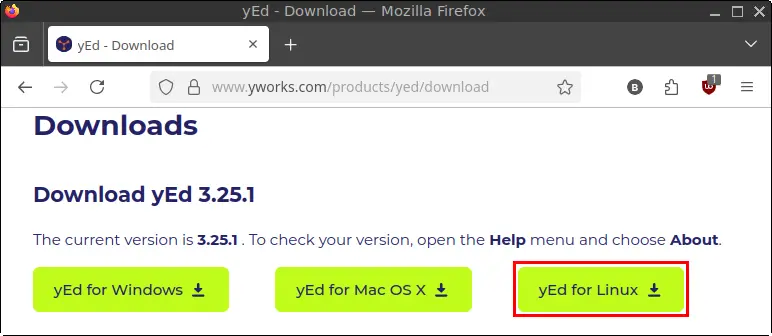
- Open your web browser and visit the yEd Graph Editor Download page:https://www.yworks.com/products/yed/download
- Click the yEd for Linux button to download the setup script.
- Save the downloaded file in your Downloads directory.
Step 2: Open a Terminal
You can open a Terminal using any of the following methods:
- Click Menu in the lower-left corner of the screen, then click Terminal
- Click the Terminal icon in the Tray
- Press Ctrl + Alt + T
Step 3: Navigate to the Downloads Directory
Change to the Downloads directory where the installation script was saved:
cd ~/DownloadsStep 4: Make the Script Executable
Before running the installer, you must make the script executable:
chmod +x yEd-*.shStep 5: Run the Installer
Run the installation script:
./yEd-*.shA graphical installation wizard will appear.
Follow the on-screen instructions to complete the installation. The default installation settings are suitable for most users.
Once the installation is finished, yEd Graph Editor will be installed in your home directory.
Step 6: Remove the Downloaded Setup Script
After the installation is complete, you may remove the downloaded setup file to free up disk space:
rm -f ~/Downloads/yEd-*.shStep 7: Reload the Menu
Note: Starting with FunOS 24.04.4 LTS (Build 20260618) and FunOS 26.04 LTS (Build 20260618), the menu updates automatically, so you can skip this step.
To make sure the application appears in the FunOS menu:
- Click the Menu button in the lower-left corner of the screen.
- Click Reload menu.
The yEd Graph Editor launcher should now be visible in the application menu.
Launching yEd Graph Editor
To start yEd Graph Editor:
- Click the Menu button in the lower-left corner of the screen.
- Open the Others category.
- Click yEd Graph Editor.
The application will start and you can begin creating diagrams immediately.
How to Uninstall yEd Graph Editor on FunOS
If you no longer need yEd Graph Editor, you can remove it manually.
Step 1: Open a Terminal
Open a Terminal using one of the available methods:
- Click Menu → Terminal
- Click the Terminal icon in the Tray
- Press Ctrl + Alt + T
Step 2: Remove the yEd Graph Editor Directory
Delete the installation directory:
rm -rf ~/yEdStep 3: Remove the Desktop Entry
Remove the application launcher:
rm -f ~/.local/share/applications/*-yEd.desktopStep 4: Remove User Data (Optional)
If you want to remove configuration files and cached data created by yEd Graph Editor, run:
rm -rf ~/.cache/install4j
rm -rf ~/.yEd
This step is optional and only necessary if you want to completely remove all user-specific data associated with yEd Graph Editor.
Step 5: Reload the Menu
Note: Starting with FunOS 24.04.4 LTS (Build 20260618) and FunOS 26.04 LTS (Build 20260618), the menu updates automatically, so you can skip this step.
To remove the menu entry from FunOS:
- Click the Menu button in the lower-left corner of the screen.
- Click Reload menu.
The yEd Graph Editor launcher will disappear from the menu.
Conclusion
yEd Graph Editor is a powerful and feature-rich diagramming application that makes it easy to create professional-looking flowcharts, UML diagrams, network maps, organizational charts, and many other types of diagrams. Its automatic layout capabilities are especially useful when working with large or complex projects.
By following the steps in this guide, you can quickly install yEd Graph Editor on FunOS, launch it from the application menu, and remove it later if it is no longer needed.