
The JWM tray is one of the most important parts of the FunOS desktop. It provides quick access to the application menu, running applications, workspace switcher, system tray icons, clock, and other desktop functions. By default, the tray is positioned at the bottom of the screen, similar to the taskbar in many desktop environments.
However, some users prefer having the tray at the top of the screen. Placing the tray at the top can provide a different workflow, free up space at the bottom for application windows, or simply better match personal preferences.
In this tutorial, you will learn how to move the JWM tray from the bottom of the screen to the top by editing the tray configuration file in FunOS.
Understanding the JWM Tray Position
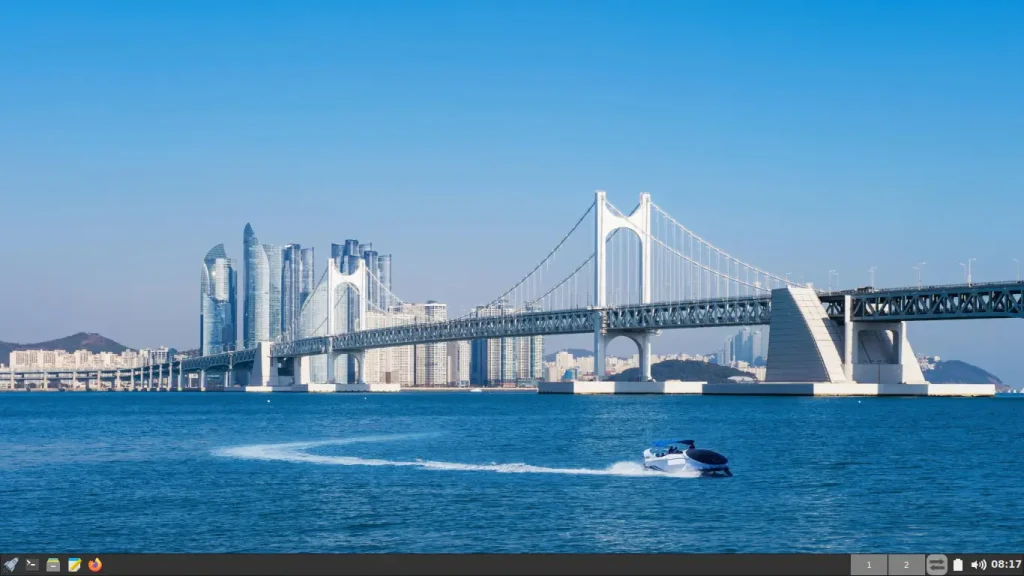
JWM (Joe’s Window Manager) allows the tray to be placed at different locations on the screen. In FunOS, the tray position is controlled by settings stored in the tray configuration file located in your home directory.
One of the parameters in the tray definition determines whether the tray appears at the top or bottom of the screen:
y="-1"places the tray at the bottom of the screen.y="0"places the tray at the top of the screen.
By changing this value and restarting JWM, you can instantly move the tray without logging out or rebooting your computer.
How to Move the JWM Tray to the Top in FunOS
Step 1: Open a Terminal
First, open a Terminal window. You can do this using any of the following methods:
- Click Menu in the lower-left corner of the screen, then click Terminal.
- Click the Terminal icon in the Tray.
- Press Ctrl+Alt+T.
Step 2: Open the Tray Configuration File
The tray settings are stored in the ~/.config/jwm/tray configuration file.
To open the file with Mousepad, run the following command:
mousepad ~/.config/jwm/trayThe configuration file will open in the Mousepad text editor.
Step 3: Locate the Tray Position Setting
Inside the file, look for the tray definition that resembles the following line:
<Tray x="0" y="-1" height="30" autohide="off" delay="1000">This line defines several tray properties, including its position on the screen.
Notice the value:
y="-1"This setting tells JWM to place the tray at the bottom of the screen.
Step 4: Change the Tray Position to the Top
To move the tray to the top, change:
y="-1"to:
y="0"The line should now look like this:
<Tray x="0" y="0" height="30" autohide="off" delay="1000">After making the change:
- Click File → Save, or press Ctrl+S.
- Close Mousepad.
Step 5: Restart JWM
The new tray position will not take effect until JWM is restarted.
Run the following command:
jwm -restartThe desktop may briefly refresh, and JWM will reload its configuration.
Step 6: Verify the Result
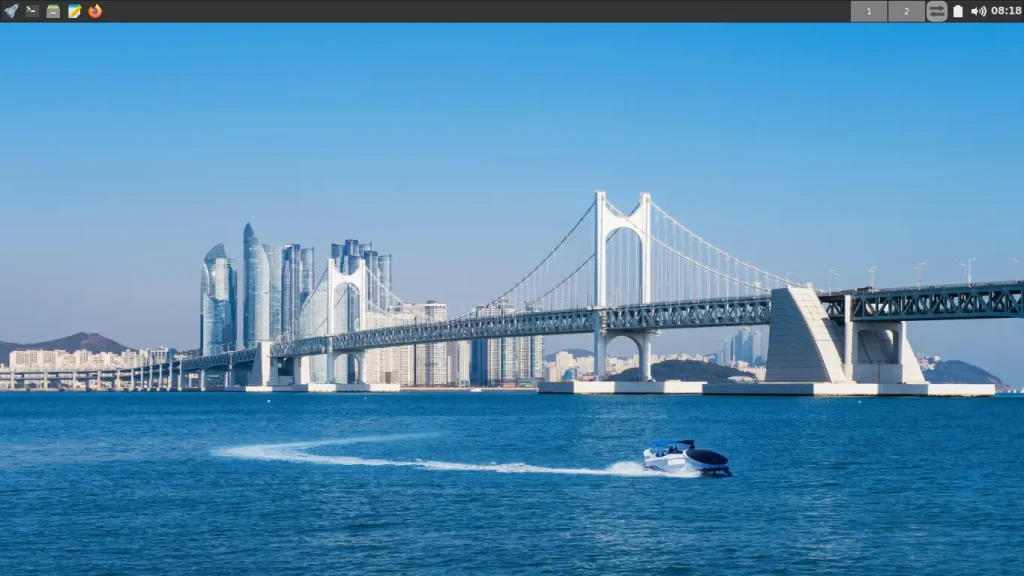
After JWM restarts, the tray should appear at the top of the screen.
You should see the Menu button, task list, system tray icons, clock, and other tray components displayed along the top edge of the desktop.
Open a few applications to ensure everything works as expected. The tray should function exactly the same as before, only in a different location.
Moving the Tray Back to the Bottom
If you decide that you prefer the original layout, you can easily restore the tray to the bottom of the screen.
Open the tray configuration file again:
mousepad ~/.config/jwm/trayLocate the tray definition and change:
y="0"back to:
y="-1"Save the file and restart JWM:
jwm -restartThe tray will return to its default position at the bottom of the screen.
Conclusion
Changing the position of the JWM tray in FunOS is a simple customization that only requires editing a single configuration file. By modifying the y value in the tray definition from -1 to 0, you can move the tray from the bottom of the screen to the top and create a desktop layout that better suits your workflow and preferences.
Because FunOS uses JWM, many aspects of the desktop can be customized in a similar way. If you enjoy tweaking your desktop environment, you can also explore other JWM configuration files to customize themes, menus, keyboard shortcuts, window behavior, and additional tray settings.