
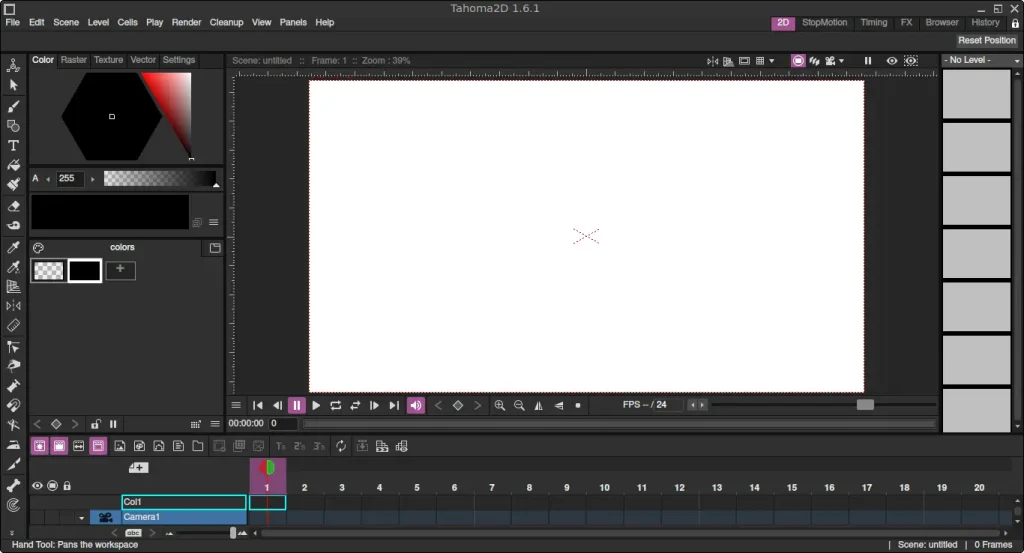
Tahoma2D is a powerful open-source 2D animation application that allows artists, designers, and hobbyists to create traditional frame-by-frame animations, cut-out animations, and stop-motion projects. It includes professional-grade drawing tools, animation features, special effects, and compositing capabilities while remaining completely free to use.
In this guide, you will learn how to install Tahoma2D on FunOS using the official Debian package provided by the Tahoma2D project. The installation process is straightforward and only takes a few minutes.
What is Tahoma2D?
Tahoma2D is a free and open-source 2D animation software based on the same Toonz technology that was used in professional animation production. It is designed to make animation creation accessible to everyone, from beginners learning the fundamentals of animation to experienced artists working on professional projects.
Tahoma2D supports both vector and raster drawing, allowing users to choose the workflow that best suits their needs. It also includes features such as onion skinning, keyframe animation, special effects, camera tools, lip-sync support, and stop-motion animation capabilities.
Some of the main features of Tahoma2D include:
- Traditional frame-by-frame animation
- Vector and raster drawing tools
- Cut-out and puppet-style animation
- Stop-motion animation support
- Node-based visual effects system
- Camera and scene management tools
- Automatic lip-sync integration
- Export to common video and image formats
Because Tahoma2D is free, open source, and available for Linux, it is an excellent choice for FunOS users who want to create animations without purchasing commercial software.
How to Install Tahoma2D on FunOS
Work on: 22.04.5 ✅ | 24.04.5 ✅ | 25.10 ✅ | 26.04.1 ✅
Step 1: Download the Tahoma2D .deb File
First, download the latest Tahoma2D Debian package from the project’s GitHub releases page.
- Open your web browser.
- Go to the Tahoma2D latest release page: https://github.com/tahoma2d/tahoma2d/releases/latest
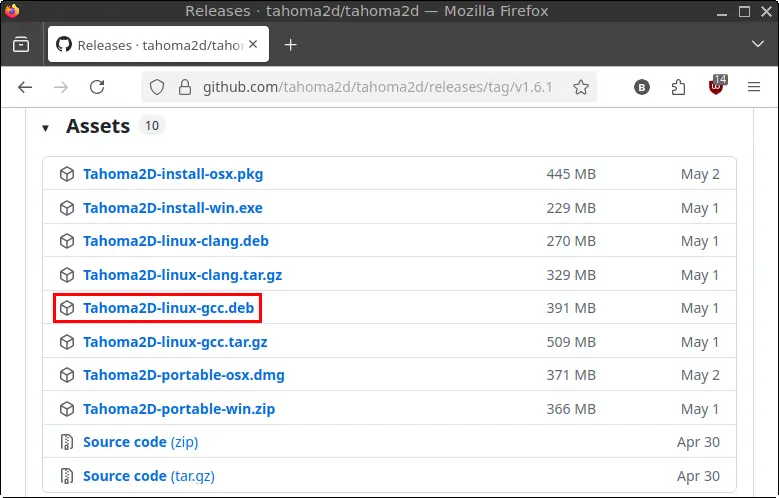
- Scroll down to the Assets section.
- Download the Tahoma2D-linux-gcc.deb package.
- Save the file in your Downloads directory.
Wait until the download is complete before continuing to the next step.
Step 2: Open a Terminal
You can open a Terminal in FunOS using any of the following methods:
- Click Menu in the lower-left corner of the screen, then click Terminal
- Click the Terminal icon in the Tray
- Press Ctrl + Alt + T
Step 3: Navigate to the Downloads Directory
By default, the downloaded package is saved in the Downloads directory.
Run the following command:
cd ~/DownloadsStep 4: Update the Package List
Before installing new software, it is recommended to refresh the package database.
Run:
sudo apt updateEnter your password when prompted.
Step 5: Install Tahoma2D
Now install the downloaded package.
Run:
sudo apt install ./Tahoma2D-linux-gcc.debAPT will automatically install any required dependencies from the Ubuntu repositories.
Depending on your internet connection speed and system performance, the installation may take a few moments to complete.
Step 6: Remove the Downloaded .deb File
After Tahoma2D has been installed successfully, the downloaded package file is no longer required.
You can remove it by running:
rm -f Tahoma2D-linux-gcc.debThis step is optional but helps keep your Downloads directory organized.
Step 7: Reload the Menu
Note: Starting with FunOS 24.04.4 LTS (Build 20260618) and FunOS 26.04 LTS (Build 20260618), the menu updates automatically, so you can skip this step.
After installing new applications in FunOS, you should reload the menu so that the new launcher appears.
To reload the menu:
- Click the Menu button in the lower-left corner.
- Click Reload menu.
The Tahoma2D launcher should now be available in the application menu.
Launching Tahoma2D
Once the installation is complete, you can start Tahoma2D from the application menu.
- Click the Menu button in the lower-left corner.
- Open the Graphics category.
- Click Tahoma2D.
The application may take a few seconds to start during its first launch while it initializes its configuration files.
How to Uninstall Tahoma2D on FunOS
If you no longer need Tahoma2D, you can completely remove it from your system.
Step 1: Open a Terminal
Open a Terminal using any of the available methods in FunOS.
Step 2: Remove Tahoma2D
Remove the application package by running:
sudo apt remove --purge tahoma2dThe --purge option removes the package and its system-wide configuration files.
Step 3: Remove Any Unused Dependencies
After uninstalling the application, some dependencies may no longer be required.
Run:
sudo apt autoremove --purgeThis helps keep your system clean by removing unnecessary packages.
Step 4: Remove User Data (Optional)
Tahoma2D stores cache files and user-specific data inside your home directory.
If you want to remove all remaining Tahoma2D data, run:
rm -rf ~/.cache/Tahoma2D
rm -rf ~/.local/share/Tahoma2D
This step is optional.
Skip it if you plan to reinstall Tahoma2D later and want to keep your personal settings and preferences.
Step 5: Reload the Menu
Note: Starting with FunOS 24.04.4 LTS (Build 20260618) and FunOS 26.04 LTS (Build 20260618), the menu updates automatically, so you can skip this step.
After uninstalling Tahoma2D, reload the menu so the launcher is removed from the application menu.
- Click the Menu button in the lower-left corner of the screen.
- Click Reload menu.
Conclusion
Tahoma2D is a feature-rich open-source animation application that brings professional-quality 2D animation tools to Linux users. Whether you are creating traditional hand-drawn animations, cut-out animations, motion graphics, or stop-motion projects, Tahoma2D provides a powerful set of tools without any licensing costs.
On FunOS, installation is simple thanks to the official Debian package provided by the Tahoma2D developers. After following the steps in this guide, you will be ready to start creating animations, experimenting with visual effects, and exploring the world of digital animation on your FunOS system.