
By default, FunOS is configured so that clicking the left, middle, or right mouse button on an empty area of the desktop opens the JWM desktop menu. While some users appreciate having multiple ways to access the menu, others prefer behavior that is more consistent with desktop environments such as Xfce, GNOME, KDE Plasma, Cinnamon, and MATE, where the desktop menu is typically opened only with the right mouse button.
Fortunately, JWM makes it easy to customize which mouse buttons can activate the desktop menu. In this tutorial, you will learn how to update the JWM menu and Tray configurations so that only the right mouse button opens the desktop menu, while left-clicking and middle-clicking on the desktop no longer trigger it. The Tray menu button will also be adjusted so that it continues to open the application menu correctly.
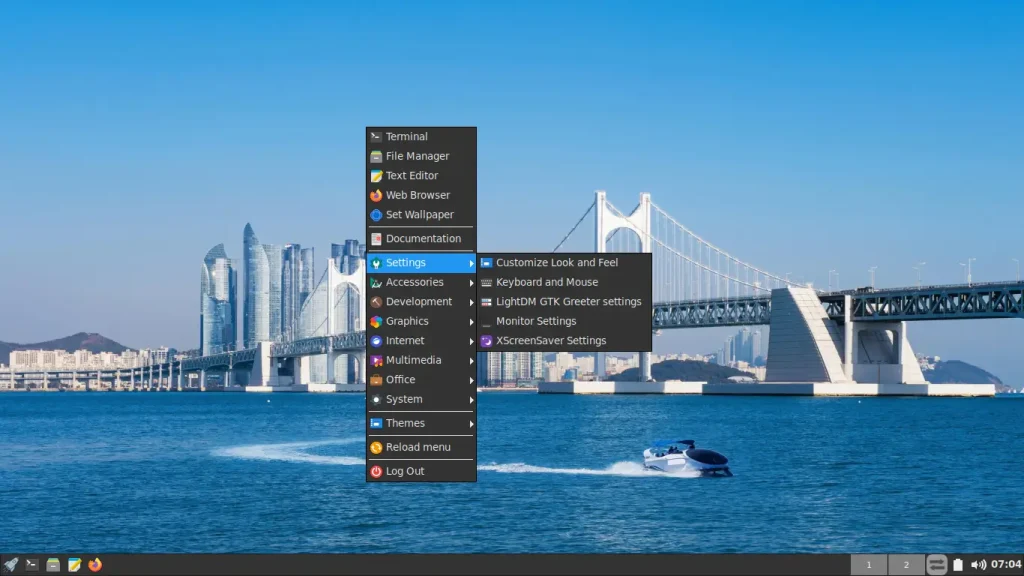
Understanding Desktop Menu Mouse Buttons in JWM
JWM uses the <RootMenu> element to determine which mouse buttons can open the desktop menu.
In FunOS, the default configuration can be found in the following file:
~/.config/jwm/menuWithin this file, you will find a line similar to the following:
<RootMenu onroot="123" height="20">The value assigned to the onroot attribute determines which mouse buttons activate the desktop menu:
1represents the left mouse button.2represents the middle mouse button.3represents the right mouse button.
Since the default value is 123, all three mouse buttons can be used to open the desktop menu when clicking on an empty area of the desktop.
If you want only the right mouse button to open the menu, you need to change this value from 123 to 3. You must also update the menu button in ~/.config/jwm/tray so that it refers to root:3 instead of root:1. Otherwise, clicking the Menu button in the Tray will no longer open the JWM application menu.
How to Configure the Desktop Menu for Right-Click Only
Step 1: Open a Terminal
First, open a Terminal window. You can do this using any of the following methods:
- Click Menu in the lower-left corner of the screen, then click Terminal.
- Click the Terminal icon in the Tray.
- Press Ctrl+Alt+T on your keyboard.
Step 2: Open the JWM Menu Configuration File
Next, open the JWM menu configuration file using Mousepad:
mousepad ~/.config/jwm/menuAfter running the command, the configuration file will open in the Mousepad text editor.
Step 3: Modify the RootMenu Setting
Locate the following line:
<RootMenu onroot="123" height="20">Replace it with:
<RootMenu onroot="3" height="20">This change tells JWM to respond only to the right mouse button when opening the desktop menu.
After making the modification, save the file.
Step 4: Save the Menu Configuration File
In Mousepad, click File → Save, or press Ctrl+S on your keyboard.
Step 5: Open the JWM Tray Configuration File
Next, open the JWM Tray configuration file:
mousepad ~/.config/jwm/trayStep 6: Update the Tray Menu Button
Locate the following line:
<TrayButton popup="Menu" icon="/opt/artwork/jwmkit/traybutton.svg">root:1</TrayButton>Replace it with:
<TrayButton popup="Menu" icon="/opt/artwork/jwmkit/traybutton.svg">root:3</TrayButton>This change makes the Menu button in the Tray open the same JWM application menu that is now assigned to the right mouse button.
If you leave the Tray button set to root:1, clicking it will not open the JWM application menu after the RootMenu setting has been changed to right-click only.
Save the file by clicking File → Save, or press Ctrl+S.
Step 7: Restart JWM
To apply both changes, restart JWM by running the following command:
jwm -restartThe screen may briefly refresh while JWM reloads its configuration.
Testing the New Behavior
After JWM restarts, test the new configuration by clicking on an empty area of the desktop and by clicking the Menu button in the Tray.
You should observe the following behavior:
- Left-clicking on the desktop does not open the menu.
- Middle-clicking on the desktop does not open the menu.
- Right-clicking on the desktop opens the JWM desktop menu.
- Clicking the Menu button in the Tray opens the JWM application menu.
If the desktop menu appears only when using the right mouse button and the Tray menu button still works, the configuration changes were successful.
Restoring the Default Behavior
If you later decide that you prefer the original behavior, you can easily restore it.
Open the configuration file again:
mousepad ~/.config/jwm/menuChange:
<RootMenu onroot="3" height="20">back to:
<RootMenu onroot="123" height="20">Save the file.
Next, open the Tray configuration file:
mousepad ~/.config/jwm/trayChange:
<TrayButton popup="Menu" icon="/opt/artwork/jwmkit/traybutton.svg">root:3</TrayButton>back to:
<TrayButton popup="Menu" icon="/opt/artwork/jwmkit/traybutton.svg">root:1</TrayButton>Save the file, then restart JWM:
jwm -restartOnce JWM reloads, the desktop menu will again be accessible using the left, middle, and right mouse buttons, and the Menu button in the Tray will continue to open the application menu.
Conclusion
JWM provides a simple and flexible way to customize how the desktop menu is activated. By changing the RootMenu setting in the JWM menu configuration and updating the corresponding Tray button, you can prevent left-click and middle-click actions from opening the desktop menu while preserving access through both right-click and the Menu button in the Tray.
This small customization can make the desktop behave more like other popular Linux desktop environments while helping to prevent accidental menu activation during normal desktop use.