
The tray in FunOS provides quick access to the application menu, frequently used programs, open windows, workspaces, system tray icons, and the clock. By default, the tray is 30 pixels high, but you can make it taller or more compact by editing a single value in the JWM tray configuration file.
This guide explains how to change the tray height in FunOS and apply the change without restarting the computer.
Understanding the Tray Height Setting
FunOS uses JWM, or Joe’s Window Manager, to manage the desktop and tray. The tray configuration is stored in the following file:
~/.config/jwm/trayThe main tray configuration line normally looks like this:
<Tray x="0" y="-1" height="30" autohide="off" delay="1000">The height attribute controls the height of the tray in pixels. The default FunOS configuration uses a height of 30 pixels.
For example:
height="30"You can increase this value to make the tray taller or decrease it to make the tray shorter.
How to Change the Tray Height in FunOS
Step 1: Back Up the Tray Configuration File
Before editing the tray configuration, create a backup so that you can easily restore the original settings if necessary.
Open a terminal using one of the following methods:
- Click Menu in the lower-left corner of the screen, then click Terminal.
- Click the Terminal icon in the tray.
- Press Ctrl + Alt + T.
Run the following command:
cp ~/.config/jwm/tray ~/.config/jwm/tray.bakThis creates a backup named tray.bak in the same directory.
Step 2: Open the Tray Configuration File
You can edit the tray file using either the terminal or the file manager.
Method 1: Using the Terminal
Run the following command:
mousepad ~/.config/jwm/trayThis opens the tray configuration file in Mousepad.
Method 2: Using the File Manager
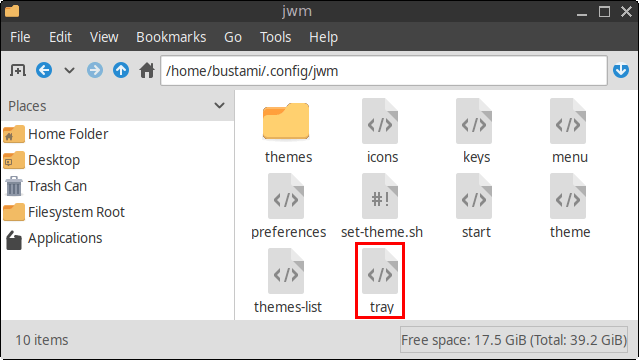
- Click Menu in the lower-left corner of the screen.
- Click File Manager.
- Press Ctrl + H or click View > Show Hidden to show hidden files and folders.
- Open the
.configfolder. - Open the
jwmfolder. - Right-click the
trayfile. - Open the file with Mousepad or another text editor.
Step 3: Find the Tray Height Setting
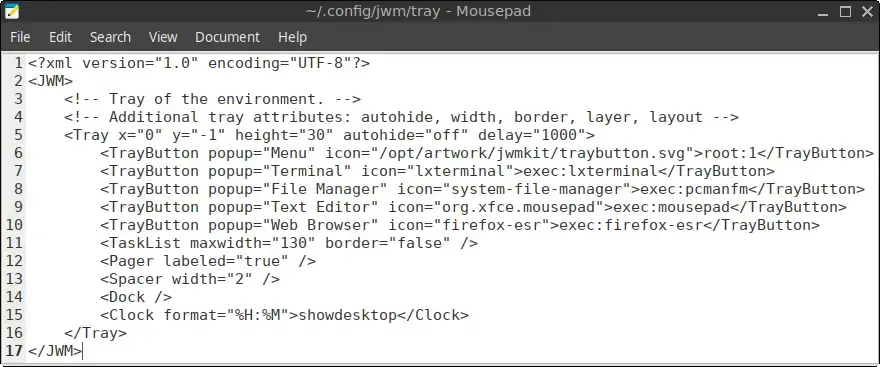
Near the beginning of the file, find the following line:
<Tray x="0" y="-1" height="30" autohide="off" delay="1000">The value that you need to change is:
height="30"Step 4: Choose a New Tray Height
Replace 30 with your preferred height in pixels.
For example, to increase the tray height to 36 pixels, change the line to:
<Tray x="0" y="-1" height="36" autohide="off" delay="1000">To create a more compact 26-pixel tray, use:
<Tray x="0" y="-1" height="26" autohide="off" delay="1000">Some example values are:
| Height | Result |
|---|---|
24 | A very compact tray |
26 | A slightly smaller tray |
30 | The default FunOS tray height |
36 | A moderately taller tray |
40 | A large tray with larger icons and controls |
A larger value makes the tray taller, while a smaller value makes it shorter. JWM also supports height="0", which allows it to calculate an appropriate height based on the tray contents.
Avoid making the value too small, because tray icons, buttons, or clock text may not display correctly.
Examples of Different Tray Heights
The following screenshots show how the tray looks with different height values.
Default height: 30 pixels

Smaller height: 24 pixels

Larger height: 40 pixels

Step 5: Save the File
Save your changes by pressing Ctrl + S or clicking File > Save.
You can then close Mousepad.
Step 6: Apply the Changes
Restart JWM to apply the new tray height:
jwm -restartThe desktop will refresh briefly, and the tray will reappear using the new height.
Restarting JWM does not restart the computer or close your running applications.
Adjusting the Height Again
If the tray is too tall or too short, reopen the configuration file:
mousepad ~/.config/jwm/trayChange the height value, save the file, and run:
jwm -restartYou can repeat this process until the tray height feels comfortable for your screen size and workflow.
Restoring the Default Tray Height
The default FunOS tray height is 30 pixels. To restore it, change the main tray line back to:
<Tray x="0" y="-1" height="30" autohide="off" delay="1000">Save the file and restart JWM:
jwm -restartRestoring the Backup
If you accidentally damage the tray configuration or the tray no longer appears correctly, restore the backup with:
cp ~/.config/jwm/tray.bak ~/.config/jwm/trayThen restart JWM:
jwm -restartThis replaces the modified file with the backup created earlier.
Conclusion
Changing the tray height in FunOS only requires editing the height attribute in the ~/.config/jwm/tray file. Increasing the value creates a taller tray that may be easier to see and use, while decreasing it provides more vertical screen space.
After saving the new value, run jwm -restart to apply the change immediately. Because the setting uses pixels, you can experiment with different values until you find the tray height that best suits your display and personal preferences.