
The FunOS tray, located at the bottom of the screen, includes shortcuts that provide quick access to commonly used applications. By default, the tray contains shortcuts for the following applications:
- Terminal
- File Manager
- Text Editor
- Web Browser

These shortcuts are defined in the JWM tray configuration file:
~/.config/jwm/trayBy editing this file, you can remove the default shortcuts, add shortcuts for other applications, or rearrange the existing buttons. This guide explains how to customize the application shortcuts in the FunOS tray.
Understanding the Default Tray Shortcuts
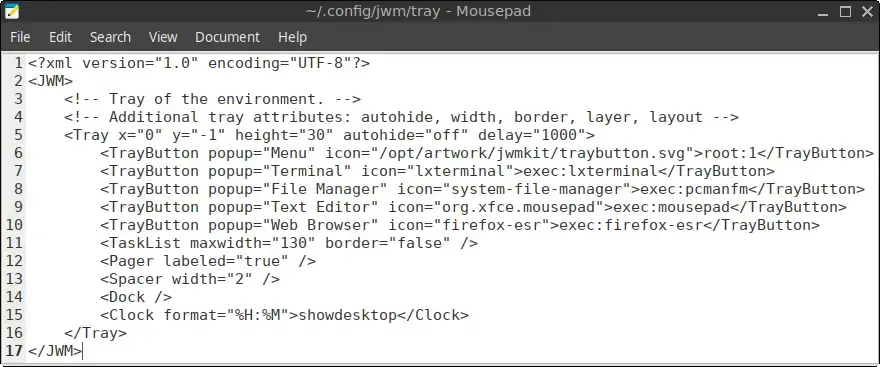
The tray configuration file contains several <TrayButton> elements. Each element creates a button in the tray.
The default configuration includes the following application shortcuts:
<?xml version="1.0" encoding="UTF-8"?>
<JWM>
    <!-- Tray at the bottom. -->
    <Tray x="0" y="-1" height="30" autohide="off" delay="1000">
        <TrayButton popup="Menu" icon="/opt/artwork/jwmkit/traybutton.svg">root:1</TrayButton>
        <TrayButton popup="Terminal" icon="lxterminal">exec:lxterminal</TrayButton>
        <TrayButton popup="File Manager" icon="system-file-manager">exec:pcmanfm</TrayButton>
        <TrayButton popup="Text Editor" icon="org.xfce.mousepad">exec:mousepad</TrayButton>
        <TrayButton popup="Web Browser" icon="firefox-esr">exec:firefox-esr</TrayButton>
        <TaskList maxwidth="130" border="false"/>
        <Pager labeled="true"/>
        <Spacer width="2"/>
        <Dock/>
        <Clock format="%H:%M">showdesktop</Clock>
    </Tray>
</JWM>
Each application shortcut uses the following format:
<TrayButton popup="Button Name" icon="icon-name">exec:command</TrayButton>The main parts of a <TrayButton> entry are:
popup: The text displayed when you move the mouse pointer over the button.icon: The icon name or full path to the icon displayed in the tray.exec: The command that runs when you click the button.
For example:
<TrayButton popup="Terminal" icon="lxterminal">exec:lxterminal</TrayButton>This entry creates a tray button with the following properties:
- Tooltip: Terminal
- Icon:
lxterminal - Command:
lxterminal
How to Modify the Application Shortcuts
Step 1: Back Up the Tray Configuration File
Before editing the configuration, create a backup copy of the current tray file.
Open a terminal and run:
cp ~/.config/jwm/tray ~/.config/jwm/tray.bakThis backup allows you to restore the original configuration if something goes wrong.
To restore it later, run:
cp ~/.config/jwm/tray.bak ~/.config/jwm/trayStep 2: Open the Tray Configuration File
Open the tray configuration file in Mousepad:
mousepad ~/.config/jwm/trayThe file contains the configuration for the Menu button, application shortcuts, task list, workspace pager, system tray icons, and clock.
Step 3: Remove Unwanted Shortcuts
To remove a shortcut, delete its corresponding <TrayButton> line.
For example, the default application shortcuts are defined by these lines:
<TrayButton popup="Terminal" icon="lxterminal">exec:lxterminal</TrayButton>
<TrayButton popup="File Manager" icon="system-file-manager">exec:pcmanfm</TrayButton>
<TrayButton popup="Text Editor" icon="org.xfce.mousepad">exec:mousepad</TrayButton>
<TrayButton popup="Web Browser" icon="firefox-esr">exec:firefox-esr</TrayButton>
Delete only the lines for the shortcuts you no longer want.
Do not remove the Menu button unless you intentionally want to remove it from the tray:
<TrayButton popup="Menu" icon="/opt/artwork/jwmkit/traybutton.svg">root:1</TrayButton>Step 4: Find the Application Command and Icon
Before adding a new shortcut, you need two pieces of information:
- The command used to launch the application
- The icon name or full path to its icon
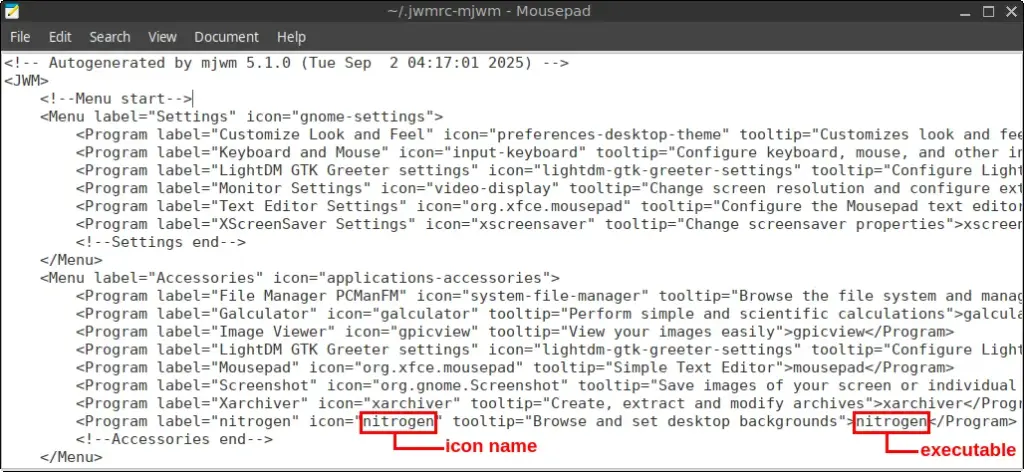
One way to find this information is by examining the application entries in the JWM menu configuration file:
mousepad ~/.jwmrc-mjwmUse the text editor’s search function to find the application name.
For example, the entries for Nitrogen and Galculator show the following information:
Nitrogen
- Icon name:
nitrogen - Command:
nitrogen
Galculator
- Icon name:
galculator - Command:
galculator
You can also use the Icon Browser application to search for available icons:
- Click the Menu button.
- Go to Development.
- Click Icon Browser.
Step 5: Add the New Shortcuts
Return to the tray configuration file:
mousepad ~/.config/jwm/trayAdd the new <TrayButton> entries inside the <Tray> section.
For example, to add shortcuts for Nitrogen and Galculator, insert these lines:
<TrayButton popup="Set Wallpaper" icon="nitrogen">exec:nitrogen</TrayButton>
<TrayButton popup="Calculator" icon="galculator">exec:galculator</TrayButton>
The position of each line determines where the button appears in the tray.
For example, placing the new entries immediately after the Menu button displays them near the lower-left corner of the screen:
<TrayButton popup="Menu" icon="/opt/artwork/jwmkit/traybutton.svg">root:1</TrayButton>
<TrayButton popup="Set Wallpaper" icon="nitrogen">exec:nitrogen</TrayButton>
<TrayButton popup="Calculator" icon="galculator">exec:galculator</TrayButton>
Step 6: Save the Configuration File
After making your changes, save the file and close Mousepad.
Make sure that:
- Each
<TrayButton>entry is placed inside the<Tray>section. - Each opening tag has a corresponding closing tag.
- The command appears after
exec:. - Quotation marks and angle brackets remain correctly formatted.
Example of an Updated Tray Configuration
The following example removes the default Terminal, File Manager, Text Editor, and Web Browser shortcuts. It then adds shortcuts for Nitrogen and Galculator:
<?xml version="1.0" encoding="UTF-8"?>
<JWM>
    <!-- Tray at the bottom. -->
    <Tray x="0" y="-1" height="30" autohide="off" delay="1000">
        <TrayButton popup="Menu" icon="/opt/artwork/jwmkit/traybutton.svg">root:1</TrayButton>
        <TrayButton popup="Set Wallpaper" icon="nitrogen">exec:nitrogen</TrayButton>
        <TrayButton popup="Calculator" icon="galculator">exec:galculator</TrayButton>
        <TaskList maxwidth="130" border="false"/>
        <Pager labeled="true"/>
        <Spacer width="2"/>
        <Dock/>
        <Clock format="%H:%M">showdesktop</Clock>
    </Tray>
</JWM>
Apply the Changes
To apply the updated tray configuration, restart JWM by running:
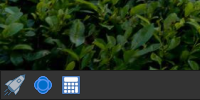
jwm -restartThe tray will briefly reload, and the new shortcuts should appear immediately.
In this example, the Nitrogen and Galculator shortcuts replace the original application shortcuts.
Troubleshooting
The New Shortcut Does Not Appear
Check that the new <TrayButton> entry is located inside the <Tray> section. Then save the file and restart JWM again:
jwm -restartThe Shortcut Appears but Does Not Open the Application
The command after exec: may be incorrect.
Try running the command directly in a terminal. For example:
galculatorIf the command does not launch the application, verify that the application is installed and that you are using the correct executable name.
The Shortcut Appears Without an Icon
The specified icon name may not exist in the currently selected icon theme.
Try one of the following:
- Search for another icon using Icon Browser.
- Use the full path to an icon file.
- Use a more generic icon name.
For example:
<TrayButton popup="Calculator" icon="accessories-calculator">exec:galculator</TrayButton>JWM Reports a Configuration Error
A configuration error usually indicates invalid XML formatting.
Check for:
- Missing quotation marks
- Missing angle brackets
- Incorrectly nested elements
- Missing closing tags
<TrayButton>entries placed outside the<Tray>section
You can also restore the backup configuration:
cp ~/.config/jwm/tray.bak ~/.config/jwm/tray
jwm -restart
Conclusion
The application shortcuts in the FunOS tray can be customized by editing the ~/.config/jwm/tray file. You can remove shortcuts you do not use, add buttons for frequently used applications, and arrange them in an order that matches your workflow.
Because the configuration uses simple <TrayButton> entries, you can create a convenient and personalized application launcher directly in the FunOS tray.
Great tutorial. Simple, quick and easy. Congratulations to the developers.
Thank you so much for your kind words! We’re glad you found the tutorial helpful. If you have any other questions or suggestions, feel free to reach out. Your support motivates us to keep improving FunOS!