
Dark mode can make the FunOS desktop more comfortable to use, especially at night or in low-light environments. It also gives windows, menus, applications, and the login screen a more consistent dark appearance.
FunOS does not provide a single switch that changes every part of the system at once. Instead, you can create a complete dark-mode experience by changing the desktop wallpaper, the LightDM login-screen background, and the GTK theme.
This guide explains how to enable dark mode in FunOS.
Step 1: Set a Dark Wallpaper
Begin by choosing a dark wallpaper for the desktop.
- Click the Menu button in the lower-left corner of the screen.
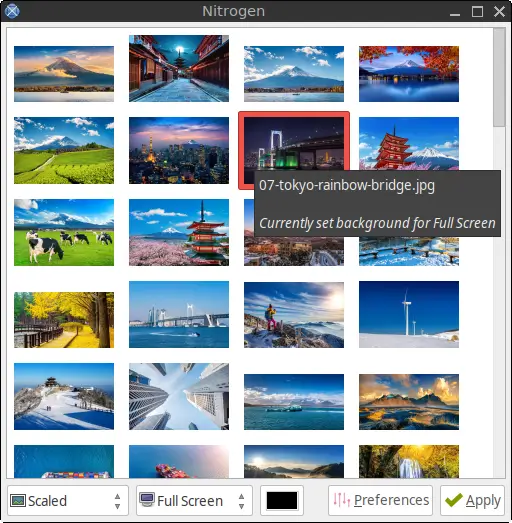
- Click Set Wallpaper.
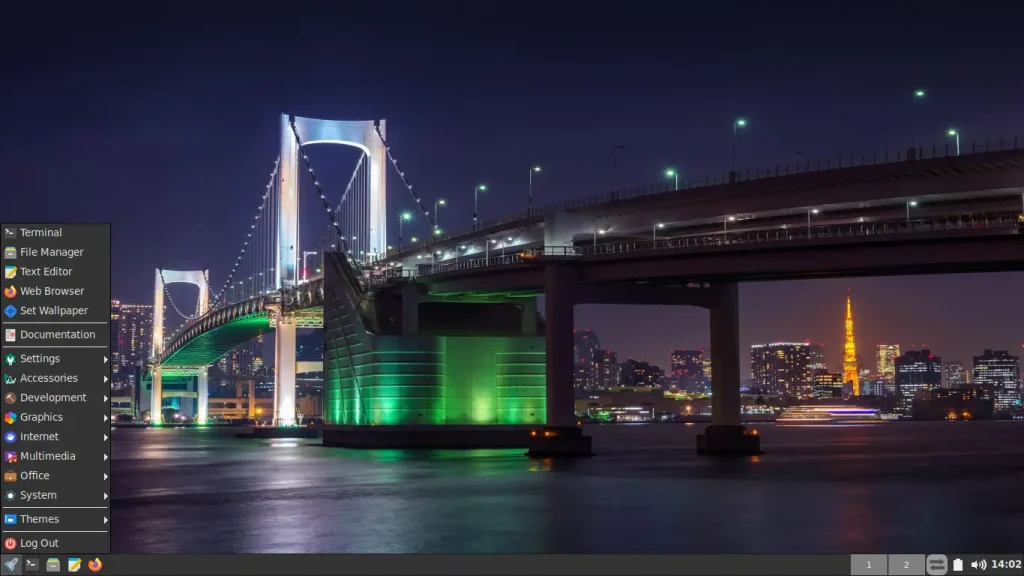
- Select a dark wallpaper. For example, you can select
07-tokyo-rainbow-bridge.jpgfrom:/opt/artwork/wallpaper/ - Click Apply.
- Close the Nitrogen window.
Step 2: Set a Dark Background for the Login Screen
The LightDM GTK Greeter controls the appearance of the FunOS login screen. You can configure it to use the same dark wallpaper or another image of your choice.
- Click the Menu button in the lower-left corner of the screen.
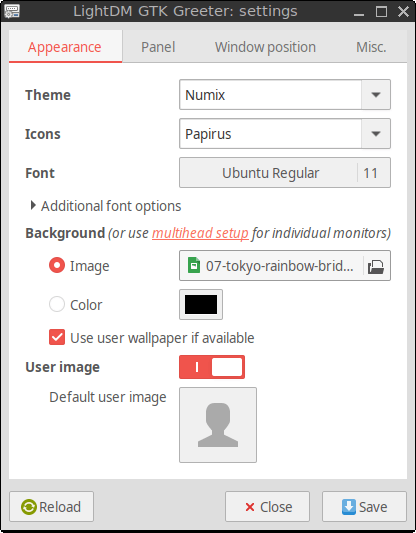
- Go to Settings > LightDM GTK Greeter Settings.
- In the Image section, click the folder icon.
- Select a dark wallpaper. For example, select
07-tokyo-rainbow-bridge.jpgfrom:/opt/artwork/wallpaper/ - Click Open.
- Click Save.
- Close the LightDM GTK Greeter Settings window.
Step 3: Select a Dark GTK Theme
GTK themes control the appearance of many graphical elements, including application windows, menus, buttons, and dialog boxes.
To switch to a dark GTK theme:
- Click the Menu button in the lower-left corner of the screen.
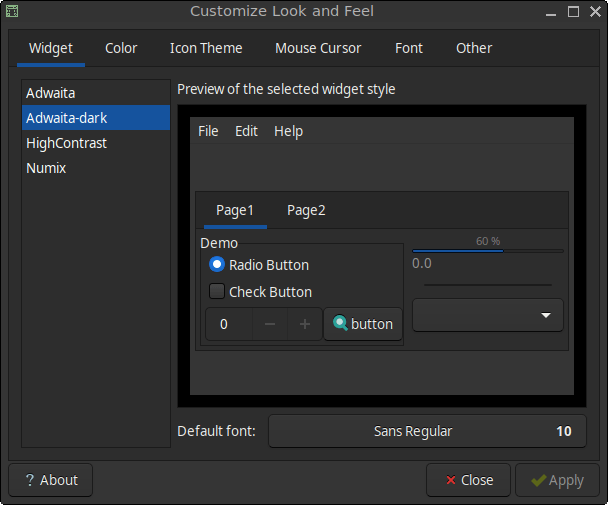
- Go to Settings > Customize Look and Feel.
- Open the Widget tab.
- Select Adwaita-dark.
- Click Apply.
- Click Close.
Step 4: Log Out and Log Back In
Some applications and desktop components may not immediately adopt the new theme. Log out and log back in to ensure that the changes are applied throughout the desktop session.
- Click the Menu button in the lower-left corner of the screen.
- Click Log Out.
- Click Logout in the confirmation window.
- Log back into your account.
Step 5: Check the Dark-Mode Appearance
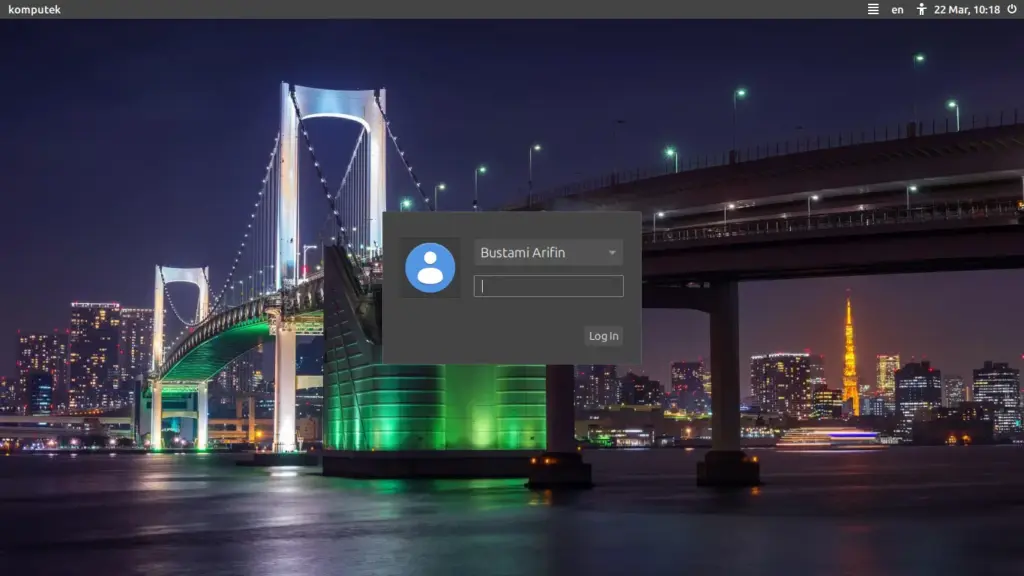
After logging back in, the dark theme should be visible across many parts of the system, including supported applications, menus, windows, and the login screen.
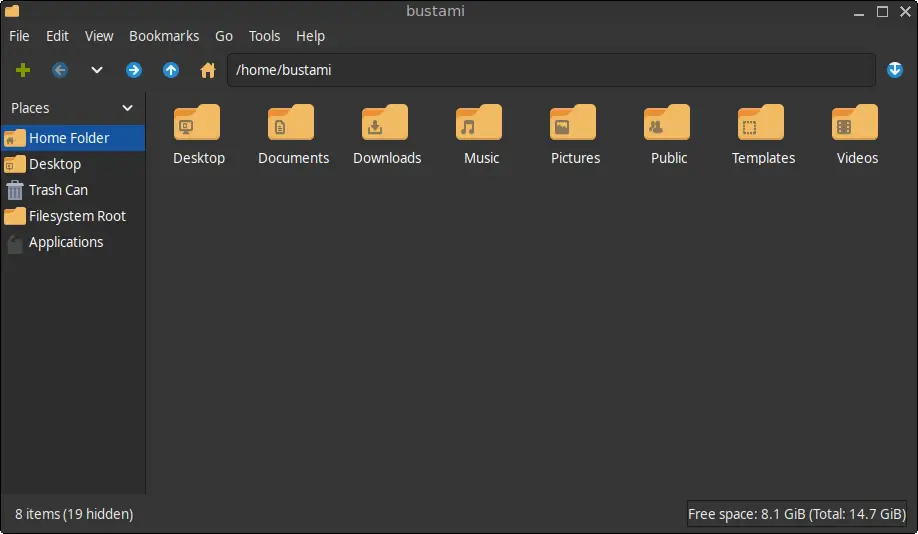
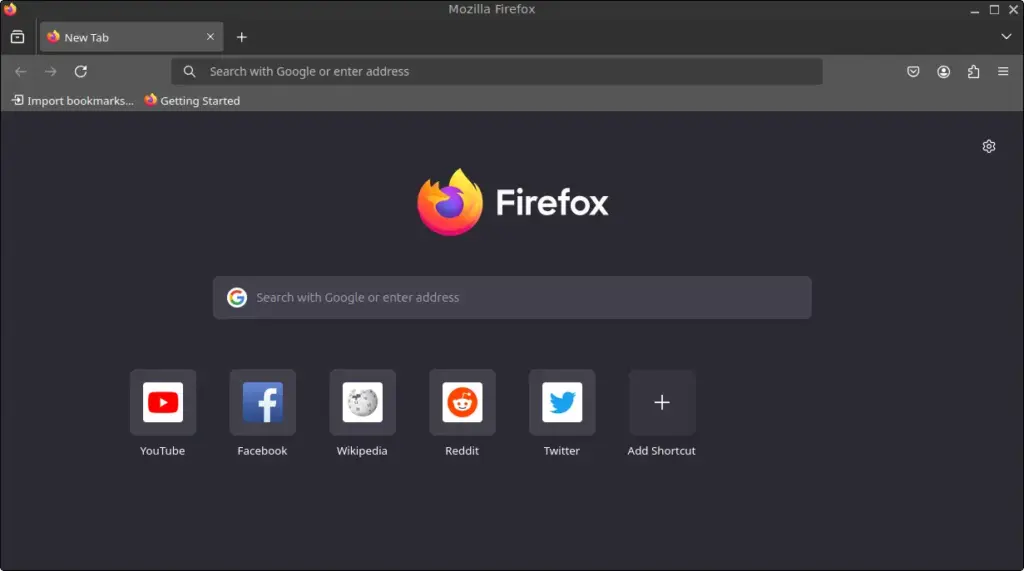
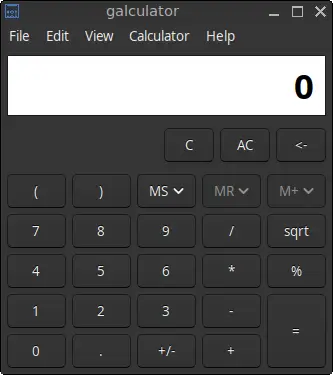
The following screenshots show how different parts of FunOS may appear after dark mode has been enabled.
LightDM Login Screen
Desktop
File Manager
Firefox
Galculator
Conclusion
By changing the desktop wallpaper, LightDM background, and GTK theme, you can create a more consistent dark-mode experience in FunOS.
Most GTK applications will automatically use the selected dark theme. However, some applications may use their own appearance settings and may need to be configured separately.