
When you connect an external or portable hard drive to FunOS, the File Manager may occasionally be unable to mount one of its partitions. Instead of displaying the files stored on the drive, it may show an error similar to the following:
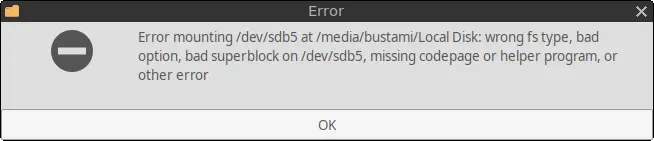
Error mounting /dev/sdb5 at /media/bustami/Local Disk: wrong fs type, bad option, bad superblock on /dev/sdb5, missing codepage or helper program, or other errorThis guide explains how to use GNOME Disks to review and reset the partition’s mount configuration so that the drive can be accessed normally.
Understanding the Error
The message shown above is a general mounting error. It can appear for several reasons, including:
- Incorrect or incompatible mount options
- A missing file-system helper package
- An unsupported file system
- File-system corruption or an invalid superblock
- A drive that was not safely removed from another operating system
In the situation covered by this guide, the problem is caused by the partition’s mount configuration. Disabling the existing user-session defaults in GNOME Disks allows the system to recreate and use an appropriate mount configuration.
Important: This procedure changes the mount settings for the selected partition. Make sure you select the correct external drive and partition before making any changes.
How to Fix the External Hard Drive Mounting Error
Step 1: Open a Terminal
Open a Terminal using one of the following methods:
- Click Menu in the lower-left corner of the screen, then click Terminal.
- Click the Terminal icon in the Tray.
- Press Ctrl + Alt + T.
Step 2: Install GNOME Disks
GNOME Disks provides a graphical interface for viewing storage devices and configuring their mount options.
First, update the package list:
sudo apt updateThen install GNOME Disks:
sudo apt install gnome-disk-utilityStep 3: Reload the Menu
Note: Starting with FunOS 24.04.4 LTS (Build 20260618) and FunOS 26.04 LTS (Build 20260618), the application menu updates automatically. Users of these releases can skip this step.
On older FunOS releases, reload the menu so that GNOME Disks appears:
- Click the Menu button in the lower-left corner of the screen.
- Click Reload menu.
Step 4: Connect the External Hard Drive
Connect the external or portable hard drive to a USB port on your computer.
Wait a few seconds for FunOS to detect the device.
Step 5: Open GNOME Disks
Open the application by going to:
Menu > Settings > Disks
Step 6: Select the External Hard Drive
In the left-hand panel of GNOME Disks, locate and select your external or portable hard drive.
Be careful to choose the correct device. You can identify it by checking its name, capacity, and listed partitions.
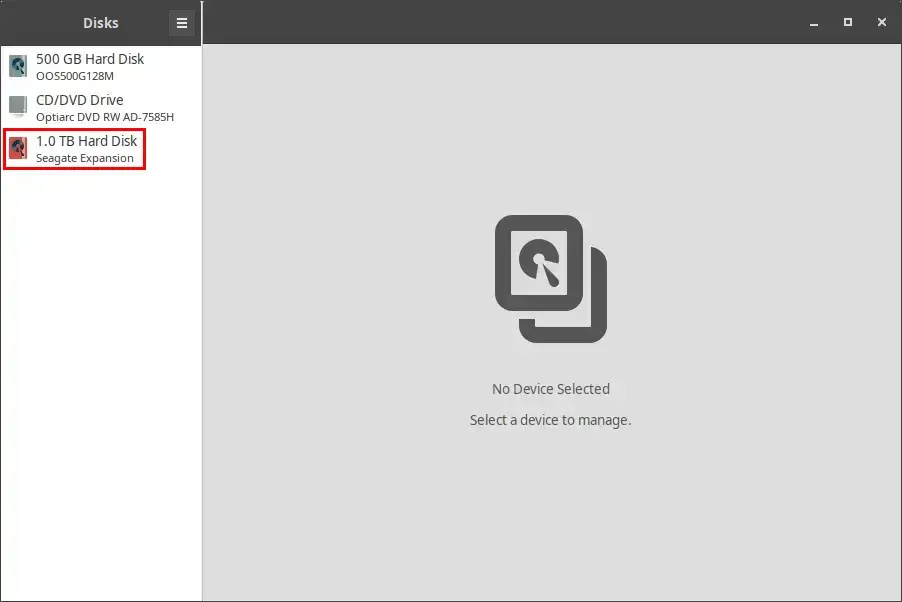
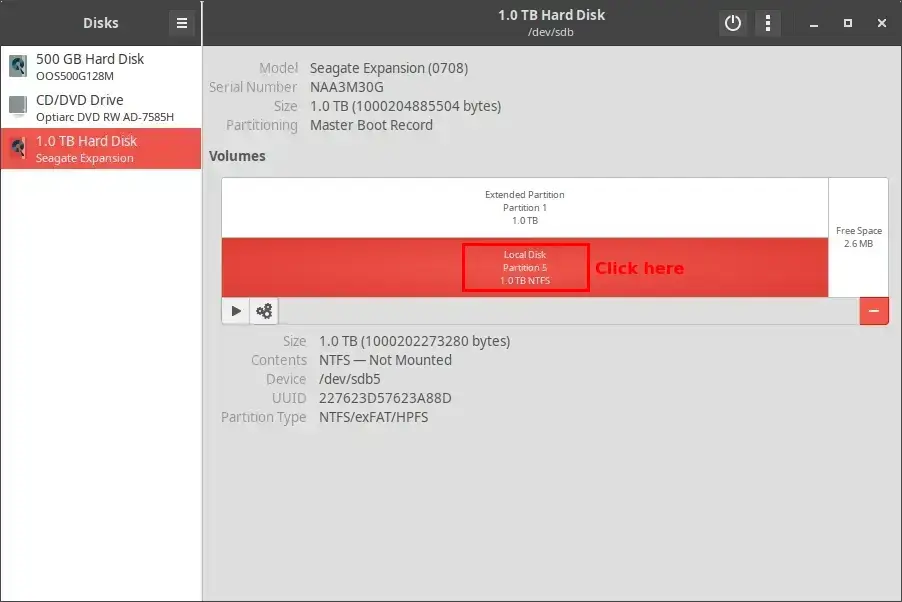
The selected drive may contain more than one partition. For example:
- Partition 1: Extended Partition
- Partition 5: Local Disk
You need to select the partition that contains the file system and data you want to access.
Step 7: Open the Partition Settings
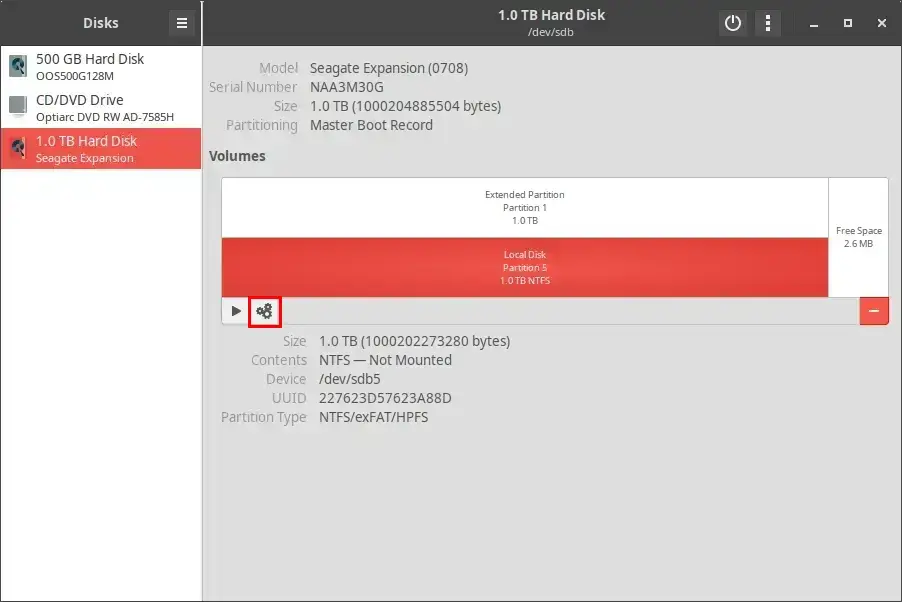
Select the partition that you are unable to mount, then click the gear icon below the partition information.
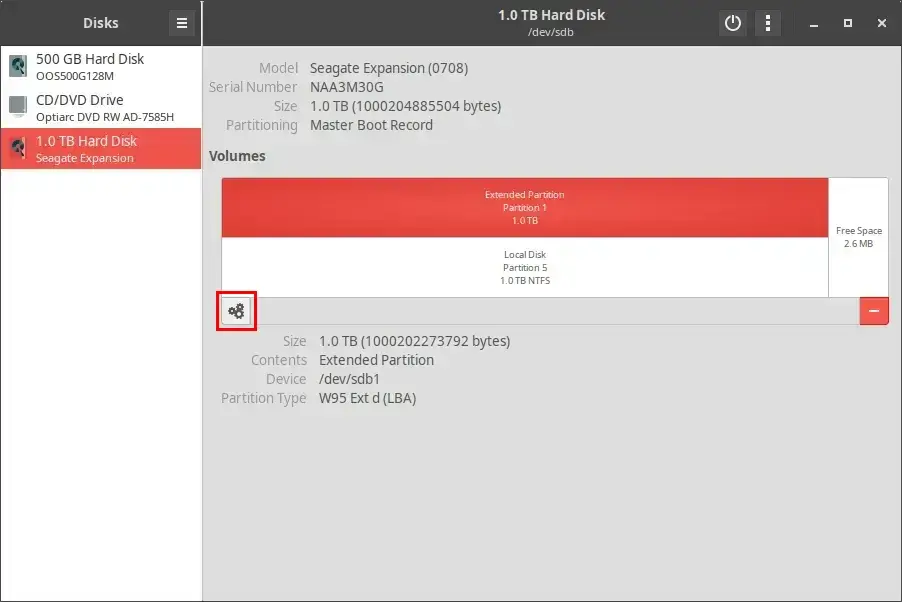
If Edit Mount Options is grayed out, you may have selected a container partition, such as an extended partition, instead of the partition that contains the actual file system.
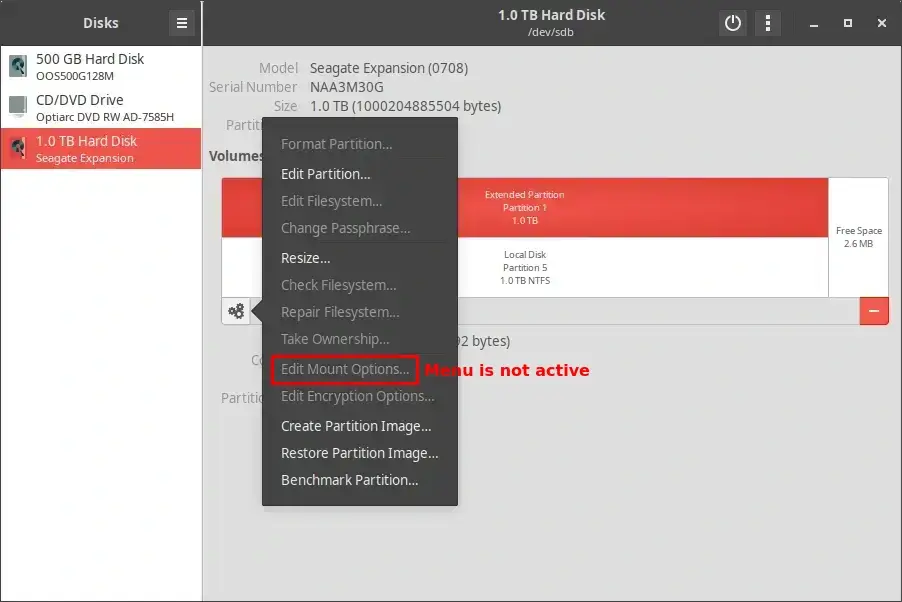
Select another partition on the drive, such as the partition named Local Disk.
Step 8: Edit the Mount Options
After selecting the correct partition, click the gear icon again.
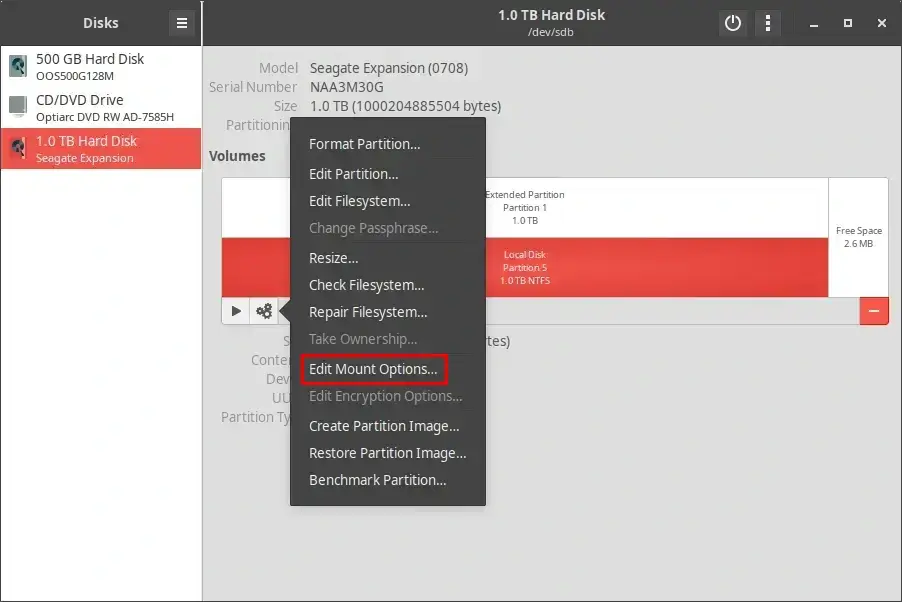
Select Edit Mount Options.
In the Mount Options window, turn off User Session Defaults.
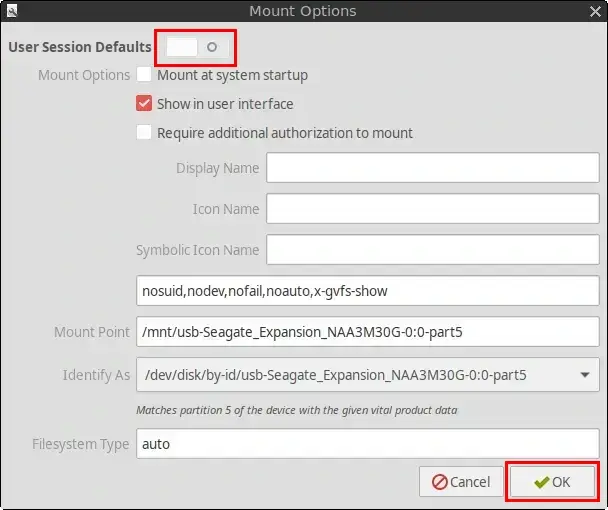
Review the displayed settings, then click OK.
Step 9: Authenticate the Change
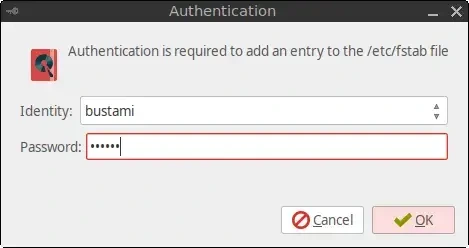
FunOS will ask for your account password before saving the system-level mount configuration.
Enter your password, then click Authenticate or OK.
Step 10: Close GNOME Disks
After the mount settings have been saved, close GNOME Disks.
Step 11: Access the External Hard Drive
Open the File Manager from the Menu or Tray.
In the left-hand sidebar, find the external hard drive under Places or Devices, then click its name.
The partition should now mount successfully, allowing you to access its files.
What to Do If the Error Continues
The error message can also indicate a damaged file system, an unsupported file system, or a missing file-system driver. If changing the mount options does not solve the problem, avoid repeatedly changing settings or formatting the drive, especially if it contains important data.
Consider checking:
- Whether the drive opens normally on another computer
- Whether it was safely removed from its previous operating system
- Whether the required file-system support is installed
- Whether the partition contains file-system errors
- Whether the drive is showing signs of hardware failure
Back up important files as soon as possible if the drive can still be accessed from another system.
Conclusion
An external hard drive mounting error in FunOS can sometimes be resolved by correcting the affected partition’s mount configuration in GNOME Disks. After selecting the correct drive and data partition, disable User Session Defaults, save the new configuration, and try opening the drive again from the File Manager.
Because the same error message can also be caused by file-system corruption, missing software, or hardware problems, further troubleshooting may be necessary if the drive still cannot be mounted.