
Over time, your system can accumulate unnecessary files such as cache, temporary files, logs, and leftover data from applications. These files can take up disk space and may slightly affect system performance.
BleachBit is a popular open-source system cleaner that helps you safely remove these unwanted files. In this article, you will learn how to install BleachBit on FunOS, both from the Ubuntu repositories and using the official .deb package from the BleachBit website.
What is BleachBit?
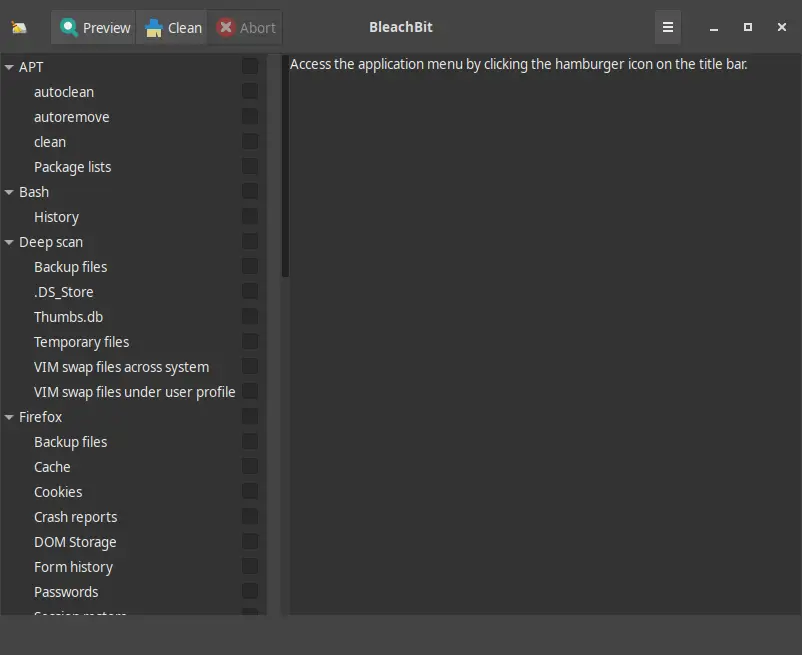
BleachBit is a free and open-source system cleaning utility available for Linux and Windows. It is designed to help users:
- Free up disk space by removing cache, temporary files, and logs
- Clean application-specific data (such as browser cache and history)
- Improve privacy by deleting unnecessary traces of user activity
- Manage system cleanliness with a simple graphical interface
BleachBit supports many popular applications and system components, and it provides both a Graphical User Interface (GUI) and a command-line interface (CLI). On FunOS, BleachBit integrates smoothly into the system menu.
How to Install BleachBit on FunOS
There are two recommended methods to install BleachBit on FunOS:
- Method 1: Install from the Ubuntu repositories (recommended for most users)
- Method 2: Install using the official
.debpackage from BleachBit’s website
Method 1: Installing from the Ubuntu Repositories
Work on: 22.04.5 ✅ | 24.04.5 ✅ | 25.10 ✅ | 26.04.1 ✅
This is the simplest and safest method because it uses the official Ubuntu repositories, which are fully compatible with FunOS.
Step 1: Open a Terminal
You can open the Terminal using any of the following methods:
- Click Menu in the lower-left corner of the screen, then click Terminal
- Click the Terminal icon in the Tray
- Press Ctrl + Alt + T on your keyboard
Step 2: Update the Package List
Before installing new software, it is recommended to update the package list:
sudo apt updateThis ensures your system has the latest information about available packages.
Step 3: Install BleachBit
Install BleachBit by running the following command:
sudo apt install bleachbitThe system will download and install BleachBit along with any required dependencies.
Step 4: Reload the Menu
Note: Starting with FunOS 24.04.4 LTS (Build 20260618) and FunOS 26.04 LTS (Build 20260618), the menu updates automatically, so you can skip this step.
After installation, reload the menu so that BleachBit appears correctly:
- Click the Menu button in the lower-left corner
- Click Reload menu
Method 2: Using the .deb Package from BleachBit’s Official Website
Work on: 22.04.5 ✅ | 24.04.5 ✅ | 25.10 ✅ | 26.04.1 ✅
This method is useful if you want the latest version of BleachBit directly from the developer.
Step 1: Download the BleachBit .deb File
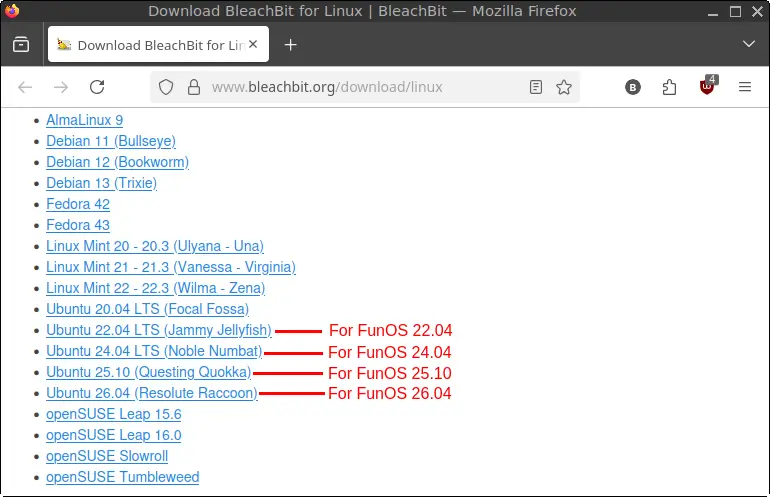
- Visit the BleachBit Download page for Linux:
https://www.bleachbit.org/download/linux - Download the
.debfile that matches your FunOS version:- FunOS 22.04 → Ubuntu 22.04 LTS (Jammy Jellyfish)
- FunOS 24.04 → Ubuntu 24.04 LTS (Noble Numbat)
- FunOS 25.10 → Ubuntu 25.10 (Questing Quokka)
- FunOS 26.04 → Ubuntu 26.04 (Resolute Raccoon)
- Save the downloaded file in your Downloads directory.
Step 2: Open a Terminal
Open the Terminal using one of the following options:
- Click Menu in the lower-left corner, then click Terminal
- Click the Terminal icon in the Tray
- Press Ctrl + Alt + T
Step 3: Navigate to the Downloads Directory
Change to the Downloads directory:
cd ~/DownloadsStep 4: Update the Package List
Update the package list to avoid dependency issues:
sudo apt updateStep 5: Install BleachBit
Install the downloaded .deb package using:
sudo apt install ./bleachbit_*.debThis command will automatically resolve and install required dependencies.
Step 6: Remove the Downloaded .deb File
After installation, you can safely remove the downloaded file:
rm -f bleachbit_*.debStep 7: Reload the Menu
Note: Starting with FunOS 24.04.4 LTS (Build 20260618) and FunOS 26.04 LTS (Build 20260618), the menu updates automatically, so you can skip this step.
Reload the menu so BleachBit appears in the system menu:
- Click the Menu button in the lower-left corner
- Click Reload menu
Launching BleachBit
To start BleachBit:
- Click the Menu button in the lower-left corner
- Navigate to the System category
- Click BleachBit
You can run BleachBit as a regular user or as root (administrator) for deeper system cleaning. Running as root allows BleachBit to clean system-level files, but should be done carefully.
How to Uninstall BleachBit on FunOS
If you no longer need BleachBit, you can remove it completely from your system.
Step 1: Open a Terminal
Open the Terminal using one of the following methods:
- Click Menu in the lower-left corner, then click Terminal
- Click the Terminal icon in the Tray
- Press Ctrl + Alt + T
Step 2: Remove BleachBit
Remove BleachBit and its configuration files:
sudo apt remove --purge bleachbitStep 3: Remove Any Unused Dependencies
Clean up unused packages:
sudo apt autoremove --purgeStep 4: Remove User Data (Optional)
If you want to remove BleachBit’s user configuration files:
rm -rf $HOME/.config/bleachbitStep 5: Reload the Menu
Note: Starting with FunOS 24.04.4 LTS (Build 20260618) and FunOS 26.04 LTS (Build 20260618), the menu updates automatically, so you can skip this step.
Reload the menu to remove BleachBit from the system menu:
- Click the Menu button in the lower-left corner
- Click Reload menu
Conclusion
BleachBit is a powerful and lightweight system cleaning tool that helps keep your FunOS installation clean, efficient, and clutter-free. Whether you choose to install it from the Ubuntu repositories or use the official .deb package, the installation process is straightforward and fully compatible with FunOS.
By using BleachBit regularly and carefully, you can free up disk space, improve privacy, and maintain a cleaner system. Always review the items before cleaning, especially when running BleachBit as root, to avoid removing important data.