
Brave Origin is a privacy-focused web browser based on Chromium that provides a clean and streamlined browsing experience. It is designed for users who want the core privacy and security features of Brave Browser without many of the additional services and integrations that come with the standard Brave release.
This guide explains how to install Brave Origin on FunOS using the official Brave APT repository. The process is straightforward and ensures that Brave Origin receives updates through the normal system update mechanism.
What is Brave Origin?
Brave Origin is a lightweight variant of Brave Browser that focuses on the browser’s core functionality: fast web browsing, strong privacy protection, tracker blocking, and enhanced security.
Unlike the standard Brave Browser, Brave Origin removes or disables many optional features such as Brave Rewards, Brave Wallet, Brave VPN integration, Brave News, Leo AI, and other services. The result is a simpler browser that appeals to users who prefer a minimal and distraction-free browsing experience.
Some key features of Brave Origin include:
- Built-in ad and tracker blocking through Brave Shields
- Enhanced privacy protection
- Fast Chromium-based browsing engine
- Reduced telemetry and background services
- Regular security updates
- Simplified user interface
For FunOS users who appreciate lightweight and minimal software, Brave Origin is an excellent alternative to traditional web browsers.
How to Install Brave Origin on FunOS
Work on: 22.04.5 ✅ | 24.04.5 ✅ | 25.10 ✅ | 26.04.1 ✅
Follow the steps below to install Brave Origin on your system.
Step 1: Open a Terminal
You can open a Terminal in any of the following ways:
- Click Menu in the lower-left corner, then click Terminal
- Click the Terminal icon in the Tray
- Press Ctrl + Alt + T on your keyboard
A Terminal window should now appear.
Step 2: Update the Package List
Before installing new software, it is good practice to refresh the package database.
Run:
sudo apt updateEnter your password when prompted.
Step 3: Install the Necessary Dependencies
Install the packages required to securely access the Brave repository.
Run:
sudo apt install apt-transport-https curlPress Y and then Enter if prompted to continue.
Step 4: Add the GPG Key
The GPG key allows APT to verify that packages downloaded from the Brave repository are authentic and have not been modified.
Run:
sudo curl -fsSLo /usr/share/keyrings/brave-browser-archive-keyring.gpg https://brave-browser-apt-release.s3.brave.com/brave-browser-archive-keyring.gpgThe command should complete without displaying any output.
Step 5: Add the Repository
Next, add the official Brave software repository to your system.
Run:
sudo curl -fsSLo /etc/apt/sources.list.d/brave-browser-release.sources https://brave-browser-apt-release.s3.brave.com/brave-browser.sourcesThis repository provides Brave Browser and Brave Origin packages for Debian and Ubuntu-based distributions, including FunOS.
Step 6: Update the Package List Again
After adding a new repository, refresh the package database so APT can detect the available packages.
Run:
sudo apt updateAPT should now retrieve package information from the Brave repository.
Step 7: Install Brave Origin
Install Brave Origin by running:
sudo apt install brave-originAPT will download and install Brave Origin along with any required dependencies.
Depending on your internet connection speed, the installation may take a few moments to complete.
Step 8: Reload the Menu
Note: Starting with FunOS 24.04.4 LTS (Build 20260618) and FunOS 26.04 LTS (Build 20260618), the menu updates automatically, so you can skip this step.
After installation, FunOS users should reload the JWM menu so the new application appears in the desktop menu.
- Click the Menu button in the lower-left corner of the screen.
- Click Reload menu.
The Brave Origin launcher should now be visible.
Launching Brave Origin
Once installation is complete, you can start Brave Origin from the desktop menu.
- Click the Menu button in the lower-left corner.
- Open the Internet category.
- Click Brave Origin.
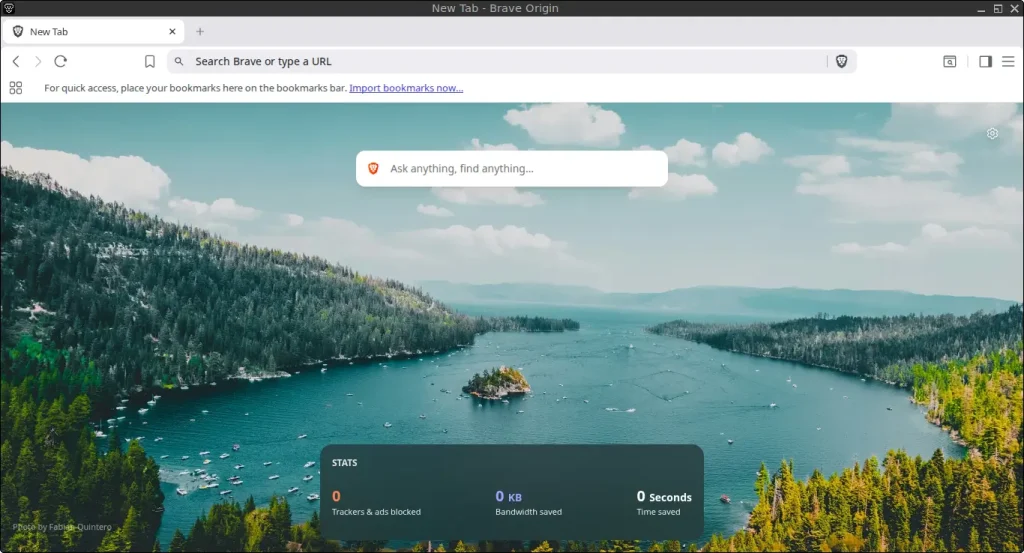
The browser should start and display its welcome screen.
You can now begin browsing the web using Brave Origin.
How to Uninstall Brave Origin on FunOS
If you no longer need Brave Origin, you can completely remove it from your system by following the steps below.
Step 1: Open a Terminal
Open a Terminal using any of the methods described earlier in this guide.
Step 2: Remove Brave Origin
Remove the Brave Origin package and its system-wide configuration files.
Run:
sudo apt remove --purge brave-originAPT will ask for confirmation before proceeding.
Press Y and then Enter.
Step 3: Remove Any Unused Dependencies
After uninstalling Brave Origin, some packages may no longer be required.
To remove them, run:
sudo apt autoremove --purgeThis helps keep your system clean and free of unnecessary packages.
Step 4: Remove the Repository and Key (Optional)
If you no longer plan to install Brave software in the future, you can remove the Brave repository and signing key.
Run:
sudo rm -f /etc/apt/sources.list.d/brave-browser-release.sources
sudo rm -f /usr/share/keyrings/brave-browser-archive-keyring.gpg
This step is optional but helps keep your APT configuration organized.
Step 5: Update the Package List
Refresh the package database after removing the repository.
Run:
sudo apt updateAPT will no longer query the Brave repository.
Step 6: Remove User Data (Optional)
If you want to remove your personal Brave Origin settings, browsing history, cache, and profile data, run:
rm -rf ~/.config/BraveSoftware/Brave-Origin
rm -rf ~/.cache/BraveSoftware/Brave-Origin
Warning
This step permanently deletes your browser profile, including:
- Bookmarks
- Saved passwords
- Extensions
- Browsing history
- Personal settings
Only perform this step if you are certain you no longer need the data.
Step 7: Reload the Menu
Note: Starting with FunOS 24.04.4 LTS (Build 20260618) and FunOS 26.04 LTS (Build 20260618), the menu updates automatically, so you can skip this step.
To remove the launcher from the JWM menu:
- Click the Menu button in the lower-left corner.
- Click Reload menu.
The Brave Origin menu entry should disappear.
Conclusion
Brave Origin is an excellent browser for users who value privacy, security, and simplicity. By removing many of the extra services found in the standard Brave Browser, it offers a cleaner and more focused browsing experience while retaining Brave’s powerful ad-blocking and tracker-blocking technology.
Using the official Brave repository ensures that Brave Origin receives security updates and new releases through the standard FunOS update process. Whether you are looking for a privacy-focused daily browser or simply prefer lightweight software, Brave Origin is a great addition to any FunOS installation.