If you’re interested in creating desktop applications with a Visual Basic–like development environment on Linux, Gambas is an excellent choice. Gambas (which stands for Gambas Almost Means BASic) provides an Integrated Development Environment (IDE) and a full suite of tools for rapid application development (RAD).
This guide will walk you through installing Gambas 3 on FunOS, which is based on Ubuntu, and also show you how to completely remove it if you no longer need it.
What Is Gambas?
Gambas is an open-source development platform inspired by Microsoft Visual Basic. It offers:
- A powerful IDE with drag-and-drop form designer.
- A BASIC-like programming language.
- Components and libraries for GUI, database, network, and multimedia programming.
With Gambas, you can create native Linux applications quickly and efficiently—perfect for developers who want an easy entry point to graphical programming on Linux.
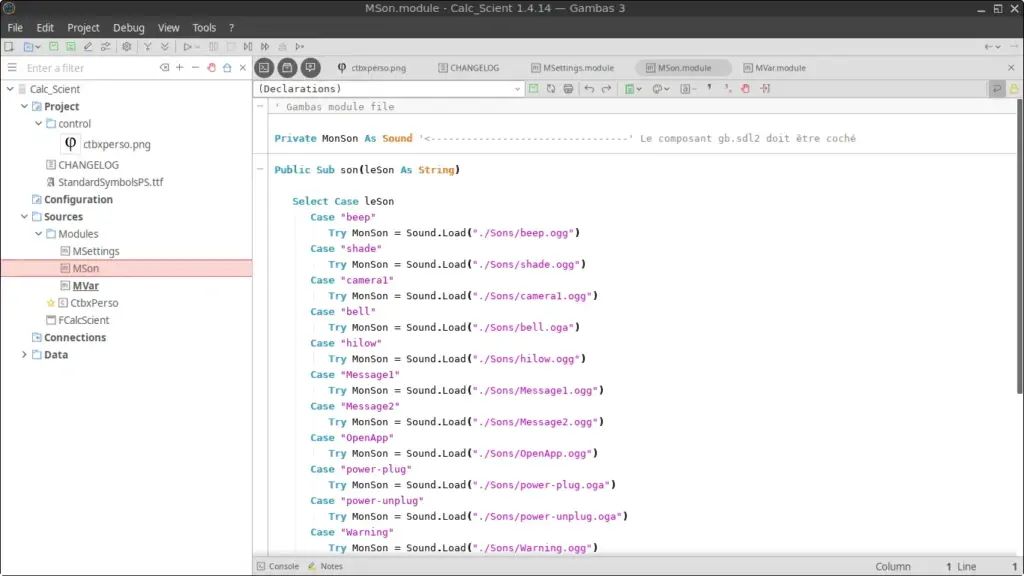
How to Install Gambas on FunOS
Work on: 22.04.5 ✅ | 24.04.4 ✅ | 25.04 ✅ | 25.10 ❌ | 26.04 ❌
Step 1: Open a Terminal
Choose one of the following methods:
- Click Menu in the lower-left corner of the screen, then click Terminal.
- Click the Terminal icon in the Tray.
- Press Ctrl + Alt + T on your keyboard.
Step 2: Update the Package List
Before installing anything, make sure your package list is current:
sudo apt updateStep 3: Install the Necessary Dependencies
You need these packages to securely access the external repository:
sudo apt install apt-transport-https curlStep 4: Add the GPG Key
Import the GPG key for the Gambas stable repository so APT can verify package authenticity:
curl -fsSL "https://download.opensuse.org/repositories/home:gambas:stable/xUbuntu_$(lsb_release -sr | cut -d. -f1,2)/Release.key" | gpg --dearmor | sudo tee /etc/apt/trusted.gpg.d/home_gambas_stable.gpg > /dev/nullThis command automatically detects your Ubuntu (and therefore FunOS) version and downloads the matching key.
Step 5: Add the Repository
Next, add the Gambas stable repository to your APT sources:
echo "deb http://download.opensuse.org/repositories/home:/gambas:/stable/xUbuntu_$(lsb_release -sr | cut -d. -f1,2)/ /" | sudo tee /etc/apt/sources.list.d/home:gambas:stable.listStep 6: Update the Package List Again
Now that the new repository is configured, refresh your package list:
sudo apt updateStep 7: Install Gambas
Install Gambas 3 with:
sudo apt install gambas3Step 8: Reload the Menu
For the Gambas menu entry to appear in the FunOS application menu:
- Click the Menu button in the lower-left corner.
- Click Reload menu.
Launching Gambas
To start Gambas:
- Click the Menu button in the lower-left corner.
- Navigate to Development and select Gambas 3.
How to Uninstall Gambas on FunOS
If you ever want to remove Gambas completely, follow these steps.
Step 1: Open a Terminal
Use any of the methods described earlier.
Step 2: Remove Gambas
sudo apt remove --purge gambas3Step 3: Remove Any Unused Dependencies
sudo apt autoremove --purgeStep 4: Remove the Repository and Key (Optional)
If you no longer want the Gambas repository and GPG key:
sudo rm -f /etc/apt/sources.list.d/home:gambas:stable.list
sudo rm -f /etc/apt/trusted.gpg.d/home_gambas_stable.gpg
Step 5: Update the Package List
sudo apt updateStep 6: Remove User Data (Optional)
Delete Gambas configuration and project files from your home directory:
rm -rf $HOME/.config/gambas3
rm -rf $HOME/.local/share/gambas3
Step 7: Reload the Menu
- Click the Menu button in the lower-left corner.
- Click Reload menu.
Conclusion
Gambas makes it easy to develop Linux desktop applications with a familiar BASIC-like language and a feature-rich IDE. With the steps above, you can install the latest stable version on FunOS in just a few minutes and remove it cleanly whenever you wish.
Whether you are a hobbyist exploring programming or a developer creating production-ready applications, Gambas is a powerful and approachable tool for building native Linux software.