
Gambas is a powerful open-source development environment that allows users to create graphical applications quickly and easily. It is especially popular among Linux users who want a simple yet capable tool for developing desktop applications. On FunOS, Gambas can be installed either directly from the Ubuntu repositories or from the openSUSE Build Service repository, which may provide newer versions of the software.
This tutorial explains both installation methods in detail, including how to launch and uninstall Gambas on FunOS.
What is Gambas?
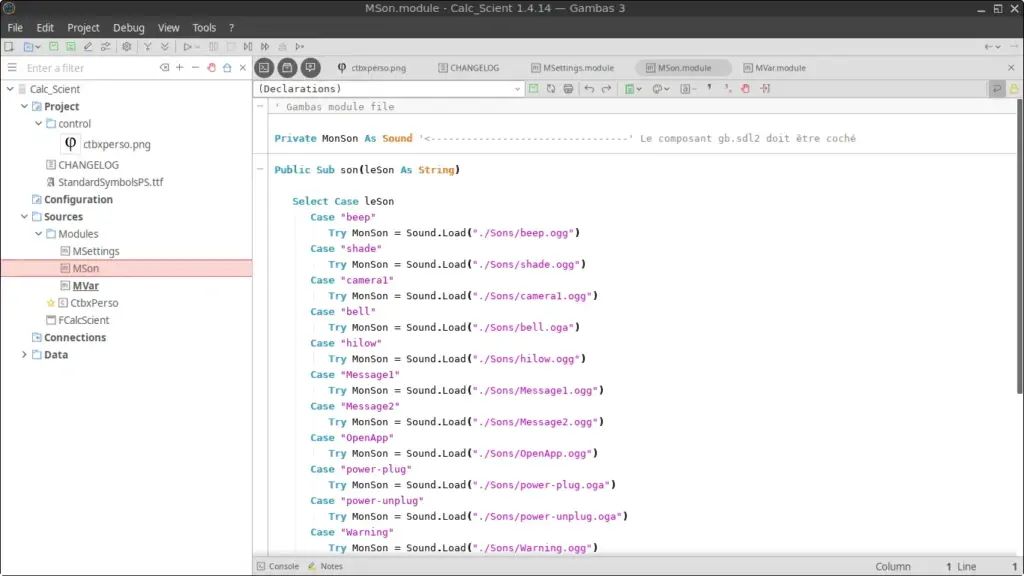
Gambas is a full-featured integrated development environment (IDE) designed for Linux systems. The name “Gambas” originally stood for “Gambas Almost Means BASIC,” because its syntax and structure are inspired by the BASIC programming language.
Gambas includes:
- A visual form designer
- A code editor with syntax highlighting
- Debugging tools
- Database connectivity support
- Components for GUI, networking, multimedia, OpenGL, and more
It is commonly used to develop desktop applications for Linux using a rapid application development approach similar to Visual Basic. Gambas supports several graphical toolkits such as GTK and Qt, allowing developers to create modern Linux applications with relatively little effort.
Because FunOS is based on Ubuntu, installing Gambas is straightforward and can be done using the APT package manager.
How to Install Gambas on FunOS
Method 1: Installing from the Ubuntu Repositories
Work on: 22.04.5 ✅ | 24.04.5 ✅ | 25.10 ✅ | 26.04.1 ✅
This is the easiest and recommended method for most users because the software is installed directly from the official Ubuntu repositories.
Step 1: Open a Terminal
There are three ways to open the Terminal in FunOS:
- Click Menu in the lower-left corner of the screen, then click Terminal
- Click the Terminal icon in the Tray
- Press Ctrl + Alt + T on the keyboard
Step 2: Update the Package List
Before installing software, it is recommended to refresh the package database.
Run the following command:
sudo apt updateThis command downloads the latest package information from the repositories configured on your system.
Step 3: Install Gambas
Install Gambas by running the following command:
sudo apt install gambas3APT will automatically download and install Gambas along with any required dependencies.
During the installation process, you may be asked to confirm the installation. Press:
Ythen press Enter to continue.
Step 4: Reload the Menu
Note: Starting with FunOS 24.04.4 LTS (Build 20260618) and FunOS 26.04 LTS (Build 20260618), the menu updates automatically, so you can skip this step.
After the installation is complete, reload the FunOS menu so the Gambas launcher appears correctly.
To reload the menu:
- Click the Menu button in the lower-left corner of the screen
- Click Reload menu
This is necessary in FunOS after installing certain applications.
Method 2: Installing from the openSUSE Build Service Repository
Work on: 22.04.5 ✅ | 24.04.5 ✅ | 25.10 ❌ | 26.04.1 ❌
This method installs Gambas from the openSUSE Build Service repository. It may provide newer versions of Gambas than those available in the Ubuntu repositories.
Step 1: Open a Terminal
You can open the Terminal using one of the following methods:
- Click Menu → Terminal
- Click the Terminal icon in the Tray
- Press Ctrl + Alt + T
Step 2: Update the Package List
Refresh the package database first:
sudo apt updateStep 3: Install the Necessary Dependencies
Install the required packages for adding external repositories:
sudo apt install apt-transport-https curlExplanation:
apt-transport-httpsenables APT to access repositories over HTTPScurlis used to download files from the internet
Step 4: Add the GPG Key
Add the repository signing key using the following command:
curl -fsSL "https://downloadcontent.opensuse.org/repositories/home:gambas:stable/xUbuntu_$(lsb_release -sr | cut -d. -f1,2)/Release.key" | gpg --dearmor | sudo tee /etc/apt/trusted.gpg.d/home_gambas_stable.gpg > /dev/nullThe GPG key allows APT to verify that packages from the repository are authentic and have not been tampered with.
Step 5: Add the Repository
Add the Gambas repository to your system:
echo "deb http://downloadcontent.opensuse.org/repositories/home:/gambas:/stable/xUbuntu_$(lsb_release -sr | cut -d. -f1,2)/ /" | sudo tee /etc/apt/sources.list.d/home:gambas:stable.listThis command creates a new repository configuration file for APT.
Step 6: Update the Package List Again
After adding the repository, refresh the package database again:
sudo apt updateThis step allows APT to detect packages available from the new repository.
Step 7: Install Gambas
Install Gambas by running:
sudo apt install gambas3APT will download and install Gambas from the openSUSE Build Service repository.
Step 8: Reload the Menu
Note: Starting with FunOS 24.04.4 LTS (Build 20260618) and FunOS 26.04 LTS (Build 20260618), the menu updates automatically, so you can skip this step.
After the installation finishes:
- Click the Menu button in the lower-left corner of the screen
- Click Reload menu
This refreshes the application menu in FunOS.
Launching Gambas
To launch Gambas:
- Click the Menu button in the lower-left corner
- Open the Development category
- Click Gambas
When Gambas starts for the first time, it may take a few moments to initialize components and create configuration files in your home directory.
How to Uninstall Gambas on FunOS
Uninstall Gambas Installed from the Ubuntu Repositories
Step 1: Open a Terminal
Open the Terminal using one of the available methods in FunOS.
Step 2: Remove Gambas
Run the following command:
sudo apt remove --purge gambas3Explanation:
removeuninstalls the package--purgealso removes system-wide configuration files
Step 3: Remove Any Unused Dependencies
Clean up packages that are no longer needed:
sudo apt autoremove --purgeThis helps free disk space and keep the system clean.
Step 4: Remove User Data (Optional)
To remove Gambas user configuration files and personal settings, run:
rm -rf $HOME/.config/gambas3
rm -rf $HOME/.local/share/gambas3
This step is optional. Skip it if you want to preserve your Gambas settings and data.
Step 5: Reload the Menu
Note: Starting with FunOS 24.04.4 LTS (Build 20260618) and FunOS 26.04 LTS (Build 20260618), the menu updates automatically, so you can skip this step.
Finally:
- Click the Menu button in the lower-left corner of the screen
- Click Reload menu
Uninstall Gambas Installed from openSUSE Build Service Repository
Step 1: Open a Terminal
Open the Terminal.
Step 2: Remove Gambas
Run:
sudo apt remove --purge gambas3Step 3: Remove Any Unused Dependencies
Run:
sudo apt autoremove --purgeStep 4: Remove the Repository and Key (Optional)
If you no longer want to use the openSUSE Build Service repository, remove it with the following commands:
sudo rm -f /etc/apt/sources.list.d/home:gambas:stable.list
sudo rm -f /etc/apt/trusted.gpg.d/home_gambas_stable.gpg
This removes:
- The repository configuration file
- The repository signing key
Step 5: Update the Package List
Refresh the package database:
sudo apt updateStep 6: Remove User Data (Optional)
To delete Gambas user configuration files:
rm -rf $HOME/.config/gambas3
rm -rf $HOME/.local/share/gambas3
Step 7: Reload the Menu
Note: Starting with FunOS 24.04.4 LTS (Build 20260618) and FunOS 26.04 LTS (Build 20260618), the menu updates automatically, so you can skip this step.
To refresh the application menu:
- Click the Menu button in the lower-left corner of the screen
- Click Reload menu
Conclusion
Gambas is an excellent development environment for Linux users who want to create graphical applications quickly and efficiently. On FunOS, installing Gambas is simple thanks to the Ubuntu package management system.
Most users should use the Ubuntu repository method because it is straightforward and stable. However, users who want newer Gambas releases may prefer the openSUSE Build Service repository method.
After installation, Gambas can be launched from the Development category in the FunOS menu, allowing you to start building Linux applications immediately.