
KeePassXC is a powerful and secure password manager that helps you store, manage, and protect your passwords in an encrypted database. On FunOS, which is based on Ubuntu, installing KeePassXC is straightforward and can be done using either the official Ubuntu repositories or the official KeePassXC PPA. This article provides a complete, step-by-step guide to installing, launching, and uninstalling KeePassXC on FunOS, written in a clear and beginner-friendly way.
What is KeePassXC?
KeePassXC is a free and open-source, cross-platform password manager. It allows you to store usernames, passwords, URLs, notes, and other sensitive information in an encrypted password database protected by a master password or key file.
Some key features of KeePassXC include:
- Strong encryption (AES-256, ChaCha20)
- Cross-platform support (Linux, Windows, macOS)
- Password generator
- Auto-lock and clipboard timeout
- Browser integration (with supported browsers)
- Offline-first design (no cloud required)
Because KeePassXC works completely offline and is open source, it is a popular choice for users who value privacy and security.
How to Install KeePassXC on FunOS
There are two recommended ways to install KeePassXC on FunOS:
- From the Ubuntu repositories (stable and simple)
- From the official KeePassXC PPA (recommended for newer versions)
You can choose the method that best suits your needs.
Method 1: Installing from the Ubuntu Repositories
Work on: 22.04.5 ✅ | 24.04.5 ✅ | 25.10 ✅ | 26.04.1 ✅
This method installs KeePassXC directly from the Ubuntu repositories used by FunOS. It is simple, stable, and suitable for most users.
Step 1: Open a Terminal
You can open the Terminal in any of the following ways:
- Click Menu in the left corner of the screen, then click Terminal
- Click the Terminal icon in the Tray
- Press Ctrl + Alt + T on your keyboard
Step 2: Update the Package List
Before installing any new software, it is recommended to update the package list:
sudo apt updateStep 3: Install KeePassXC
Install KeePassXC using the following command:
sudo apt install keepassxcDuring installation, you may be asked to confirm by pressing Y and Enter.
Step 4: Reload the Menu
Note: Starting with FunOS 24.04.4 LTS (Build 20260618) and FunOS 26.04 LTS (Build 20260618), the menu updates automatically, so you can skip this step.
After installation, reload the FunOS menu so the application appears:
- Click the Menu button in the lower-left corner
- Click Reload menu
Method 2: Installing from the KeePassXC PPA (Recommended)
Work on: 22.04.5 ✅ | 24.04.5 ✅ | 25.10 ✅ | 26.04.1 ✅
If you want a newer version of KeePassXC with the latest features and improvements, you can install it from the official KeePassXC PPA.
This PPA is maintained by Janek Bevendorff:
https://launchpad.net/~phoerious
Step 1: Open a Terminal
Open the Terminal using one of the following methods:
- Click Menu in the left corner of the screen, then click Terminal
- Click the Terminal icon in the Tray
- Press Ctrl + Alt + T
Step 2: Add the KeePassXC PPA
Add the official KeePassXC PPA by running:
sudo add-apt-repository ppa:phoerious/keepassxcPress Enter when prompted to confirm adding the repository.
Step 3: Update the Package List
After adding the PPA, update the package list:
sudo apt updateStep 4: Install KeePassXC
Install KeePassXC from the PPA:
sudo apt install keepassxcStep 5: Reload the Menu
Note: Starting with FunOS 24.04.4 LTS (Build 20260618) and FunOS 26.04 LTS (Build 20260618), the menu updates automatically, so you can skip this step.
Reload the FunOS menu so KeePassXC appears:
- Click the Menu button in the lower-left corner
- Click Reload menu
Launching KeePassXC
To start KeePassXC:
- Click the Menu button in the lower-left corner
- Navigate to the Accessories category
- Click KeePassXC
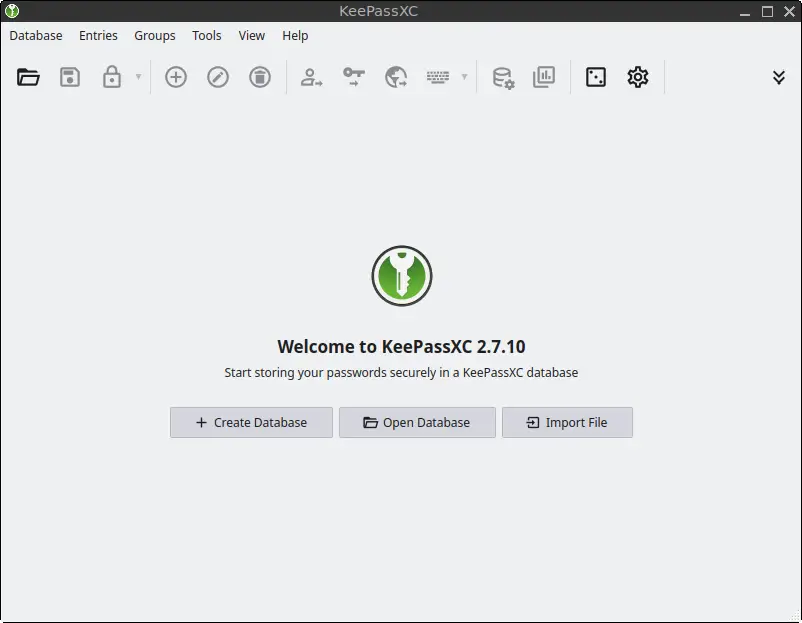
When you run KeePassXC for the first time, you can create a new password database or open an existing one.
How to Uninstall KeePassXC on FunOS
If you no longer need KeePassXC, you can remove it completely from your system. The steps depend on how it was installed.
Uninstall KeePassXC Installed from the Ubuntu Repositories
Step 1: Open a Terminal
Open the Terminal using one of the following methods:
- Click Menu in the left corner of the screen, then click Terminal
- Click the Terminal icon in the Tray
- Press Ctrl + Alt + T
Step 2: Remove KeePassXC
Remove KeePassXC and its configuration files:
sudo apt remove --purge keepassxcStep 3: Remove Any Unused Dependencies
Clean up unused packages:
sudo apt autoremove --purgeStep 4: Remove User Data (Optional)
If you want to remove user-specific configuration and cache files:
rm -rf $HOME/.cache/keepassxc
rm -rf $HOME/.config/keepassxc
Step 5: Reload the Menu
Note: Starting with FunOS 24.04.4 LTS (Build 20260618) and FunOS 26.04 LTS (Build 20260618), the menu updates automatically, so you can skip this step.
Reload the FunOS menu:
- Click the Menu button in the lower-left corner
- Click Reload menu
Uninstall KeePassXC Installed from the KeePassXC PPA
Step 1: Open a Terminal
Open the Terminal using one of the following methods:
- Click Menu in the left corner of the screen, then click Terminal
- Click the Terminal icon in the Tray
- Press Ctrl + Alt + T
Step 2: Remove KeePassXC
Remove KeePassXC from your system:
sudo apt remove --purge keepassxcStep 3: Remove Any Unused Dependencies
Remove unused packages:
sudo apt autoremove --purgeStep 4: Remove the KeePassXC PPA
Remove the PPA from your system:
sudo add-apt-repository --remove ppa:phoerious/keepassxcStep 5: Update the Package List
Update the package list after removing the PPA:
sudo apt updateStep 6: Remove User Data (Optional)
Delete user configuration and cache files if desired:
rm -rf $HOME/.cache/keepassxc
rm -rf $HOME/.config/keepassxc
Step 7: Reload the Menu
Note: Starting with FunOS 24.04.4 LTS (Build 20260618) and FunOS 26.04 LTS (Build 20260618), the menu updates automatically, so you can skip this step.
Reload the FunOS menu:
- Click the Menu button in the lower-left corner
- Click Reload menu
Conclusion
KeePassXC is an excellent password manager for FunOS users who want a secure, offline, and open-source solution for managing passwords. Whether you choose to install it from the Ubuntu repositories for stability or from the official KeePassXC PPA for newer features, the installation process is simple and reliable.
With KeePassXC installed, you can safely store your passwords, generate strong credentials, and improve your overall system security on FunOS.