
Lutris is one of the most popular open-source gaming platforms for Linux. It allows you to install, manage, and launch games from many sources—including Steam, GOG, Epic Games Store (via Heroic), and Windows-only games using Wine. If you’re a FunOS user who wants a smooth and organized gaming experience, Lutris is an essential tool. This guide will walk you through the complete installation process on FunOS, starting with Wine setup and continuing until Lutris is ready to use.
What is Lutris?
Lutris is a game management platform designed for Linux. Unlike traditional game launchers, Lutris integrates multiple sources into one interface. It provides installers and scripts to configure games automatically, simplifying tasks such as setting up Wine, applying patches, installing dependencies, and optimizing performance. Lutris is especially useful for running Windows games on Linux, because it works closely with Wine and offers tools to manage Lutris-optimized Wine builds, DXVK, VKD3D, and more.
If you want to run games smoothly on FunOS—with minimal manual configuration—Lutris is an excellent choice.
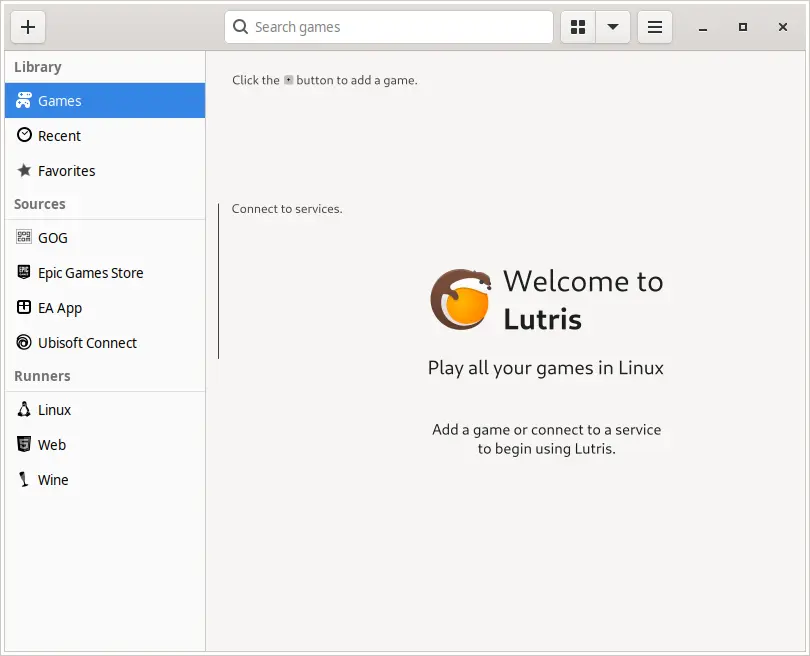
How to Install Lutris on FunOS
Work on: 22.04.5 ✅ | 24.04.4 ✅ | 25.10 ✅ | 26.04 ✅
Install Wine
Before installing Lutris, you need to set up Wine. Lutris relies on Wine to run Windows games, so installing Wine correctly is an essential first step.
Step 1: Open a Terminal
You can open the terminal using any of these methods:
- Click Menu in the lower-left corner, then click Terminal
- Click the Terminal icon in the Tray
- Press Ctrl + Alt + T
Step 2: Enable the 32-bit Architecture
Some Windows applications require 32-bit libraries. Enable 32-bit support with:
sudo dpkg --add-architecture i386Step 3: Update the Package List
Run:
sudo apt updateThis ensures that your system recognizes the newly added architecture.
Step 4: Install Required Dependencies
WineHQ requires certain packages to access its repository:
sudo apt install apt-transport-https curlStep 5: Add the WineHQ GPG Key
This step adds the official WineHQ key so your system can verify Wine packages:
curl -fSsL https://dl.winehq.org/wine-builds/winehq.key | gpg --dearmor | sudo tee /etc/apt/keyrings/winehq-archive.key > /dev/nullStep 6: Add the WineHQ Repository
Add the WineHQ repository for your FunOS/Ubuntu version:
sudo wget -NP /etc/apt/sources.list.d/ https://dl.winehq.org/wine-builds/ubuntu/dists/$(lsb_release -cs)/winehq-$(lsb_release -cs).sourcesStep 7: Update the Package List Again
After adding the repository, update the package list:
sudo apt updateStep 8: Install Wine
Choose one of the Wine branches below depending on your preference.
| Wine Branch | Command |
|---|---|
| Stable branch | sudo apt install --install-recommends winehq-stable |
| Development branch | sudo apt install --install-recommends winehq-devel |
| Staging branch | sudo apt install --install-recommends winehq-staging |
Reference: Wine HQ User Guide
Step 9: Install Winetricks
Winetricks is a helper tool for installing Windows components and libraries:
sudo apt install winetricksStep 10: Reload the Menu
Note: Starting with FunOS 24.04.4 LTS (Build 20260618) and FunOS 26.04 LTS (Build 20260618), the menu updates automatically, so you can skip this step.
After installing Wine and Winetricks, refresh the FunOS menu:
- Click the Menu button in the lower-left corner
- Click Reload menu
Install Lutris
After setting up Wine, the next step is to install Lutris itself. While the Lutris package is available in the Ubuntu repositories (and therefore also installable on FunOS), it is often not the latest version. To ensure you get the most up-to-date features, bug fixes, and compatibility improvements, the recommended method is to download and install the official .deb package from the Lutris GitHub releases page.
Step 1: Download the Lutris .deb File from GitHub
- Open your web browser and go to the Lutris Releases Page on GitHub:
https://github.com/lutris/lutris/releases/latest - Scroll to the Assets section of the latest release.
- Download the file ending with
.deb(for example:lutris_0.xx.x_all.deb). - Save the file to your Downloads directory.
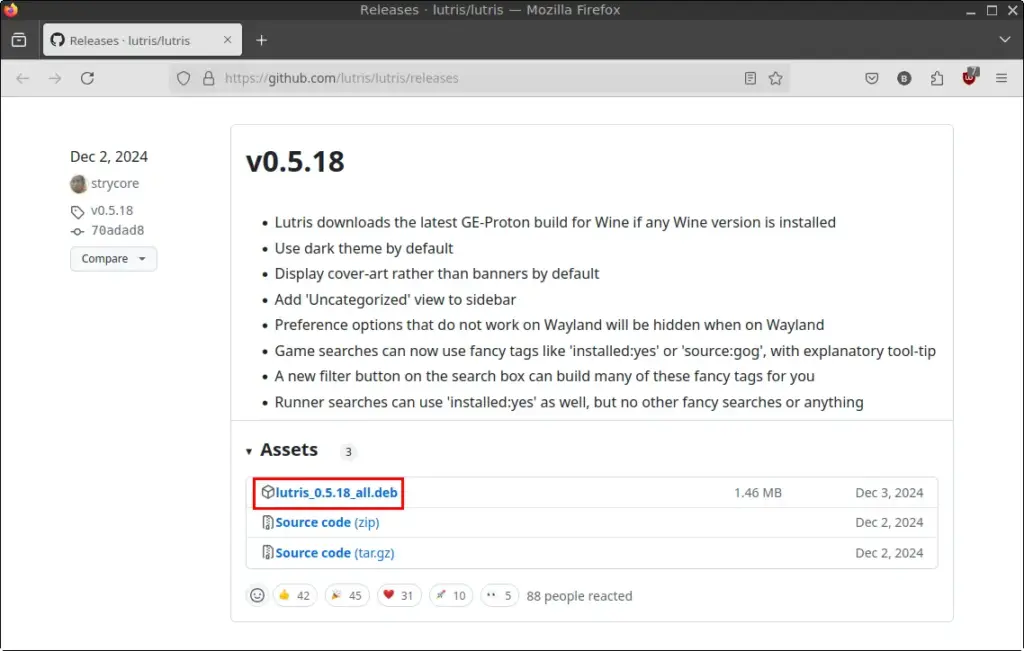
Downloading the official .deb ensures you always install the latest version of Lutris.
Step 2: Open a Terminal
There are three ways to open the terminal:
- Click Menu in the lower-left corner, then click Terminal
- Click the Terminal icon in the Tray
- Press Ctrl + Alt + T
Step 3: Navigate to the Downloads Directory
Move into the directory where you saved the .deb file:
cd ~/DownloadsStep 4: Update the Package List
Before installation, always update the FunOS/Ubuntu package list:
sudo apt updateStep 5: Install the .deb Package
Run the following command to install the Lutris .deb file:
sudo apt install ./lutris_*.debUsing ./lutris_*.deb ensures the correct file is installed, even if the version number changes in future releases.
Step 6: Remove the Downloaded .deb File
After installation, you can safely delete the installer:
rm -f lutris_*.debThis keeps your Downloads directory clean.
Step 7: Reload the Menu
Note: Starting with FunOS 24.04.4 LTS (Build 20260618) and FunOS 26.04 LTS (Build 20260618), the menu updates automatically, so you can skip this step.
To make Lutris appear in the FunOS menu:
- Click the Menu button in the lower-left corner
- Click Reload menu
Launching Lutris
Once the menu has been refreshed:
- Click the Menu button
- Open the Games category
- Look for Lutris
You can now start installing and managing your games with Lutris.
How to Uninstall Lutris on FunOS
If you no longer need Lutris, or if you want to remove Wine and all related components, FunOS allows you to uninstall everything cleanly. The Wine removal steps are optional—only follow them if you want to completely remove all Windows compatibility layers from your system.
Uninstall Wine (Optional)
These steps remove Wine, Winetricks, unused dependencies, and the WineHQ repository. This is optional and only needed if you want to clean up your system completely.
Step 1: Open a Terminal
Use any of the following methods:
- Click Menu in the lower-left corner, then click Terminal
- Click the Terminal icon in the Tray
- Press Ctrl + Alt + T
Step 2: Remove Wine
This command removes Wine packages installed from WineHQ:
sudo apt remove --purge winehq-*Step 3: Remove Winetricks
Remove Winetricks with:
sudo apt remove --purge winetricksStep 4: Remove Any Unused Dependencies
Clean up additional unused packages:
sudo apt autoremove --purgeStep 5: Remove WineHQ Repository and Key (Optional)
If you want to completely remove WineHQ configuration files:
sudo rm -f /etc/apt/sources.list.d/winehq-$(lsb_release -cs).sources
sudo rm -f /etc/apt/keyrings/winehq-archive.key
Step 6: Update the Package List
Refresh the package list to reflect the removal of the repository:
sudo apt updateStep 7: Reload the Menu
Note: Starting with FunOS 24.04.4 LTS (Build 20260618) and FunOS 26.04 LTS (Build 20260618), the menu updates automatically, so you can skip this step.
To remove Wine entries from the FunOS menu:
- Click the Menu button
- Click Reload menu
Uninstall Lutris
If you decide to remove Lutris from your system, FunOS allows you to uninstall it cleanly using the terminal. These steps will remove Lutris itself, along with optional cleanup instructions for deleting leftover configuration files.
Step 1: Open a Terminal
You can open the terminal using any of these methods:
- Click Menu in the lower-left corner, then click Terminal
- Click the Terminal icon in the Tray
- Press Ctrl + Alt + T
Step 2: Remove Lutris
Uninstall the Lutris package with:
sudo apt remove --purge lutrisThe --purge option ensures that Lutris system-level configuration files are removed.
Step 3: Remove Any Unused Dependencies
Clean up leftover packages that are no longer needed:
sudo apt autoremove --purgeStep 4: Remove Lutris User Data (Optional)
If you want to completely remove all traces of Lutris—including game configurations, cache files, and user-specific settings—you can delete your local Lutris data directories:
rm -rf $HOME/.config/lutris*
rm -rf $HOME/.cache/lutris
rm -rf $HOME/.local/share/lutris
This step is optional. Only do this if you want a fully clean system or plan to reinstall Lutris from scratch.
Step 5: Reload the Menu
Note: Starting with FunOS 24.04.4 LTS (Build 20260618) and FunOS 26.04 LTS (Build 20260618), the menu updates automatically, so you can skip this step.
To refresh the FunOS menu and remove the Lutris entry:
- Click the Menu button
- Click Reload menu
Conclusion
Lutris is one of the most powerful gaming platforms for Linux, and with FunOS being based on Ubuntu, installing it is straightforward. In this guide, you learned how to install the required components—such as Wine and Winetricks—add the WineHQ repository, install Lutris from the official GitHub release, and launch it from the FunOS menu.
You also learned how to completely uninstall Lutris and optionally remove Wine and its associated packages if you no longer need them. Whether you’re playing native Linux games, Windows games through Wine, or titles from Steam, GOG, or other platforms, Lutris provides a unified gaming experience that works well on FunOS.
With everything set up, you’re ready to enjoy your favorite games on FunOS. If you explore more advanced configurations—like DXVK, Vulkan, or custom Wine versions—Lutris will help you manage them with ease.