
Retro gaming is one of the best ways to relive classic gaming experiences from various consoles in a single application. FunOS, which is based on Ubuntu, provides an easy and reliable way to install RetroArch using official repositories or the Libretro PPA.
In this guide, you will learn what RetroArch is, how to install it on FunOS using two different methods, how to launch it, and how to completely uninstall it if needed.
This tutorial is written specifically for FunOS users and follows the default FunOS desktop environment and menu behavior.
What is RetroArch?
RetroArch is a powerful frontend for emulators, game engines, and media players. Instead of installing many separate emulator applications, RetroArch provides a single, unified interface that uses Libretro cores to emulate various gaming systems.
With RetroArch, you can play games from:
- NES, SNES, and Game Boy
- Sega Genesis and Sega Saturn
- PlayStation (PS1)
- Arcade systems (via MAME and FinalBurn Neo)
- And many more platforms
RetroArch supports advanced features such as:
- Save states
- Shader effects
- Gamepad support
- Netplay (online multiplayer)
- Rewind and fast-forward
Because FunOS is based on Ubuntu, RetroArch integrates very well with the system and can be installed easily using APT.
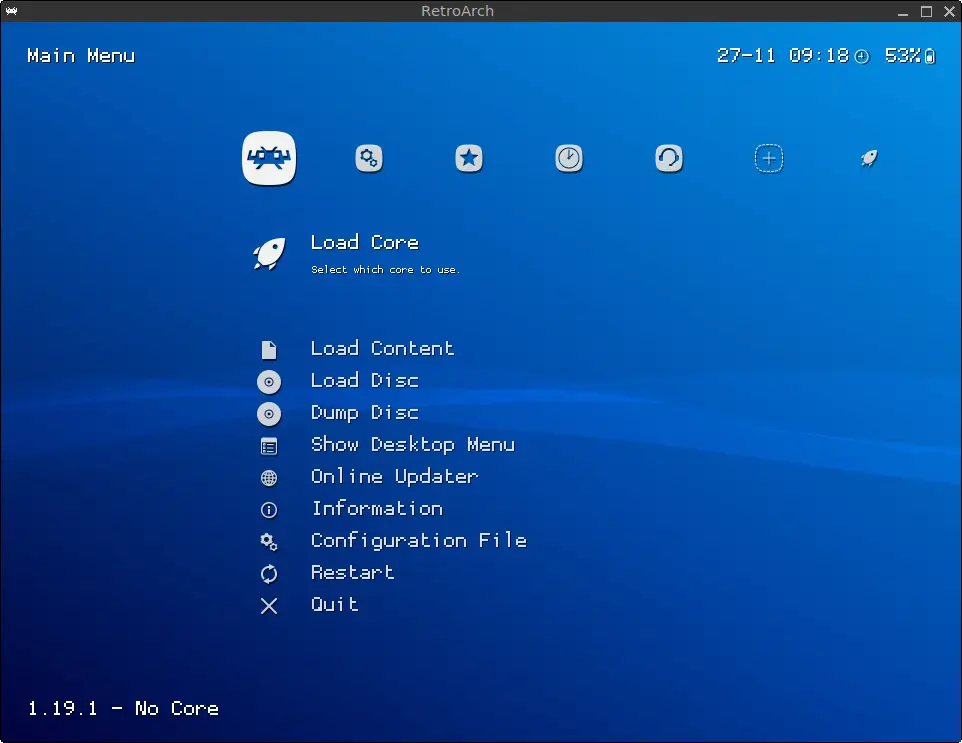
How to Install RetroArch on FunOS
There are two recommended methods to install RetroArch on FunOS:
- Method 1: Install from the Ubuntu repositories
- Method 2: Install from the Libretro Stable PPA (recommended)
Method 1: Installing from the Ubuntu Repositories
Work on: 22.04.5 ✅ | 24.04.5 ✅ | 25.10 ✅ | 26.04.1 ✅
This method uses the default Ubuntu repositories. It is stable and suitable for most users, but the RetroArch version may not always be the latest.
Step 1: Open a Terminal
You can open the Terminal in any of the following ways:
- Click Menu in the lower-left corner of the screen, then click Terminal
- Click the Terminal icon in the Tray
- Press Ctrl + Alt + T on your keyboard
Step 2: Update the Package List
Before installing new software, it is recommended to update the package list.
sudo apt updateStep 3: Install RetroArch
Now install RetroArch along with all available Libretro cores.
sudo apt install retroarch libretro-*This command installs RetroArch and a wide range of emulator cores, allowing you to play games from many different systems.
Step 4: Reload the Menu
Note: Starting with FunOS 24.04.4 LTS (Build 20260618) and FunOS 26.04 LTS (Build 20260618), the menu updates automatically, so you can skip this step.
After installation, FunOS may not immediately show the new application in the menu.
- Click the Menu button in the lower-left corner
- Click Reload menu
Method 2: Installing from the Libretro Stable PPA (Recommended)
Work on: 22.04.5 ✅ | 24.04.5 ✅ | 25.10 ✅ | 26.04.1 ✅
This method is recommended if you want a newer and actively maintained version of RetroArch. The PPA is maintained by the official Libretro team.
Libretro PPA page: https://launchpad.net/~libretro
Step 1: Open a Terminal
You can open the Terminal using one of the following methods:
- Click Menu → Terminal
- Click the Terminal icon in the Tray
- Press Ctrl + Alt + T
Step 2: Add the Libretro Stable PPA
Add the Libretro Stable PPA to your system.
sudo add-apt-repository ppa:libretro/stablePress Enter when prompted.
Step 3: Update the Package List
After adding the PPA, update the package list again.
sudo apt updateStep 4: Install RetroArch
Install RetroArch and Libretro cores from the PPA.
sudo apt install retroarch libretro-*This ensures you get the latest stable version of RetroArch and its cores.
Step 5: Reload the Menu
Note: Starting with FunOS 24.04.4 LTS (Build 20260618) and FunOS 26.04 LTS (Build 20260618), the menu updates automatically, so you can skip this step.
To make RetroArch appear in the FunOS menu:
- Click the Menu button in the lower-left corner
- Click Reload menu
Launching RetroArch
To start RetroArch:
- Click the Menu button in the lower-left corner
- Open the Games category
- Click RetroArch
On the first launch, RetroArch may take a moment to initialize and create its configuration files.
How to Uninstall RetroArch on FunOS
If you no longer need RetroArch, you can remove it completely using the instructions below.
Uninstall RetroArch Installed from the Ubuntu Repositories
Step 1: Open a Terminal
Open the Terminal using:
- Menu → Terminal
- Terminal icon in the Tray
- Ctrl + Alt + T
Step 2: Remove RetroArch
Remove RetroArch and all installed Libretro cores.
sudo apt remove --purge retroarch libretro-*Step 3: Remove Any Unused Dependencies
Clean up unused packages.
sudo apt autoremove --purgeStep 4: Remove User Data (Optional)
If you also want to remove RetroArch configuration files and settings:
rm -rf $HOME/.config/retroarchStep 5: Reload the Menu
Note: Starting with FunOS 24.04.4 LTS (Build 20260618) and FunOS 26.04 LTS (Build 20260618), the menu updates automatically, so you can skip this step.
- Click Menu
- Click Reload menu
Uninstall RetroArch Installed from the Libretro Stable PPA
Step 1: Open a Terminal
Use one of the following methods:
- Menu → Terminal
- Terminal icon in the Tray
- Ctrl + Alt + T
Step 2: Remove RetroArch
Remove RetroArch and its cores.
sudo apt remove --purge retroarch libretro-*Step 3: Remove Any Unused Dependencies
sudo apt autoremove --purgeStep 4: Remove the Libretro Stable PPA
Remove the PPA from your system.
sudo add-apt-repository --remove ppa:libretro/stableStep 5: Update the Package List
sudo apt updateStep 6: Remove User Data (Optional)
Delete RetroArch configuration files.
rm -rf $HOME/.config/retroarchStep 7: Reload the Menu
Note: Starting with FunOS 24.04.4 LTS (Build 20260618) and FunOS 26.04 LTS (Build 20260618), the menu updates automatically, so you can skip this step.
- Click Menu
- Click Reload menu
Conclusion
RetroArch is an excellent all-in-one solution for retro gaming on FunOS. With support for dozens of classic systems, powerful features, and active development by the Libretro team, it is a great choice for both casual and advanced users.
On FunOS, RetroArch can be installed easily using either the Ubuntu repositories or the Libretro Stable PPA, depending on whether you prefer maximum stability or newer features.
By following this guide, you can install, launch, and remove RetroArch cleanly while keeping your system organized and lightweight.
Happy retro gaming on FunOS 🎮