
Slack is one of the most widely used communication platforms for teams, communities, and organizations. It provides powerful features such as channels, direct messaging, file sharing, and integration with hundreds of productivity tools. If you use Slack for work or collaboration, installing it on FunOS will allow you to stay connected easily. This guide will show you step by step how to install Slack using the official .deb package, how to launch it, and how to uninstall it when needed.
What is Slack?
Slack is a cloud-based messaging and collaboration application designed to help teams communicate efficiently. It organizes conversations into channels, supports audio/video calls, offers robust search features, and integrates with services like Google Drive, GitHub, Trello, and more. Slack is available for desktop, mobile, and web, and the Linux desktop version provides a smooth experience with full support for notifications and workspaces.
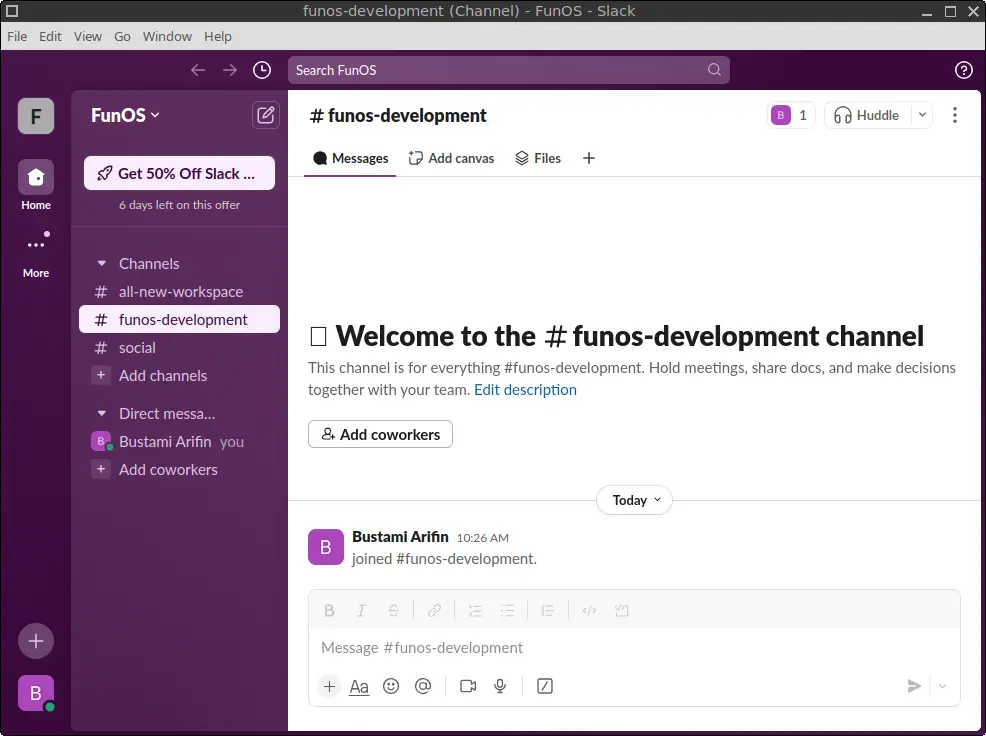
How to Install Slack on FunOS
Work on: 22.04.5 ✅ | 24.04.4 ✅ | 25.10 ✅ | 26.04 ✅
Slack provides an official .deb installer for Debian-based distributions such as FunOS (which is based on Ubuntu). Follow the steps below to install Slack safely and correctly.
Step 1: Download the Slack .deb File
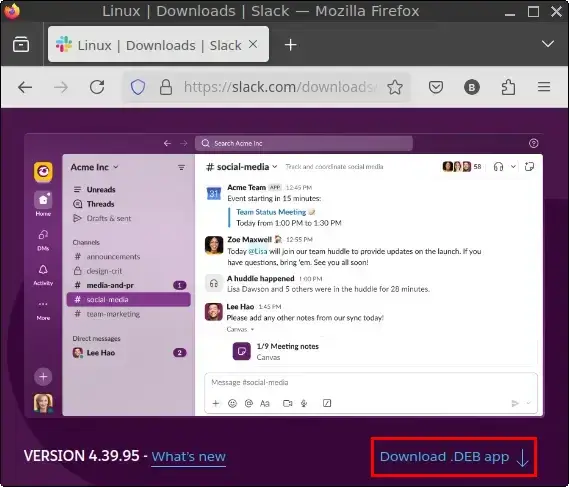
- Open your web browser and navigate to the Slack for Linux download page:
https://slack.com/downloads/linux - On the download page, click “Download .DEB app” to download the installer.
- Save the downloaded file in your Downloads directory.
Step 2: Open a Terminal
You can open a Terminal using one of these three options:
- Click Menu in the left corner of the screen, then click Terminal
- Click the Terminal icon in the Tray
- Press Ctrl + Alt + T
Step 3: Navigate to the Downloads Directory
cd ~/DownloadsStep 4: Update the Package List
Before installing any .deb package, update your APT package list:
sudo apt updateStep 5: Install Slack
Run the following command to install Slack from the downloaded .deb file:
sudo apt install ./slack-desktop-*.debStep 6: Remove the Downloaded .deb File
After installation, you may delete the installer file to keep your system clean:
rm -f slack-desktop-*.debStep 7: Reload the Menu
Note: Starting with FunOS 24.04.4 LTS (Build 20260618) and FunOS 26.04 LTS (Build 20260618), the menu updates automatically, so you can skip this step.
Slack will appear in the Menu after reloading it:
- Click the Menu button in the lower-left corner
- Click Reload menu
Launching Slack
To open Slack:
- Click the Menu button in the lower-left corner
- Go to the Internet category
- Click Slack
How to Uninstall Slack on FunOS
If you no longer need Slack, you can uninstall it completely using the steps below.
Step 1: Open a Terminal
Use one of the following:
- Click Menu, then Terminal
- Click the Terminal icon in the Tray
- Press Ctrl + Alt + T
Step 2: Remove Slack
This command removes Slack and its configuration files installed by APT:
sudo apt remove --purge slack-desktopStep 3: Remove Any Unused Dependencies
APT may remove leftover packages that are no longer needed:
sudo apt autoremove --purgeStep 4: Remove User Data (Optional)
If you want to remove your Slack workspace data and settings:
rm -rf $HOME/.config/SlackStep 5: Reload the Menu
Note: Starting with FunOS 24.04.4 LTS (Build 20260618) and FunOS 26.04 LTS (Build 20260618), the menu updates automatically, so you can skip this step.
- Click the Menu button
- Click Reload menu
Conclusion
Slack is a powerful collaboration tool, and installing it on FunOS is simple thanks to the official .deb package provided by Slack. By following this step-by-step guide, you can download, install, launch, and uninstall Slack with ease. Whether you use Slack for work, school, or community projects, having it on your FunOS desktop ensures seamless communication and productivity.