
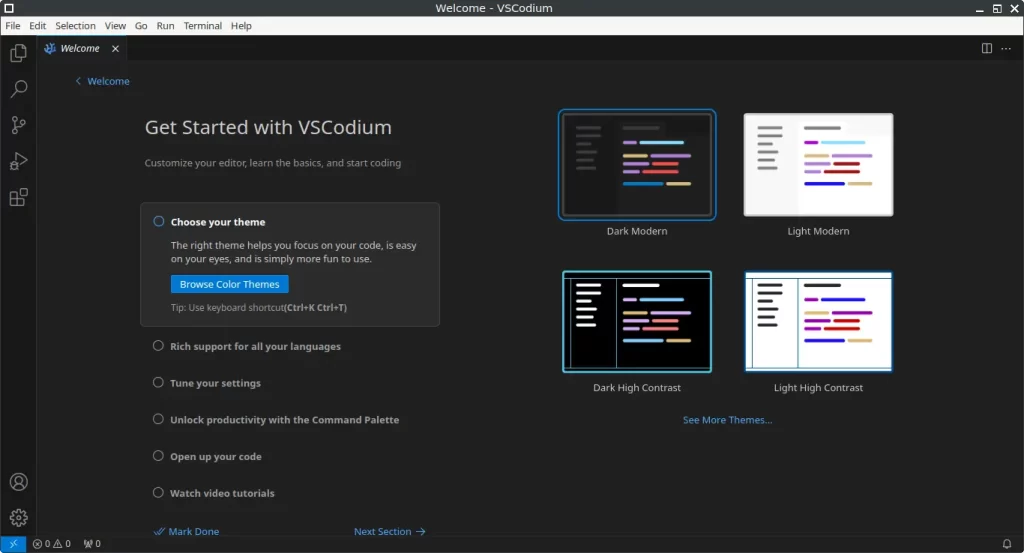
VSCodium is a popular open-source code editor that provides the same powerful features as Microsoft’s Visual Studio Code (VS Code), but without the telemetry and proprietary branding. For developers who prioritize privacy and prefer open-source software, VSCodium is an excellent choice. In this guide, you will learn how to install VSCodium on FunOS, whether by using the official repository (recommended) or by downloading the .deb package directly from the project’s GitHub page. Both methods are simple, and after completing them, you’ll have a fully functional and privacy-friendly code editor ready for development on your FunOS system.
What is VSCodium?
VSCodium is a free and open-source build of Microsoft’s Visual Studio Code editor. It is compiled from the same source code as VS Code, but without Microsoft’s proprietary branding, telemetry, and licensing restrictions.
The main differences between VSCodium and Visual Studio Code include:
- No telemetry: VSCodium removes Microsoft’s telemetry features that send usage data.
- Fully open-source: It is built entirely from open-source code available on the VS Code GitHub repository.
- Community-driven: Maintained by an active community focused on privacy and open development.
- Compatible extensions: You can use most of the same extensions available for VS Code through the Open VSX Registry.
VSCodium supports a wide range of programming languages such as Python, C, C++, JavaScript, TypeScript, Go, Rust, and many others. It also provides advanced features like syntax highlighting, code completion, debugging, Git integration, and terminal access — all within a lightweight, customizable interface.
How to Install VSCodium on FunOS
There are two ways to install VSCodium on FunOS:
- Method 1: Installing from the official VSCodium repositories (recommended)
- Method 2: Installing using the
.debpackage from VSCodium’s GitHub releases
Let’s go through both methods in detail.
Method 1: Installing from the VSCodium Repositories (Recommended)
Work on: 22.04.5 ✅ | 24.04.5 ✅ | 25.10 ✅ | 26.04.1 ✅
This method allows you to install VSCodium directly from its repository. Once added, your system will automatically receive updates for VSCodium along with other system updates.
Step 1: Open a Terminal
You can open a Terminal in one of the following ways:
- Click Menu in the lower-left corner of the screen, then click Terminal.
- Click the Terminal icon in the Tray.
- Press Ctrl + Alt + T on your keyboard.
Step 2: Update the Package List
Run the following command to ensure your system’s package list is up to date:
sudo apt updateStep 3: Install the Necessary Dependencies
Install the apt-transport-https package to allow APT to access repositories over HTTPS:
sudo apt install apt-transport-httpsStep 4: Add the GPG Key
Import the official GPG key to verify the authenticity of VSCodium packages:
wget -qO - https://gitlab.com/paulcarroty/vscodium-deb-rpm-repo/raw/master/pub.gpg \
    | gpg --dearmor \
    | sudo dd of=/usr/share/keyrings/vscodium-archive-keyring.gpg
Step 5: Add the Repository
The repository format depends on your FunOS version:
- For FunOS 22.04.5:
echo 'deb [arch=amd64,arm64 signed-by=/usr/share/keyrings/vscodium-archive-keyring.gpg] https://download.vscodium.com/debs vscodium main' \
| sudo tee /etc/apt/sources.list.d/vscodium.list- For FunOS 24.04.5, 25.10, and 26.04.1:
echo -e 'Types: deb\nURIs: https://download.vscodium.com/debs\nSuites: vscodium\nComponents: main\nArchitectures: amd64 arm64\nSigned-by: /usr/share/keyrings/vscodium-archive-keyring.gpg' \
| sudo tee /etc/apt/sources.list.d/vscodium.sources
Step 6: Update the Package List Again
After adding the repository, refresh the package list:
sudo apt updateStep 7: Install VSCodium
Now install VSCodium using the following command:
sudo apt install codiumStep 8: Reload the Menu
Note: Starting with FunOS 24.04.4 LTS (Build 20260618) and FunOS 26.04 LTS (Build 20260618), the menu updates automatically, so you can skip this step.
After installation, you need to reload the menu so that VSCodium appears in the list of installed applications:
- Click the Menu button in the lower-left corner.
- Click Reload menu.
Method 2: Using the .deb Package from VSCodium Official GitHub
Work on: 22.04.5 ✅ | 24.04.5 ✅ | 25.10 ✅ | 26.04.1 ✅
If you prefer not to add an external repository, you can manually download and install the .deb package. This method is also useful for offline installation.
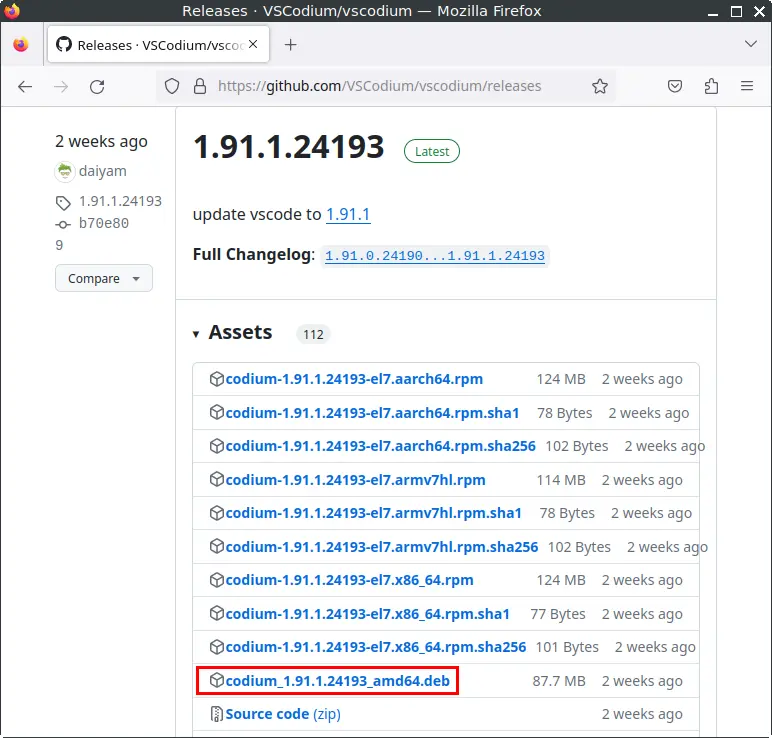
Step 1: Download the VSCodium .deb File
- Visit the VSCodium Releases Page on GitHub.
- Scroll to the Assets section of the latest release.
- Download the file ending in
amd64.deb. - Save the downloaded file in your Downloads directory.
Step 2: Open a Terminal
Open a Terminal using one of the following methods:
- Click Menu in the lower-left corner of the screen, then click Terminal.
- Click the Terminal icon in the Tray.
- Press Ctrl + Alt + T on your keyboard.
Step 3: Navigate to the Downloads Directory
Move into the directory where the .deb file is located:
cd ~/DownloadsStep 4: Update the Package List
Run the following command to refresh the package list:
sudo apt updateStep 5: Install VSCodium
Use the following command to install VSCodium:
sudo apt install ./codium_*.debStep 6: Remove the Downloaded .deb File
Once installation is complete, you can remove the .deb file to free up space:
rm -f codium_*.debStep 7: Reload the Menu
Note: Starting with FunOS 24.04.4 LTS (Build 20260618) and FunOS 26.04 LTS (Build 20260618), the menu updates automatically, so you can skip this step.
Reload the menu so that VSCodium appears among the installed applications:
- Click the Menu button in the lower-left corner.
- Click Reload menu.
Launching VSCodium
Once installed, you can launch VSCodium by:
- Clicking the Menu button in the lower-left corner.
- Navigating to the Development section.
- Clicking VSCodium.
Alternatively, you can open it via Terminal by typing:
codium &How to Uninstall VSCodium on FunOS
If you no longer need VSCodium or want to perform a clean reinstall, you can easily remove it from your FunOS system. The uninstallation process depends on how VSCodium was installed—whether through the official repository or by using the .deb package from GitHub. Below are the detailed steps for both methods.
Uninstall VSCodium Installed from the VSCodium Repositories
Step 1: Open a Terminal
You can open a Terminal in one of the following ways:
- Click Menu in the lower-left corner of the screen, then click Terminal.
- Click the Terminal icon in the Tray.
- Press Ctrl + Alt + T on your keyboard.
Step 2: Remove VSCodium
Run the following command to remove VSCodium and its configuration files:
sudo apt remove --purge codiumStep 3: Remove Any Unused Dependencies
After removing the application, it’s a good idea to clean up unused packages:
sudo apt autoremove --purgeStep 4: Remove the Repository and Key (Optional)
If you no longer plan to reinstall VSCodium, you can also remove its repository and GPG key.
- For FunOS 22.04.5:
sudo rm -f /etc/apt/sources.list.d/vscodium.list
sudo rm -f /usr/share/keyrings/vscodium-archive-keyring.gpg- For FunOS 24.04.5, 25.10, and 26.04.1:
sudo rm -f /etc/apt/sources.list.d/vscodium.sources
sudo rm -f /usr/share/keyrings/vscodium-archive-keyring.gpg
Step 5: Update the Package List
After removing the repository, update your package list to reflect the changes:
sudo apt updateStep 6: Remove User Data (Optional)
If you want to completely remove all personal VSCodium settings and extensions, delete its configuration directories:
rm -rf $HOME/.vscode-oss
rm -rf $HOME/.config/VSCodium
Step 7: Reload the Menu
Note: Starting with FunOS 24.04.4 LTS (Build 20260618) and FunOS 26.04 LTS (Build 20260618), the menu updates automatically, so you can skip this step.
Finally, reload the menu to remove VSCodium from the application list:
- Click the Menu button in the lower-left corner.
- Click Reload menu.
Uninstall VSCodium Installed from the VSCodium .deb File
If you installed VSCodium manually using the .deb package, the uninstallation process is even simpler.
Step 1: Open a Terminal
You can open a Terminal in one of the following ways:
- Click Menu in the lower-left corner of the screen, then click Terminal.
- Click the Terminal icon in the Tray.
- Press Ctrl + Alt + T on your keyboard.
Step 2: Remove VSCodium
Remove VSCodium and its configuration files using:
sudo apt remove --purge codiumStep 3: Remove Any Unused Dependencies
After removing the application, it’s a good idea to clean up unused packages:
sudo apt autoremove --purgeStep 4: Remove User Data (Optional)
To delete all user-specific data and settings for a clean removal, run:
rm -rf $HOME/.vscode-oss
rm -rf $HOME/.config/VSCodium
Step 5: Reload the Menu
Note: Starting with FunOS 24.04.4 LTS (Build 20260618) and FunOS 26.04 LTS (Build 20260618), the menu updates automatically, so you can skip this step.
Reload the menu to update the list of installed applications:
- Click the Menu button in the lower-left corner.
- Click Reload menu.
Conclusion
VSCodium is an excellent open-source alternative to Visual Studio Code, offering the same powerful development experience without telemetry or proprietary restrictions. Installing it on FunOS is straightforward—either by adding the official repository (which ensures automatic updates) or by manually installing the .deb package from GitHub.
If you ever need to uninstall VSCodium, FunOS makes the process equally simple. With just a few terminal commands, you can remove the application, clean up unused packages, and optionally delete user data for a completely fresh system state.
By following this guide, you can confidently manage VSCodium on your FunOS system—whether installing it for development or removing it when it’s no longer needed.