
If you enjoy real-time strategy games with base building, tactical combat, and a post-apocalyptic atmosphere, Warzone 2100 is a great game to try on FunOS. The game is available directly from the Ubuntu repositories used by FunOS, so the installation process is simple and can be completed entirely from the Terminal.
This guide explains how to install Warzone 2100 on FunOS, how to download the optional campaign videos, how to launch the game, and how to completely remove it from your system if you no longer need it.
What is Warzone 2100?
Warzone 2100 is a free and open-source real-time strategy (RTS) game originally released in 1999. The game combines traditional RTS gameplay with advanced unit customization, allowing players to design their own combat vehicles using different weapons, propulsion systems, and armor types.
The game is set in a post-nuclear world where humanity struggles to rebuild civilization after global destruction. Players command “The Project,” a group attempting to restore technology and defend against hostile factions.
Some notable features of Warzone 2100 include:
- Real-time strategic combat
- Base construction and resource management
- Extensive research and technology trees
- Customizable combat units
- Single-player campaigns
- Multiplayer support
- Open-source development and community support
Because the game is open source, it is actively maintained and works well on modern Linux systems, including FunOS.
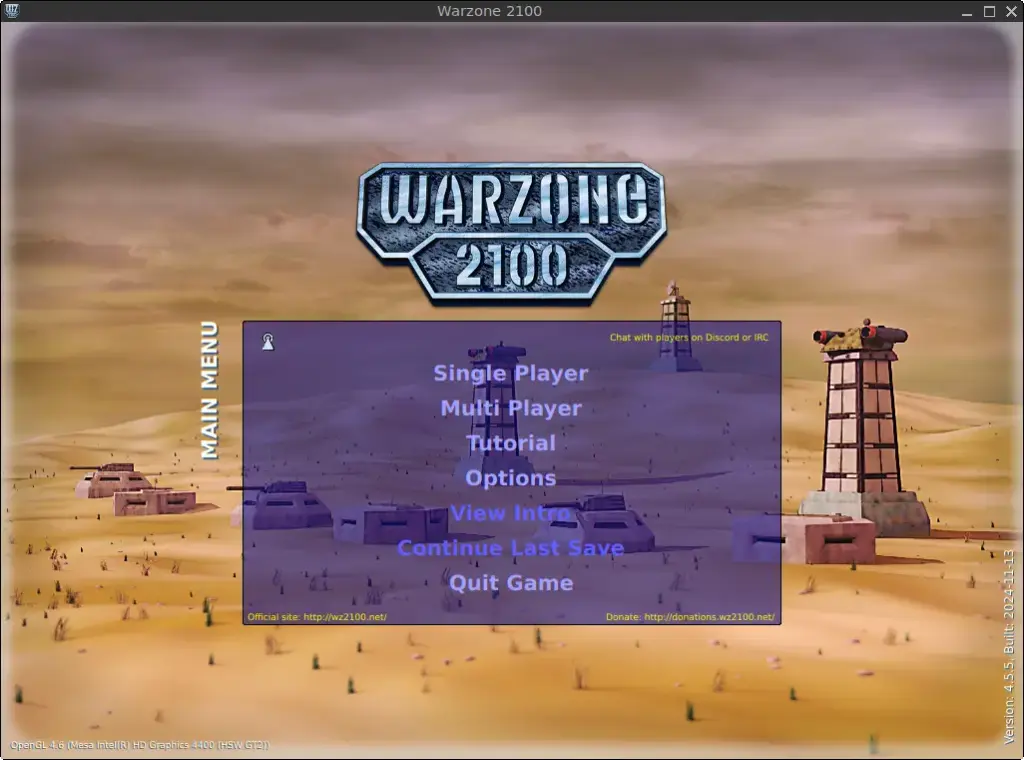
How to Install Warzone 2100 on FunOS
Work on: 22.04.5 ✅ | 24.04.5 ✅ | 25.10 ✅ | 26.04.1 ✅
Step 1: Open a Terminal
There are several ways to open the Terminal in FunOS. Choose whichever method you prefer:
- Click Menu in the lower-left corner of the screen, then click Terminal
- Click the Terminal icon in the Tray
- Press Ctrl + Alt + T on your keyboard
The Terminal will be used for all installation commands in this tutorial.
Step 2: Update the Package List
Before installing any software, it is recommended to refresh the package index so your system knows about the latest available packages and updates.
Run the following command:
sudo apt updateYou may be prompted to enter your password. Type your password and press Enter.
This command updates the package database from the configured software repositories.
Step 3: Install Warzone 2100
After updating the package list, install the game using the following command:
sudo apt install warzone2100APT will display information about the packages that will be installed and how much disk space will be used.
When prompted, type:
Ythen press Enter to continue.
The installation process may take a few minutes depending on your internet connection speed and system performance.
Once the installation is complete, Warzone 2100 will be available from the FunOS application menu.
Step 4: Download Campaign Videos (Optional)
By default, the game package does not include the campaign cutscene videos. These videos are optional, but they improve the story experience during the single-player campaign.
First, create the directory used to store the video sequence package:
mkdir -p ~/.local/share/warzone2100Now choose one of the following video packages depending on your preferred quality level and available storage space.
High Quality Videos (920 MB)
This version provides the best visual quality but requires the most disk space.
wget https://github.com/Warzone2100/wz-sequences/releases/download/v3/high-quality-en-sequences.wz -O ~/.local/share/warzone2100/sequences.wzStandard Quality Videos (545 MB)
This option offers a balance between quality and storage usage.
wget https://github.com/Warzone2100/wz-sequences/releases/download/v3/standard-quality-en-sequences.wz -O ~/.local/share/warzone2100/sequences.wzLow Quality Videos (162 MB)
This version uses the least amount of storage space and is suitable for slower internet connections or systems with limited disk space.
wget https://github.com/Warzone2100/wz-sequences/releases/download/v3/low-quality-en-sequences.wz -O ~/.local/share/warzone2100/sequences.wzOnly download one version because each command saves the file using the same filename.
The download process may take some time depending on the selected package size and your internet connection speed.
Step 5: Reload the Menu
Note: Starting with FunOS 24.04.4 LTS (Build 20260618) and FunOS 26.04 LTS (Build 20260618), the menu updates automatically, so you can skip this step.
After installation, you should reload the FunOS application menu so the new launcher entry appears correctly.
To reload the menu:
- Click the Menu button in the lower-left corner of the screen
- Click Reload menu
This refreshes the JWM application menu used by FunOS.
Launching Warzone 2100
To start the game:
- Click the Menu button in the lower-left corner
- Open the Games category
- Click Warzone 2100
The game should launch and display the main menu after a few moments.
On first launch, the game may generate configuration files inside your home directory. This is normal behavior.
If you downloaded the optional campaign videos earlier, the game will automatically detect and use them.
How to Uninstall Warzone 2100 on FunOS
If you no longer want the game installed on your system, you can completely remove it using the steps below.
Step 1: Open a Terminal
You can open the Terminal using one of the following methods:
- Click Menu in the lower-left corner of the screen, then click Terminal
- Click the Terminal icon in the Tray
- Press Ctrl + Alt + T
Step 2: Remove Warzone 2100
Run the following command to uninstall the game and remove its system configuration files:
sudo apt remove --purge warzone2100When prompted, press:
Ythen press Enter to continue.
Step 3: Remove Any Unused Dependencies
After uninstalling the game, some packages that were installed automatically may no longer be needed.
To remove them, run:
sudo apt autoremove --purgeThis helps keep your system clean by removing unused dependencies.
Step 4: Remove User Data (Optional)
If you also want to remove saved files, downloaded videos, and local user configuration data, run the following commands:
rm -rf ~/.local/share/warzone2100rm -f ~/.local/share/applications/discord-*.desktopThe first command removes local game data and downloaded campaign videos.
The second command removes leftover desktop launcher files if any exist.
Be careful when using rm -rf commands because deleted files cannot easily be recovered.
Step 5: Reload the Menu
Note: Starting with FunOS 24.04.4 LTS (Build 20260618) and FunOS 26.04 LTS (Build 20260618), the menu updates automatically, so you can skip this step.
To refresh the application menu after uninstalling the game:
- Click the Menu button in the lower-left corner of the screen
- Click Reload menu
The Warzone 2100 launcher should now disappear from the Games category.
Conclusion
Warzone 2100 is an excellent open-source strategy game that runs well on FunOS and can be installed quickly using APT. With its deep gameplay mechanics, customizable combat units, and engaging campaign, it remains one of the most unique RTS games available on Linux systems today.
Because FunOS is based on Ubuntu and uses the APT package manager, installing and maintaining games like Warzone 2100 is straightforward and beginner-friendly. You can also enhance the experience further by downloading the optional campaign videos for improved storytelling and immersion.