
FunOS comes with Firefox ESR as its default web browser. However, if you prefer a different browser, there are several alternatives available for Linux. One of them is Waterfox, a free and open-source web browser based on Mozilla’s browser technology.
Waterfox can be installed on FunOS using its official package repository. This allows you to install Waterfox using the APT package manager and receive updates through the normal package management process.
In this guide, we will install Waterfox on FunOS by adding the official Waterfox package repository, installing the required package, and then adding Waterfox to the FunOS application menu.
What is Waterfox?
Waterfox is a free and open-source web browser developed and maintained by BrowserWorks Ltd. It is built on the Mozilla platform and uses the Gecko browser engine, the same underlying browser technology used by Firefox.
Waterfox is designed with an emphasis on customization and privacy. According to the Waterfox project, telemetry and data-collection features are disabled, while the browser includes features such as built-in ad blocking and private DNS functionality. Waterfox also supports Firefox WebExtensions, making many Firefox extensions available for use in Waterfox.
Waterfox is available for Linux as a native package. The Waterfox website currently provides official DEB packages and package repositories for supported Ubuntu versions, including Ubuntu 22.04 LTS, Ubuntu 24.04 LTS, Ubuntu 25.10, and Ubuntu 26.04 LTS.
Because FunOS is based on Ubuntu, Waterfox can be installed using the APT package manager.
How to Install Waterfox on FunOS
Work on: 22.04.5 ✅ | 24.04.5 ✅ | 25.10 ✅ | 26.04.1 ✅
The following steps show how to install Waterfox using the official Waterfox package repository.
Step 1: Open a Terminal
First, open a Terminal.
There are several ways to open a Terminal in FunOS:
- Click the Menu button in the lower-left corner of the screen, then click Terminal.
- Click the Terminal icon in the Tray.
- Press Ctrl + Alt + T on the keyboard.
Step 2: Update the Package List
Before installing any software, it is a good idea to update the local package list.
Run:
sudo apt updateEnter your password when prompted.
This downloads the latest package information from the software repositories configured on your system.
Step 3: Install the Necessary Dependencies
Next, install apt-transport-https and curl:
sudo apt install apt-transport-https curlcurl is used to download the Waterfox repository signing key.
The apt-transport-https package allows APT to work with repositories using HTTPS. On modern Ubuntu-based systems, HTTPS support is already integrated into APT, so this package may already be installed or may no longer be strictly necessary. Installing it here keeps the procedure compatible with the repository setup used by this guide.
Step 4: Add the GPG Key
Software repositories use cryptographic signing keys so that APT can verify packages and repository metadata.
Add the Waterfox repository’s signing key with the following command:
curl -fsSL "https://download.opensuse.org/repositories/isv:/BrowserWorks/xUbuntu_$(lsb_release -sr | cut -d. -f1,2)/Release.key" | gpg --dearmor | sudo tee /usr/share/keyrings/waterfox.gpg > /dev/nullStep 5: Add the Waterfox Repository
Now add the Waterfox package repository to APT:
echo "deb [signed-by=/usr/share/keyrings/waterfox.gpg] https://download.opensuse.org/repositories/isv:/BrowserWorks/xUbuntu_$(lsb_release -sr | cut -d. -f1,2)/ /" | sudo tee /etc/apt/sources.list.d/waterfox.listStep 6: Update the Package List Again
Now that the Waterfox repository has been added, update the package list again:
sudo apt updateThis time, APT will also retrieve package information from the Waterfox repository.
If everything is configured correctly, you should not see an error related to the Waterfox repository or its signing key.
Step 7: Install Waterfox
Install Waterfox with:
sudo apt install waterfoxAPT will download and install the Waterfox package and any required dependencies.
The Waterfox project provides Waterfox as a native Linux package, and its official repository allows Waterfox to be installed and updated through the distribution’s package manager.
Step 8: Reload the Menu
Note: Starting with FunOS 24.04.4 LTS (Build 20260618) and FunOS 26.04 LTS (Build 20260618), the menu updates automatically, so you can skip this step.
After the installation has finished, Waterfox should have an application launcher installed.
Because FunOS uses JWM and dynamically generates its application menu, reload the menu so that the new application appears.
To do this:
- Click the Menu button in the lower-left corner of the screen.
- Click Reload menu.
The Waterfox launcher should now appear in the FunOS menu.
Launching Waterfox
To launch Waterfox:
- Click the Menu button in the lower-left corner of the screen.
- Look in the Internet section.
- Click Waterfox.
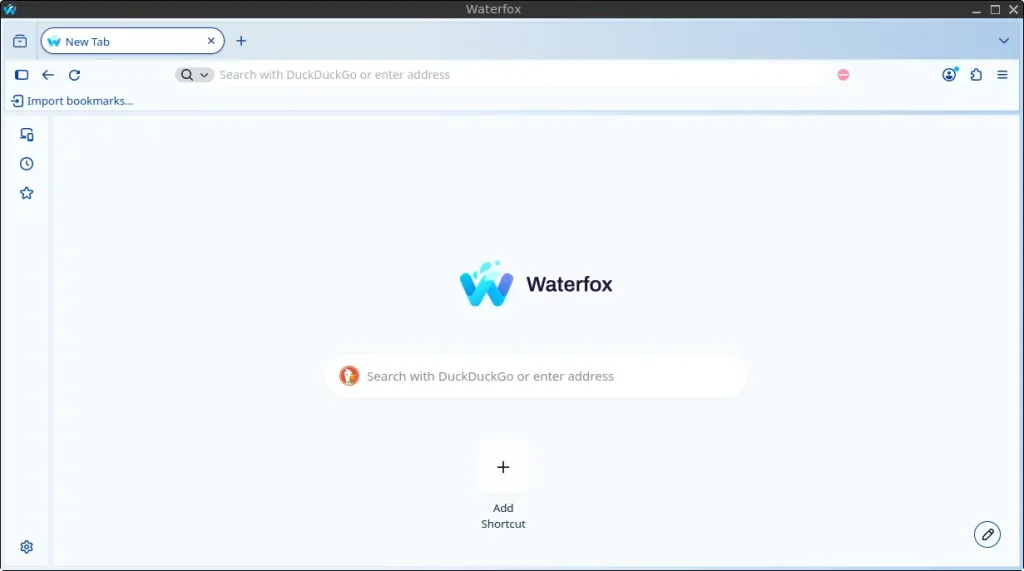
Waterfox should start and display its initial setup or browser window.
After installation, Waterfox can be used like other modern web browsers. You can import supported browser data, install extensions, change the appearance, and customize privacy and browsing settings.
Waterfox also supports Firefox WebExtensions, although compatibility can vary depending on the extension and browser version.
Keeping Waterfox Updated
Because Waterfox was installed through its APT repository, updates can be installed through the normal FunOS package-management process.
You can manually check for updates by opening a Terminal and running:
sudo apt updateThen upgrade available packages with:
sudo apt upgradeIf a new version of Waterfox is published to the configured repository, APT can install it along with your other system updates.
This is one advantage of installing Waterfox through the official package repository instead of manually downloading and extracting a browser archive. Waterfox’s official Linux documentation specifically describes the repository method as a way to install and update Waterfox using the package manager.
How to Uninstall Waterfox on FunOS
If you no longer want to use Waterfox, you can remove it from FunOS using APT.
Step 1: Open a Terminal
Open a Terminal using any of the following methods:
- Click the Menu button in the lower-left corner, then click Terminal.
- Click the Terminal icon in the Tray.
- Press Ctrl + Alt + T.
Step 2: Remove Waterfox
Run:
sudo apt remove --purge waterfoxThe remove command removes the Waterfox package.
The --purge option also asks APT to remove system-level configuration files associated with the package.
Step 3: Remove Any Unused Dependencies
Next, run:
sudo apt autoremove --purgeThis removes packages that were installed as dependencies but are no longer required by any installed software.
Review the packages APT proposes to remove before confirming the operation.
Step 4: Remove the Repository and Key
Removing the Waterfox package does not automatically remove the repository that you added earlier.
If you do not plan to reinstall Waterfox, you can remove the repository and its signing key.
Run:
sudo rm -f /etc/apt/sources.list.d/waterfox.listThen remove the Waterfox repository key:
sudo rm -f /usr/share/keyrings/waterfox.gpgThese commands remove only the repository configuration and key that were added by this guide.
If you intend to reinstall Waterfox later, you can leave the repository configured instead.
Step 5: Update the Package List
After removing the repository, update the package list:
sudo apt updateThis ensures that APT refreshes its package information without the Waterfox repository.
Step 6: Remove Waterfox User Data
Removing the Waterfox package does not necessarily remove your personal browser data.
Waterfox profiles contain information such as bookmarks, passwords, settings, extensions, history, cookies, and other browsing data.
If you want to completely remove your Waterfox user data as well, you can remove the Waterfox profile and cache directories.
First, make sure Waterfox is completely closed.
Then run:
rm -rf $HOME/.waterfox
rm -rf $HOME/Waterfox
rm -rf $HOME/.cache/waterfox
Warning: These commands permanently delete your Waterfox user data. Do not run them if you might want to keep your bookmarks, passwords, browsing history, extensions, settings, or other Waterfox profile information.
If you are unsure, it is better to leave these directories untouched.
Waterfox recommends backing up profiles before deleting them because profiles can contain important personal browsing data.
Step 7: Reload the Menu
Note: Starting with FunOS 24.04.4 LTS (Build 20260618) and FunOS 26.04 LTS (Build 20260618), the menu updates automatically, so you can skip this step.
Finally, reload the FunOS menu:
- Click the Menu button in the lower-left corner of the screen.
- Click Reload menu.
The Waterfox entry should now be removed from the Internet section.
Conclusion
Waterfox can be installed on FunOS using the official Waterfox package repository. The repository method integrates Waterfox with the APT package-management system, making it possible to install and update the browser using familiar FunOS commands.
The installation involves adding the Waterfox repository signing key, adding the appropriate repository for the Ubuntu version used by FunOS, refreshing the package list, and installing the waterfox package.
Once installed, Waterfox is available from the Internet section of the FunOS application menu.
If you later decide that Waterfox is no longer needed, it can be removed with APT. You can also remove the Waterfox repository and its signing key, and optionally delete your personal Waterfox data.
For the latest Waterfox versions, supported Linux distributions, repository commands, and release information, refer to the official Waterfox website and download page.