
FunOS provides a lightweight and highly efficient computing experience, but no modern desktop is complete without a powerful office suite. For many Linux users, finding an office suite that offers excellent compatibility with Microsoft Office documents is a top priority. In this guide, we’ll walk you through the process of installing WPS Office on FunOS so you can seamlessly manage your documents, spreadsheets, and presentations.
What is WPS Office?
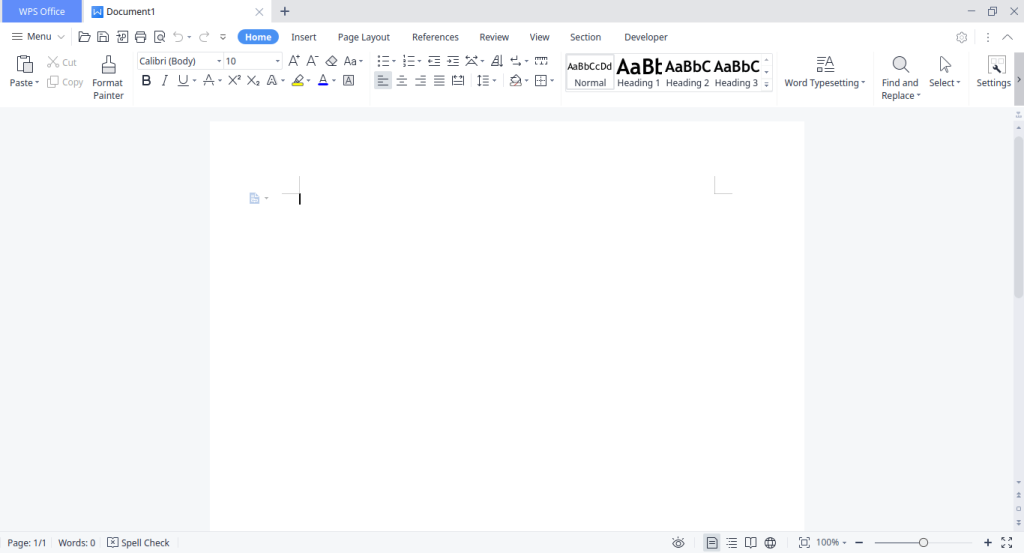
WPS Office is a popular, feature-rich office suite developed by Kingsoft. It includes Writer, Presentation, and Spreadsheets, serving as direct alternatives to Microsoft Word, PowerPoint, and Excel. It is highly regarded in the Linux community for its native-like rendering of proprietary Microsoft formats, making it an excellent choice for users who frequently need to exchange documents with Windows users. The suite features a familiar ribbon interface, making it incredibly easy to learn for anyone transitioning from Microsoft Office.
How to Install WPS Office on FunOS
Work on: 22.04.5 ✅ | 24.04.4 ✅ | 25.10 ✅ | 26.04 ✅
Follow these straightforward steps to install WPS Office on your FunOS system.
Step 1: Download the WPS Office .deb File
- Open your web browser and navigate to the official WPS Office Linux download page.
- Click the Deb Package button to start the download.
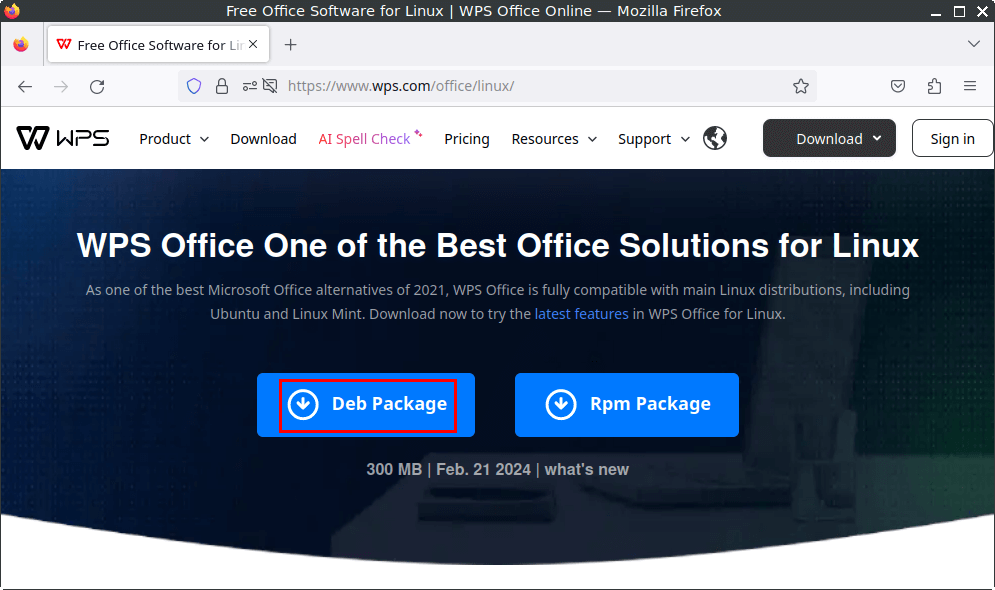
- Save the file directly in your
Downloadsdirectory.
Step 2: Open a Terminal
You will need a terminal to complete the installation. You can open one using any of these three methods:
- Click Menu in the lower-left corner of the screen, then click Terminal.
- Click the Terminal icon directly in the Tray.
- Press the keyboard shortcut
Ctrl+Alt+T.
Step 3: Navigate to the Downloads Directory
Once your terminal is open, move into the directory where the installer was saved:
cd ~/DownloadsStep 4: Update the Package List
It’s good practice to ensure your package list is up to date before installing new software:
sudo apt updateStep 5: Install WPS Office
Run the following command to install the downloaded .deb package. (The * acts as a wildcard, so you don’t need to type the exact version number):
sudo apt install ./wps-office_*.debStep 6: Remove the Downloaded .deb File
To keep your system clean and free up disk space, you can remove the installer file now that the software is installed:
rm -f wps-office_*.debStep 7: Reload the Menu
Note: Starting with FunOS 24.04.4 LTS (Build 20260618) and FunOS 26.04 LTS (Build 20260618), the menu updates automatically, so you can skip this step.
To ensure WPS Office appears in your system menu immediately:
- Click the Menu button in the lower-left corner.
- Click Reload menu.
Launching WPS Office
To start using your newly installed office suite, click the Menu button in the lower-left corner, look in the Office category, and click on WPS 2019 (or Writer, Presentation, Spreadsheets).
Troubleshooting Common Issues
Due to recent updates in underlying system libraries in Ubuntu, you may encounter a couple of common issues. Here is how to fix them quickly.
Issue 1: WPS Office Won’t Open
Symptoms: You open the WPS Office from the menu, but nothing happens. If you try to run it from the terminal, it fails silently or complains about missing libraries.
Solution: Ubuntu ships with newer versions of some libraries, but WPS explicitly looks for older versions. You can fix this by installing libxslt1.1 and libxml2-16 and creating a symbolic link for libxml2.
Run these commands in your terminal:
sudo apt update
sudo apt install libxslt1.1 libxml2-16
sudo ln -s /usr/lib/x86_64-linux-gnu/libxml2.so.16 /usr/lib/x86_64-linux-gnu/libxml2.so.2
Issue 2: Missing Fonts Error (Symbol, Wingdings, etc.)
Symptoms: When opening WPS Office, you see a warning stating: “Some formula symbols might not be displayed correctly due to missing fonts Symbol, Wingdings, Wingdings 2, Wingdings 3, MT Extra.”
Solution: These are proprietary Microsoft fonts that are not included in Linux by default. You can easily download and install them using a community script on GitHub.
Run these commands in your terminal one by one:
sudo apt update
sudo apt install git
cd /tmp
git clone https://github.com/dv-anomaly/ttf-wps-fonts.git
cd ttf-wps-fonts
sudo bash install.sh
rm -rf /tmp/ttf-wps-fonts
cd
Restart WPS Office, and the font warnings will be gone!
Issue 3: PDF Export Error
Symptoms: When trying to export a document to PDF, you receive the error: “WPS Spreadsheets encountered an error while trying exporting to PDF.”
Solution: This occurs because WPS Office looks for an older image library (libtiff.so.5), but Ubuntu uses a newer version (libtiff.so.6). You can fix this by installing libtiff6 and creating a symbolic link for libtiff
Run this command in your terminal:
sudo apt update
sudo apt install libtiff6
sudo ln -s /usr/lib/x86_64-linux-gnu/libtiff.so.6 /usr/lib/x86_64-linux-gnu/libtiff.so.5
Restart WPS Office, and the PDF export feature will work.
How to Uninstall WPS Office on FunOS
If you ever decide to remove WPS Office from your system, follow these steps:
Step 1: Open a Terminal
Open a terminal using Ctrl + Alt + T or from your menu.
Step 2: Remove WPS Office
Uninstall the main application package:
sudo apt remove --purge wps-officeStep 3: Remove Any Unused Dependencies
Clean up any leftover packages that were installed alongside WPS but are no longer needed:
sudo apt autoremove --purgeStep 4: Remove User Data (Optional)
If you want to completely erase your WPS Office settings and user data, run:
rm -rf $HOME/.config/Kingsoft
rm -rf $HOME/.local/share/Kingsoft
Step 5: Reload the Menu
Note: Starting with FunOS 24.04.4 LTS (Build 20260618) and FunOS 26.04 LTS (Build 20260618), the menu updates automatically, so you can skip this step.
Update the application menu so the WPS Office disappear:
- Click the Menu button in the lower-left corner of the screen.
- Click Reload menu.
Conclusion
Installing WPS Office on FunOS is a straightforward process that grants you access to one of the most highly compatible office suites available for Linux. By following the installation steps and keeping our troubleshooting tips in mind, you can ensure a smooth, productive experience right out of the box. Whether you are typing up documents, crunching numbers, or preparing a presentation, WPS Office on FunOS has you covered.