
XAMPP is a free and open-source cross-platform web server solution stack package developed by Apache Friends. It provides an easy-to-install environment with Apache, MariaDB, PHP, and Perl, making it an excellent choice for developers who need a local server for testing applications. This guide will show you step-by-step how to install, manage, and uninstall XAMPP on FunOS.
What is XAMPP?
XAMPP is a fully open-source and cross-platform web server solution stack package designed to make the web server setup process simple. It includes Apache, MariaDB, PHP, and Perl, providing all the necessary components to run a web server locally. XAMPP is ideal for local development, testing, and learning about server management.
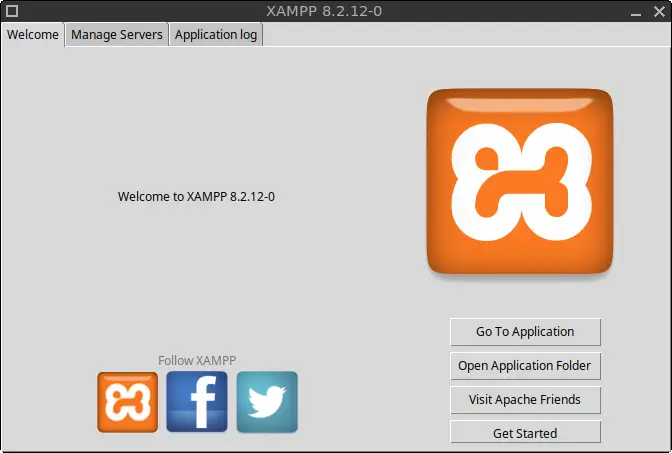
How to Install XAMPP on FunOS
Work on: 22.04.5 ✅ | 24.04.4 ✅ | 25.10 ✅ | 26.04 ✅
Step 1: Download the XAMPP Installer File
1. Visit the XAMPP download page. Download the latest XAMPP version for Linux (64-bit).
2. Click the Download (64 bit) button next to the latest release.
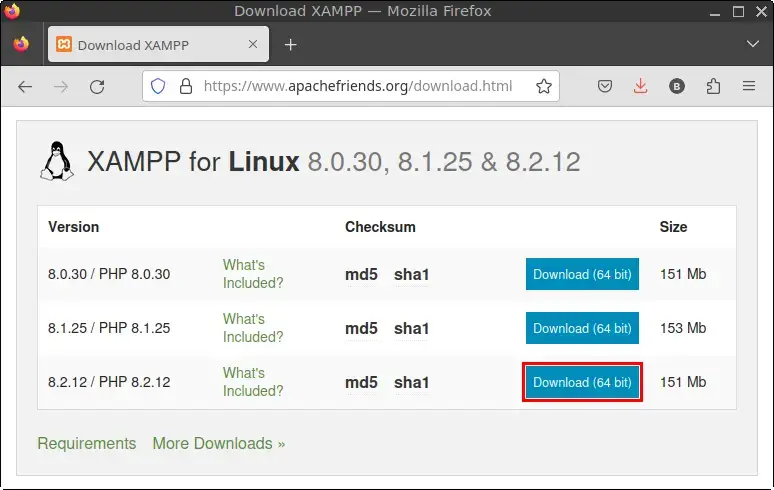
3. Save the file to your Downloads directory.
Step 2: Open a Terminal
To proceed with the installation, open a Terminal in FunOS. You can do this in one of the following ways:
- Click Menu in the bottom left corner, then select Terminal.
- Click the Terminal icon in the tray.
- Use the keyboard shortcut Ctrl + Alt + T.
Step 3: Update the Package List
To ensure you’re working with the latest packages, run:
sudo apt updateStep 4: Install the Necessary Package
XAMPP requires net-tools to operate. Install it by running:
sudo apt install net-toolsStep 5: Navigate to the Downloads Directory
Change the directory to where the XAMPP installer file was downloaded:
cd ~/DownloadsStep 6: Change the Permissions of the Installer
To make the installer executable, modify its permissions:
chmod 755 xampp-linux-*-installer.runStep 7: Run the Installer
Execute the installer with the following command:
sudo ./xampp-linux-*-installer.runFollow the on-screen instructions.
Click Forward.
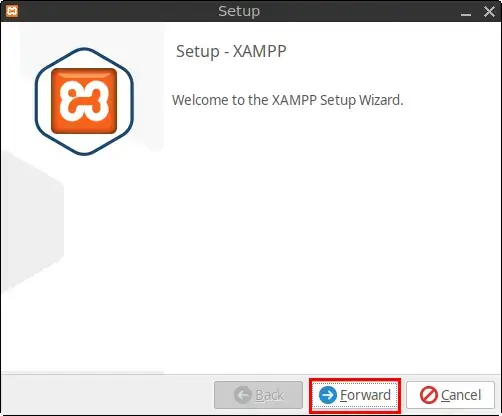
Click Forward.
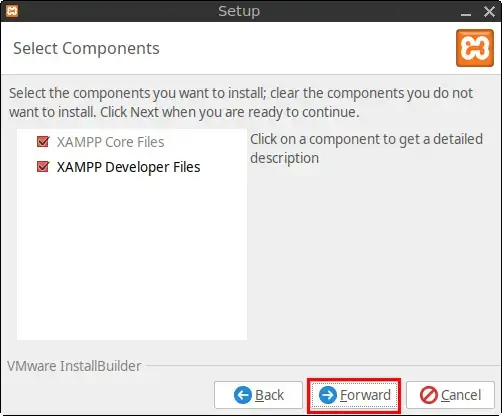
Click Forward.
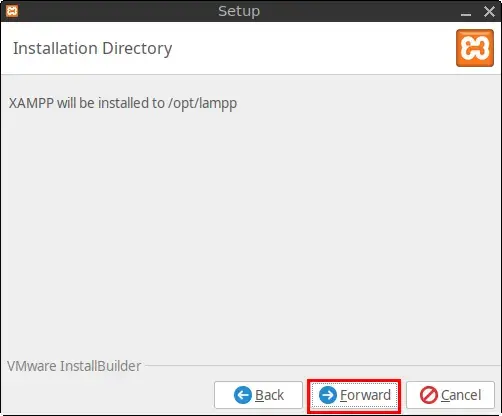
Click Forward.
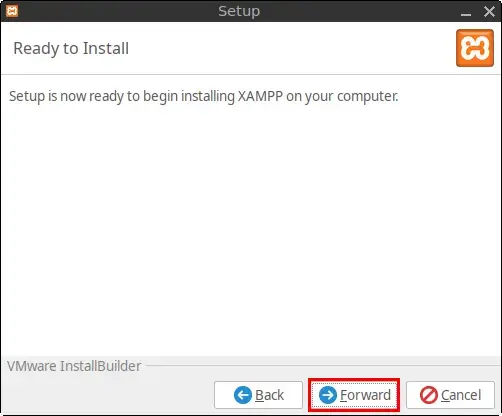
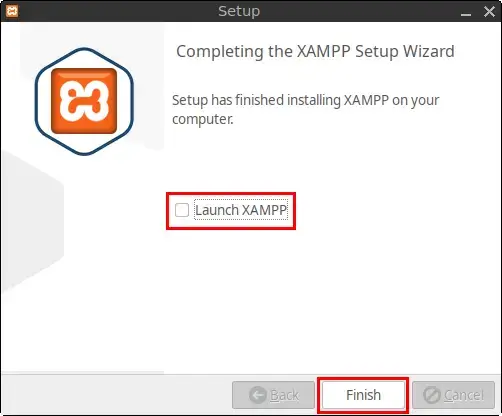
Uncheck Launch XAMPP, then click Finish.
Step 8: Remove the Downloaded XAMPP Installer File
After installation, you can delete the installer file to save space:
rm -f xampp-linux-*-installer.runManaging XAMPP
You can manage XAMPP in FunOS through both CLI and GUI options.
1. Via CLI
To start XAMPP:
sudo /opt/lampp/lampp startTo stop XAMPP:
sudo /opt/lampp/lampp stop2. Via Graphical Tool
Open the XAMPP Manager by running:
sudo /opt/lampp/manager-linux-x64.run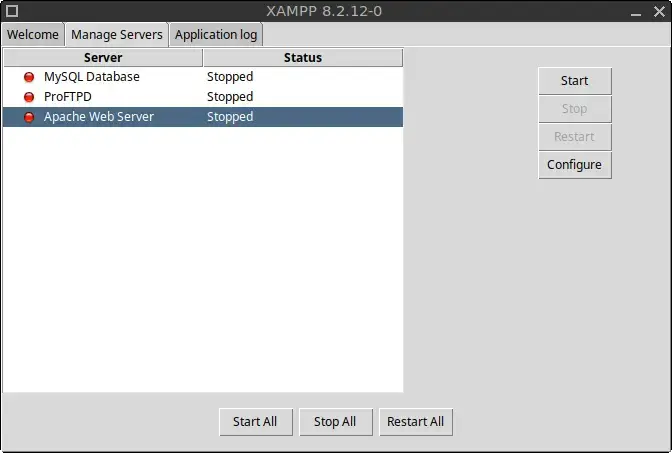
Start XAMPP by clicking Start All.
Stop XAMPP by clicking Stop All.
Verifying XAMPP
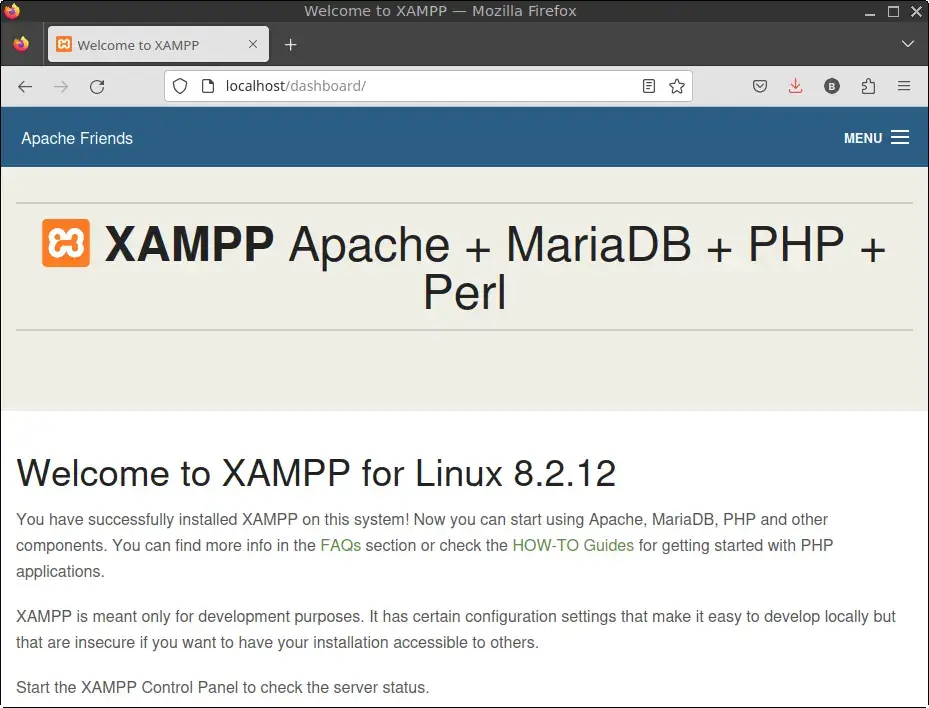
To confirm XAMPP is running, open a web browser and go to:
http://localhostIf XAMPP is functioning correctly, you will see the XAMPP start page:
How to Uninstall XAMPP on FunOS
Step 1: Open a Terminal
Open a terminal by following the steps in the Open a Terminal section above.
Step 2: Run the Uninstaller
Execute the following command to uninstall XAMPP:
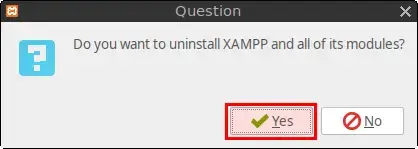
sudo /opt/lampp/uninstallClick Yes.
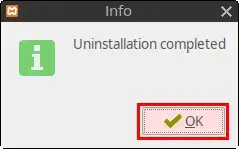
Click OK.
Step 3: Remove the XAMPP Directory
To delete all remaining XAMPP files, run:
sudo rm -rf /opt/lamppConclusion
Installing XAMPP on FunOS provides a convenient and comprehensive local development environment. You now know how to install, manage, and uninstall XAMPP, allowing you to focus on developing and testing your applications locally.