
JWM (Joe’s Window Manager) is the lightweight window manager used in FunOS. It is fast, simple, and highly configurable, making it a good choice for users who want a responsive desktop environment without unnecessary complexity.
One useful feature of JWM is its support for customizable key bindings. Key bindings allow you to control menus, switch desktops, manage windows, and launch applications using keyboard shortcuts.
In FunOS, JWM key bindings are configured in this file:
~/.config/jwm/keysThis article explains how the keys file is structured, what the default key bindings do, and how you can customize them to better match your workflow.
1. Back Up the Key Bindings File
Before editing the JWM key bindings file, it is recommended to create a backup. This allows you to restore the original configuration if something goes wrong.
Open a terminal and run:
cp ~/.config/jwm/keys ~/.config/jwm/keys.bakThis creates a backup file named keys.bak in the same directory.
If you need to restore the backup later, you can run:
cp ~/.config/jwm/keys.bak ~/.config/jwm/keys2. Open the Key Bindings File
You can open the JWM key bindings file using either the file manager or the terminal.
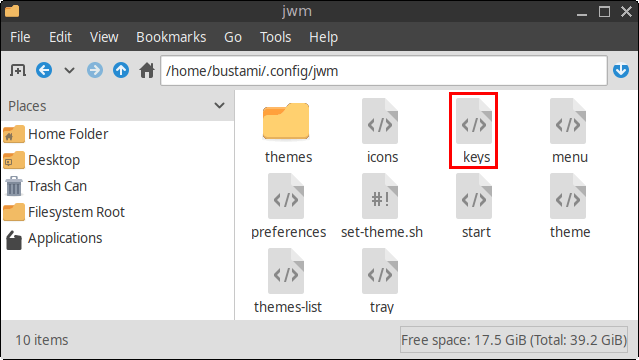
Method 1: Using the File Manager
- Click Menu in the lower-left corner of the screen.
- Click File Manager.
- Press Ctrl + H or click View > Show Hidden to display hidden files.
- Open the
.configfolder. - Open the
jwmfolder. - Open the
keysfile with a text editor.
Method 2: Using the Terminal
You can also open the file directly from the terminal using Mousepad:
mousepad ~/.config/jwm/keysThis opens the key bindings file in the Mousepad text editor.
3. Understanding the File Structure
The JWM key bindings file uses XML syntax. The configuration is placed inside a main <JWM> tag, and each keyboard shortcut is defined using a <Key> element.
A basic key binding looks like this:
<Key key="KEY_NAME">ACTION</Key>For shortcuts that use modifier keys, such as Alt, Ctrl, or Shift, the mask attribute is used:
<Key mask="MODIFIER" key="KEY_NAME">ACTION</Key>For example:
<Key mask="CA" key="t">exec:lxterminal</Key>This means:
C= CtrlA= Altkey="t"= the T keyexec:lxterminal= launch LXTerminal
So this key binding runs LXTerminal when you press Ctrl + Alt + T.
4. Default Key Bindings in FunOS
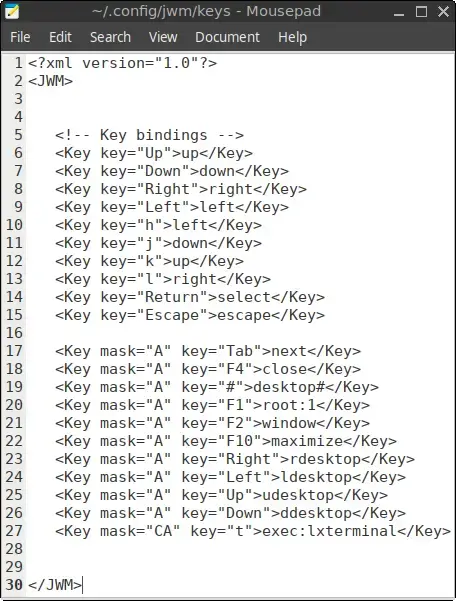
The default ~/.config/jwm/keys file in FunOS looks like this:
<?xml version="1.0" encoding="UTF-8"?>
<JWM>

    <!-- Key bindings -->
    <Key key="Up">up</Key>
    <Key key="Down">down</Key>
    <Key key="Right">right</Key>
    <Key key="Left">left</Key>
    <Key key="h">left</Key>
    <Key key="j">down</Key>
    <Key key="k">up</Key>
    <Key key="l">right</Key>
    <Key key="Return">select</Key>
    <Key key="Escape">escape</Key>

    <Key mask="A" key="Tab">next</Key>
    <Key mask="A" key="F4">close</Key>
    <Key mask="A" key="#">desktop#</Key>
    <Key mask="A" key="F1">root:1</Key>
    <Key mask="A" key="F2">window</Key>
    <Key mask="A" key="F10">maximize</Key>
    <Key mask="A" key="Right">rdesktop</Key>
    <Key mask="A" key="Left">ldesktop</Key>
    <Key mask="A" key="Up">udesktop</Key>
    <Key mask="A" key="Down">ddesktop</Key>
    <Key mask="CA" key="t">exec:lxterminal</Key>

</JWM>
The following sections explain what these default key bindings do.
Menu Navigation
<Key key="Up">up</Key>
<Key key="Down">down</Key>
<Key key="Left">left</Key>
<Key key="Right">right</Key>
<Key key="h">left</Key>
<Key key="j">down</Key>
<Key key="k">up</Key>
<Key key="l">right</Key>
These key bindings are used for navigating JWM menus.
The arrow keys move through menu items in the expected direction. FunOS also includes Vim-style navigation keys:
hmoves leftjmoves downkmoves uplmoves right
This is useful for users who are familiar with Vim-style keyboard navigation.
Menu Selection and Window Control
<Key key="Return">select</Key>
<Key key="Escape">escape</Key>
<Key mask="A" key="Tab">next</Key>
<Key mask="A" key="F4">close</Key>
These key bindings control menu selection and basic window behavior:
- Enter selects a highlighted menu item.
- Escape cancels or closes a menu.
- Alt + Tab switches to the next window.
- Alt + F4 closes the active window.
Desktop Switching
<Key mask="A" key="Right">rdesktop</Key>
<Key mask="A" key="Left">ldesktop</Key>
<Key mask="A" key="Up">udesktop</Key>
<Key mask="A" key="Down">ddesktop</Key>
<Key mask="A" key="#">desktop#</Key>
These key bindings are used to switch between virtual desktops.
- Alt + Right Arrow switches to the desktop on the right.
- Alt + Left Arrow switches to the desktop on the left.
- Alt + Up Arrow switches to the desktop above.
- Alt + Down Arrow switches to the desktop below.
- Alt + number switches directly to a numbered desktop.
For example, pressing Alt + 1 switches to desktop 1.
Opening Menus
<Key mask="A" key="F1">root:1</Key>
<Key mask="A" key="F2">window</Key>
These shortcuts open JWM menus:
- Alt + F1 opens the main JWM root menu.
- Alt + F2 opens the window operations menu.
The window operations menu provides options for managing the active window, such as moving, resizing, minimizing, maximizing, or closing it.
Maximizing Windows
<Key mask="A" key="F10">maximize</Key>This key binding toggles the maximized state of the active window.
Press Alt + F10 to maximize the current window. Press it again to restore the window to its previous size.
Launching the Terminal
<Key mask="CA" key="t">exec:lxterminal</Key>This key binding launches LXTerminal when you press Ctrl + Alt + T.
This is one of the most commonly used keyboard shortcuts in FunOS because it provides quick access to the terminal.
5. Customizing Key Bindings
You can add your own keyboard shortcuts by editing the ~/.config/jwm/keys file.
For example, to launch Firefox ESR using Ctrl + Alt + W, add this line inside the <JWM> section:
<Key mask="CA" key="w">exec:firefox-esr</Key>The exec: action tells JWM to run a command. In this example, the command is:
firefox-esrYou can replace firefox-esr with another command or application name.
For example, to launch the file manager with Ctrl + Alt + F, you could add:
<Key mask="CA" key="f">exec:pcmanfm</Key>6. Modifier Keys
JWM uses short letters to represent modifier keys.
Common modifier letters include:
A= AltC= CtrlS= Shift
You can combine them to create keyboard shortcuts.
For example:
<Key mask="CA" key="t">exec:lxterminal</Key>This means Ctrl + Alt + T.
Another example:
<Key mask="CAS" key="t">exec:lxterminal</Key>This means Ctrl + Alt + Shift + T.
7. Applying Changes
After editing the key bindings file, save your changes and restart JWM for the new shortcuts to take effect.
Run:
jwm -restartThis restarts JWM without logging you out.
After JWM restarts, test your new keyboard shortcut to make sure it works correctly.
8. Troubleshooting
If a custom key binding does not work, check the following:
- Make sure the XML syntax is correct.
- Make sure the shortcut is placed inside the
<JWM>section. - Make sure the command after
exec:is correct. - Make sure the application is installed.
- Make sure the shortcut is not already used by another key binding.
For example, this is correct:
<Key mask="CA" key="w">exec:firefox-esr</Key>This is incorrect because the closing tag is missing:
<Key mask="CA" key="w">exec:firefox-esrIf JWM does not behave correctly after editing the file, restore your backup:
cp ~/.config/jwm/keys.bak ~/.config/jwm/keys
jwm -restart
Conclusion
The ~/.config/jwm/keys file gives you direct control over keyboard shortcuts in FunOS. By editing this file, you can customize how you navigate menus, switch desktops, manage windows, and launch applications.
JWM keeps this configuration simple and easy to understand. With only a few lines of XML, you can create a faster and more keyboard-friendly workflow that matches the way you use your system.