
The JWM desktop environment used in FunOS is lightweight, fast, and highly customizable. One of the most important parts of the desktop is the main menu. This menu allows you to launch applications, open system tools, switch themes, access FunOS documentation, and log out of the system.
In FunOS, the JWM menu is controlled by an XML-based configuration file located at:
~/.config/jwm/menuBy understanding how this file works, you can customize the FunOS menu to better match your workflow. You can add new menu entries, remove items you do not need, change how the menu is opened, or organize applications in a different way.
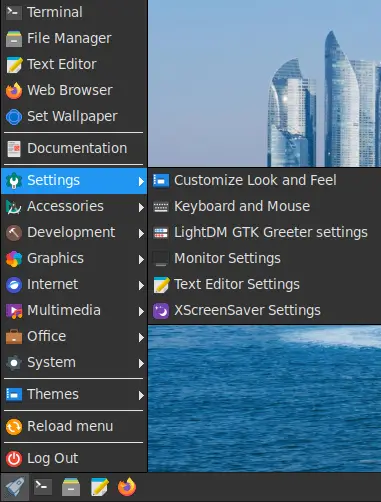
1. Back Up the Menu File Before Editing
Before editing the JWM menu configuration, it is strongly recommended to create a backup. This makes it easy to restore the original file if something goes wrong.
Open a Terminal and run:
cp ~/.config/jwm/menu ~/.config/jwm/menu.bakThis command creates a backup file named menu.bak in the same directory.
If you make a mistake later, you can restore the backup with:
cp ~/.config/jwm/menu.bak ~/.config/jwm/menuThen restart JWM to apply the restored configuration:
jwm -restart2. Accessing the JWM Menu Configuration File
You can open the JWM menu configuration file using either the file manager or the Terminal.
Method 1: Using the File Manager
- Click the Menu button in the lower-left corner of the screen.
- Click File Manager.
- Press Ctrl + H or click View > Show Hidden to display hidden files and folders.
- Open the
.configfolder. - Open the
jwmfolder. - Right-click the
menufile and open it with a text editor.
The full location of the file is:
~/.config/jwm/menu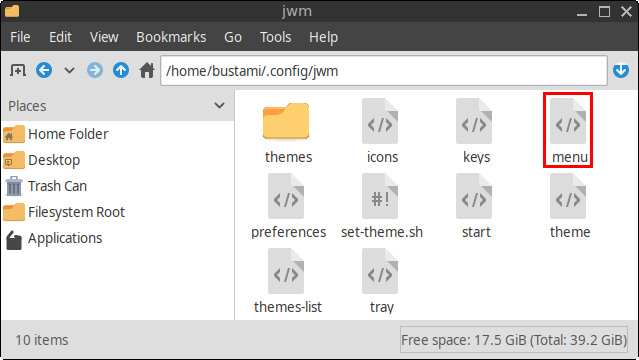
Method 2: Using the Terminal
You can also open the file directly from the Terminal.
Run:
mousepad ~/.config/jwm/menuThis opens the menu file in Mousepad, the default graphical text editor in FunOS.
3. What Is the ~/.config/jwm/menu File?
The ~/.config/jwm/menu file defines the structure of the main JWM menu in FunOS.
This file controls several parts of the menu, including:
- Application shortcuts
- Separators between menu sections
- Included menu files
- Theme menu entries
- Logout options
- Root menu mouse button behavior
Because the file uses XML syntax, each menu item is written using tags such as <RootMenu>, <Program>, <Separator>, and <Include>.
4. Default JWM Menu Configuration in FunOS
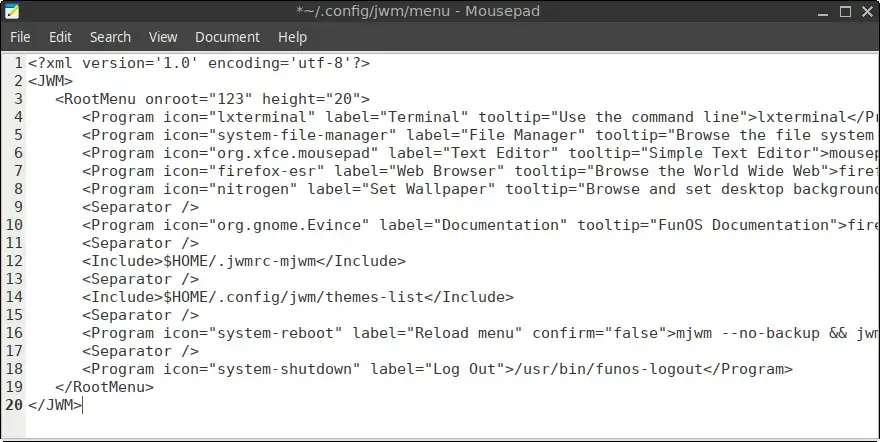
Below is an example of the default JWM menu configuration used in FunOS:
<?xml version="1.0" encoding="UTF-8"?>
<JWM>
    <RootMenu onroot="123" height="20">
        <Program icon="lxterminal" label="Terminal" tooltip="Use the command line">lxterminal</Program>
        <Program icon="system-file-manager" label="File Manager" tooltip="Browse the file system and manage the files">pcmanfm</Program>
        <Program icon="org.xfce.mousepad" label="Text Editor" tooltip="Simple Text Editor">mousepad</Program>
        <Program icon="firefox-esr" label="Web Browser" tooltip="Browse the World Wide Web">firefox-esr</Program>
        <Program icon="nitrogen" label="Set Wallpaper" tooltip="Browse and set desktop backgrounds">nitrogen</Program>
        <Separator/>
        <Program icon="org.gnome.Evince" label="Documentation" tooltip="FunOS Documentation">firefox-esr -new-tab https://funos.org/documentation/</Program>
        <Separator/>
        <Include>$HOME/.jwmrc-mjwm</Include>
        <Separator/>
        <Include>$HOME/.config/jwm/themes-list</Include>
        <Separator/>
        <Program icon="system-reboot" label="Reload menu" confirm="false">mjwm --no-backup && jwm -reload</Program>
        <Separator/>
        <Program icon="system-shutdown" label="Log Out">/usr/bin/funos-logout</Program>
    </RootMenu>
</JWM>
Note: Starting with FunOS 24.04.4 LTS (Build 20260618) and FunOS 26.04 LTS (Build 20260618), the manual Reload menu entry has been removed because the application menu now updates automatically when software is installed or removed.
Because of this change, the following lines are no longer needed in newer FunOS releases:
<Program icon="system-reboot" label="Reload menu" confirm="false">mjwm --no-backup && jwm -reload</Program>
<Separator/>
5. Understanding the Main Menu Elements
This section explains the main XML elements used in the JWM menu configuration file.
The <RootMenu> Element
The menu starts with the <RootMenu> element:
<RootMenu onroot="123" height="20">This element defines the main desktop menu.
The onroot="123" option controls which mouse buttons can open the menu when you click on an empty area of the desktop.
The numbers represent mouse buttons:
1means left-click2means middle-click3means right-click
So, this setting:
onroot="123"means the menu can be opened with left-click, middle-click, or right-click on the desktop.
If you want the menu to open only with right-click, you can change it to:
onroot="3"The height="20" option controls the height of each menu entry.
The <Program> Element
The <Program> element is used to create a menu item that launches an application or runs a command.
Example:
<Program icon="lxterminal" label="Terminal" tooltip="Use the command line">lxterminal</Program>This creates a menu entry called Terminal. When clicked, it runs the lxterminal command.
A <Program> entry can contain several parts:
<Program icon="icon-name" label="Menu Label" tooltip="Tooltip text">command</Program>Explanation:
icondefines the icon shown next to the menu entry.labeldefines the text shown in the menu.tooltipdefines the text shown when the mouse pointer is placed over the item.- The command between the opening and closing tags is what JWM runs when the item is clicked.
For example:
<Program icon="firefox-esr" label="Web Browser" tooltip="Browse the World Wide Web">firefox-esr</Program>This menu entry opens Firefox ESR.
The <Separator/> Element
The <Separator/> element adds a visual separator between menu items.
Example:
<Separator/>Separators are useful for grouping related items. For example, FunOS uses separators to divide default applications, documentation, the dynamic application menu, themes, and logout options.
The <Include> Element
The <Include> element allows JWM to load menu content from another file.
Example:
<Include>$HOME/.jwmrc-mjwm</Include>This makes the menu more modular. Instead of placing all menu entries directly inside ~/.config/jwm/menu, FunOS can load some parts of the menu from separate files.
FunOS commonly uses two important include files:
<Include>$HOME/.jwmrc-mjwm</Include>and:
<Include>$HOME/.config/jwm/themes-list</Include>6. Understanding $HOME/.jwmrc-mjwm
The following line includes the application menu generated by mjwm:
<Include>$HOME/.jwmrc-mjwm</Include>The $HOME/.jwmrc-mjwm file contains the categorized application menu in FunOS. It is generated from installed .desktop files.
This is what allows installed applications to appear in categories such as:
- Accessories
- Graphics
- Internet
- Multimedia
- Office
- Settings
- System
In older FunOS versions, users could manually refresh this menu by clicking Reload menu or by running:
mjwm --no-backup && jwm -reloadStarting with FunOS 24.04.4 LTS (Build 20260618) and FunOS 26.04 LTS (Build 20260618), this process is handled automatically. When applications are installed or removed, the menu is refreshed in the background, so the manual Reload menu option is no longer required.
7. Understanding $HOME/.config/jwm/themes-list
The following line includes the JWM theme menu:
<Include>$HOME/.config/jwm/themes-list</Include>This file adds the JWM Themes submenu to the main menu.
The theme menu allows users to switch between available JWM themes. When a theme is selected, FunOS applies the selected theme configuration and restarts JWM so the new appearance takes effect.
In newer FunOS releases, the active theme is also shown with a check mark, making it easier to see which theme is currently being used.
8. Understanding the Documentation Menu Entry
FunOS also includes a menu entry for opening the FunOS documentation page:
<Program icon="org.gnome.Evince" label="Documentation" tooltip="FunOS Documentation">firefox-esr -new-tab https://funos.org/documentation/</Program>This entry opens the FunOS Documentation page in a new Firefox ESR tab.
The command used is:
firefox-esr -new-tab https://funos.org/documentation/This is a good example of how a menu entry does not have to open only a local application. It can also run commands with options, open files, or launch a website.
9. Understanding the Log Out Entry
The logout entry is defined with this line:
<Program icon="system-shutdown" label="Log Out">/usr/bin/funos-logout</Program>When clicked, this menu item runs:
/usr/bin/funos-logoutThis opens the FunOS logout dialog, allowing you to log out, restart, shut down, or cancel.
10. Customizing the JWM Menu
You can edit the ~/.config/jwm/menu file to customize the FunOS menu.
For example, you can:
- Add custom application shortcuts
- Add shortcuts to scripts
- Remove menu entries you do not need
- Reorganize menu sections
- Add separators
- Add custom submenus
- Change which mouse buttons open the desktop menu
Example: Add GIMP to the Menu
To add GIMP to the menu, you can add the following line inside the <RootMenu> section:
<Program icon="gimp" label="GIMP" tooltip="Create images and edit photographs">gimp</Program>For example, you can place it near the other application shortcuts:
<Program icon="lxterminal" label="Terminal" tooltip="Use the command line">lxterminal</Program>
<Program icon="system-file-manager" label="File Manager" tooltip="Browse the file system and manage the files">pcmanfm</Program>
<Program icon="org.xfce.mousepad" label="Text Editor" tooltip="Simple Text Editor">mousepad</Program>
<Program icon="firefox-esr" label="Web Browser" tooltip="Browse the World Wide Web">firefox-esr</Program>
<Program icon="gimp" label="GIMP" tooltip="Create images and edit photographs">gimp</Program>
After saving the file, restart JWM to apply the change.
11. Example: Add a Custom Script to the Menu
You can also add your own script to the menu.
For example, suppose you have a script located at:
/home/yourusername/Scripts/backup.shYou can add it to the menu like this:
<Program icon="document-save" label="Run Backup" tooltip="Run my backup script">/home/yourusername/Scripts/backup.sh</Program>Make sure the script is executable:
chmod +x /home/yourusername/Scripts/backup.shThen restart JWM:
jwm -restart12. Example: Add a Custom Submenu
You can also create your own submenu using the <Menu> element.
Example:
<Menu icon="folder" label="My Tools">
    <Program icon="lxterminal" label="Terminal">lxterminal</Program>
    <Program icon="org.xfce.mousepad" label="Text Editor">mousepad</Program>
</Menu>
This creates a submenu called My Tools with two items inside it: Terminal and Text Editor.
You can place this submenu inside the <RootMenu> section.
13. Applying Changes
After editing the menu file, save your changes.
To apply the new menu configuration, restart JWM:
jwm -restartFor changes made only to the menu file, you can also reload JWM instead of fully restarting it:
jwm -reload14. Tips for Editing the Menu File
When editing ~/.config/jwm/menu, keep the following tips in mind:
- Always back up the file before making changes.
- Make sure every opening tag has a matching closing tag.
- Keep menu entries inside the
<RootMenu>section. - Use
<Separator/>to keep the menu organized. - Use full paths for custom scripts.
- Restart or reload JWM after saving changes.
- If the menu breaks, restore your backup file.
Because the file uses XML syntax, even a small typo can prevent the menu from loading correctly. Edit carefully and test your changes after saving.
15. Summary
The ~/.config/jwm/menu file is the main configuration file for the JWM menu in FunOS. It defines how the desktop menu is structured, which items appear in it, which external menu files are included, and how users access important desktop functions.
By understanding the main elements such as <RootMenu>, <Program>, <Separator/>, and <Include>, you can safely customize the FunOS menu to match your needs.
Whether you want to add custom applications, create your own submenu, change the mouse button behavior, or better understand how FunOS organizes the JWM menu, this file is the best place to start.