
In FunOS, startup applications for the JWM desktop are controlled through the ~/.config/jwm/start file. This file defines which programs, background services, and tray applets are automatically launched when your JWM session starts.
Understanding this file is useful if you want to customize your desktop startup behavior, add your own applications, remove services you do not need, or troubleshoot programs that start automatically.
What is the ~/.config/jwm/start File?
The ~/.config/jwm/start file is a JWM configuration file that controls startup commands for the current user.
JWM reads this file when the desktop session starts. Each command inside a <StartupCommand> entry is executed automatically.
Because this file is located inside your home directory, any changes you make only affect your user account. Other users on the same system will not be affected.
Backing Up the Startup File
Before editing the startup file, it is recommended to create a backup. This allows you to restore the original configuration if something goes wrong.
Open a Terminal and run:
cp ~/.config/jwm/start ~/.config/jwm/start.bakThis command creates a backup copy named start.bak in the same directory.
If you later need to restore the backup, you can run:
cp ~/.config/jwm/start.bak ~/.config/jwm/startOpening the Startup File
You can open the JWM startup file using either the file manager or the Terminal.
Method 1: Using the File Manager
- Click Menu in the lower-left corner of the screen.
- Click File Manager.
- Press Ctrl + H or click View > Show Hidden to display hidden files.
- Open the
.configfolder. - Open the
jwmfolder. - Open the
startfile with a text editor.
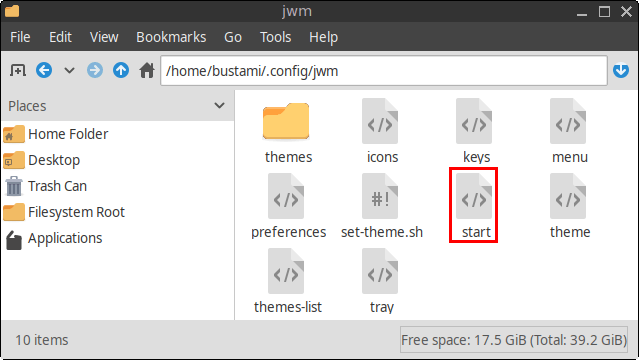
Method 2: Using the Terminal
You can also open the file directly from the Terminal with Mousepad:
mousepad ~/.config/jwm/startThis opens the startup file in the Mousepad text editor, where you can view or modify its contents.
Default JWM Startup Configuration in FunOS
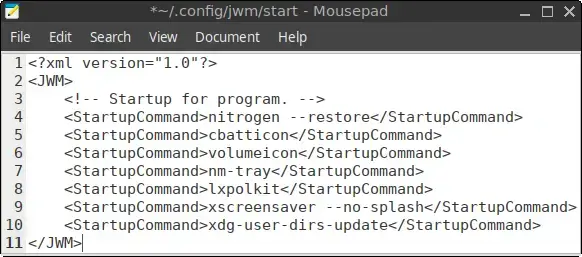
The default ~/.config/jwm/start file in FunOS looks like this:
<?xml version="1.0" encoding="UTF-8"?>
<JWM>
    <!-- Startup for program. -->
    <StartupCommand>nitrogen --restore</StartupCommand>
    <StartupCommand>cbatticon</StartupCommand>
    <StartupCommand>volumeicon</StartupCommand>
    <StartupCommand>nm-tray</StartupCommand>
    <StartupCommand>lxpolkit</StartupCommand>
    <StartupCommand>xscreensaver --no-splash</StartupCommand>
    <StartupCommand>xdg-user-dirs-update</StartupCommand>
</JWM>
Each line inside a <StartupCommand> tag represents one command that will run automatically when the JWM desktop session starts.
Explanation of Each Startup Command
nitrogen --restore
This command restores the desktop wallpaper using Nitrogen. Without this command, your saved wallpaper may not be applied automatically when you log in.
cbatticon
This starts the battery status tray icon. It is especially useful on laptops because it allows you to monitor battery level from the system tray.
volumeicon
This starts the volume control tray icon. It provides quick access to audio volume controls from the panel.
nm-tray
This starts the NetworkManager tray applet. It allows you to view and manage network connections, including Wi-Fi and wired connections, from the system tray.
lxpolkit
This starts the PolicyKit authentication agent. It is needed by applications that require administrator privileges, such as tools for mounting drives, changing system settings, or managing printers.
xscreensaver --no-splash
This starts XScreenSaver in the background without showing its splash screen. XScreenSaver is used for screen blanking, locking, and screensaver behavior.
xdg-user-dirs-update
This command creates or updates standard user folders such as Desktop, Documents, Downloads, Music, Pictures, and Videos. It also helps adjust these folders based on the user’s language settings.
Adding Your Own Startup Applications
To start additional programs automatically when you log in, add new <StartupCommand> entries inside the <JWM> section.
For example:
<StartupCommand>xfce4-power-manager</StartupCommand>
<StartupCommand>blueman-applet</StartupCommand>
<StartupCommand>/usr/lib/notification-daemon/notification-daemon</StartupCommand>
Make sure every startup command is placed between the opening <JWM> tag and the closing </JWM> tag.
For example:
<?xml version="1.0" encoding="UTF-8"?>
<JWM>
    <StartupCommand>nitrogen --restore</StartupCommand>
    <StartupCommand>cbatticon</StartupCommand>
    <StartupCommand>volumeicon</StartupCommand>
    <StartupCommand>nm-tray</StartupCommand>
    <StartupCommand>lxpolkit</StartupCommand>
    <StartupCommand>xscreensaver --no-splash</StartupCommand>
    <StartupCommand>xdg-user-dirs-update</StartupCommand>

    <!-- Custom startup applications -->
    <StartupCommand>xfce4-power-manager</StartupCommand>
</JWM>
Important XML Notes
The ~/.config/jwm/start file must remain valid XML. If the XML structure is broken, JWM may fail to read the file correctly.
When editing the file, keep these points in mind:
- Do not remove the opening
<JWM>tag. - Do not remove the closing
</JWM>tag. - Place startup commands inside the
<JWM>section. - Use one
<StartupCommand>entry for each command. - Avoid using unescaped special characters in commands.
For most normal application commands, the format below is enough:
<StartupCommand>application-name</StartupCommand>Testing a Command Before Adding It
Before adding a command to the startup file, it is a good idea to test it manually in the Terminal.
For example, if you want to add xfce4-power-manager, run:
xfce4-power-managerIf the command works correctly, you can add it to the startup file.
If the command does not run from the Terminal, it will likely not work from the startup file either.
Using Full Paths
In most cases, using the command name is enough. However, if a program does not start correctly, you can use the full path to the executable.
For example:
<StartupCommand>/usr/bin/nm-tray</StartupCommand>To find the full path of a command, use:
which nm-trayThe output will show the location of the executable.
Applying the Changes
After editing the ~/.config/jwm/start file, save the file.
The changes will take effect the next time your JWM session starts. You can apply the changes by logging out and logging back in.
You can also restart JWM without logging out by running:
jwm -restartThis restarts the JWM session and reloads the startup configuration.
Removing a Startup Application
To stop an application from starting automatically, remove its <StartupCommand> line from the file.
For example, to stop cbatticon from starting automatically, remove this line:
<StartupCommand>cbatticon</StartupCommand>Then save the file and restart JWM or log out and log back in.
Best Practices
Keep your startup file clean and minimal. Only start applications and services that you actually need.
Too many startup programs can slow down login time and make the desktop session feel less responsive.
It is also a good idea to keep a backup before making major changes, especially if you are editing multiple startup commands at once.
Conclusion
The ~/.config/jwm/start file is the main place where FunOS controls startup applications for the JWM desktop. By editing this file, you can decide which programs and background services start automatically when you log in.
With a basic understanding of <StartupCommand> entries, you can safely customize your FunOS startup behavior, add useful tray applets, remove unnecessary services, and make your JWM desktop session better suited to your needs.