
The LightDM background is the image displayed behind the login screen when you start FunOS. You can replace the default background with another FunOS wallpaper or a custom image stored on your computer.
This guide explains how to change the LightDM login screen background using the LightDM GTK Greeter Settings application.
Step 1: Open a Terminal
Open a terminal using one of the following methods:
- Click Menu in the lower-left corner of the screen, then click Terminal.
- Click the Terminal icon in the Tray.
- Press Ctrl + Alt + T.
Step 2: Allow LightDM to Access Your Files
To use an image stored in your home directory, add the lightdm user to your user group.
Run the following command:
sudo adduser lightdm "$USER"Enter your password when prompted.
This gives LightDM the group permissions it may need to access a background image stored in your home directory.
Step 3: Open LightDM GTK Greeter Settings
Open the LightDM configuration tool:
- Click Menu in the lower-left corner of the screen.
- Select Settings.
- Click LightDM GTK Greeter Settings.
The LightDM GTK Greeter Settings window will open.
Step 4: Authenticate
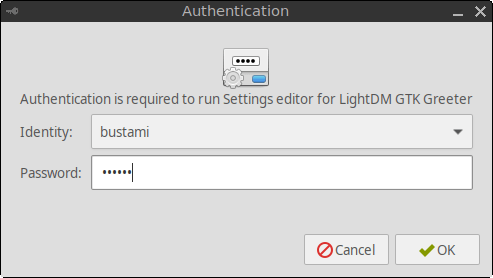
Before you can change the LightDM settings, you will be asked to authenticate.
Enter your account password, then continue.
Step 5: Select a Background Image
In the LightDM GTK Greeter Settings window:
- Find the Image option.
- Click the folder icon on the right side of the Image field.
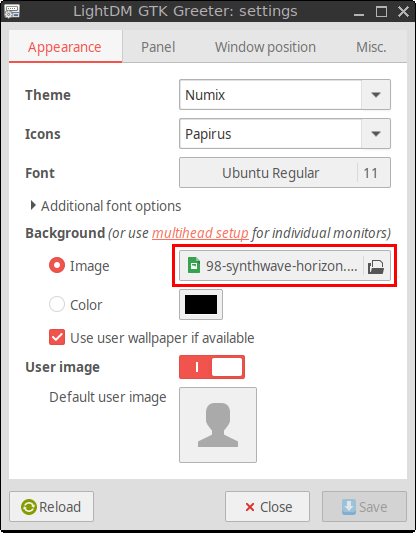
The /opt/artwork/wallpaper directory opens by default. You can select one of the wallpapers included with FunOS from this directory.
Selecting a Custom Image
To use an image stored in your home directory:
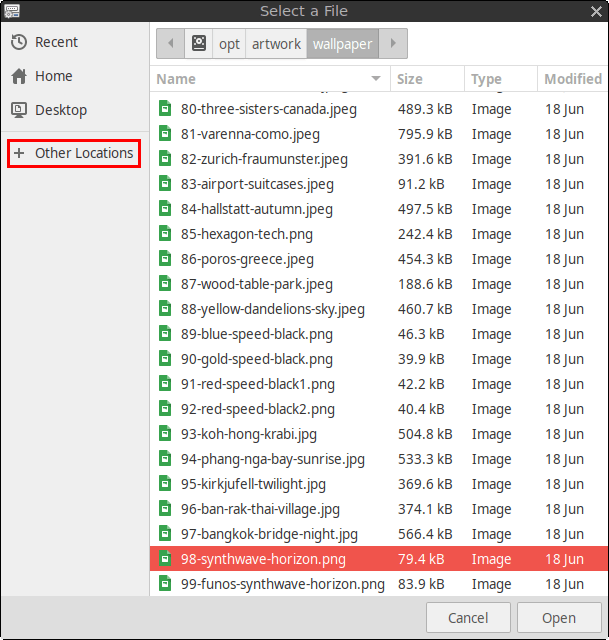
- Click Other Locations.
- Click Computer.
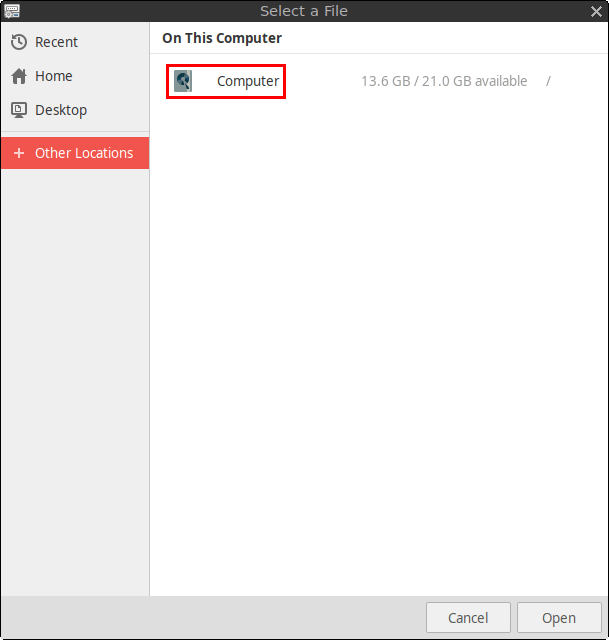
- Open the home directory.
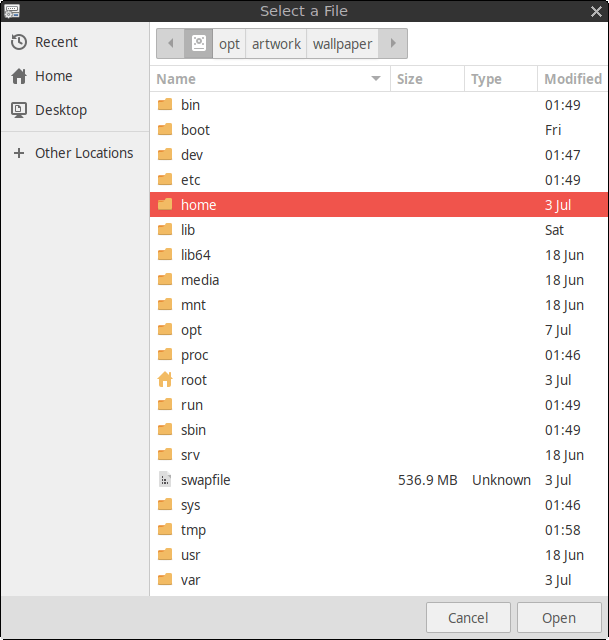
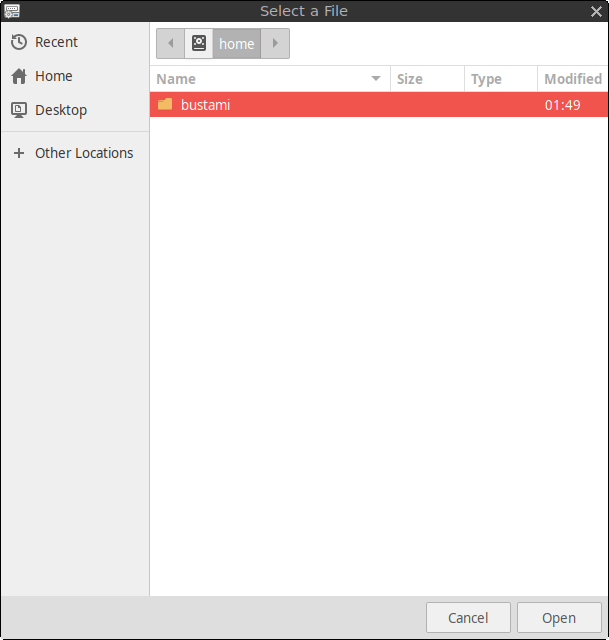
- Open the folder that matches your username. For example, if your username is
bustami, open the bustami folder.
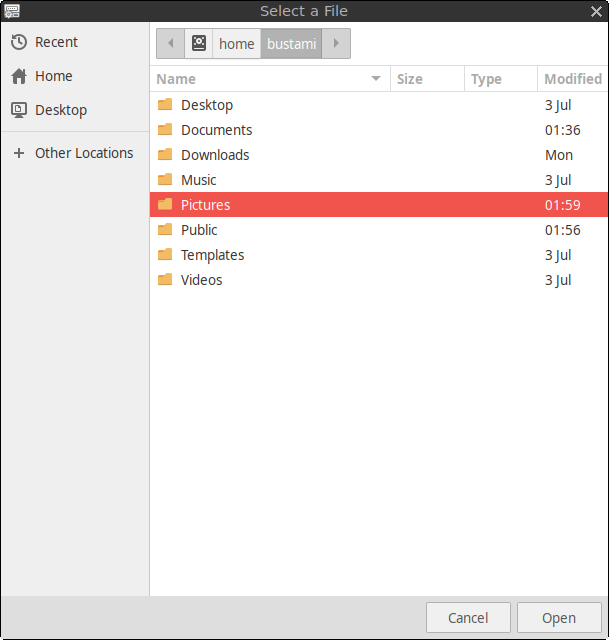
- Open the folder containing the image. For example, open Pictures if the image is stored there.
- Select the image you want to use.
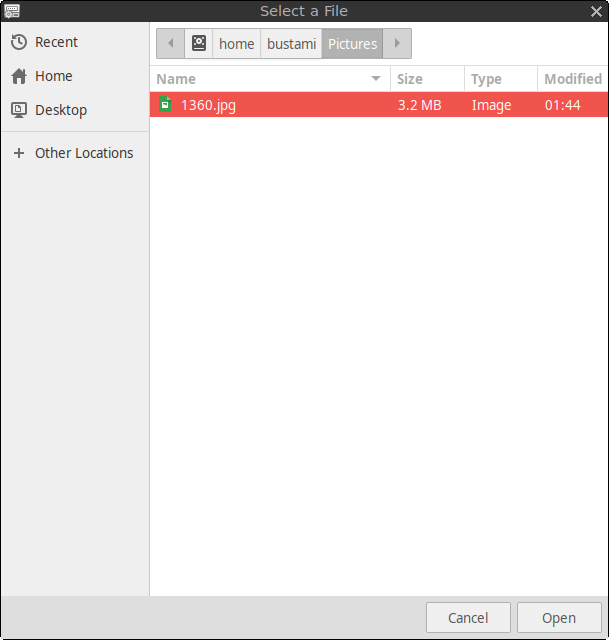
- Click Open to confirm your selection.
Note: Do not move, rename, or delete the selected image after applying it. LightDM must be able to access the image each time the login screen appears.
Step 6: Save the Changes
After selecting the image:
- Click Save.
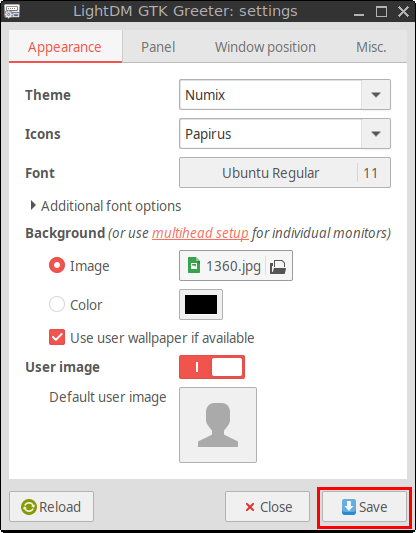
- Close the LightDM GTK Greeter Settings window.
Step 7: Reboot the System
Reboot FunOS to apply the new login screen background.
You can reboot from the terminal:
sudo reboot nowAlternatively, use the menu:
Menu → Log Out → Reboot
After the system restarts, the selected image should appear as the background of the LightDM login screen.
Conclusion
You have successfully changed the LightDM login screen background in FunOS. You can use one of the wallpapers included with FunOS or select a custom image from your home directory.
To change the background again, reopen LightDM GTK Greeter Settings, select another image, save the configuration, and reboot the system.