
The clock in the FunOS Tray uses a simple formatting code that controls how the time and date are displayed. By editing the JWM Tray configuration file, you can switch between 24-hour and 12-hour time, display seconds, add the date, show the day of the week, or create your own custom format.
This guide explains how to change the clock format in the FunOS Tray and apply the changes without restarting your computer.
Understanding the Clock Format
The FunOS Tray is managed by JWM, the window manager used by FunOS. Its configuration is stored in the following file:
~/.config/jwm/trayBy default, the clock is defined by this line:
<Clock format="%H:%M">showdesktop</Clock>The format attribute controls what appears in the clock:
%Hdisplays the hour using the 24-hour format.%Mdisplays the minutes.- The colon (
:) is displayed as normal text.
Therefore, the default %H:%M format produces a clock such as:
14:30The showdesktop text should normally be left unchanged. It allows you to minimize or restore all open windows by clicking the clock.
How to Change the Clock Format
Step 1: Open the File Manager
Click the File Manager icon in the Tray or open it from the FunOS menu.
Step 2: Show Hidden Files
The .config directory is hidden by default.
Press Ctrl + H or click View > Show Hidden.
You should now see hidden files and folders in your Home directory.
Step 3: Open the JWM Tray Configuration File
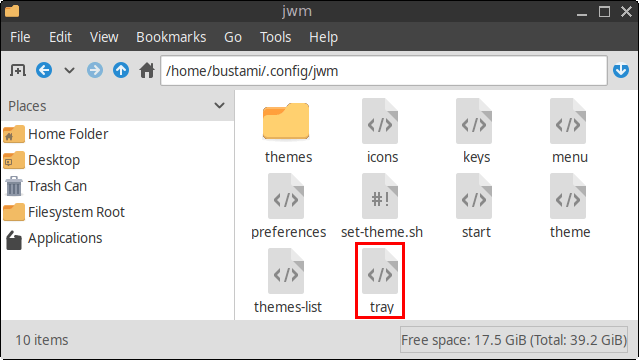
Navigate to:
.config → jwmFind the file named:
trayRight-click the file and open it with Mousepad.
You can also open the file directly from a Terminal:
mousepad ~/.config/jwm/trayStep 4: Find the Clock Configuration
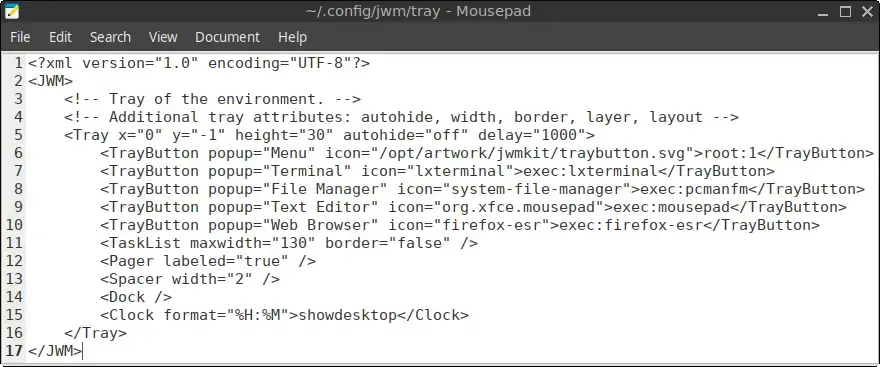
Look for the following line:
<Clock format="%H:%M">showdesktop</Clock>Change the value between the quotation marks after format= to your preferred clock format.
For example, to use a 12-hour clock with AM or PM, change the line to:
<Clock format="%I:%M %p">showdesktop</Clock>The clock will then display a time such as:
02:30 PMStep 5: Save the File
Save your changes by pressing Ctrl + S or clicking File > Save.
You can then close Mousepad.
Step 6: Restart JWM
Open a Terminal and run:
jwm -restartThe Tray will reload, and the clock should immediately use the new format.
Common Clock Format Examples
The following examples can be used in the <Clock> element.
24-Hour Time
<Clock format="%H:%M">showdesktop</Clock>Example:
14:30
12-Hour Time with AM or PM
<Clock format="%I:%M %p">showdesktop</Clock>Example:
02:30 PM
12-Hour Time Without a Leading Zero
<Clock format="%-I:%M %p">showdesktop</Clock>Example:
2:30 PMThis format removes the leading zero from hours between 1 and 9.

Time with Seconds
<Clock format="%H:%M:%S">showdesktop</Clock>Example:
14:30:45
Date and Time
<Clock format="%Y-%m-%d %H:%M">showdesktop</Clock>Example:
2026-07-17 14:30
Day, Date, and Time
<Clock format="%a %d %b %H:%M">showdesktop</Clock>Example:
Fri 17 Jul 14:30
Full Day and Date
<Clock format="%A, %d %B %Y %H:%M">showdesktop</Clock>Example:
Friday, 17 July 2026 14:30A longer format requires more space in the Tray, so it may not be suitable for smaller screens.

Useful Clock Format Codes
Here are some commonly used format codes:
| Code | Description | Example |
|---|---|---|
%H | Hour in 24-hour format | 14 |
%I | Hour in 12-hour format | 02 |
%-I | Hour in 12-hour format without a leading zero | 2 |
%M | Minutes | 30 |
%S | Seconds | 45 |
%p | Uppercase AM or PM | PM |
%P | Lowercase am or pm | pm |
%a | Abbreviated weekday name | Fri |
%A | Full weekday name | Friday |
%d | Day of the month | 17 |
%b | Abbreviated month name | Jul |
%B | Full month name | July |
%m | Month as a number | 07 |
%Y | Four-digit year | 2026 |
You can combine these codes with spaces, colons, hyphens, commas, or other normal characters.
For example:
<Clock format="%A, %d %B | %H:%M">showdesktop</Clock>This could display:
Friday, 17 July | 14:30Backing Up the Tray Configuration
Before making more extensive changes, you can create a backup of the Tray configuration file:
cp ~/.config/jwm/tray ~/.config/jwm/tray.bakTo restore the backup later, run:
cp ~/.config/jwm/tray.bak ~/.config/jwm/tray
jwm -restart
Troubleshooting
The Clock Did Not Change
Make sure you saved the file and restarted JWM:
jwm -restartAlso verify that you edited this file:
~/.config/jwm/trayThe Tray Does Not Appear Correctly
An invalid XML entry can prevent part of the JWM configuration from loading correctly. Check that the clock line contains matching quotation marks and opening and closing tags.
A valid clock entry should follow this structure:
<Clock format="FORMAT">showdesktop</Clock>For example:
<Clock format="%I:%M %p">showdesktop</Clock>The Clock Takes Up Too Much Space
Use a shorter format by removing unnecessary date components.
For example, replace:
<Clock format="%A, %d %B %Y %H:%M:%S">showdesktop</Clock>with:
<Clock format="%a %d %b %H:%M">showdesktop</Clock>Conclusion
The clock format in the FunOS Tray can be customized by editing the <Clock> element in the ~/.config/jwm/tray file. You can choose a simple 24-hour clock, switch to a 12-hour format with AM or PM, display seconds, or include the day and date.
After saving the file, run:
jwm -restartThe new clock format will be applied immediately without requiring you to log out or restart the computer.