
Kitty is a modern, fast, and highly customizable terminal emulator that offers excellent performance for developers, system administrators, and Linux enthusiasts. Whether you want a lightweight terminal for everyday command-line tasks or an advanced terminal packed with powerful features, Kitty is an excellent choice.
On FunOS, you can install Kitty in two different ways. The first method installs the version available in the Ubuntu repositories, which is easy to maintain through the standard APT package manager. The second method installs the latest official release directly from the Kitty developers, giving you access to the newest features and improvements as soon as they are available.
This guide explains both installation methods, how to launch Kitty after installation, and how to uninstall it if you no longer need it.
What is Kitty?
Kitty is an open-source, GPU-accelerated terminal emulator developed by Kovid Goyal. Unlike traditional terminal emulators, Kitty uses your computer’s graphics processor (GPU) to render text, resulting in smoother scrolling, faster rendering, and excellent responsiveness even when displaying thousands of lines of terminal output.
Kitty includes many modern features that make working in the terminal more productive. It supports tabs, split windows, extensive keyboard shortcuts, Unicode and emoji, customizable themes, shell integration, and advanced graphics capabilities through the Kitty Graphics Protocol. It is also highly configurable using a simple text configuration file, allowing users to customize nearly every aspect of the terminal.
Because of its speed, flexibility, and active development, Kitty has become one of the most popular terminal emulators among Linux power users and developers.
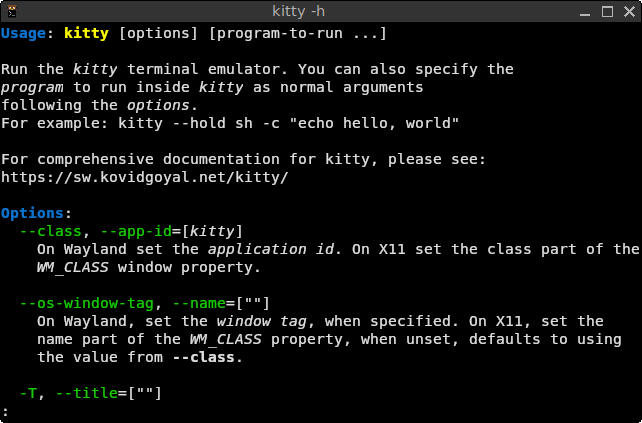
How to Install Kitty on FunOS
There are two recommended ways to install Kitty on FunOS:
- Method 1: Install the stable package from the Ubuntu repositories.
- Method 2: Install the latest official version using Kitty’s installer script (recommended if you want the newest features).
Method 1: Install Kitty from the Ubuntu Repositories
Work on: 22.04.5 ✅ | 24.04.5 ✅ | 25.10 ✅ | 26.04.1 ✅
This method installs Kitty directly from the Ubuntu software repositories. It is the easiest installation method and allows Kitty to receive updates through the normal system update process.
Step 1: Open a Terminal
You can open Terminal using any of the following methods:
- Click Menu in the lower-left corner of the screen, then click Terminal.
- Click the Terminal icon in the Tray.
- Press Ctrl + Alt + T.
Step 2: Update the Package List
Before installing new software, update your package list by running:
sudo apt updateStep 3: Install Kitty
Install Kitty with the following command:
sudo apt install kittyAPT will automatically download and install Kitty along with any required dependencies.
Step 4: Reload the Menu
Note: Starting with FunOS 24.04.4 LTS (Build 20260618) and FunOS 26.04 LTS (Build 20260618), the menu updates automatically, so you can skip this step.
After the installation is complete:
- Click the Menu button in the lower-left corner of the screen.
- Click Reload menu.
This updates the application menu so the Kitty launcher appears.
Method 2: Install the Latest Official Version of Kitty (Recommended)
Work on: 22.04.5 ✅ | 24.04.5 ✅ | 25.10 ✅ | 26.04.1 ✅
This method installs the latest release directly from the Kitty developers. It is recommended if you want the newest features, bug fixes, and performance improvements without waiting for Ubuntu package updates.
Step 1: Open a Terminal
Open Terminal using any of these methods:
- Click Menu in the lower-left corner of the screen, then click Terminal.
- Click the Terminal icon in the Tray.
- Press Ctrl + Alt + T.
Step 2: Update the Package List
Refresh your package list:
sudo apt updateStep 3: Install the Required Dependency
The official installer uses curl to download the installation script.
Install curl if it is not already installed:
sudo apt install curlStep 4: Download and Run the Official Installer
Run the following command:
curl -L https://sw.kovidgoyal.net/kitty/installer.sh | sh /dev/stdin launch=nThis command downloads the latest Kitty release and installs it into your home directory without automatically launching the application.
Step 5: Create Symbolic Links
To make the kitty and kitten commands available from anywhere in your terminal, create symbolic links:
mkdir -p ~/.local/bin
ln -sf ~/.local/kitty.app/bin/kitty ~/.local/kitty.app/bin/kitten ~/.local/bin/
Step 6: Create Desktop Entries
Copy Kitty’s desktop launcher into your local applications directory so it appears in the FunOS application menu.
Create the applications directory if necessary:
mkdir -p ~/.local/share/applicationsThen copy the desktop file:
cp ~/.local/kitty.app/share/applications/kitty.desktop ~/.local/share/applications/If you also want your file manager to open supported text files and images using Kitty, copy the additional desktop file:
cp ~/.local/kitty.app/share/applications/kitty-open.desktop ~/.local/share/applications/Step 7: Update the Desktop Entry
Update the launcher so it points to the correct executable and icon locations:
sed -i "s|Icon=kitty|Icon=$(readlink -f ~)/.local/kitty.app/share/icons/hicolor/256x256/apps/kitty.png|g" ~/.local/share/applications/kitty*.desktop
sed -i "s|Exec=kitty|Exec=$(readlink -f ~)/.local/kitty.app/bin/kitty|g" ~/.local/share/applications/kitty*.desktop
These commands ensure that FunOS displays the correct application icon and launches the installed version of Kitty.
Step 8: Reload Your Shell Environment
Reload your current shell so the new symbolic links are immediately available:
source ~/.bashrcStep 9: Reload the Menu
Note: Starting with FunOS 24.04.4 LTS (Build 20260618) and FunOS 26.04 LTS (Build 20260618), the menu updates automatically, so you can skip this step.
Finally:
- Click the Menu button in the lower-left corner.
- Click Reload menu.
The Kitty launcher will now appear in the application menu.
Launching Kitty
After installation, you can start Kitty by:
- Clicking the Menu button in the lower-left corner.
- Opening the System category.
- Clicking kitty.
If you installed the official version and created the symbolic links, you can also launch it from any terminal by running:
kittyUpdating Kitty
The way you update Kitty depends on how you installed it.
Method 1: Ubuntu Repositories (APT)
If you installed Kitty from the Ubuntu repositories, you can update it using the standard APT package manager.
- Open Terminal.
- Update the package list:
sudo apt update- Upgrade Kitty specifically:
sudo apt install --only-upgrade kitty(Alternatively, run sudo apt upgrade to update all outdated software on your system).
Method 2: Official Installer
If you installed Kitty using the official installer script, you can update it to the newest version by simply re-running the installation command in your Terminal:
curl -L https://sw.kovidgoyal.net/kitty/installer.sh | sh /dev/stdin launch=nThis will automatically download and replace the existing version with the latest release, leaving your configuration files completely intact.
Customizing Kitty
You can customize almost every aspect of Kitty’s appearance and behavior by configuring the file ~/.config/kitty/kitty.conf. If the file does not exist, you can create it:
mkdir -p ~/.config/kitty
touch ~/.config/kitty/kitty.conf
To edit this file you can use your favorite text editor, for example Mousepad with the following command:
mousepad ~/.config/kitty/kitty.confWithin this configuration file, you can use simple key-value pairs to change settings. Here are some detailed examples of things you can configure:
1. Fonts
You can change the font family and size to suit your preferences. For example, to use a size 12 “DejaVu Sans Mono” font:
font_family      DejaVu Sans Mono
bold_font        auto
italic_font      auto
bold_italic_font auto
font_size 12.0Note: You can also run the following command to select fonts:
kitten choose-fonts2. Colors and Background
Kitty allows you to define custom background colors, foreground colors, and even background opacity (transparency).
foreground       #c0b18b
background       #202020
background_opacity 0.95
3. Window Layouts and Padding
You can tweak the internal borders and padding inside the terminal window to give your text more breathing room.
window_padding_width 10
hide_window_decorations yes
4. Cursor Customization
You can change the cursor shape to a block, beam, or underline, and configure how it blinks.
cursor_shape beam
cursor_blink_interval 0.5
After saving your changes in kitty.conf, you can restart Kitty or press Ctrl + Shift + F5 to reload the configuration and apply the new settings immediately.
References
- Official Kitty Configuration Documentation: https://sw.kovidgoyal.net/kitty/conf/
How to Uninstall Kitty on FunOS
The removal process depends on how Kitty was installed.
Remove the Ubuntu Repository Version
Step 1: Open a Terminal
Open Terminal using any of these methods:
- Click Menu in the lower-left corner of the screen, then click Terminal.
- Click the Terminal icon in the Tray.
- Press Ctrl + Alt + T.
Step 2: Remove Kitty
Run:
sudo apt remove --purge kittyThis removes the Kitty package along with its system-wide configuration files.
Step 3: Remove Unused Dependencies
Clean up packages that are no longer required:
sudo apt autoremove --purgeStep 4: Remove User Configuration (Optional)
If you also want to delete Kitty’s personal configuration files and cache, run:
rm -rf ~/.cache/kitty
rm -rf ~/.config/kitty
This step is optional. Skip it if you plan to reinstall Kitty later and want to preserve your settings.
Step 5: Reload the Menu
Note: Starting with FunOS 24.04.4 LTS (Build 20260618) and FunOS 26.04 LTS (Build 20260618), the menu updates automatically, so you can skip this step.
To refresh the application menu:
- Click the Menu button.
- Click Reload menu.
Remove the Official Installer Version
Step 1: Open a Terminal
Open Terminal using your preferred method.
Step 2: Remove the Installation Directory
Delete the Kitty installation:
rm -rf ~/.local/kitty.appStep 3: Remove the Symbolic Links
Delete the symbolic links created during installation:
rm -f ~/.local/bin/kitty
rm -f ~/.local/bin/kitten
Step 4: Remove the Desktop Entries
Delete the launcher files:
rm -f ~/.local/share/applications/kitty.desktop
rm -f ~/.local/share/applications/kitty-open.desktop
Step 5: Remove User Configuration (Optional)
If you want to completely remove your personal Kitty settings and cache:
rm -rf ~/.cache/kitty
rm -rf ~/.config/kitty
Step 6: Reload the Menu
Note: Starting with FunOS 24.04.4 LTS (Build 20260618) and FunOS 26.04 LTS (Build 20260618), the menu updates automatically, so you can skip this step.
To remove Kitty from the application menu:
- Click the Menu button.
- Click Reload menu.
Conclusion
Kitty is one of the fastest and most feature-rich terminal emulators available for Linux. Its GPU-accelerated rendering, native support for tabs and split windows, powerful keyboard shortcuts, and extensive customization options make it an excellent choice for developers, system administrators, and anyone who regularly works in the command line.
If you prefer maximum stability and seamless updates through the system package manager, installing Kitty from the Ubuntu repositories is the best option. However, if you want access to the latest features, performance improvements, and bug fixes as soon as they are are released, installing the latest official version using the installer script is the recommended approach.
Whichever installation method you choose, Kitty integrates well with FunOS and provides a fast, modern, and highly productive terminal experience.