
By default, FunOS provides a clean desktop without icons or application shortcuts. JWM manages the windows and desktop menu, while Nitrogen restores the desktop wallpaper when you log in.
However, users who prefer a more traditional desktop experience can use SpaceFM as the desktop manager. This allows application shortcuts to be placed directly on the desktop and provides a right-click menu for managing desktop items and wallpaper settings.
In this guide, you will learn how to install SpaceFM, configure it as the desktop manager, create application shortcuts, change the wallpaper, and restore the default FunOS desktop if necessary.
Step 1: Install SpaceFM
First, open a Terminal using one of the following methods:
- Click the Menu button in the lower-left corner of the screen, then click Terminal
- Click the Terminal icon in the Tray
- Press Ctrl + Alt + T
Update the package list:
sudo apt updateThen install SpaceFM:
sudo apt install spacefmAfter the installation is complete, SpaceFM may need to be added to the JWM menu.
Note: Starting with FunOS 24.04.4 LTS (Build 20260618) and FunOS 26.04 LTS (Build 20260618), the JWM menu updates automatically. If you are using one of these releases or a newer version, you can skip the following steps.
To update the menu manually:
- Click the Menu button in the lower-left corner of the screen.
- Click Reload menu.
Step 2: Configure JWM to Use SpaceFM as the Desktop Manager
By default, FunOS runs Nitrogen when you log in to restore the desktop wallpaper. To use desktop icons, you must replace the Nitrogen startup command with the SpaceFM desktop manager command.
In the Terminal, run:
mousepad ~/.config/jwm/startThe JWM startup configuration file will open in Mousepad.
Find the following line:
<StartupCommand>nitrogen --restore</StartupCommand>Replace it with:
<StartupCommand>spacefm --desktop</StartupCommand>Save the file, then close Mousepad.
Step 3: Log Out and Log Back In
The change will take effect the next time JWM starts.
- Click Menu > Log Out > Logout.
- Log back in to your FunOS session.
SpaceFM should now manage the desktop. When you right-click an empty area of the desktop, a new context menu should appear.
Step 4: Configure the SpaceFM SU Settings
Before creating application shortcuts, configure the commands that SpaceFM uses when administrative privileges are required.
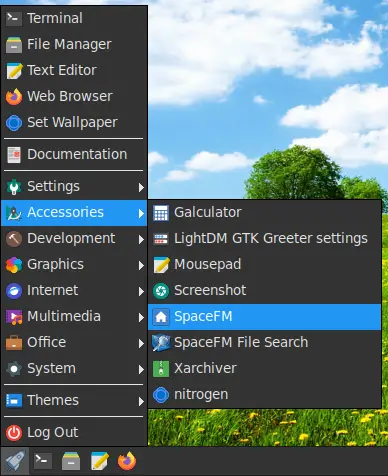
- Open SpaceFM by clicking Menu > Accessories > SpaceFM.
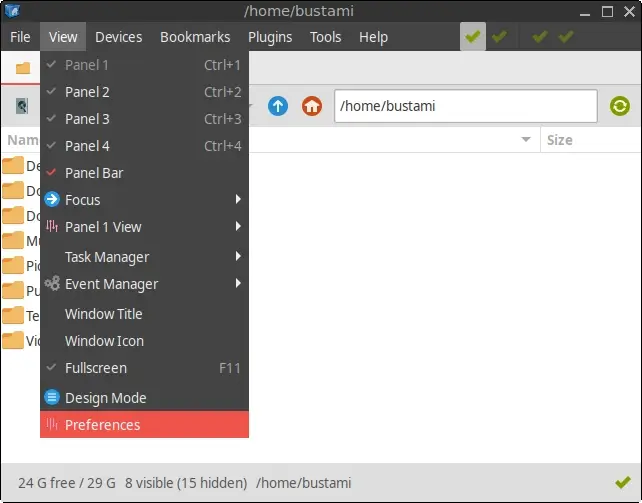
- In SpaceFM, click View > Preferences.
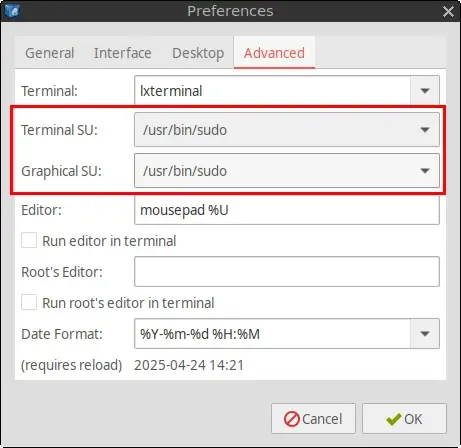
- Find the Terminal SU and Graphical SU fields.
Set both fields to:
/usr/bin/sudoThen click OK.
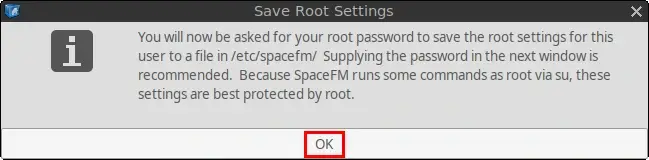
- The Save Root Settings window will appear. Click OK to continue.
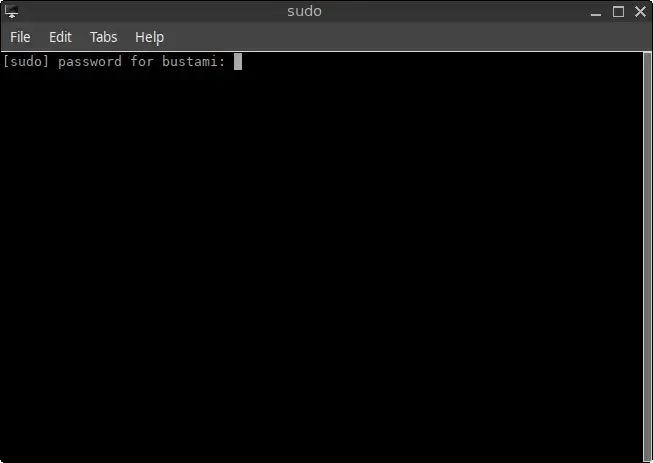
- A Terminal window will open and ask for your password. Enter your user password, then press Enter.
The password will not be displayed while you type. This is normal behavior in the Terminal.
Step 5: Create an Application Shortcut
After SpaceFM has been configured, you can create application shortcuts directly on the desktop.
- Right-click an empty area of the desktop.
- Click New > Desktop Application.
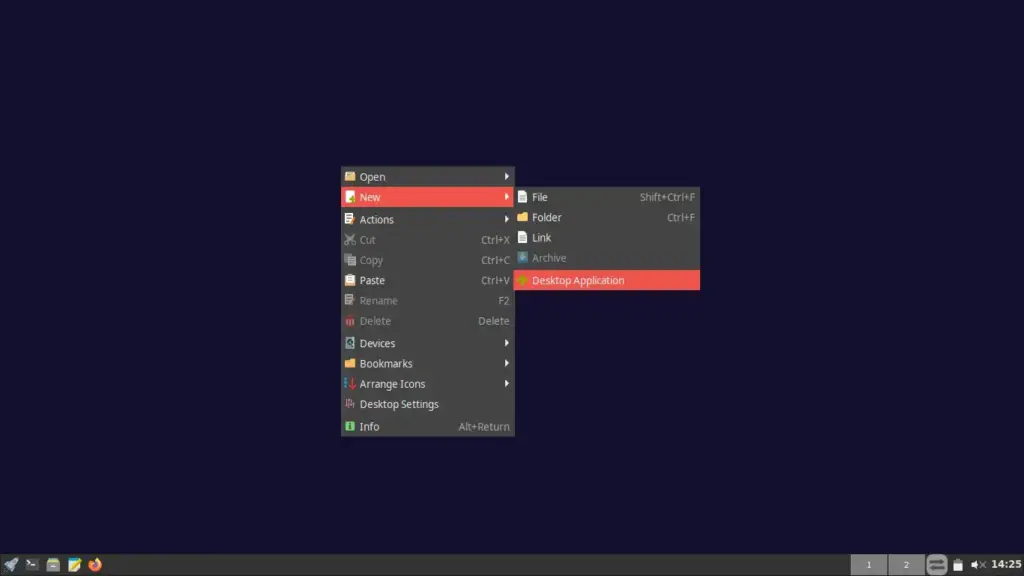
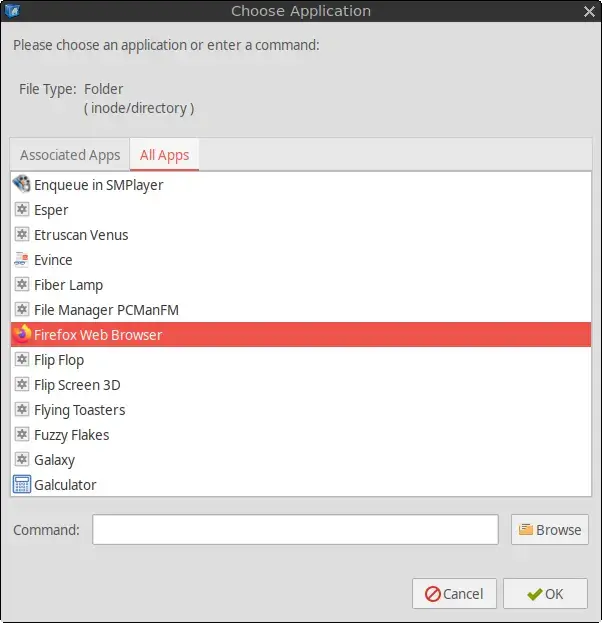
- The Choose Application window will appear.
- Select the application for which you want to create a shortcut. For example, select Firefox.
- Click OK.
The application shortcut will now appear on the desktop.
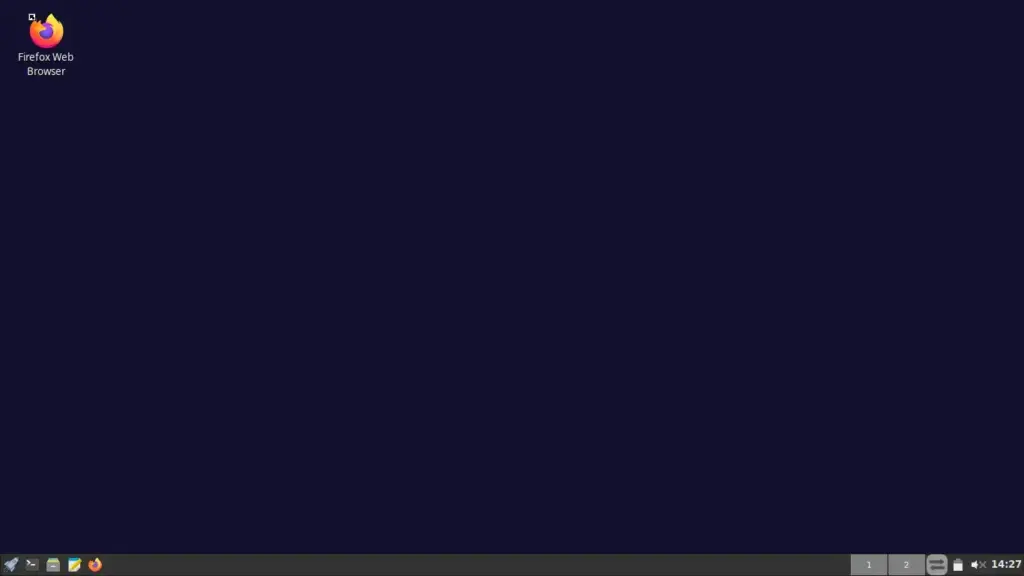
You can repeat these steps to add shortcuts for other installed applications.
Important Notes
Using SpaceFM as the desktop manager changes how the FunOS desktop and wallpaper are controlled.
After making this change:
- SpaceFM displays and manages the desktop icons.
- Right-clicking the desktop opens the SpaceFM desktop menu.
- Nitrogen no longer controls the desktop wallpaper.
- The Set Wallpaper option in the default JWM menu will no longer change the wallpaper.
- Wallpaper changes must be made through the SpaceFM Desktop Settings window.
How to Change the Wallpaper Using SpaceFM
To change the desktop wallpaper while SpaceFM is managing the desktop:
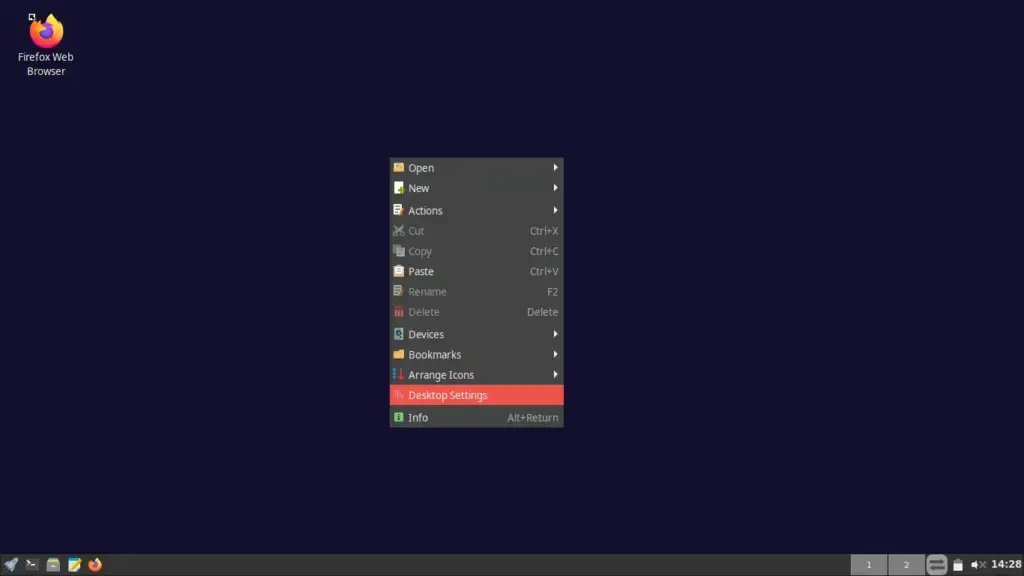
- Right-click an empty area of the desktop.
- Click Desktop Settings.
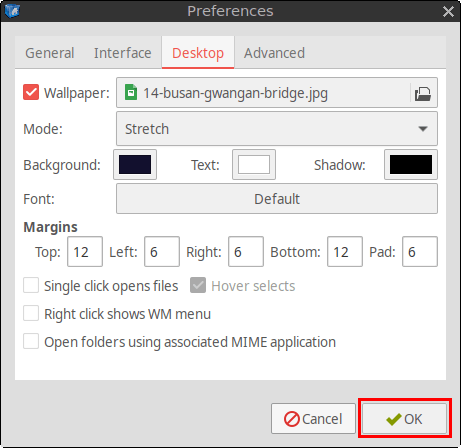
- In the Preferences window, select the checkbox next to Wallpaper.
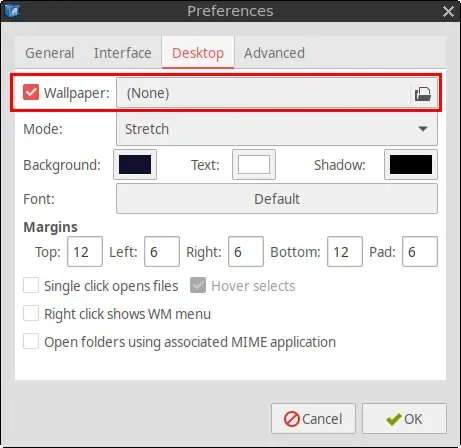
- Click the selection box next to Wallpaper to browse for an image.
To use one of the default FunOS wallpapers, navigate to:
/opt/artwork/wallpaperFrom the file chooser, you can reach this directory by clicking:
Other Locations > Computer > opt > artwork > wallpaper
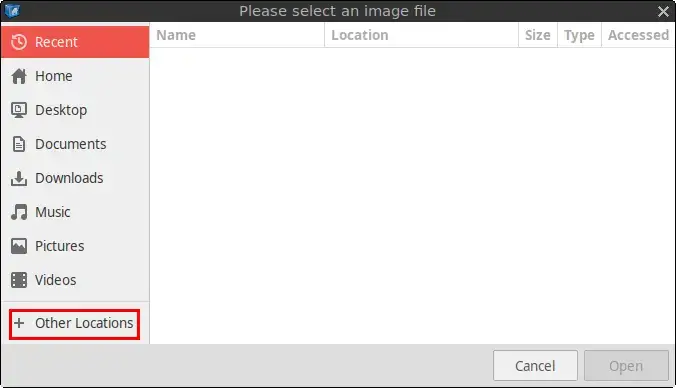
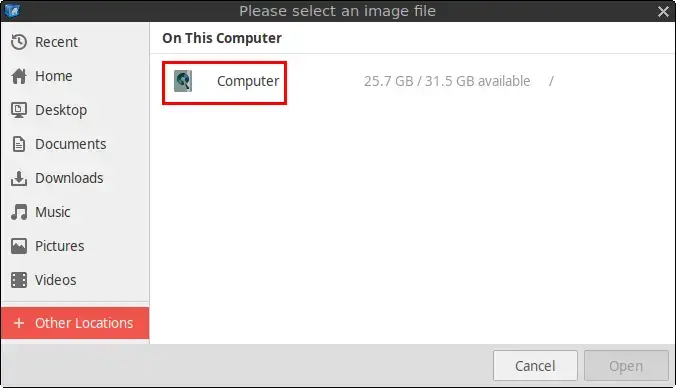
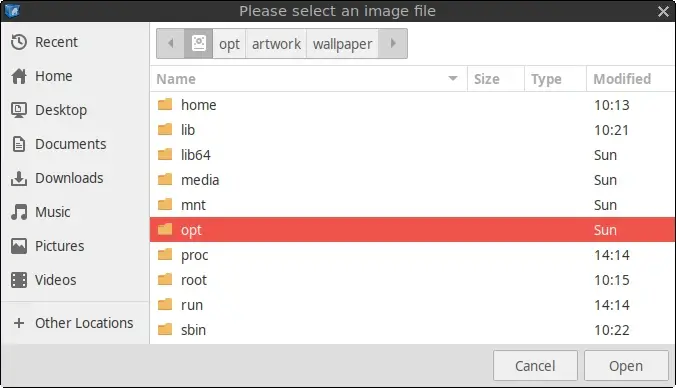
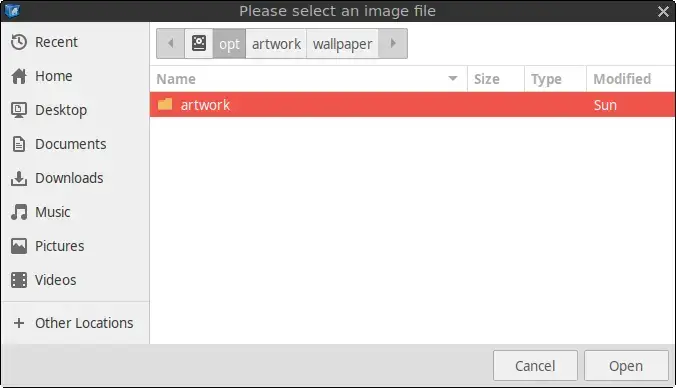
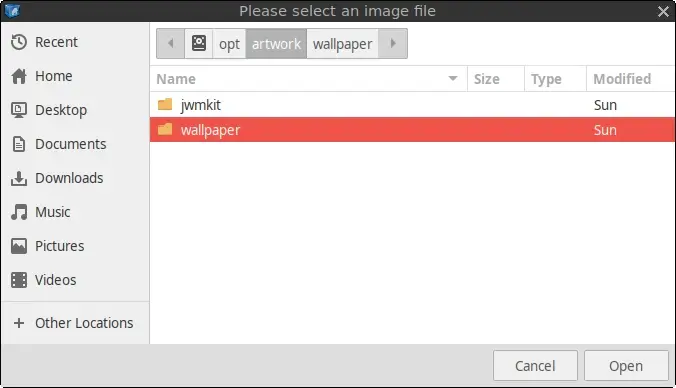
- Select the wallpaper you want to use, then click Open.
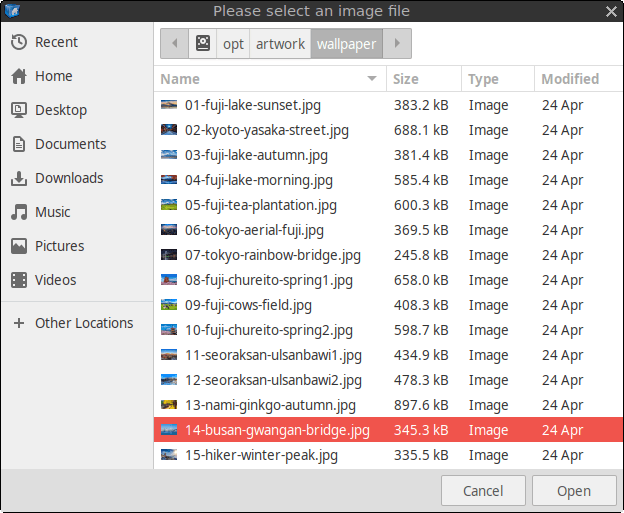
- Click OK in the Preferences window to apply the change.
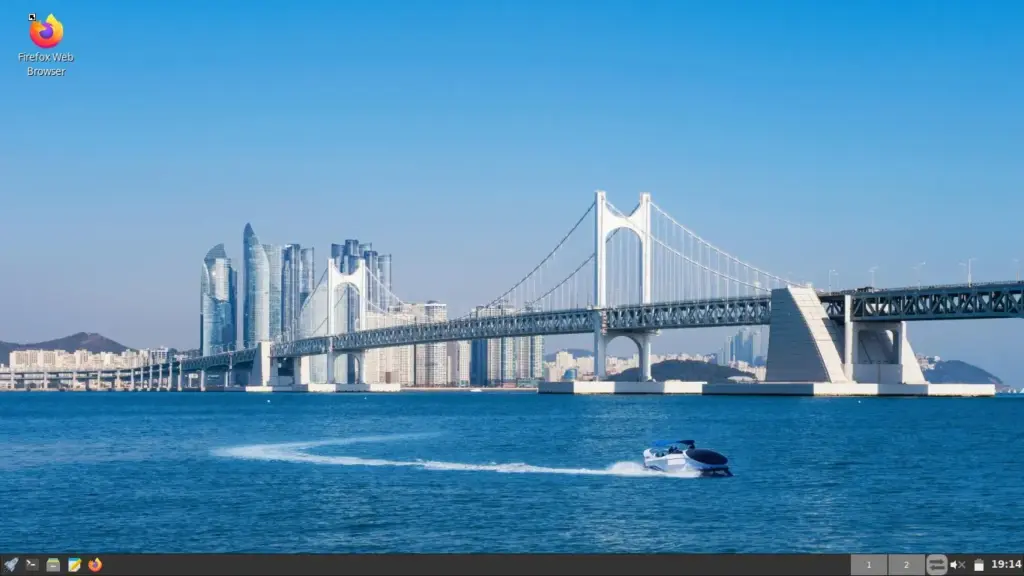
The selected wallpaper will now appear on the desktop.
How to Restore the Default FunOS Desktop
You can restore the default FunOS desktop at any time if you no longer want SpaceFM to display desktop icons.
Step 1: Open a Terminal
Open a Terminal using one of the following methods:
- Click the Menu button in the lower-left corner, then click Terminal
- Click the Terminal icon in the Tray
- Press Ctrl + Alt + T
Step 2: Open the JWM Startup File
Run:
mousepad ~/.config/jwm/startStep 3: Restore the Nitrogen Command
Find the following line:
<StartupCommand>spacefm --desktop</StartupCommand>Replace it with:
<StartupCommand>nitrogen --restore</StartupCommand>Save the file, then close Mousepad.
Step 4: Log Out and Log Back In
Click Menu > Log Out > Logout, then log back in.
FunOS will return to its default desktop configuration:
- Desktop application shortcuts will no longer be displayed.
- Nitrogen will manage the desktop wallpaper again.
- The default JWM desktop menu behavior will be restored.
SpaceFM will remain installed and can still be used as a regular file manager.
Conclusion
SpaceFM provides a practical way to add application shortcuts and desktop icons to FunOS. It is especially useful for users who prefer the familiar desktop layout found in environments such as Xfce, LXQt, or Windows.
Because SpaceFM replaces Nitrogen as the desktop manager, wallpaper settings must also be managed through SpaceFM. However, the change is easy to reverse by restoring the original Nitrogen command in the JWM startup file.