
Many keyboards include special media keys for controlling audio playback and system volume. Among the most useful are the volume control keys, which let you increase, decrease, or mute the sound without opening a menu or adjusting the volume manually.
In this guide, you will learn what volume control keys are and how to enable them in FunOS.
What Are Dedicated Volume Control Keys?
Dedicated volume control keys are keyboard buttons designed specifically for adjusting the system volume. They usually include:
- Volume Up: Increases the system volume.
- Volume Down: Decreases the system volume.
- Mute/Unmute: Turns the sound off or restores it.
On some keyboards, these controls are separate physical buttons or part of a multimedia control panel. On many laptops, they share keys in the function row and must be used together with the Fn key. For example, you may need to press Fn + F11 to decrease the volume.
Do Volume Control Keys Work in FunOS?
Yes. FunOS can respond to volume control keys through the volume control applet in the system tray. However, hotkey support may need to be enabled manually before the keys will work.
How to Enable Volume Control Keys in FunOS
Follow the steps below to enable volume hotkeys.
Step 1: Open the Volume Control Preferences
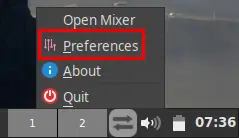
Right-click the volume icon in the system tray. The icon looks like a speaker and is normally located near the right side of the Tray.
Then, click Preferences.
Step 2: Find the Hotkeys Section
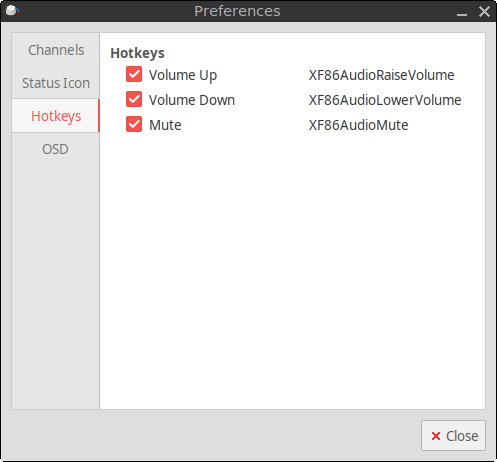
In the Volume Icon Preferences window, locate the Hotkeys section.
Step 3: Enable the Volume Hotkeys
Select the following options:
- Volume Up
- Volume Down
- Mute
Enabling these options allows the volume control applet to respond when you press the corresponding keys on your keyboard.
Step 4: Close the Preferences Window
Click Close. The settings are saved automatically, so the volume keys should be ready to use immediately.
Note: If your keyboard uses function-row volume controls, you may need to hold the
Fnkey while pressing them. Some keyboards also include an Fn Lock feature that changes whether theFnkey is required.
Test the Volume Keys
After enabling the hotkeys, test each key:
- Press Volume Up to increase the system volume.
- Press Volume Down to decrease the system volume.
- Press Mute to turn the sound off, then press it again to restore the sound.
Troubleshooting
If the volume keys do not work:
- Open the volume control preferences again and confirm that all three hotkey options are enabled.
- Try holding the
Fnkey while pressing the volume key. - Check whether Fn Lock is enabled or disabled on your keyboard.
- Make sure the keyboard and its volume keys work correctly.
Conclusion
Enabling volume control keys in FunOS makes it faster and more convenient to adjust the sound. After turning on the hotkey options in the volume control preferences, you can increase or decrease the volume and mute or unmute the system directly from your keyboard.
These controls are useful whether you are watching videos, listening to music, joining an online meeting, or using FunOS for everyday tasks.
This is not working for me in FunOS 26.04. Also (at least for me), the hotkey for Volume Up cannot be selected/checked from the Preferences screen. I can check Volume Down and Mute, just not Volume Up
I used xev to verify my keyboard is receiving input from the 3 volume buttons. On my keyboard…
key 74 registers as XF86AudioMute
key 75 registers as XF86AudioLowerVolume
key 76 registers as XF86AudioRaiseVolume
I’ll keep searching for other ways to activate the volume hotkeys, however if you have any tips, let me know. Thanks!
Found a partial fix or workaround…
Adding keybindings to the .config/jwm/keys will activate the keys, but the mute/unmute toggle is not perfect. It appears to mute all channels, but then only unmutes the master volume not the speakers or headphones.
Here the code to add to your “keys” file, from terminal:
sudo mousepad ~/.config/jwm/keys
In the “keys” file from an elevated mousepad session, add the following links in the top Key bindings section:
exec:amixer set Master 5%+
exec:amixer set Master 5%-
exec:amixer set Master toggle
Save the file, restart jwm or reboot.
Volume keys should hopefully now increase volume in the steps defined (go higher or lower as you prefer). Mute will mute all audio, but not bring it back on second press. You have to launch the mixer and unmute the other channels from there (not optimal, but it works). I’m looking for another workaround here for that mute button, but this is almost there.
My reply stripped out the key names in the code. The key names to use are:
XF86AudioRaiseVolume
XF86AudioLowerVolume
XF86AudioMute
Match the syntax in the keys file and you should be good to go.
Hi RevOke,
Thank you for sharing your experience and the JWM workaround! It looks like you’ve encountered a GUI bug in the volumeicon Preferences window where the “Volume Up” checkbox becomes unclickable.
Instead of using JWM keybindings (which can cause the exact ALSA muting/unmuting issues you described), you can easily bypass the GUI bug by editing the volumeicon config file directly. This will let volumeicon handle the volume correctly, including the proper mute toggle and on-screen display.
Here is how you can do it:
1. Open your terminal and edit the volumeicon config file (no sudo needed since it’s a user file):
mousepad ~/.config/volumeicon/volumeicon2. Scroll down to the
[Hotkeys]section.3. Change the enabled settings to true so the section looks exactly like this:
4. Save the file and close Mousepad.
This should get your dedicated volume keys working perfectly again without the mute toggle issue.
Regarding your amixer mute issue in JWM: when ALSA mutes, it often mutes the Master, Speaker, and Headphone channels simultaneously, but unmuting sometimes only restores the Master channel. Letting volumeicon handle the hotkeys usually avoids this ALSA quirk entirely.
Thanks again for being an active part of the FunOS community! Let me know if this fixes it for you.
Partially. It fixed the checkboxs, but not the function of the volume keys.
Here what I did:
1. I removed the keybindings I added from ~/.config/jwm/keys (back to original config)
2. I changed to the settings file ~/.config/volumeicon/volumeicon to add up_enabled=true (the one missing checkbox)
After a reboot… in the tray icon preferences, all 3 Hotkeys are now checked… unfortunately, pressing the hotkeys does not adjust the volume or mute. So, there is still something missing to registered the keys.
Since the hotkey options from volumeicon in 26.04 do not appear to bind to any keys, my workaround until I can figure that issue out was to go back to manual key bindings.
I added these to my ~/.config/jwm/keys file
XF86AudioRaiseVolume = exec:amixer set Master 2%+
XF86AudioLowerVolume = exec:amixer set Master 2%-
XF86AudioMute = ~/Documents/Scripts/toggle.sh
The mute option is a custom script (toggle.sh) that works around the amixer toggle command limitations. I just put the following code in the script.
#!/bin/bash
amixer sset Master toggle
amixer sset Headphone unmute
amixer sset Speaker unmute
It’s a bit crude, but does the trick. My 3 volume keys now mute/unmute, lower, and raise volume.