
BrowserOS is a modern AI-powered web browser built on Chromium and designed to integrate AI agents directly into the browsing experience. Unlike traditional web browsers that only display websites, BrowserOS focuses on automation, AI-assisted workflows, and productivity features. It supports local AI models, browser automation, and natural-language interaction, making it an interesting option for developers, researchers, Linux enthusiasts, and power users.
Because BrowserOS is distributed as a Debian package (.deb), installing it on FunOS is straightforward and similar to installing many other Ubuntu-compatible applications. In this tutorial, you will learn how to download, install, launch, and uninstall BrowserOS on FunOS.
What is BrowserOS?
BrowserOS is an open-source AI browser based on Chromium. It combines a traditional web browser with built-in AI capabilities and automation tools. BrowserOS is designed to help users perform tasks more efficiently using AI agents that can navigate websites, summarize content, automate repetitive actions, and interact with online services.
Some of the main features of BrowserOS include:
- Chromium-based browsing engine
- AI-powered browser assistant
- Support for local AI models such as Ollama
- Browser automation and task execution
- Split-view AI workspace
- Cross-platform support for Linux, Windows, and macOS
- Open-source development model
BrowserOS is part of the growing trend of “agentic browsers,” where AI is deeply integrated into the browsing experience instead of being limited to a chatbot running in a browser tab.
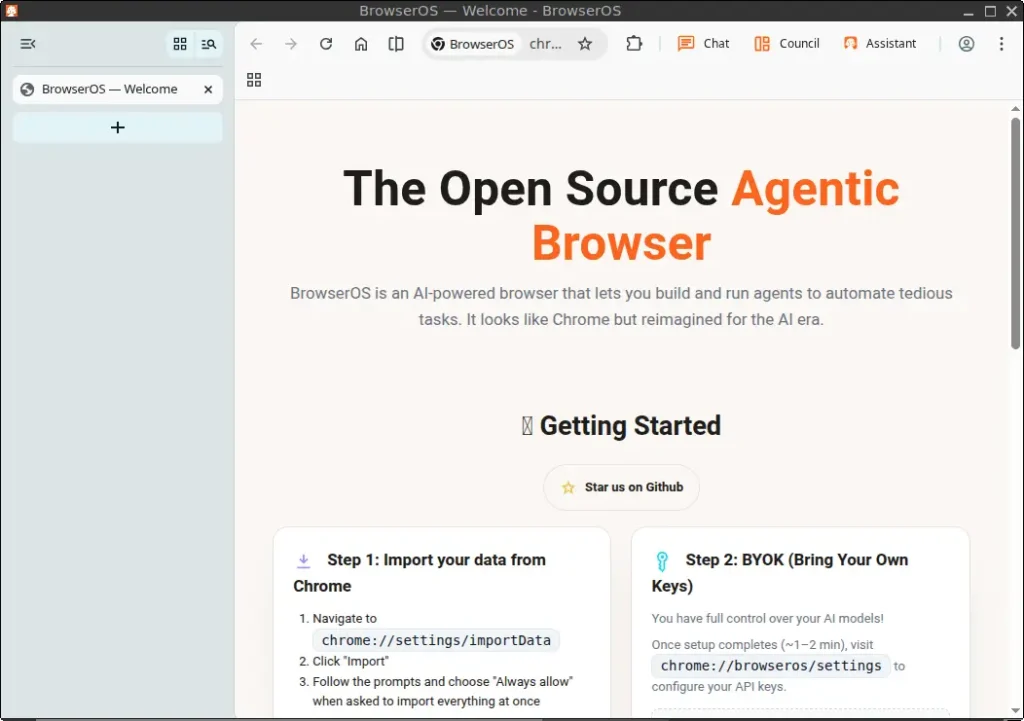
How to Install BrowserOS on FunOS
Work on: 22.04.5 ✅ | 24.04.5 ✅ | 25.10 ✅ | 26.04.1 ✅
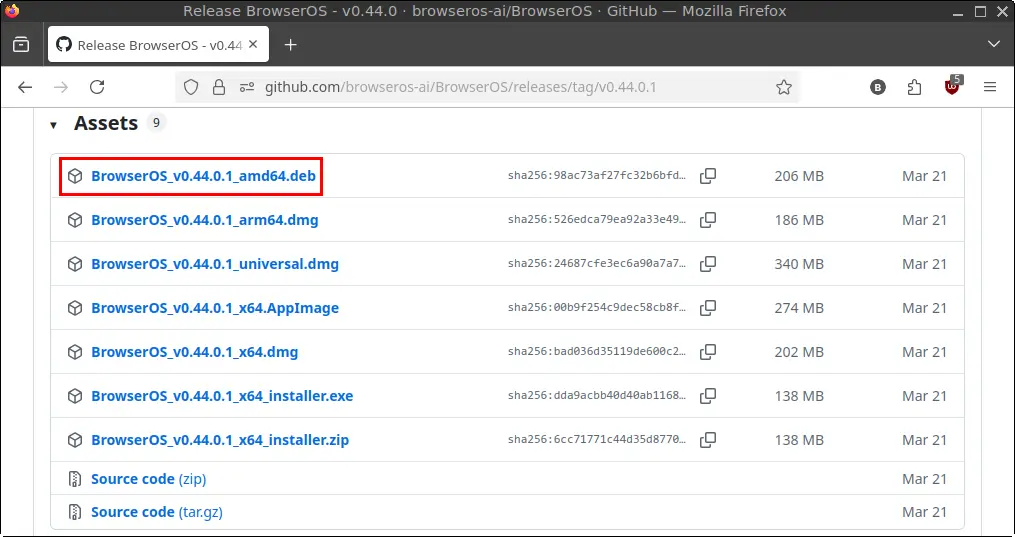
Step 1: Download the BrowserOS .deb File
First, you need to download the latest BrowserOS Debian package.
- Open your web browser.
- Go to the BrowserOS latest release page on GitHub:
https://github.com/browseros-ai/BrowserOS/releases/latest - Scroll down to the Assets section.
- Download the amd64.deb package.
- Save the file in your Downloads directory.
Step 2: Open a Terminal
There are several ways to open a Terminal in FunOS:
- Click Menu in the lower-left corner of the screen, then click Terminal
- Click the Terminal icon in the Tray
- Press Ctrl + Alt + T
Step 3: Navigate to the Downloads Directory
Most browsers save downloaded files in the Downloads directory by default.
Run the following command:
cd ~/DownloadsThis command changes the current working directory to Downloads.
Step 4: Update the Package List
Before installing BrowserOS, it is recommended to update the package list to ensure your system has the latest repository information.
Run:
sudo apt updateYou may be asked to enter your password.
Step 5: Install BrowserOS
Now install the downloaded BrowserOS package using APT.
Run:
sudo apt install ./BrowserOS_*_amd64.debExplanation:
sudoruns the command with administrator privilegesapt installinstalls the package./tells APT to install a local file from the current directoryBrowserOS_*_amd64.debautomatically matches the downloaded BrowserOS package filename
APT will also automatically install any required dependencies if needed.
Wait until the installation process finishes.
Step 6: Remove the Downloaded .deb File
After BrowserOS is successfully installed, you can remove the downloaded installer file to save disk space.
Run:
rm -f BrowserOS_*_amd64.debThis step is optional but recommended.
Step 7: Reload the Menu
Note: Starting with FunOS 24.04.4 LTS (Build 20260618) and FunOS 26.04 LTS (Build 20260618), the menu updates automatically, so you can skip this step.
In FunOS, newly installed applications may not immediately appear in the application menu until the menu is refreshed.
To reload the menu:
- Click the Menu button in the lower-left corner of the screen.
- Click Reload menu.
After reloading the menu, BrowserOS should appear in the application menu.
Launching BrowserOS
To start BrowserOS:
- Click the Menu button in the lower-left corner.
- Open the Internet category.
- Click BrowserOS.
The first launch may take slightly longer because BrowserOS needs to initialize its configuration files and Chromium-based components.
How to Uninstall BrowserOS on FunOS
If you no longer need BrowserOS, you can completely remove it from your system.
Step 1: Open a Terminal
Open a Terminal using one of the following methods:
- Click Menu → Terminal
- Click the Terminal icon in the Tray
- Press: Ctrl + Alt + T
Step 2: Remove BrowserOS
Run the following command to uninstall BrowserOS:
sudo apt remove --purge browserosExplanation:
removeuninstalls the package--purgealso removes system-wide configuration files
Step 3: Remove Any Unused Dependencies
After uninstalling BrowserOS, you can clean up unused packages and dependencies.
Run:
sudo apt autoremove --purgeThis helps keep your system clean.
Step 4: Remove User Data (Optional)
BrowserOS may store personal configuration files and cache data inside your home directory.
To remove them completely, run:
rm -rf $HOME/.cache/browser-os
rm -rf $HOME/.config/browser-os
rm -rf $HOME/.browseros
This step is optional.
Warning:
- This permanently deletes BrowserOS user settings, cache, and local data.
- Any saved BrowserOS configuration will be lost.
Step 5: Reload the Menu
Note: Starting with FunOS 24.04.4 LTS (Build 20260618) and FunOS 26.04 LTS (Build 20260618), the menu updates automatically, so you can skip this step.
To remove BrowserOS from the application menu:
- Click the Menu button in the lower-left corner of the screen.
- Click Reload menu.
Conclusion
BrowserOS is an interesting AI-powered Chromium browser that combines traditional web browsing with AI-assisted automation and productivity tools. Because BrowserOS is distributed as a Debian package, installing it on FunOS is simple and fully compatible with the Ubuntu-based system.
In this tutorial, you learned how to:
- Download the BrowserOS
.debpackage - Install BrowserOS using APT
- Launch BrowserOS from the FunOS menu
- Remove BrowserOS and its related files
BrowserOS may be especially useful for users interested in AI-assisted workflows, browser automation, and modern AI-powered browsing experiences on Linux.