
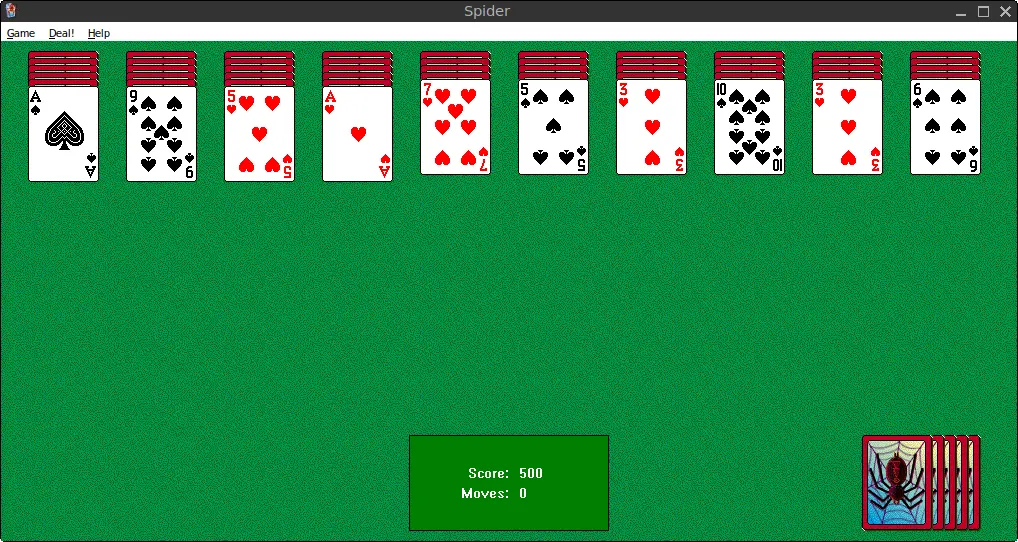
Once you have installed Wine on FunOS, a massive library of Windows applications becomes available directly on your Linux desktop. Wine is a compatibility layer capable of running Windows applications natively without needing a resource-heavy virtual machine or a dual-boot setup.
This guide covers the essentials of using Wine on FunOS, from running simple portable applications to managing advanced configurations and resolving common compatibility issues.
Official Documentation: WineHQ
1. Understanding Wine Prefixes
A Wine Prefix (often called a “Wine bottle”) is a hidden folder where Wine stores its virtual Windows environment, including a simulated C: drive, registry files, and Windows system settings.
The Default Prefix
By default, Wine stores everything in the following hidden directory:
~/.wineFor most everyday users, this single default environment is perfectly fine for installing and running applications.
Creating Custom Prefixes
Advanced users often create separate Wine prefixes. This prevents applications from interfering with each other and allows you to tailor specific Windows versions or dependencies for individual programs.
To create a separate 64-bit Wine environment (e.g., in ~/myapp-wine), run:
WINEPREFIX=~/myapp-wine winecfgForcing a 32-bit Prefix
Many older Windows applications (such as classic PC games from the Windows XP era) will refuse to run in a modern 64-bit prefix. You can force Wine to create a pure 32-bit environment by using the WINEARCH variable:
WINEARCH=win32 WINEPREFIX=~/myapp32 winecfg2. Configuring Wine Settings (winecfg)
Wine includes a built-in graphical configuration tool called winecfg.
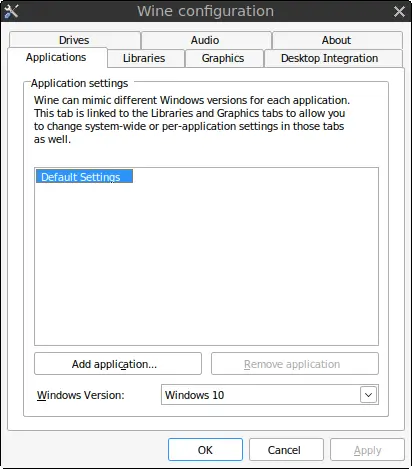
To open it, simply run:
winecfgThis utility allows you to adjust the virtual Windows environment. The most important feature is the Applications tab, where you can change the Windows version emulation.
If a program refuses to run, changing the emulated version from Windows 10 to Windows 7 or Windows XP can often solve the problem. You can also configure graphics, audio, and virtual drives from this window.
3. Running Windows Applications (.exe)
Wine can handle both portable Windows software (standalone .exe files) and standard Windows installers.
Method 1: Using the Terminal
If you prefer the command line, you can launch an application by passing its path to Wine:
wine ~/Downloads/rufus-4.7.exeMethod 2: Using the File Manager
You can easily launch .exe files directly from your FunOS file manager:
- Navigate to the folder containing your
.exefile. - Double-click the file, and Wine will automatically run it.
- Alternatively: Right-click the
.exefile and select Wine Windows Program Loader.
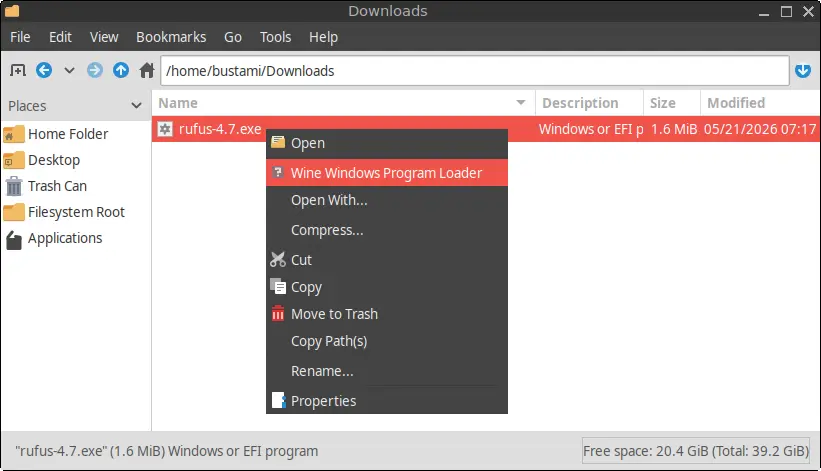
Note: The exact same methods apply whether you are opening a portable application or starting an installation wizard.
4. Running Windows Installers (.msi)
Some Windows applications are distributed as .msi (Microsoft Installer) packages instead of .exe files.
To install an .msi package, you need to use the msiexec command in the terminal:
wine msiexec /i ~/Downloads/program.msiThis will launch the familiar Windows Installer service inside your Wine environment.
5. Launching Installed Applications
Once you have installed a Windows application, there are three primary ways to open it:
Via the FunOS Menu
Most modern Windows installers will automatically create desktop and menu shortcuts on FunOS.
- Click your FunOS Menu.
- Click Reload menu.
- Look for your newly installed software under the Others category.
Via the File Manager
You can manually locate the installed executable in your virtual C: drive.
Important Note: The
.winefolder is hidden by default because its name starts with a dot. Open your Home folder and pressCtrl+H(or click View > Show Hidden in your file manager’s menu) to reveal it.
Navigate to:
~/.wine/drive_c/Program Files/(or Program Files (x86) for 32-bit software). Find the application folder, locate the .exe file, and double-click it.
Via the Terminal
You can also launch installed applications directly from the terminal. If the path contains spaces, be sure to use quotes or escape them:
wine "~/.wine/drive_c/Program Files/Notepad++/notepad++.exe"6. Uninstalling Software
Wine provides a graphical uninstaller that mimics the classic “Add or Remove Programs” utility found in Windows.
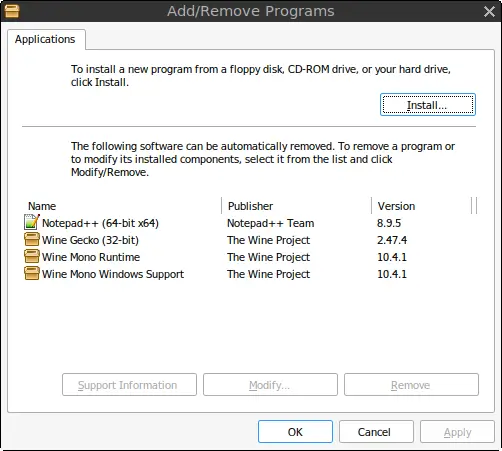
To safely uninstall a Windows application, open your terminal and run:
wine uninstallerSelect the software from the list and click Remove.
7. Pro Tips for Better Compatibility
If a Windows application isn’t running smoothly, try these proven troubleshooting techniques:
Install Missing Dependencies with Winetricks
Many applications fail to launch because they require Microsoft-specific frameworks (like .NET, Visual C++) or proprietary fonts (like Arial).
Winetricks is a powerful helper script designed to download and install these dependencies.
- Install it on FunOS using:
sudo apt update
sudo apt install winetricks- Open it by typing
winetricksin the terminal to use the GUI, or install packages directly (e.g.,winetricks corefontsto get standard Windows fonts).
Force Quit Frozen Applications
If a Windows application crashes or hangs, standard Linux task managers might fail to close all the hidden Wine background processes.
To instantly force-close all running Windows applications and reset the Wine environment, use:
wineserver -kThis command acts like a hard reboot for your virtual Windows session.
Run Applications from Their Directory
Some older applications will crash if they aren’t executed directly from their installation folder. Use cd to enter the folder first:
cd "~/.wine/drive_c/Program Files/AppName/"
wine app.exe
Consult the Wine AppDB
If you’re still having trouble, search for the application on the Wine Application Database (AppDB). Other Linux users post detailed workarounds, required winetricks commands, and compatibility ratings (Platinum, Gold, Garbage) for thousands of Windows programs.
Conclusion
Wine is a powerful tool that bridges the gap between Windows software and the Linux desktop. By understanding prefixes, mastering winecfg, and utilizing tools like winetricks and wineserver, you can dramatically improve application compatibility and run your essential Windows software flawlessly on FunOS.