
Flatpak provides another way to install applications on FunOS, especially when an application is unavailable from the Ubuntu repositories or its developer does not provide a compatible .deb package.
In this guide, you will learn how to install Flatpak, add the Flathub repository, install and run Flatpak applications, and manage installed applications. The guide also explains the advantages and disadvantages of Flatpak and when a native .deb package may be the better choice.
What Is Flatpak?
Flatpak is a universal application packaging system for Linux. It allows developers to distribute a single application package that can run on many Linux distributions, including FunOS.
Flatpak applications run inside a sandbox. This isolates parts of the application from the rest of the system and limits what the application can access unless additional permissions are granted.
Most Flatpak applications are distributed through Flathub, a large repository containing applications from many open-source projects and software developers.
Advantages of Flatpak
Flatpak offers several benefits:
- Cross-distribution compatibility: The same Flatpak package can run on many Linux distributions.
- Application sandboxing: Applications run in an isolated environment with controlled access to system resources.
- Newer application versions: Flathub may provide newer versions than those available in the Ubuntu repositories.
- Bundled dependencies: Applications include or share the libraries they require, reducing dependency conflicts.
- Independent updates: Flatpak applications can be updated separately from the rest of the operating system.
Disadvantages of Flatpak
Flatpak also has some disadvantages:
- Higher storage usage: Flatpak applications and their runtimes may require more disk space than native packages.
- Slower first launch: Some applications may take slightly longer to start, particularly during their first launch.
- Desktop integration differences: Themes, file dialogs, icons, and other desktop elements may not always integrate perfectly.
- Permission limitations: Sandboxing may prevent an application from accessing certain files, devices, or system features until the required permissions are granted.
- Separate update system: Flatpak applications are not updated through the normal
aptupgrade process.
Flatpak or a Native .deb Package?
When both formats are available, a native .deb package is generally the preferred option on FunOS.
Native packages normally provide:
- Better integration with the operating system
- Lower storage requirements
- Updates through APT
- Easier access to system files and services
- Fewer sandbox-related compatibility issues
Flatpak is useful when:
- The application is unavailable from the Ubuntu repositories.
- The repository version is outdated.
- The developer recommends the Flatpak version.
- You want additional isolation between the application and the operating system.
The best package format ultimately depends on the application and how you intend to use it.
How to Install Flatpak on FunOS
Step 1: Open a Terminal
Open a Terminal using one of the following methods:
- Click Menu in the lower-left corner of the screen, then click Terminal.
- Click the Terminal icon in the Tray.
- Press Ctrl + Alt + T.
Step 2: Update the Package List
Update the local package list so that APT has the latest information from the configured repositories:
sudo apt updateStep 3: Install Flatpak
Install Flatpak with the following command:
sudo apt install flatpakWhen prompted to continue, type y, then press Enter.
Step 4: Add the Flathub Repository
Flathub is the main repository used to distribute Flatpak applications. Add it to your system by running:
flatpak remote-add --if-not-exists flathub https://dl.flathub.org/repo/flathub.flatpakrepoThe --if-not-exists option prevents Flatpak from returning an error if Flathub has already been added.
You can confirm that the repository was added by running:
flatpak remotesYou should see flathub in the output.
Step 5: Restart Your System
Restart your computer to ensure that Flatpak applications are properly integrated into your desktop session:
sudo reboot nowYou can also restart through the FunOS menu:
- Click Menu.
- Click Log Out.
- Select Reboot.
How to Install Flatpak Applications
You can find applications on the Flathub website and install them using the Terminal.
Step 1: Visit Flathub
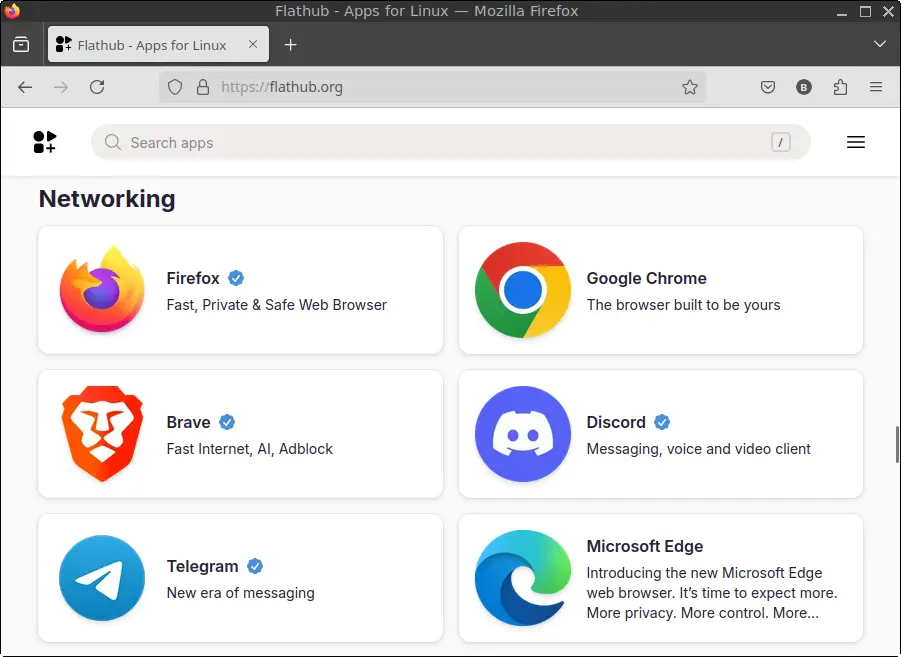
Open a web browser and go to https://flathub.org/.
Browse the available applications or use the search field to find the application you want to install.
Step 2: Find the Installation Command
Open the application’s page on Flathub.
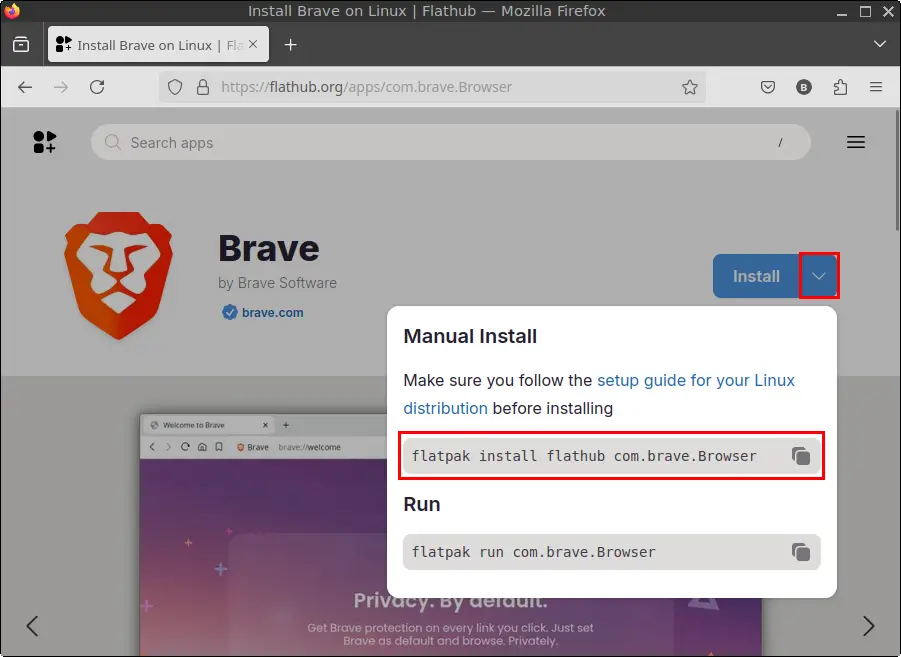
For example, to install Brave Browser, open its Flathub page and click the down arrow beside the Install button. The page will display the Terminal command required to install the application.
Step 3: Run the Installation Command
Copy the command displayed on Flathub, paste it into the Terminal, and press Enter.
For example, the command for installing Brave Browser is:
flatpak install flathub com.brave.BrowserFlatpak may display information about the application, required runtimes, permissions, and download size. Follow the prompts to complete the installation.
In the command above:
flatpak installtells Flatpak to install an application.flathubspecifies the repository.com.brave.Browseris the application ID.
Each Flatpak application has a unique application ID.
Step 4: Reload the Menu on Older FunOS Builds
Note: Starting with FunOS 24.04.4 LTS (Build 20260618) and FunOS 26.04 LTS (Build 20260618), the application menu updates automatically. You can skip this step when using these or newer builds.
On older FunOS builds, manually refresh the application menu:
- Click Menu in the lower-left corner of the screen.
- Click Reload menu.
The newly installed application should then appear in the appropriate menu category.
How to Run Flatpak Applications
You can launch a Flatpak application from the FunOS menu or through the Terminal.
Option 1: Launch the Application from the Menu
Click Menu in the lower-left corner of the screen, locate the installed application in the appropriate category, and click its name.
This is the easiest method for everyday use.
Option 2: Launch the Application from the Terminal
To launch an application from the Terminal, use flatpak run followed by its application ID.
For example, run Brave Browser with:
flatpak run com.brave.BrowserHow to Manage Flatpak Applications
Flatpak provides commands for listing, updating, and uninstalling applications.
List Installed Applications
To display installed Flatpak applications, run:
flatpak list --appThe output includes information such as each application’s name, application ID, version, branch, and installation type.
To display all installed Flatpak components, including runtimes, run:
flatpak listSearch for Applications
You can search Flathub directly from the Terminal:
flatpak search application_nameFor example:
flatpak search braveUpdate Flatpak Applications
To check for and install updates for all Flatpak applications and runtimes, run:
flatpak updateFlatpak updates are managed separately from packages installed through APT. Therefore, running sudo apt upgrade does not update Flatpak applications.
View Application Information
To view detailed information about an installed application, use:
flatpak info APPLICATION_IDFor example:
flatpak info com.brave.BrowserUninstall a Flatpak Application
To uninstall an application, run:
flatpak uninstall APPLICATION_IDFor example, to uninstall Brave Browser, run:
flatpak uninstall com.brave.BrowserFollow the on-screen prompts to confirm the removal.
Remove Unused Flatpak Runtimes
After uninstalling applications, some runtimes may no longer be required. Remove unused Flatpak components with:
flatpak uninstall --unusedReview the list carefully before confirming the removal.
Reload the Menu on Older FunOS Builds
Note: Starting with FunOS 24.04.4 LTS (Build 20260618) and FunOS 26.04 LTS (Build 20260618), the menu updates automatically. You can skip this step when using these or newer builds.
On older FunOS builds, refresh the menu after uninstalling an application:
- Click Menu.
- Click Reload menu.
How to Remove Flatpak from FunOS
Before removing Flatpak itself, you may want to uninstall all applications that were installed through it.
To display the installed applications, run:
flatpak list --appUninstall the applications you no longer need, and then remove unused runtimes:
flatpak uninstall --unusedRemove the Flatpak package with:
sudo apt remove --purge flatpakTo remove Flatpak and any automatically installed dependencies that are no longer required, run:
sudo apt autoremove --purgeRemoving the flatpak package does not necessarily delete all Flatpak data stored in your home directory. Before manually deleting any remaining data, make sure that you no longer need the installed applications or their settings.
Conclusion
Flatpak expands the range of applications that you can install on FunOS. It is particularly useful when an application is unavailable from the Ubuntu repositories, when Flathub provides a newer release, or when you prefer the additional isolation offered by sandboxing.
However, Flatpak applications may consume more storage space and occasionally have desktop-integration or permission-related limitations. When a reliable native .deb package is available, it will often provide better integration with FunOS and simpler updates through APT.
By installing Flatpak and adding the Flathub repository, you can search for, install, update, run, and remove Flatpak applications whenever you need them.