
Ghostty is a modern terminal emulator that offers excellent performance, a clean interface, and advanced features for both new and experienced Linux users. In this guide, you will learn how to install Ghostty on FunOS using two methods—either from the default Ubuntu repositories or from a PPA that provides newer versions. You will also learn how to launch Ghostty after installation and how to uninstall it completely if needed.
What is Ghostty?
Ghostty is a modern, GPU-accelerated terminal emulator designed to be fast, responsive, and highly customizable. It is built with a strong focus on native integration, meaning it behaves like a natural part of your operating system rather than a cross-platform wrapper.
Some key characteristics of Ghostty include:
- High performance with GPU rendering
- Smooth scrolling and responsive input
- Support for modern terminal features such as images and advanced text rendering
- Clean and simple configuration
Ghostty is suitable for both beginners and advanced users who want a reliable and modern terminal experience on FunOS.
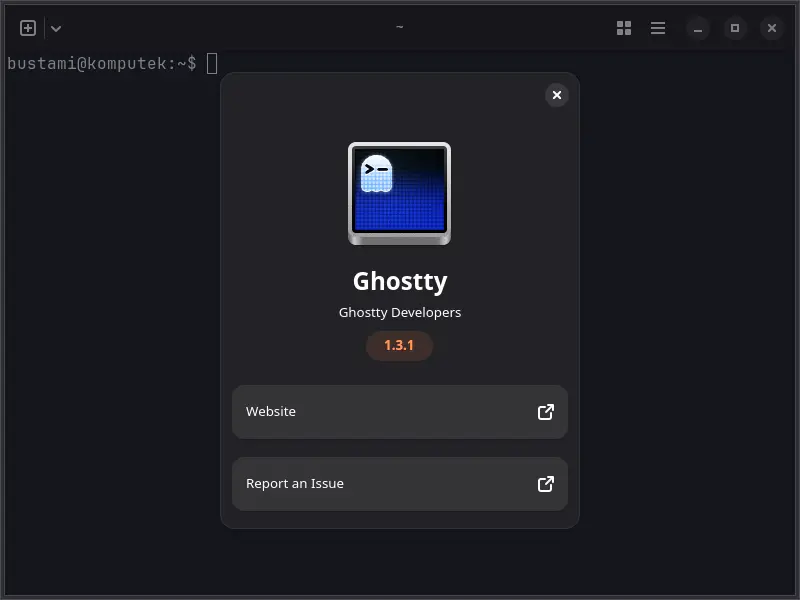
How to Install Ghostty on FunOS
Method 1: Installing from the Ubuntu Repositories
Work on: 22.04.5 ❌ | 24.04.4 ❌ | 25.10 ❌ | 26.04 ✅
This method installs Ghostty directly from the default Ubuntu repositories used by FunOS. It is the easiest and safest method, although the available version may not always be the latest.
Step 1: Open a Terminal
There are several ways to open the Terminal in FunOS:
- Click the Menu button in the lower-left corner of the screen, then click Terminal
- Click the Terminal icon in the Tray
- Press Ctrl + Alt + T on your keyboard
Step 2: Update the Package List
Before installing any new package, it is recommended to update the package list. This ensures your system knows about the latest available versions.
Run the following command:
sudo apt updateStep 3: Install Ghostty
After updating the package list, you can install Ghostty using the following command:
sudo apt install ghosttyWhen prompted, press Y and then Enter to confirm the installation.
Step 4: Reload the Menu
Note: Starting with FunOS 24.04.4 LTS (Build 20260618) and FunOS 26.04 LTS (Build 20260618), the menu updates automatically, so you can skip this step.
After installation is complete, the Ghostty application may not immediately appear in the Menu. In FunOS, you need to reload the menu to refresh the application list.
Follow these steps:
- Click the Menu button in the lower-left corner of the screen
- Click Reload menu
Method 2: Installing from the ghostty-ubuntu PPA
Work on: 22.04.5 ❌ | 24.04.4 ✅ | 25.10 ✅ | 26.04 ✅
This method uses a PPA (Personal Package Archive) that provides a more up-to-date version of Ghostty. This PPA is maintained by Mike Kasberg.
Step 1: Open a Terminal
You can open the Terminal using one of the following methods:
- Click the Menu button in the lower-left corner of the screen, then click Terminal
- Click the Terminal icon in the Tray
- Press Ctrl + Alt + T on your keyboard
Step 2: Add the ghostty-ubuntu PPA
To install a newer version of Ghostty, you need to add the PPA repository to your system.
This PPA is maintained by Mike Kasberg (https://github.com/mkasberg).
Run the following command:
sudo add-apt-repository ppa:mkasberg/ghostty-ubuntuPress Enter when prompted to continue.
Step 3: Update the Package List
After adding the PPA, update the package list again so your system can fetch packages from the new repository.
sudo apt updateStep 4: Install Ghostty
Now install Ghostty using the following command:
sudo apt install ghosttyConfirm the installation by pressing Y, then Enter if prompted.
Step 5: Reload the Menu
Note: Starting with FunOS 24.04.4 LTS (Build 20260618) and FunOS 26.04 LTS (Build 20260618), the menu updates automatically, so you can skip this step.
Once the installation is complete, reload the Menu so that Ghostty appears in the application list.
- Click the Menu button in the lower-left corner of the screen
- Click Reload menu
Launching Ghostty
After installing Ghostty, you can launch it from the FunOS Menu.
To open Ghostty:
- Click the Menu button in the lower-left corner
- Navigate to the System category
- Click Ghostty
How to Uninstall Ghostty on FunOS
If you no longer need Ghostty, you can remove it from your system. The steps below will guide you through uninstalling Ghostty safely, depending on how it was installed.
Uninstall Ghostty Installed from the Ubuntu Repositories
Step 1: Open a Terminal
There are several ways to open the Terminal in FunOS:
- Click the Menu button in the lower-left corner of the screen, then click Terminal
- Click the Terminal icon in the Tray
- Press Ctrl + Alt + T on your keyboard
Step 2: Remove Ghostty
To uninstall Ghostty, run the following command:
sudo apt remove --purge ghosttyThis command removes Ghostty along with its system-wide configuration files.
Step 3: Remove Any Unused Dependencies
After removing Ghostty, some packages that were installed as dependencies may no longer be needed. You can clean them up with:
sudo apt autoremove --purgeThis helps keep your system clean and free of unnecessary packages.
Step 4: Remove User Data (Optional)
Ghostty stores user-specific configuration files in your home directory. If you want to completely remove all settings, you can delete them with:
rm -rf $HOME/.config/ghostty⚠️ This step is optional. Skip it if you plan to reinstall Ghostty later and want to keep your settings.
Step 5: Reload the Menu
Note: Starting with FunOS 24.04.4 LTS (Build 20260618) and FunOS 26.04 LTS (Build 20260618), the menu updates automatically, so you can skip this step.
To update the application list after removal:
- Click the Menu button in the lower-left corner of the screen
- Click Reload menu
Uninstall Ghostty Installed from the ghostty-ubuntu PPA
Step 1: Open a Terminal
You can open the Terminal using one of the following methods:
- Click the Menu button in the left corner of the screen, then click Terminal
- Click the Terminal icon in the Tray
- Press Ctrl + Alt + T on your keyboard
Step 2: Remove Ghostty
Run the following command to remove Ghostty:
sudo apt remove --purge ghosttyStep 3: Remove Any Unused Dependencies
Clean up unused packages with:
sudo apt autoremove --purgeStep 4: Remove the ghostty-ubuntu PPA
Since Ghostty was installed from a PPA, it is recommended to remove the repository as well:
sudo add-apt-repository --remove ppa:mkasberg/ghostty-ubuntuThis prevents your system from continuing to fetch packages from that PPA.
Step 5: Update the Package List
After removing the PPA, update your package list:
sudo apt updateStep 6: Remove User Data (Optional)
To completely remove Ghostty configuration files from your home directory:
rm -rf $HOME/.config/ghosttyAgain, this step is optional.
Step 7: Reload the Menu
Note: Starting with FunOS 24.04.4 LTS (Build 20260618) and FunOS 26.04 LTS (Build 20260618), the menu updates automatically, so you can skip this step.
Finally, refresh the Menu so the removed application no longer appears:
- Click the Menu button in the lower-left corner of the screen
- Click Reload menu
Conclusion
You have learned how to install Ghostty on FunOS using both the Ubuntu repositories and the ghostty-ubuntu PPA, how to launch it from the Menu, and how to uninstall it safely when no longer needed. By following these steps, you can manage Ghostty on your system easily while keeping your FunOS installation clean and organized.