
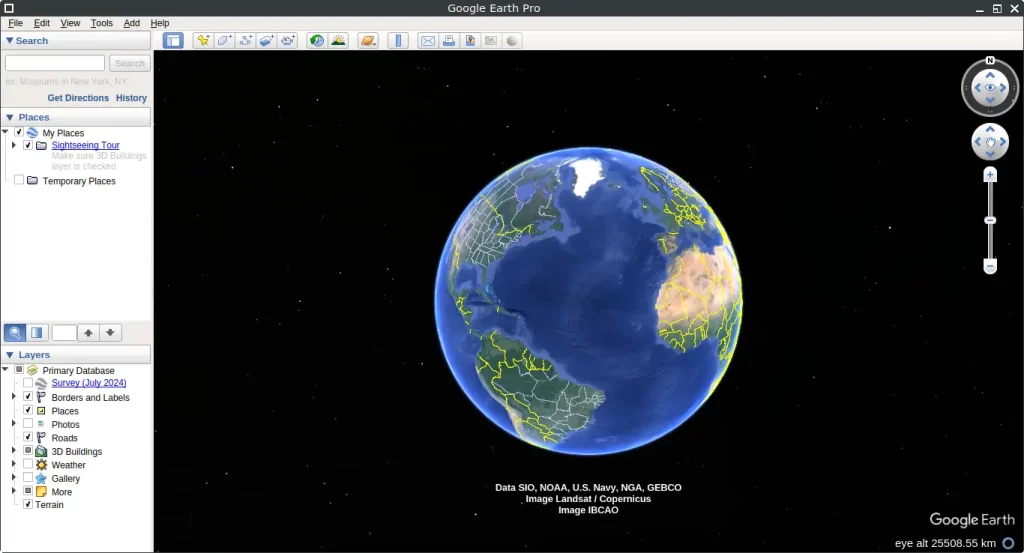
Google Earth is a powerful geographic visualization tool that lets you explore the world in 3D from the comfort of your desktop. With it, you can zoom into cities, view satellite imagery, explore terrain and buildings, and even dive beneath the ocean surface. Whether you’re a student, a traveler, or simply curious about the planet, Google Earth offers an immersive way to explore our world.
In this guide, we’ll show you how to install Google Earth Pro on FunOS using three different methods. Each method ensures that Google Earth integrates properly with the system and appears in the application menu after installation.
What is Google Earth?
Google Earth is a free desktop application developed by Google that displays a 3D representation of Earth based on satellite imagery. Users can navigate through the globe, search for locations, view historical imagery, create place markers, measure distances, and explore geographic data layers.
The desktop version, Google Earth Pro, includes advanced features such as:
- High-resolution printing and image saving
- Importing and exporting GIS data
- Area and path measurement tools
- Movie recording and map annotation features
Google Earth Pro runs smoothly on FunOS thanks to its compatibility with Ubuntu-based systems, making it ideal for both casual exploration and professional use.
How to Install Google Earth on FunOS
Method 1: Installing from the Google Repositories
Work on: 22.04.5 ✅ | 24.04.5 ✅ | 25.10 ✅ | 26.04.1 ✅
This method ensures that Google Earth Pro receives automatic updates through the FunOS software update system (APT).
Step 1: Open a Terminal
Three options:
- Click Menu in the left corner of the screen, then click Terminal
- Click the Terminal icon in the Tray
- Press Ctrl + Alt + T
Step 2: Update the Package List
sudo apt updateStep 3: Install the Necessary Dependencies
sudo apt install apt-transport-https curlStep 4: Add the GPG Key
curl -fSsL https://dl.google.com/linux/linux_signing_key.pub | gpg --dearmor | sudo tee /etc/apt/trusted.gpg.d/google-earth-pro.gpg > /dev/nullStep 5: Add the Repository
echo "deb [arch=amd64] http://dl.google.com/linux/earth/deb/ stable main" | sudo tee /etc/apt/sources.list.d/google-earth-pro.listStep 6: Update the Package List Again
sudo apt updateStep 7: Install Google Earth
sudo apt install google-earth-pro-stableStep 8: Reload the Menu
Note: Starting with FunOS 24.04.4 LTS (Build 20260618) and FunOS 26.04 LTS (Build 20260618), the menu updates automatically, so you can skip this step.
After installation, reload the menu to make Google Earth appear:
- Click the Menu button in the lower-left corner.
- Click Reload menu.
Method 2: Using the .deb Package from Google Earth’s Official Website
Work on: 22.04.5 ✅ | 24.04.5 ✅ | 25.10 ✅ | 26.04.1 ✅
This method installs Google Earth Pro manually using the official .deb installer provided by Google.
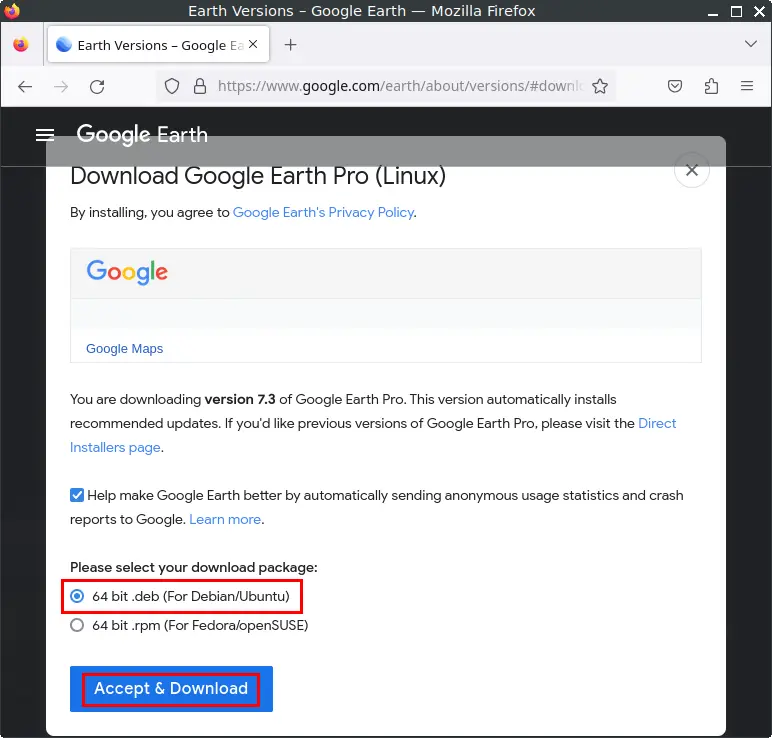
Step 1: Download the Google Earth .deb File
- Go to the Google Earth Download Page
- Click the “64-bit .deb (For Debian/Ubuntu)” option.
- Then click the “Accept & Download” button.
- Save the file in your Downloads directory.
Step 2: Open a Terminal
Three options:
- Click Menu in the left corner of the screen, then click Terminal
- Click the Terminal icon in the Tray
- Press Ctrl + Alt + T
Step 3: Navigate to the Downloads Directory
cd ~/DownloadsStep 4: Update the Package List
sudo apt updateStep 5: Install Google Earth
sudo apt install ./google-earth-pro-stable_current_amd64.debStep 6: Remove the Downloaded .deb File
rm -f google-earth-pro-stable_current_amd64.debStep 7: Reload the Menu
Note: Starting with FunOS 24.04.4 LTS (Build 20260618) and FunOS 26.04 LTS (Build 20260618), the menu updates automatically, so you can skip this step.
- Click the Menu button in the lower-left corner.
- Click Reload menu.
Method 3: Using the .deb Package Downloaded with wget
Work on: 22.04.5 ✅ | 24.04.5 ✅ | 25.10 ✅ | 26.04.1 ✅
This method is ideal if you prefer installing Google Earth Pro directly from the command line using wget. It’s quick, simple, and doesn’t require visiting the website manually.
Step 1: Open a Terminal
Three options:
- Click Menu in the left corner of the screen, then click Terminal
- Click the Terminal icon in the Tray
- Press Ctrl + Alt + T
Step 2: Download the Google Earth .deb File
wget -4 -O google-earth-pro-stable_current_amd64.deb "https://dl.google.com/dl/earth/client/current/google-earth-pro-stable_current_amd64.deb"Step 3: Update the Package List
sudo apt updateStep 4: Install Google Earth
sudo apt install ./google-earth-pro-stable_current_amd64.debStep 5: Remove the Downloaded .deb File
rm -f google-earth-pro-stable_current_amd64.debStep 6: Reload the Menu
Note: Starting with FunOS 24.04.4 LTS (Build 20260618) and FunOS 26.04 LTS (Build 20260618), the menu updates automatically, so you can skip this step.
After installation, reload the application menu so Google Earth appears:
- Click the Menu button in the lower-left corner.
- Click Reload menu.
Launching Google Earth
After completing the installation using any of the methods above, you can launch Google Earth easily:
- Click the Menu button in the lower-left corner.
- Navigate to the Internet section.
- Click Google Earth Pro to start exploring the globe in 3D.
How to Uninstall Google Earth on FunOS
If you ever need to remove Google Earth from your system, follow these steps:
Step 1: Open a Terminal
Three options:
- Click Menu in the left corner of the screen, then click Terminal
- Click the Terminal icon in the Tray
- Press Ctrl + Alt + T
Step 2: Remove Google Earth
sudo apt remove --purge google-earth-pro-stableStep 3: Remove Any Unused Dependencies
sudo apt autoremove --purgeStep 4: Update the Package List
sudo apt updateStep 5: Remove User Data (Optional)
If you want to completely erase all Google Earth user data and configuration files:
rm -rf $HOME/.googleearth
rm -rf $HOME/.config/Google
Step 6: Reload the Menu
Note: Starting with FunOS 24.04.4 LTS (Build 20260618) and FunOS 26.04 LTS (Build 20260618), the menu updates automatically, so you can skip this step.
- Click the Menu button in the lower-left corner.
- Click Reload menu.
Conclusion
Installing Google Earth Pro on FunOS is simple and flexible, with multiple methods depending on your preference.
- Method 1 (Google repositories) is the best choice if you want automatic updates via the FunOS software update system (APT).
- Method 2 (manual .deb installer) is great if you prefer downloading the file directly from Google’s official website.
- Method 3 (using
wget) offers a fast, command-line-only installation option.
All three methods configure the repository and key properly, ensuring smooth operation and future updates.
Once installed, Google Earth Pro integrates perfectly into the FunOS environment, providing a powerful tool for exploring the world in detail right from your desktop.
Thank you very much, this helped me with Ubuntu 25.10 and its modern dependencies.