
Rhythmbox is one of the most popular and user-friendly music players available for Linux. It provides a simple interface for organizing, playing, and managing music collections efficiently. As FunOS is based on Ubuntu, installing Rhythmbox is straightforward using the Terminal and the Ubuntu package repositories.
In this guide, you’ll learn what Rhythmbox is, how to install it on FunOS, how to launch it, and how to uninstall it completely if you no longer need it.
What is Rhythmbox?
Rhythmbox is a free and open-source music management application originally inspired by Apple’s iTunes. It is designed to work seamlessly with the GNOME desktop environment, but it also integrates well with lightweight environments like JWM used in FunOS.
With Rhythmbox, you can:
- Play and organize local music files
- Stream music from internet radio stations
- Create and manage playlists
- Automatically detect and play music from portable devices
- Use plugins to extend functionality, such as Last.fm scrobbling and audio CD playback
Rhythmbox supports a wide variety of audio formats, making it a versatile choice for both casual listeners and advanced users who want a reliable and well-integrated music player.
How to Install Rhythmbox on FunOS
Work on: 22.04.5 ✅ | 24.04.4 ✅ | 25.10 ✅ | 26.04 ✅
Follow these steps to install Rhythmbox on your FunOS system.
Step 1: Open a Terminal
There are several ways to open a Terminal in FunOS:
- Click Menu in the lower-left corner of the screen, then click Terminal
- Click the Terminal icon in the Tray
- Press Ctrl + Alt + T on your keyboard
Step 2: Update the Package List
Before installing any package, it’s a good idea to update the package list to ensure you’re downloading the latest version available in the repositories.
sudo apt updateStep 3: Install Rhythmbox
Once the update is complete, install Rhythmbox by running:
sudo apt install rhythmboxThis command will download and install Rhythmbox along with any required dependencies.
Step 4: Reload the Menu
Note: Starting with FunOS 24.04.4 LTS (Build 20260618) and FunOS 26.04 LTS (Build 20260618), the menu updates automatically, so you can skip this step.
After installation, Rhythmbox may not appear immediately in the application menu. To make it visible:
- Click the Menu button in the lower-left corner
- Click Reload menu
Launching Rhythmbox
Once installed, you can open Rhythmbox as follows:
- Click the Menu button in the lower-left corner of the screen
- Go to the Multimedia category
- Click Rhythmbox
Alternatively, you can start it via the Terminal by typing:
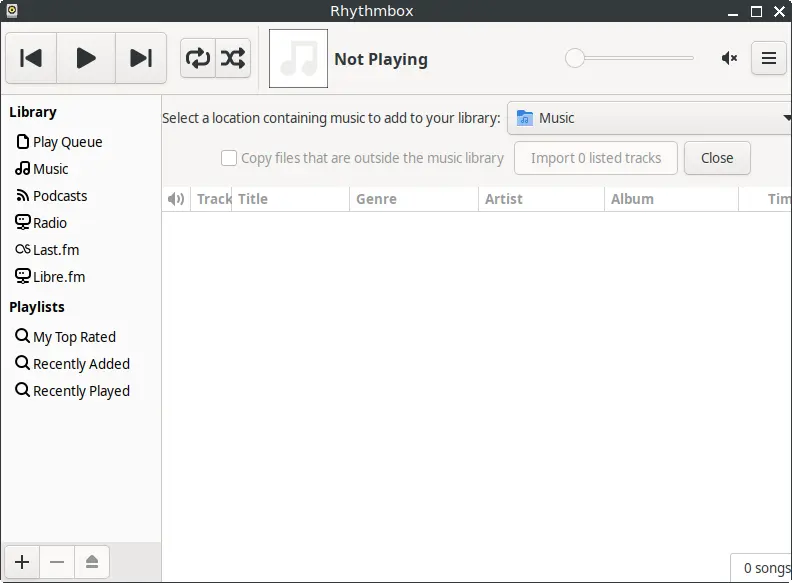
rhythmboxWhen launched, Rhythmbox will open its main interface where you can import your music library, add internet radio stations, and customize playback options.
How to Uninstall Rhythmbox on FunOS
If you decide you no longer need Rhythmbox, you can easily remove it from your system.
Step 1: Open a Terminal
You can open the Terminal in one of these ways:
- Click Menu in the left corner of the screen, then click Terminal
- Click the Terminal icon in the Tray
- Press Ctrl + Alt + T
Step 2: Remove Rhythmbox
To uninstall Rhythmbox and its associated configuration files:
sudo apt remove --purge rhythmboxStep 3: Remove Any Unused Dependencies
After removing the package, clean up unnecessary dependencies with:
sudo apt autoremove --purgeStep 4: Remove User Data (Optional)
If you want to completely delete Rhythmbox’s local data (like playlists and cache files), remove its directories from your home folder:
rm -rf $HOME/.local/share/rhythmbox
rm -rf $HOME/.cache/rhythmbox
Step 5: Reload the Menu
Note: Starting with FunOS 24.04.4 LTS (Build 20260618) and FunOS 26.04 LTS (Build 20260618), the menu updates automatically, so you can skip this step.
Finally, refresh the application menu to remove Rhythmbox from the list:
- Click the Menu button in the lower-left corner
- Click Reload menu
Conclusion
Rhythmbox is a powerful and reliable music player that fits perfectly into the FunOS environment. Whether you use it for organizing your local music library or streaming online radio, it offers an intuitive interface and solid performance.
Installing Rhythmbox on FunOS is simple thanks to the Ubuntu repositories, and removing it is just as straightforward if you ever decide to switch to another music player.
By following the steps in this guide, you can easily manage Rhythmbox on your FunOS system and enjoy your favorite music in a clean, lightweight environment.