
RustDesk is a modern remote desktop application that allows you to access and control another computer securely over a network or the internet. It is lightweight, fast, and works well on low-resource systems, making it a great choice for FunOS users.
In this guide, you will learn how to install the RustDesk Client on FunOS step by step, along with instructions on how to launch and uninstall it.
What is RustDesk?
RustDesk is a free and open-source remote desktop application that provides functionality similar to TeamViewer or AnyDesk. It allows users to remotely control another computer, transfer files, and collaborate easily.
One of RustDesk’s main advantages is its flexibility. By default, it uses public servers to establish connections, but it also allows you to host your own server for improved privacy and control.
RustDesk is:
- Lightweight and fast
- Cross-platform (Linux, Windows, macOS, Android, iOS)
- Secure with end-to-end encryption
- Suitable for both personal and professional use
How to Install RustDesk Client on FunOS
Work on: 22.04.5 ✅ | 24.04.5 ✅ | 25.10 ✅ | 26.04.1 ✅
Step 1: Download the RustDesk Client .deb File
First, you need to download the RustDesk installation package.
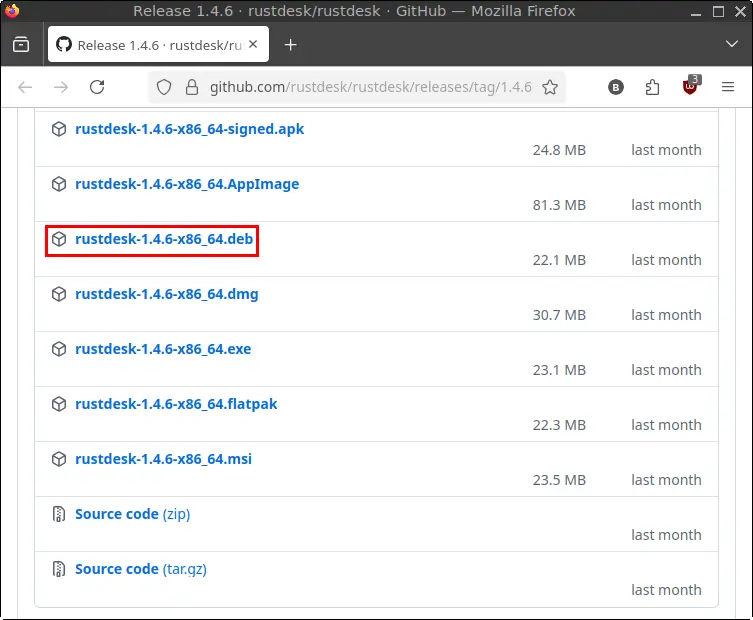
- Go to the RustDesk latest release page on GitHub:
https://github.com/rustdesk/rustdesk/releases/latest - Scroll down to the Assets section
- Download the x86_64.deb package
- Save the file in your Downloads directory
Step 2: Open a Terminal
You can open the Terminal in FunOS using one of the following methods:
- Click Menu in the lower-left corner of the screen, then click Terminal
- Click the Terminal icon in the Tray
- Press Ctrl + Alt + T
Step 3: Navigate to the Downloads Directory
Before installing, move to the directory where the file was downloaded.
cd ~/DownloadsThis ensures the system can access the .deb file.
Step 4: Update the Package List
It is recommended to update the package list before installing new software.
sudo apt updateThis command refreshes the list of available packages and dependencies.
Step 5: Install RustDesk Client
Now install the RustDesk Client using the downloaded .deb file.
sudo apt install ./rustdesk-*.debThis command will:
- Install RustDesk
- Automatically resolve and install any required dependencies
Step 6: Remove the Downloaded .deb File
After installation, you can remove the downloaded file to keep your system clean.
rm -f rustdesk-*.debStep 7: Reload the Menu
Note: Starting with FunOS 24.04.4 LTS (Build 20260618) and FunOS 26.04 LTS (Build 20260618), the menu updates automatically, so you can skip this step.
In FunOS, newly installed applications may not immediately appear in the menu.
To refresh the menu:
- Click the Menu button in the lower-left corner
- Click Reload menu
Install RustDesk Server OSS on VPS/Cloud Server (Optional)
If you want full control over your remote connections, you can host your own RustDesk server.
Follow the official guide here:
https://rustdesk.com/docs/en/self-host/rustdesk-server-oss/install/
This setup is recommended for:
- Advanced users
- Organizations
- Privacy-focused environments
Launching RustDesk Client
After installation:
- Click the Menu button
- Navigate to the Internet category
- Click RustDesk
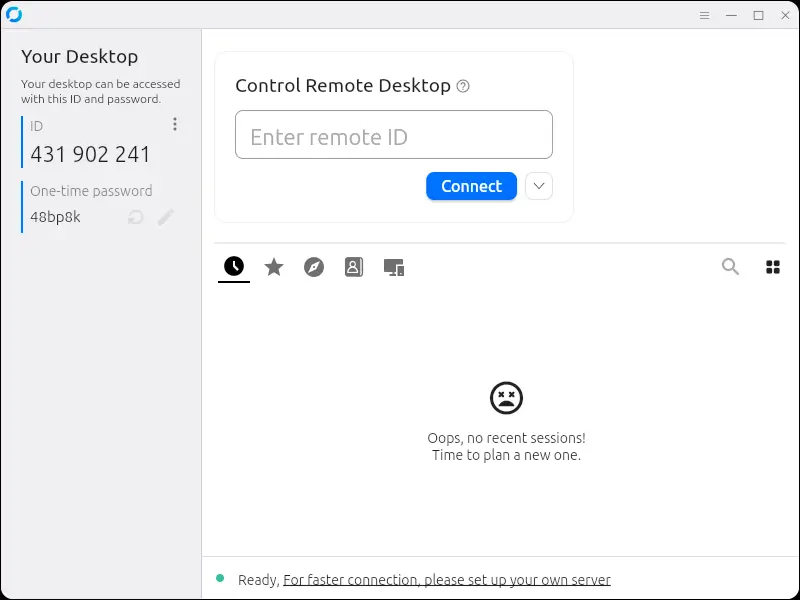
Once opened, RustDesk will display:
- Your ID
- Your temporary password
You can use these credentials to connect from another device.
How to Uninstall RustDesk Client on FunOS
Step 1: Open a Terminal
You can open the Terminal using:
- Menu → Terminal
- Tray icon
- Ctrl + Alt + T
Step 2: Remove RustDesk Client
To uninstall RustDesk completely:
sudo apt remove --purge rustdeskThis removes the application along with its system-wide configuration files.
Step 3: Remove Any Unused Dependencies
Clean up unused packages:
sudo apt autoremove --purgeThis helps free up disk space.
Step 4: Remove User Data (Optional)
To delete personal configuration files:
rm -rf $HOME/.config/rustdeskThis step is optional but recommended if you want a completely clean removal.
Step 5: Reload the Menu
Note: Starting with FunOS 24.04.4 LTS (Build 20260618) and FunOS 26.04 LTS (Build 20260618), the menu updates automatically, so you can skip this step.
To update the application menu:
- Click Menu
- Click Reload menu
Conclusion
RustDesk is an excellent remote desktop solution for FunOS users thanks to its lightweight design, speed, and open-source nature. Installing it on FunOS is straightforward using the .deb package, and it integrates well with the system.
Whether you need remote access for personal use, IT support, or managing multiple machines, RustDesk provides a powerful and flexible solution—especially when combined with its optional self-hosted server feature.