
If you want to run Windows games and applications on FunOS without relying on Steam, PortProton is one of the easiest tools you can use. It simplifies the process of using Wine and Proton by automating configuration, installing dependencies, and providing a user-friendly interface.
In this tutorial, you will learn how to install PortProton on FunOS step by step, along with how to launch and uninstall it properly.
What is PortProton?
PortProton is a Linux gaming tool that allows you to run Windows games and applications using technologies like Wine and Proton. It acts as a wrapper that automates configuration and optimization, making it much easier compared to setting everything up manually.
With PortProton, you can:
- Run Windows
.exefiles easily - Install popular game launchers (Epic Games, Battle.net, etc.)
- Use optimized Proton builds (including Proton GE)
- Automatically configure game environments (Wine prefixes)
In short, PortProton is a simple and powerful solution for running non-Steam Windows games on Linux.
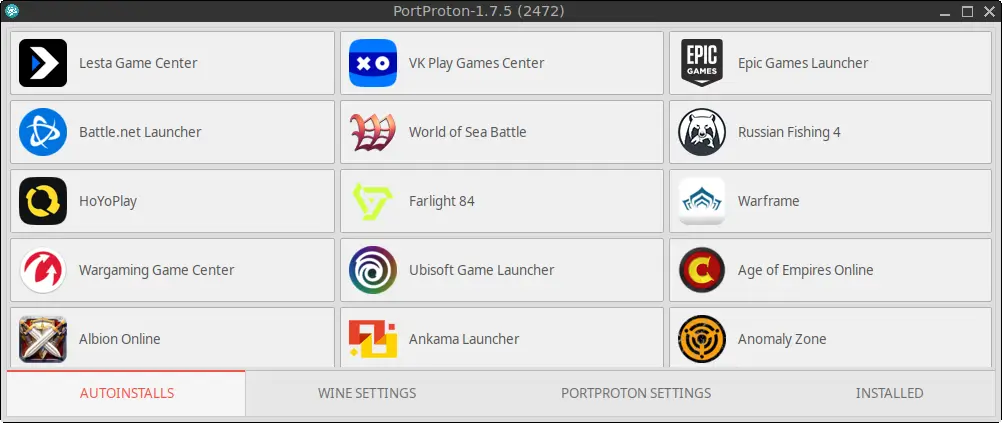
How to Install PortProton on FunOS
Work on: 22.04.5 ✅ | 24.04.5 ✅ | 25.10 ✅ | 26.04.1 ✅
Follow the steps below to install PortProton on your system.
Step 1: Open a Terminal
You can open a Terminal in FunOS using one of the following methods:
- Click Menu in the lower-left corner → click Terminal
- Click the Terminal icon in the Tray
- Press Ctrl + Alt + T
Step 2: Enable the 32-bit Architecture
Some Windows applications require 32-bit libraries. Enable 32-bit support with:
sudo dpkg --add-architecture i386Step 3: Download the PortProton .deb File
Download the latest PortProton package using the following command:
wget https://github.com/Castro-Fidel/PortProton_dpkg/releases/download/portproton_amd64/portproton_amd64.debThis command downloads the .deb installation file from the official PortProton repository.
Step 4: Update the Package List
Before installing, update your package list:
sudo apt updateThis ensures your system has the latest package information.
Step 5: Install PortProton
Install the downloaded package using:
sudo apt install ./portproton_amd64.debFunOS (based on Ubuntu) will automatically handle dependencies during installation.
Step 6: Remove the Downloaded .deb File
After installation, you can remove the installer file:
rm -f portproton_amd64.debThis helps keep your system clean.
Step 7: Reload the Menu
Note: Starting with FunOS 24.04.4 LTS (Build 20260618) and FunOS 26.04 LTS (Build 20260618), the menu updates automatically, so you can skip this step.
To make PortProton appear in the application menu:
- Click the Menu button in the lower-left corner
- Click Reload menu
Launching PortProton
To launch PortProton:
- Click the Menu button
- Navigate to the Games category
- Click PortProton
Once opened, you can:
- Run Windows applications
- Install game launchers via the AUTOINSTALLS menu
- Configure settings and performance options
⚠️ Important Note
Note: Starting with FunOS 24.04.4 LTS (Build 20260618) and FunOS 26.04 LTS (Build 20260618), the menu updates automatically, so you can skip this step.
After installing a game launcher via the AUTOINSTALLS menu, you must reload the JWM menu by:
- Click the Menu button in the lower-left corner
- Click Reload menu
How to Uninstall PortProton on FunOS
If you want to completely remove PortProton, follow these steps.
Step 1: Remove PortProton directories and desktop entries
1. Open PortProton
- Click the Menu button
- Navigate to the Games category
- Click PortProton
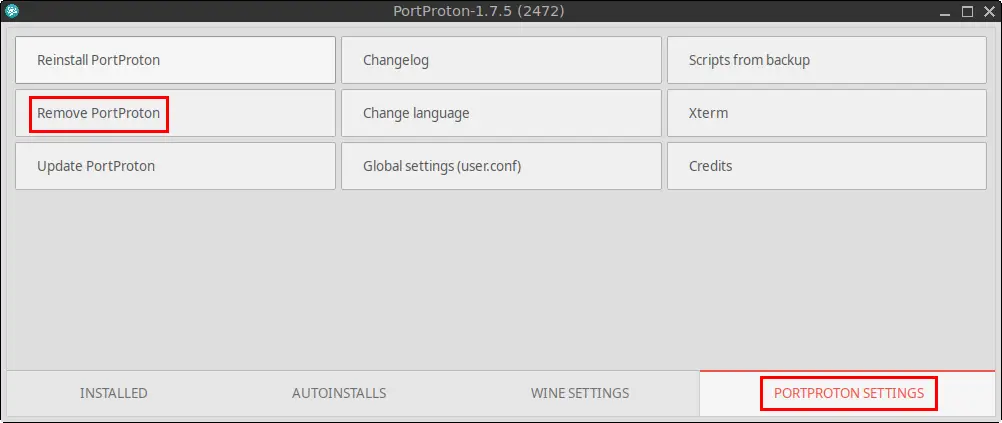
2. Go to the PORTPROTON SETTINGS tab
Click Remove PortProton
3. When prompted:
Click OK to confirm
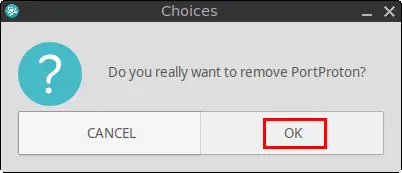
This step removes internal data, configurations, and shortcuts.
Step 2: Open a Terminal
You can open a Terminal using:
- Click Menu in the lower-left corner → click Terminal
- Click the Terminal icon in the Tray
- Press Ctrl + Alt + T
Step 3: Remove PortProton
Run the following command:
sudo apt remove --purge portprotonThis removes the main package and its configuration files.
Step 4: Remove Any Unused Dependencies
Clean up unused packages:
sudo apt autoremove --purgeStep 5: Reload the Menu
Note: Starting with FunOS 24.04.4 LTS (Build 20260618) and FunOS 26.04 LTS (Build 20260618), the menu updates automatically, so you can skip this step.
Finally, refresh the menu:
- Click the Menu button in the lower-left corner
- Click Reload menu
Conclusion
PortProton is a powerful yet beginner-friendly tool that makes running Windows games and applications on FunOS much easier. By automating Wine and Proton configuration, it saves time and effort while delivering good compatibility and performance.
With just a few commands, you can install PortProton, launch Windows applications, and even install popular game launchers. And if you ever need to remove it, FunOS provides a straightforward way to uninstall it completely.
If you frequently use non-Steam games or Windows-only applications, PortProton is definitely worth trying on FunOS.