
The ~/.config/jwm/preferences file controls several important aspects of how JWM behaves in FunOS. It defines settings such as the number of virtual desktops, double-click behavior, window focus, window snapping, and how windows appear while they are being moved or resized.
This article explains the default contents of the file, what each configuration option does, and how to safely modify the settings.
Backing Up the Preferences File
Before editing the file, create a backup copy so that you can easily restore the original configuration if something goes wrong.
Open a terminal and run:
cp ~/.config/jwm/preferences ~/.config/jwm/preferences.bakThe backup will be saved as:
~/.config/jwm/preferences.bakTo restore the backup later, run:
cp ~/.config/jwm/preferences.bak ~/.config/jwm/preferencesThen restart JWM to apply the restored configuration.
Opening the Preferences File
You can open the JWM preferences file using either the file manager or a terminal.
Method 1: Using the File Manager
- Click Menu in the lower-left corner of the screen.
- Click File Manager.
- Press Ctrl + H or click View > Show Hidden to display hidden files.
- Open the
.configdirectory. - Open the
jwmdirectory. - Right-click the
preferencesfile and open it with Mousepad or another text editor.
The complete path to the file is:
~/.config/jwm/preferencesThe ~ symbol represents your home directory.
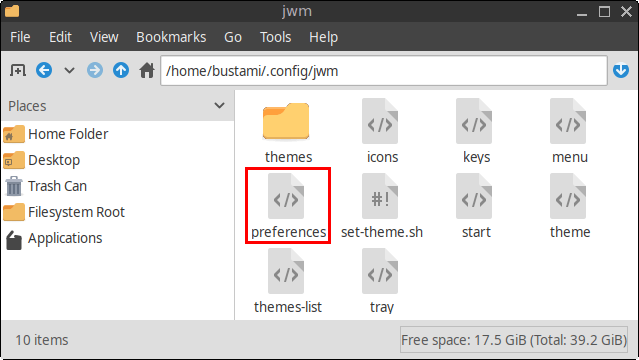
Method 2: Using a Terminal
Open a terminal and run:
mousepad ~/.config/jwm/preferencesThis opens the file directly in the Mousepad text editor.
Default JWM Preferences Configuration in FunOS
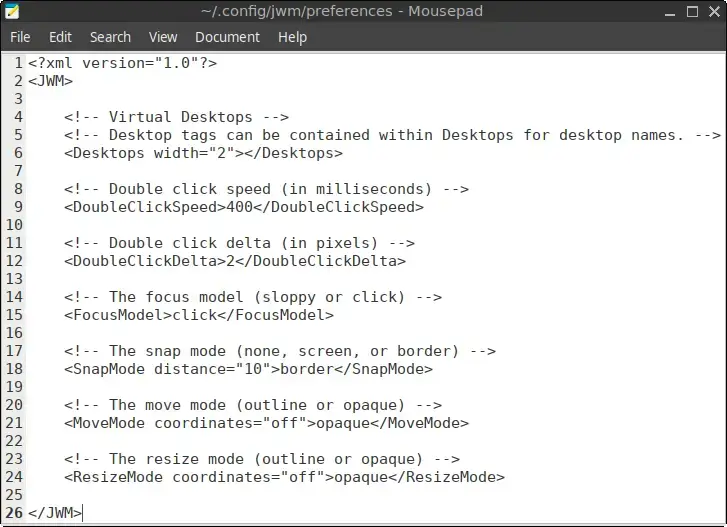
The default ~/.config/jwm/preferences file in FunOS contains the following configuration:
<?xml version="1.0" encoding="UTF-8"?>
<JWM>

    <!-- Virtual Desktops -->
    <!-- Desktop tags can be contained within Desktops for desktop names. -->
    <Desktops width="2"/>

    <!-- Double click speed (in milliseconds) -->
    <DoubleClickSpeed>400</DoubleClickSpeed>

    <!-- Double click delta (in pixels) -->
    <DoubleClickDelta>2</DoubleClickDelta>

    <!-- The focus model (sloppy or click) -->
    <FocusModel>click</FocusModel>

    <!-- The snap mode (none, screen, or border) -->
    <SnapMode distance="10">border</SnapMode>

    <!-- The move mode (outline or opaque) -->
    <MoveMode coordinates="off">opaque</MoveMode>

    <!-- The resize mode (outline or opaque) -->
    <ResizeMode coordinates="off">opaque</ResizeMode>

</JWM>
The <JWM> and </JWM> tags enclose all the settings in the file. Each configuration element between these tags controls a particular aspect of JWM.
Lines beginning with <!-- and ending with --> are XML comments. They are included to describe the configuration and are ignored by JWM.
Understanding Each Configuration Option
Virtual Desktops
<Desktops width="2"/>The <Desktops> element controls the number and arrangement of virtual desktops, also known as workspaces.
In this example:
width="2"JWM creates two virtual desktops arranged horizontally.
Virtual desktops allow you to organize open windows across separate workspaces. For example, you could use one desktop for web browsing and another for file management or terminal work.
To create four horizontally arranged virtual desktops, change the line to:
<Desktops width="4"/>JWM also supports arranging desktops in rows and columns by using both the width and height attributes. For example:
<Desktops width="2" height="2"/>This creates four virtual desktops arranged in a two-by-two grid.
Double-Click Speed
<DoubleClickSpeed>400</DoubleClickSpeed>The <DoubleClickSpeed> element defines the maximum amount of time allowed between two mouse clicks for them to be recognized as a double-click.
The value is measured in milliseconds.
The default value is:
400 millisecondsIncrease the value if you have difficulty clicking quickly enough. For example:
<DoubleClickSpeed>500</DoubleClickSpeed>Decrease the value if double-clicking feels too slow or if separate clicks are being recognized as a double-click.
For example:
<DoubleClickSpeed>300</DoubleClickSpeed>Double-Click Movement Tolerance
<DoubleClickDelta>2</DoubleClickDelta>The <DoubleClickDelta> element defines how far the mouse pointer may move between the first and second clicks while still being recognized as a double-click.
The value is measured in pixels.
With the default value of 2, the pointer can move by only a small amount between clicks. If the pointer moves farther than the allowed distance, JWM treats the clicks as separate actions.
Increasing the value can make double-clicking easier for users who find it difficult to keep the mouse completely still.
For example:
<DoubleClickDelta>4</DoubleClickDelta>Window Focus Model
<FocusModel>click</FocusModel>The <FocusModel> element determines how a window receives keyboard focus.
The available values are:
Click Focus
<FocusModel>click</FocusModel>A window receives focus only after you click it.
This is the default setting in FunOS and is familiar to users of most conventional desktop environments.
Sloppy Focus
<FocusModel>sloppy</FocusModel>A window receives focus when you move the mouse pointer over it. You do not need to click the window first.
This can make switching between windows faster, particularly when several windows are visible at the same time.
However, keyboard input may be sent to whichever window is currently under the pointer, so this mode can require some adjustment.
Window Snapping
<SnapMode distance="10">border</SnapMode>The <SnapMode> element controls whether windows snap into position when they are moved close to screen edges or other window borders.
The distance attribute defines how close a window must be before snapping occurs.
In the default configuration:
distance="10"Snapping activates when the window is within 10 pixels of the relevant edge or border.
The available snap modes are:
No Snapping
<SnapMode distance="10">none</SnapMode>Windows move freely without snapping.
Screen-Edge Snapping
<SnapMode distance="10">screen</SnapMode>Windows snap to the edges of the screen.
Border Snapping
<SnapMode distance="10">border</SnapMode>Windows snap to screen edges and nearby window borders.
This is the default setting in FunOS.
You can also change the snapping distance. For example:
<SnapMode distance="20">border</SnapMode>A larger distance makes snapping activate sooner, while a smaller distance requires the window to be closer to an edge.
Window Movement Mode
<MoveMode coordinates="off">opaque</MoveMode>The <MoveMode> element controls how a window is displayed while you drag it.
The available movement modes are:
Opaque Movement
<MoveMode coordinates="off">opaque</MoveMode>The complete contents of the window remain visible while it is being moved.
This provides immediate visual feedback but may require more system resources.
Outline Movement
<MoveMode coordinates="off">outline</MoveMode>Only an outline representing the window is displayed while it is being moved. The full window is repositioned after you release the mouse button.
This mode may feel smoother on older or less powerful hardware.
Displaying Window Coordinates
The coordinates attribute determines whether JWM displays the window’s position while it is being moved.
To enable the coordinate display, use:
<MoveMode coordinates="on">opaque</MoveMode>To disable it, use:
<MoveMode coordinates="off">opaque</MoveMode>The default FunOS configuration disables the coordinate display.
Window Resize Mode
<ResizeMode coordinates="off">opaque</ResizeMode>The <ResizeMode> element controls how a window is displayed while it is being resized.
The available resize modes are:
Opaque Resizing
<ResizeMode coordinates="off">opaque</ResizeMode>The complete window is redrawn continuously while you resize it.
This is the default setting in FunOS.
Outline Resizing
<ResizeMode coordinates="off">outline</ResizeMode>Only an outline of the new window size is shown while resizing. The full window is redrawn after you release the mouse button.
Outline resizing may perform better on older hardware or with applications that redraw slowly.
Displaying Window Dimensions
The coordinates attribute controls whether the current window dimensions are displayed while resizing.
To enable the display, use:
<ResizeMode coordinates="on">opaque</ResizeMode>To keep it disabled, use:
<ResizeMode coordinates="off">opaque</ResizeMode>Applying the Changes
After editing the file, save your changes and close the text editor.
Restart JWM by running:
jwm -restartJWM will reload its configuration, and the new preferences should take effect immediately.
Before restarting JWM, make sure that the XML syntax is valid. A missing quotation mark, closing tag, or angle bracket may prevent JWM from reading the configuration correctly.
Restoring the Default Configuration
If your changes cause problems, restore the backup you created earlier:
cp ~/.config/jwm/preferences.bak ~/.config/jwm/preferencesThen restart JWM:
jwm -restartIf you did not create a backup, you can replace the contents of the file with the default FunOS configuration shown earlier in this article.
Conclusion
The ~/.config/jwm/preferences file provides several useful options for customizing how JWM behaves in FunOS. You can change the number of virtual desktops, adjust double-click sensitivity, choose how windows receive focus, configure window snapping, and control how windows appear while being moved or resized.
Because the file uses a simple XML structure, these settings can be adjusted easily with a text editor. Create a backup before making changes, edit only the options you understand, and restart JWM after saving the file to apply the new configuration.