
FunOS uses JWM (Joe’s Window Manager) to provide a lightweight and highly configurable desktop environment. One of JWM’s most useful customization features is its support for themes, which allow you to change the appearance of windows, menus, the Tray, and other desktop elements.
In FunOS, the available themes are displayed through the ~/.config/jwm/themes-list file. This file creates the Themes submenu in the JWM main menu and connects each menu entry to the script responsible for applying the selected theme.
This article explains the structure of the themes-list file, how it works, and how you can modify it to add your own JWM themes.
1. Back Up the File Before Editing
Before modifying the themes-list file, create a backup copy:
cp ~/.config/jwm/themes-list ~/.config/jwm/themes-list.bakIf a change causes a problem, you can restore the original file with:
cp ~/.config/jwm/themes-list.bak ~/.config/jwm/themes-listYou can then restart JWM to reload the restored configuration:
jwm -restart2. Accessing the Themes List File
You can open the themes-list file using either the File Manager or a Terminal.
Method 1: Using the File Manager
- Click Menu in the lower-left corner of the screen.
- Click File Manager.
- Press Ctrl + H, or click View → Show Hidden, to display hidden files and directories.
- Open the
.configdirectory. - Open the
jwmdirectory. - Right-click the
themes-list
The .config directory is hidden because its name begins with a period.
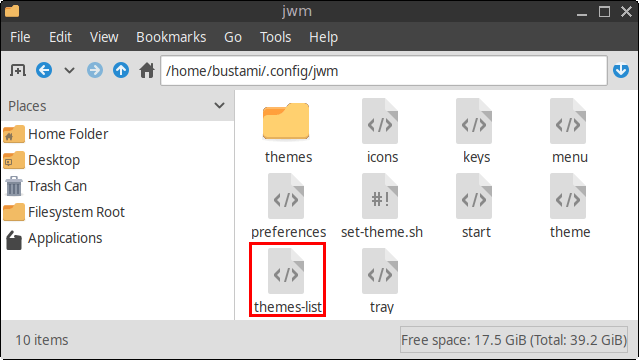
Method 2: Using a Terminal
Open a Terminal and run:
mousepad ~/.config/jwm/themes-listThis opens the file in the Mousepad text editor.
3. What Is the ~/.config/jwm/themes-list File?
The ~/.config/jwm/themes-list file is an XML configuration file that defines the Themes submenu in the JWM main menu.
Each theme is represented by a <Program> entry. When you select a theme, the entry runs the following script:
~/.config/jwm/set-theme.shThe selected theme name is passed to the script as an argument.
The script then:
- Copies the selected theme configuration into the file used by JWM.
- Updates the Themes menu so that the active theme is marked with a checkmark.
- Restarts JWM so the new appearance is applied immediately.
The themes-list file is included in the main JWM menu through the following file:
~/.config/jwm/menuThis makes the Themes submenu accessible directly from the FunOS desktop menu.
4. Default Themes List Configuration
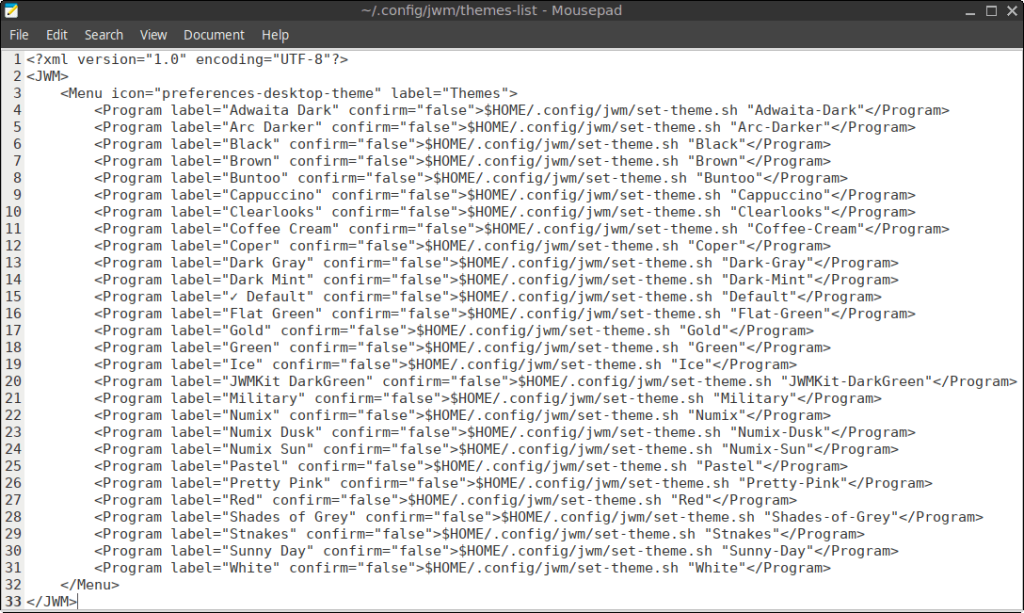
The themes-list file is enclosed within a <JWM> element and contains a single <Menu> element.
Inside the menu are multiple <Program> entries, with one entry for each available theme.
The default configuration is similar to the following:
<?xml version="1.0" encoding="UTF-8"?>
<JWM>
    <Menu icon="preferences-desktop-theme" label="Themes">
        <Program label="Adwaita Dark" confirm="false">$HOME/.config/jwm/set-theme.sh "Adwaita-Dark"</Program>
        <Program label="Arc Darker" confirm="false">$HOME/.config/jwm/set-theme.sh "Arc-Darker"</Program>
        <Program label="Black" confirm="false">$HOME/.config/jwm/set-theme.sh "Black"</Program>
        <Program label="Brown" confirm="false">$HOME/.config/jwm/set-theme.sh "Brown"</Program>
        <Program label="Buntoo" confirm="false">$HOME/.config/jwm/set-theme.sh "Buntoo"</Program>
        <Program label="Cappuccino" confirm="false">$HOME/.config/jwm/set-theme.sh "Cappuccino"</Program>
        <Program label="Clearlooks" confirm="false">$HOME/.config/jwm/set-theme.sh "Clearlooks"</Program>
        <Program label="Coffee Cream" confirm="false">$HOME/.config/jwm/set-theme.sh "Coffee-Cream"</Program>
        <Program label="Coper" confirm="false">$HOME/.config/jwm/set-theme.sh "Coper"</Program>
        <Program label="Dark Gray" confirm="false">$HOME/.config/jwm/set-theme.sh "Dark-Gray"</Program>
        <Program label="Dark Mint" confirm="false">$HOME/.config/jwm/set-theme.sh "Dark-Mint"</Program>
        <Program label="✓ Default" confirm="false">$HOME/.config/jwm/set-theme.sh "Default"</Program>
        <Program label="Flat Green" confirm="false">$HOME/.config/jwm/set-theme.sh "Flat-Green"</Program>
        <Program label="Gold" confirm="false">$HOME/.config/jwm/set-theme.sh "Gold"</Program>
        <Program label="Green" confirm="false">$HOME/.config/jwm/set-theme.sh "Green"</Program>
        <Program label="Ice" confirm="false">$HOME/.config/jwm/set-theme.sh "Ice"</Program>
        <Program label="JWMKit DarkGreen" confirm="false">$HOME/.config/jwm/set-theme.sh "JWMKit-DarkGreen"</Program>
        <Program label="Military" confirm="false">$HOME/.config/jwm/set-theme.sh "Military"</Program>
        <Program label="Numix" confirm="false">$HOME/.config/jwm/set-theme.sh "Numix"</Program>
        <Program label="Numix Dusk" confirm="false">$HOME/.config/jwm/set-theme.sh "Numix-Dusk"</Program>
        <Program label="Numix Sun" confirm="false">$HOME/.config/jwm/set-theme.sh "Numix-Sun"</Program>
        <Program label="Pastel" confirm="false">$HOME/.config/jwm/set-theme.sh "Pastel"</Program>
        <Program label="Pretty Pink" confirm="false">$HOME/.config/jwm/set-theme.sh "Pretty-Pink"</Program>
        <Program label="Red" confirm="false">$HOME/.config/jwm/set-theme.sh "Red"</Program>
        <Program label="Shades of Grey" confirm="false">$HOME/.config/jwm/set-theme.sh "Shades-of-Grey"</Program>
        <Program label="Stnakes" confirm="false">$HOME/.config/jwm/set-theme.sh "Stnakes"</Program>
        <Program label="Sunny Day" confirm="false">$HOME/.config/jwm/set-theme.sh "Sunny-Day"</Program>
        <Program label="White" confirm="false">$HOME/.config/jwm/set-theme.sh "White"</Program>
    </Menu>
</JWM>
The checkmark next to Default indicates that it is the currently active theme in this example.
5. Understanding the Configuration
XML Declaration
The first line identifies the file as an XML document:
<?xml version="1.0" encoding="UTF-8"?>The UTF-8 encoding allows the file to contain characters such as the checkmark used to identify the active theme.
The <JWM> Element
The entire configuration is enclosed within the following tags:
<JWM>
    ...
</JWM>
These tags identify the contents as JWM configuration data.
The <Menu> Element
The <Menu> element creates the Themes submenu:
<Menu icon="preferences-desktop-theme" label="Themes">It contains two attributes:
icon="preferences-desktop-theme"sets the icon displayed beside the submenu.label="Themes"sets the text shown in the main menu.
The closing tag appears after all the theme entries:
</Menu>The <Program> Entries
Each <Program> element adds one selectable theme to the menu:
<Program label="Gold" confirm="false">$HOME/.config/jwm/set-theme.sh "Gold"</Program>This entry contains the following parts:
label="Gold"sets the name displayed in the menu.confirm="false"tells JWM to run the command without asking for confirmation.$HOME/.config/jwm/set-theme.sh "Gold"runs the theme-switching script and passesGoldas the selected theme.
The value passed to set-theme.sh must match the corresponding theme filename in the ~/.config/jwm/themes/ directory.
6. How Theme Switching Works
When you select a theme from the menu, its <Program> entry runs the set-theme.sh script.
For example, selecting Gold runs:
$HOME/.config/jwm/set-theme.sh "Gold"The script performs three main operations.
1. Copies the Selected Theme
The selected theme file is copied from:
~/.config/jwm/themes/to:
~/.config/jwm/themeThe theme file is the configuration file that JWM reads when displaying the active desktop theme.
2. Updates the Active Theme Indicator
The script updates the themes-list file and places a checkmark next to the selected theme.
For example:
<Program label="✓ Gold" confirm="false">$HOME/.config/jwm/set-theme.sh "Gold"</Program>The checkmark makes it easy to identify the currently active theme from the menu.
3. Restarts JWM
The script runs:
jwm -restartThis reloads the JWM configuration and applies the selected theme immediately without requiring you to log out or restart the computer.
7. Available JWM Themes in FunOS
The included JWM theme files are stored in:
~/.config/jwm/themes/A standard FunOS installation includes the following themes:
- Adwaita-Dark
- Arc-Darker
- Black
- Brown
- Buntoo
- Cappuccino
- Clearlooks
- Coffee-Cream
- Coper
- Dark-Gray
- Dark-Mint
- Default
- Flat-Green
- Gold
- Green
- Ice
- JWMKit-DarkGreen
- Military
- Numix
- Numix-Dusk
- Numix-Sun
- Pastel
- Pretty-Pink
- Red
- Shades-of-Grey
- Stnakes
- Sunny-Day
- White
Each theme is stored as a separate XML file. These files define visual properties such as:
- Window borders and title bars
- Menu colors and fonts
- Tray appearance
- Task list appearance
- Popup colors
- Active and inactive window styles
You can view the available theme files by running:
ls ~/.config/jwm/themes/You can also access the Themes submenu by clicking:
Menu → Themes
The exact menu location may vary if you have customized your JWM menu.
8. Adding a Custom Theme
You can create a new theme by copying and modifying one of the existing theme files.
Step 1: Copy an Existing Theme
For example, copy the Default theme and name the new file My-Custom-Theme:
cp ~/.config/jwm/themes/Default ~/.config/jwm/themes/My-Custom-ThemeUsing an existing theme as a starting point is easier than creating one from scratch.
Step 2: Edit the New Theme
Open the copied file in Mousepad:
mousepad ~/.config/jwm/themes/My-Custom-ThemeModify the colors, fonts, borders, and other style settings as needed.
Step 3: Add the Theme to themes-list
Open the Themes list:
mousepad ~/.config/jwm/themes-listAdd the following entry inside the <Menu> element:
<Program label="My Custom Theme" confirm="false">$HOME/.config/jwm/set-theme.sh "My-Custom-Theme"</Program>The displayed label can contain spaces:
My Custom ThemeHowever, the argument passed to set-theme.sh must exactly match the theme filename:
My-Custom-ThemeXML values are case-sensitive, so My-Custom-Theme and my-custom-theme are treated as different names.
Step 4: Restart JWM
Save the file, then run:
jwm -restartThe new theme should now appear in the Themes submenu.
9. Removing a Theme from the Menu
To remove a theme from the Themes submenu, delete or comment out its <Program> entry in the themes-list file.
For example, to remove the White theme from the menu, delete this line:
<Program label="White" confirm="false">$HOME/.config/jwm/set-theme.sh "White"</Program>This removes the menu entry but does not delete the corresponding theme file from:
~/.config/jwm/themes/To permanently delete the theme file as well, run:
rm ~/.config/jwm/themes/WhiteBe careful when using rm, because the deleted file is not moved to the Trash.
10. Changing the Order of Themes
The order of the <Program> entries determines the order in which themes appear in the menu.
For example:
<Program label="Default" confirm="false">$HOME/.config/jwm/set-theme.sh "Default"</Program>
<Program label="Gold" confirm="false">$HOME/.config/jwm/set-theme.sh "Gold"</Program>
<Program label="Green" confirm="false">$HOME/.config/jwm/set-theme.sh "Green"</Program>
In this example, the menu displays the themes in the following order:
- Default
- Gold
- Green
To rearrange the menu, move the corresponding <Program> lines into your preferred order.
11. Applying Changes
After manually editing the themes-list file, restart JWM:
jwm -restartThe desktop may briefly refresh while JWM reloads its configuration.
If the Themes menu does not appear or JWM reports an error, check the file for common XML problems, such as:
- A missing closing tag
- A missing quotation mark
- A
<Program>entry placed outside the<Menu>element - A theme name that does not match its filename
- Special XML characters that have not been escaped
You can restore the backup created earlier with:
cp ~/.config/jwm/themes-list.bak ~/.config/jwm/themes-list
jwm -restart
Conclusion
The ~/.config/jwm/themes-list file controls the Themes submenu in FunOS and connects each menu entry to the set-theme.sh script.
Each <Program> entry represents one available theme. When a theme is selected, FunOS copies its configuration into the active JWM theme file, updates the checkmark in the menu, and restarts JWM so the new appearance takes effect immediately.
By editing this file, you can add custom themes, remove unwanted entries, rename menu labels, or rearrange the order in which themes are displayed. This provides a simple and flexible way to personalize the appearance of the FunOS desktop while retaining the lightweight design of JWM.