
The JWM (Joe’s Window Manager) used in FunOS is lightweight, fast, and highly customizable. Unlike traditional desktop environments, JWM stores its settings in plain-text XML configuration files, making it easy for users to customize nearly every aspect of the desktop.
The most important of these files is ~/.jwmrc. Rather than storing every setting itself, this file acts as the main configuration file that loads the rest of JWM’s modular configuration files. Understanding how ~/.jwmrc works is the first step toward customizing your FunOS desktop.
Back Up the Configuration File
Before making any changes, create a backup so you can easily restore the original configuration if needed.
cp ~/.jwmrc ~/.jwmrc.bakLocate the Main JWM Configuration File
The main JWM configuration file is stored in your home directory:
~/.jwmrcBecause the filename begins with a period (.), it is hidden by default.
You can open it using either of the following methods.
Method 1: Using the File Manager
- Open Menu → File Manager.
- Press Ctrl + H, or choose View → Show Hidden to display hidden files.
- Open the
.jwmrcfile with your preferred text editor.
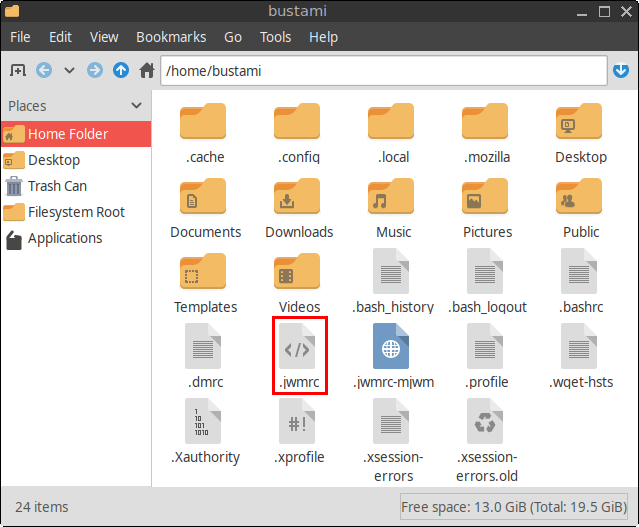
Method 2: Using the Terminal
Run the following command:
mousepad ~/.jwmrcThis opens the file in the Mousepad text editor, where you can view or modify its contents.
What Is ~/.jwmrc?
The ~/.jwmrc file serves as the central configuration file for JWM. Instead of containing all configuration settings directly, it references a collection of smaller configuration files, each responsible for a specific part of the desktop.
This modular design makes JWM easier to maintain because you can modify menus, keyboard shortcuts, themes, startup applications, and other settings independently without editing one large configuration file.
Default ~/.jwmrc File in FunOS
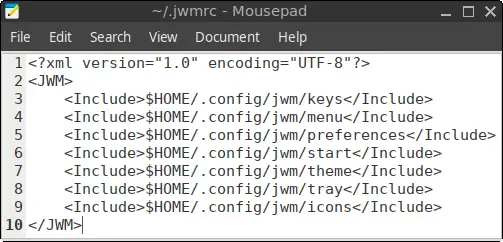
A default installation of FunOS includes a ~/.jwmrc file similar to the following:
<?xml version="1.0" encoding="UTF-8"?>
<JWM>
    <Include>$HOME/.config/jwm/menu</Include>
    <Include>$HOME/.config/jwm/tray</Include>
    <Include>$HOME/.config/jwm/theme</Include>
    <Include>$HOME/.config/jwm/icons</Include>
    <Include>$HOME/.config/jwm/preferences</Include>
    <Include>$HOME/.config/jwm/keys</Include>
    <Include>$HOME/.config/jwm/start</Include>
</JWM>
Each <Include> line tells JWM to load another configuration file when it starts.
Understanding Each Included Configuration File
Each file included by ~/.jwmrc controls a different part of the desktop.
~/.config/jwm/menu
Defines the desktop and application menu, including installed applications, documentation links, themes, and logout options.
Learn more: Understanding the JWM Menu Configuration in FunOS
~/.config/jwm/tray
Controls the desktop panel (tray), including launchers, the task list, workspace pager, notification area, and clock.
Learn more: Understanding the JWM Tray Configuration in FunOS
~/.config/jwm/theme
Loads the currently active JWM theme, including colors, fonts, borders, and other visual settings.
~/.config/jwm/icons
Specifies where JWM searches for application icons used in the menu and tray.
~/.config/jwm/preferences
Contains general desktop preferences such as window focus behavior, virtual desktops, snapping, and mouse settings.
Learn more: Understanding the JWM Preferences Configuration in FunOS
~/.config/jwm/keys
Defines keyboard shortcuts used to launch applications and control windows.
Learn more: Understanding the JWM Key Bindings Configuration in FunOS
~/.config/jwm/start
Lists programs that automatically start when your JWM session begins, such as the network tray icon, volume control, or wallpaper restoration.
Learn more: Understanding the JWM Startup Configuration in FunOS
Should You Edit ~/.jwmrc?
In most situations, no.
The ~/.jwmrc file rarely needs to be modified because each desktop component has its own dedicated configuration file under ~/.config/jwm/. Editing those individual files is usually simpler and less error-prone.
You should edit ~/.jwmrc only when you want to add or remove an included configuration file.
For example, to load an additional tray configuration, you could add:
<Include>$HOME/.config/jwm/left-tray</Include>When adding a new include, ensure that the referenced file exists and contains valid XML. Otherwise, JWM may fail to load correctly.
Apply Your Changes
After modifying ~/.jwmrc or any of the files it includes, restart JWM to apply the changes.
Run:
jwm -restartYour desktop will reload with the updated configuration.
Conclusion
The ~/.jwmrc file is the central entry point for JWM configuration in FunOS. Rather than storing every setting itself, it organizes the desktop by loading separate configuration files for menus, themes, keyboard shortcuts, startup applications, preferences, and the desktop panel.
Once you understand how ~/.jwmrc ties these components together, customizing your FunOS desktop becomes much easier. Whether you’re changing the appearance, adding new keyboard shortcuts, or experimenting with custom configurations, this modular approach keeps your JWM setup clean, organized, and easy to maintain.