
FunOS supports input methods for typing languages that require more than a standard keyboard layout. For example, an input method can convert Latin characters into Chinese characters, Japanese kana and kanji, Korean Hangul, Vietnamese characters, or characters used by various South Asian languages.
This guide explains how to install and configure an input method in FunOS using Fcitx 5.
What Is an Input Method?
An input method is a system that helps you enter characters that may not be directly available on your physical keyboard.
For example:
- A Chinese input method can convert
nihaointo Chinese characters. - A Japanese input method can convert typed romaji into hiragana, katakana, and kanji.
- A Korean input method can combine individual keystrokes into Hangul syllables.
- A Vietnamese input method can add tone marks using input systems such as Telex or VNI.
An input method is different from a keyboard layout.
A keyboard layout changes which character is produced by each physical key. An input method can process a sequence of keystrokes and convert it into another writing system.
For languages such as Arabic, Greek, Hebrew, or Russian, changing the keyboard layout may be sufficient. For Chinese, Japanese, Korean, and some other languages, an input-method framework is usually needed.
About Fcitx 5
Fcitx 5 is a modern input-method framework for Linux. It manages the input engines used for different languages and provides a convenient way to switch between them.
In FunOS, Fcitx 5 works with the JWM desktop and can provide input support for GTK and Qt applications.
The basic setup consists of three parts:
- The Fcitx 5 framework
- An input engine for your language
- The
im-configutility, which tells the desktop session to use Fcitx 5
How to Install Fcitx 5 in FunOS
Step 1: Open a Terminal
You can open a terminal in any of the following ways:
- Click Menu in the lower-left corner of the screen, then click Terminal.
- Click the Terminal icon in the Tray.
- Press Ctrl + Alt + T.
Step 2: Update the Package List
Run the following command:
sudo apt updateThis command downloads the latest package information from the configured software repositories. It does not upgrade or install packages.
Step 3: Install Fcitx 5
Run the following command:
sudo apt install fcitx5 fcitx5-config-qt fcitx5-frontend-all im-config zenityThe packages have the following purposes:
fcitx5installs the main Fcitx 5 input-method framework.fcitx5-config-qtinstalls the graphical Fcitx 5 configuration tool.fcitx5-frontend-allinstalls integration modules for supported applications, including GTK and Qt applications.im-configconfigures which input-method framework is used during the desktop session.zenityprovides graphical dialog support required byim-config.
Installing the frontend package is important. Without the appropriate frontend modules, the input method may work in some applications but not in others.
Install an Input Engine for Your Language
Fcitx 5 provides the framework, but you must also install an input engine for the language you want to type.
Choose the appropriate section below. You only need to install the packages required for your language.
Chinese
For most users, installing the standard Chinese add-ons is sufficient:
sudo apt install fcitx5-chinese-addonsThis package provides several commonly used Chinese input methods, including Pinyin and table-based input methods.
Optional alternatives and advanced engines:
fcitx5-rime— Provides the Rime input method, which is highly customizable and supports both Simplified and Traditional Chinese. This is recommended for advanced users who want fine control over input behavior.fcitx5-table— Provides generic table-based input methods. This is useful if you want to use or create custom input tables.fcitx5-keyman— Provides Keyman-based input methods, mainly used for specialized or less common keyboard layouts and scripts.
These additional packages are not required for most users. Install them only if you specifically need their features.
Japanese
For Japanese input using Mozc, run:
sudo apt install fcitx5-mozcMozc allows you to type Japanese using romaji and convert the text into hiragana, katakana, or kanji.
For example, typing nihongo can be converted into Japanese text.
Korean
For Korean Hangul input, run:
sudo apt install fcitx5-hangulThis engine converts individual keyboard input into properly combined Hangul characters.
Vietnamese
For Vietnamese input using UniKey-compatible methods, run:
sudo apt install fcitx5-unikeyThis engine supports commonly used Vietnamese input styles such as Telex and VNI.
Other Languages
For input methods based on the multilingual m17n library, run:
sudo apt install fcitx5-m17nThe m17n engine provides input methods for many languages and writing systems, including several South Asian and Southeast Asian languages.
The available input methods depend on the language data provided by the installed m17n packages.
Reload the Application Menu
After installing Fcitx 5 and the required input engine, reload the FunOS application menu so that the newly installed configuration tools appear.
Note: Starting with FunOS 24.04.4 LTS (Build 20260618) and FunOS 26.04 LTS (Build 20260618), the application menu updates automatically when applications are installed or removed. If you are using one of these builds or a later build, you can skip this section.
On an older FunOS build:
- Click Menu in the lower-left corner of the screen.
- Click Reload menu.
Select Fcitx 5 as the Input-Method Framework
After installing Fcitx 5 and the required language engine, you must configure FunOS to use Fcitx 5.
Step 1: Start the Input Method Configuration Tool
Open a terminal and run:
im-configAlternatively, open Menu > Settings > Input Method.
A graphical configuration window should appear.
Step 2: Confirm the Information Message
The first window may display information about the current input-method configuration.
Click OK.
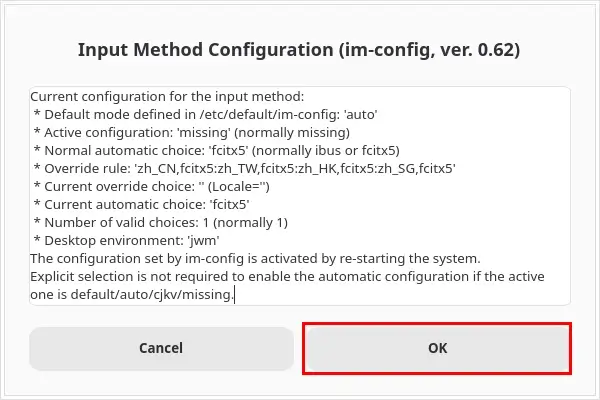
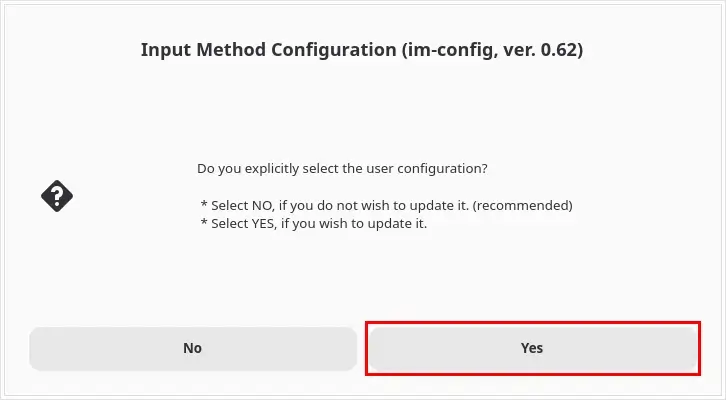
Step 3: Choose the User Configuration
When asked whether you want to explicitly select a user configuration, choose:
Yes
This allows you to select Fcitx 5 manually instead of relying on automatic detection.
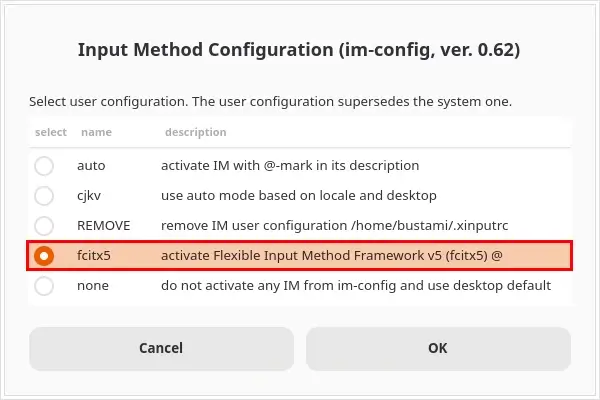
Step 4: Select Fcitx 5
Select:
fcitx5
Then click OK.
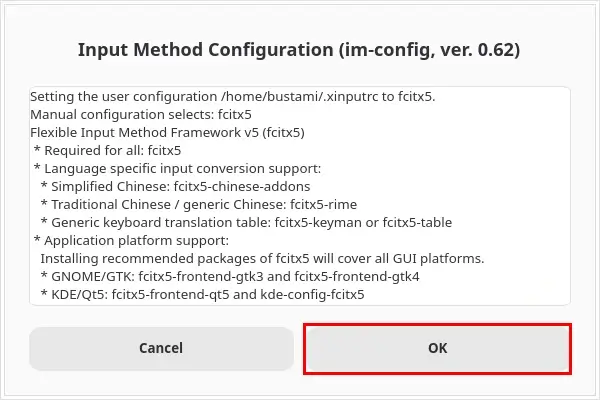
The configuration tool writes the necessary user-level settings so that Fcitx 5 can be started and the required input-method environment can be prepared when you log in.
Click OK.
Step 5: Log Out and Log In Again
The change does not normally apply fully to applications that are already running.
Save your work, then:
- Click Menu.
- Click Log Out > Logout.
- Log back in to FunOS.
You can also reboot the computer:
sudo rebootAfter logging back in, an Fcitx 5 icon may appear in the notification area of the FunOS Tray.
Add an Input Method to Fcitx 5
Installing an input engine makes it available, but you must still add it to your active Fcitx 5 input-method list.
Step 1: Open the Fcitx 5 Configuration Tool
Open a terminal and run:
fcitx5-configtoolAlternatively, open Menu > Settings > Fcitx 5 Configuration.
Step 2: Add an Input Method
In the Input Method tab:
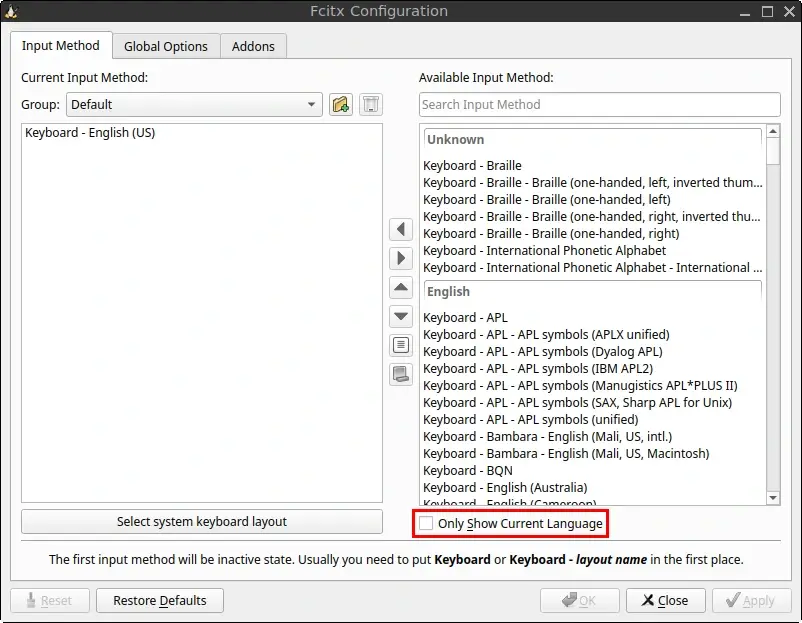
- Uncheck Only Show Current Language so that input methods for all supported languages are displayed.
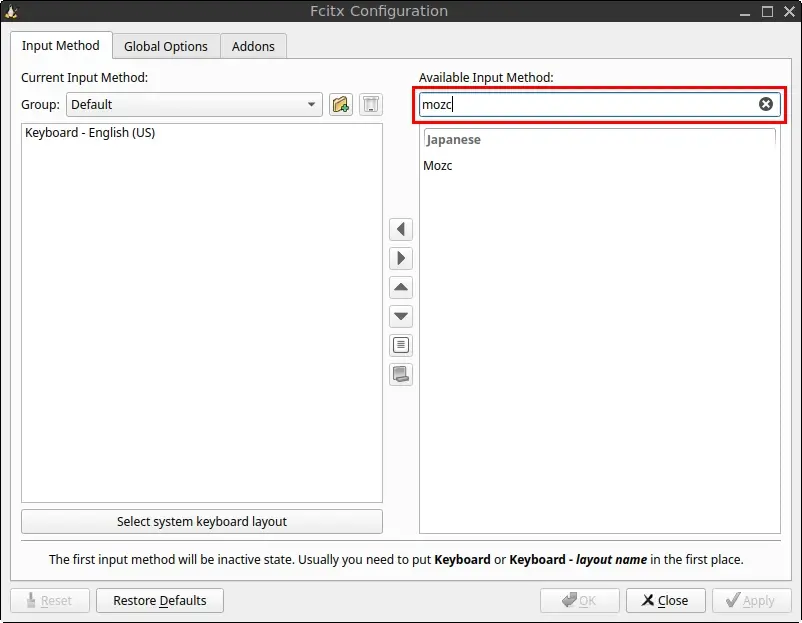
- Use the search box to find the input method you installed. For example, search for
mozcif you installed the Japanese Mozc input engine.
Common input methods include:
- Pinyin for Chinese
- Mozc for Japanese
- Hangul for Korean
- Unikey for Vietnamese
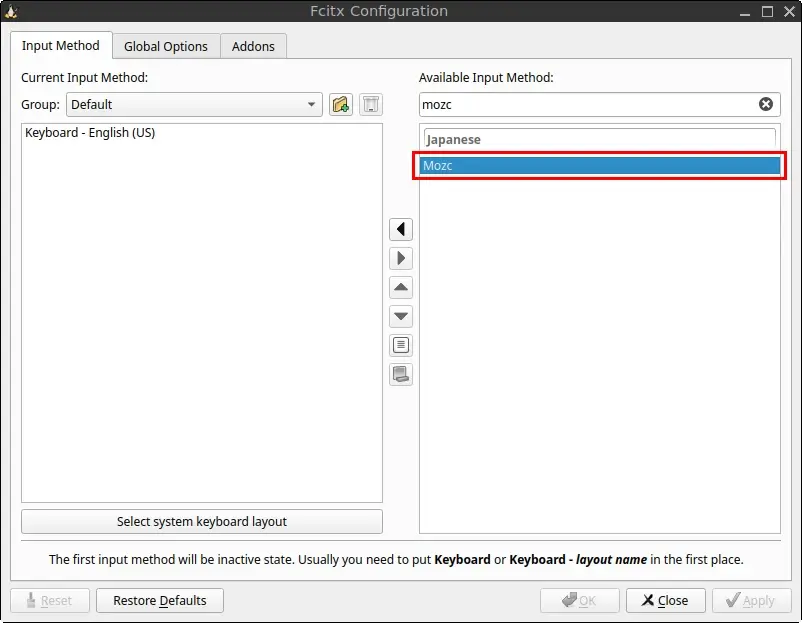
- Select the input method from the Available Input Method list.
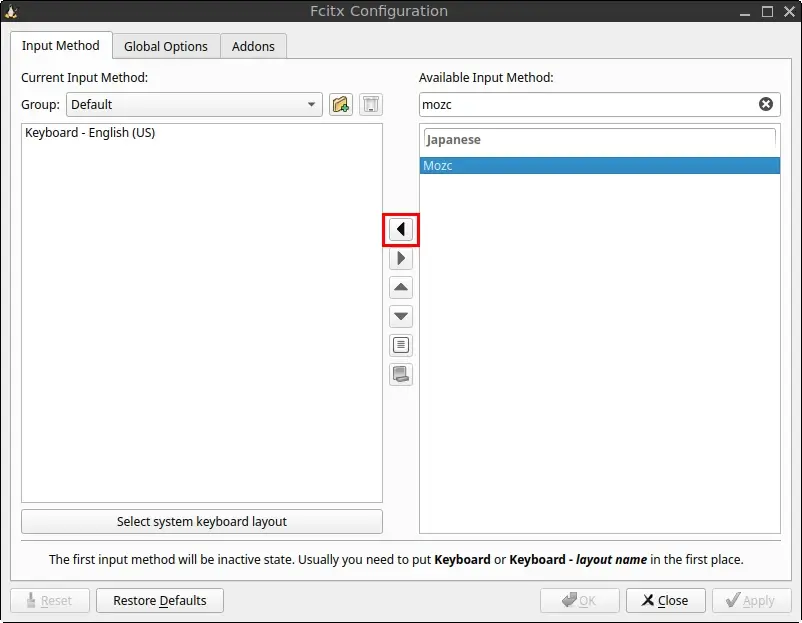
- Click the left-arrow button to add it to the Current Input Method list.
- Click Apply to save the changes. Then click Close.
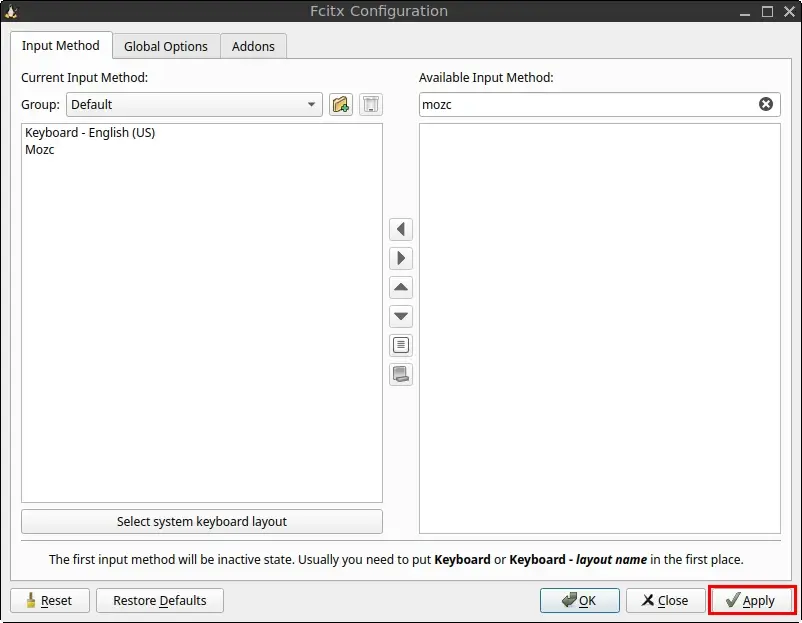
Keep Keyboard – English (US) or your normal keyboard layout in the Current Input Method list. This allows you to switch back to ordinary keyboard input.
Switch Between Input Methods
The commonly configured shortcut for activating or switching the input method is:
Ctrl + Space
Open a text editor and press Ctrl + Space. The Fcitx 5 indicator should change to show the selected input method.
Press the shortcut again to return to normal keyboard input.
The exact shortcut can be viewed or changed in the Fcitx 5 configuration tool.
Change the Input-Method Shortcut (Optional)
To change the keyboard shortcut:
- Open the Fcitx 5 configuration tool:
fcitx5-configtoolAlternatively, open Menu > Settings > Fcitx 5 Configuration.
- Open the Global Options tab.
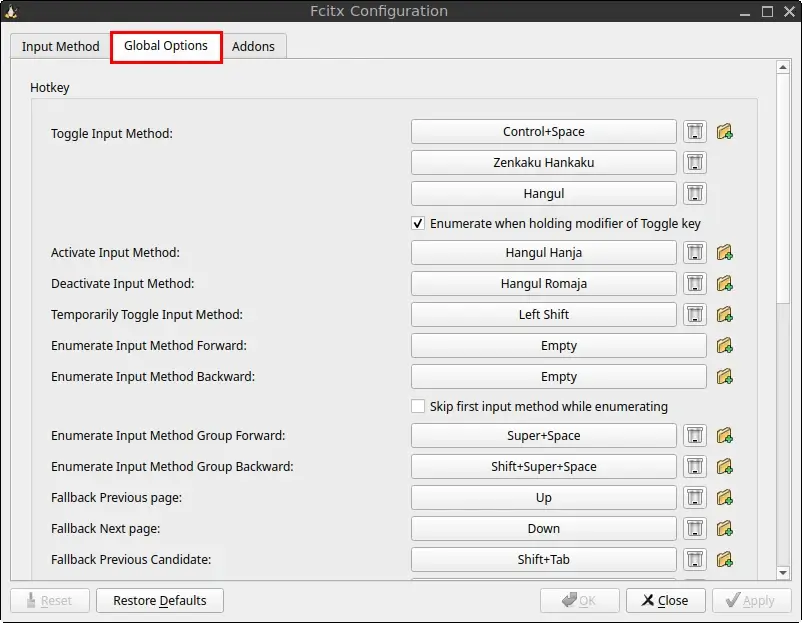
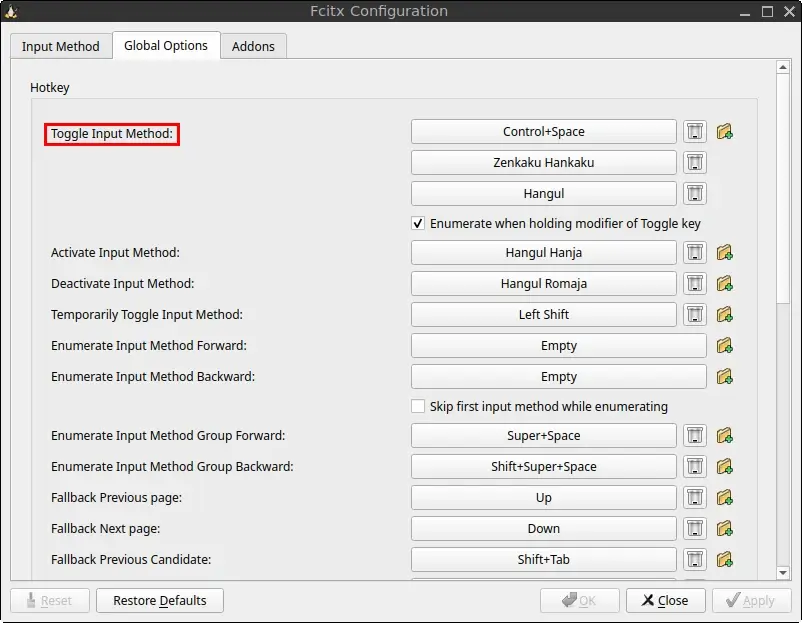
- Find Toggle Input Method.
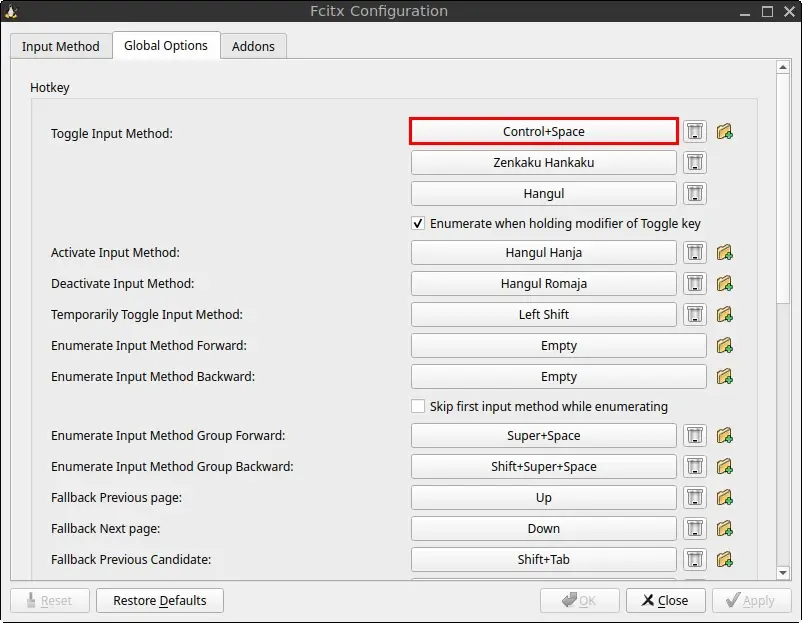
- Click the current shortcut.
- Press the new key combination you want to use.
- Click Apply to save the changes. Then click Close.
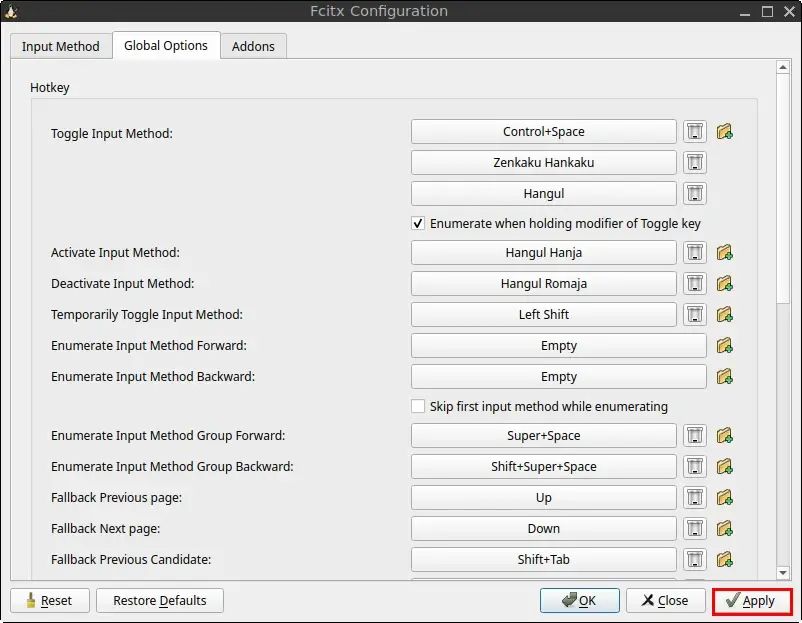
Choose a shortcut that does not conflict with an existing FunOS or application shortcut.
Test the Input Method
After completing the setup, test the input method in a text editor.
Step 1: Open a Text Editor
Open a text editor or another application containing a text field.
Step 2: Activate the Input Method
Press:
Ctrl + Space
Alternatively, right-click the Fcitx 5 icon in the notification area and select the desired input method.
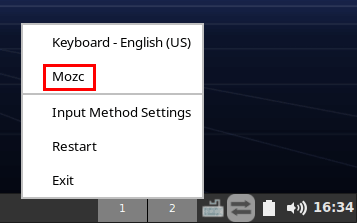
Step 3: Enter Some Text
Try typing text appropriate for the selected input engine.
For Japanese Mozc, for example, type:
nihongoThe input method should offer Japanese conversion candidates.
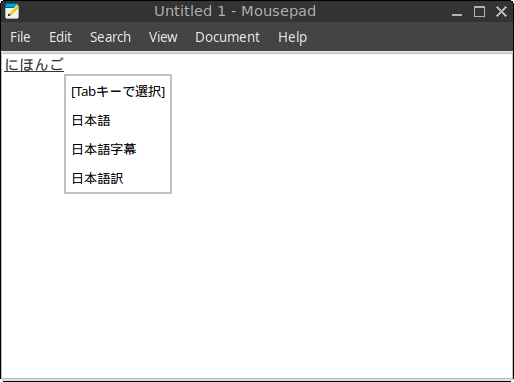
For Chinese Pinyin, type a Pinyin word and select the desired Chinese characters from the candidate list.
Step 4: Return to Normal Input
Press Ctrl + Space again to return to your normal keyboard input.
Configure a Specific Input Engine
Some input engines provide additional settings.
To access them:
- Run:
fcitx5-configtoolAlternatively, open Menu > Settings > Fcitx 5 Configuration.
- Select the input method in the list.
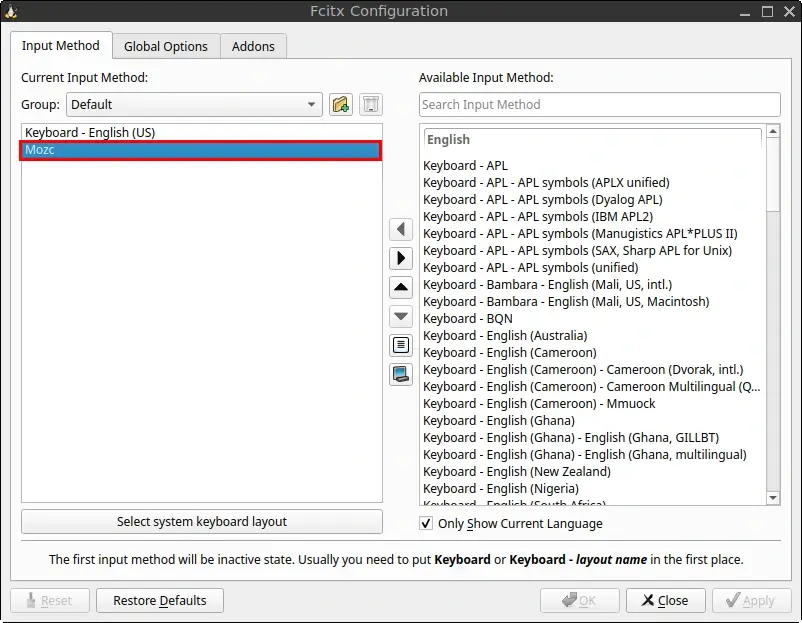
- Click the configuration button.
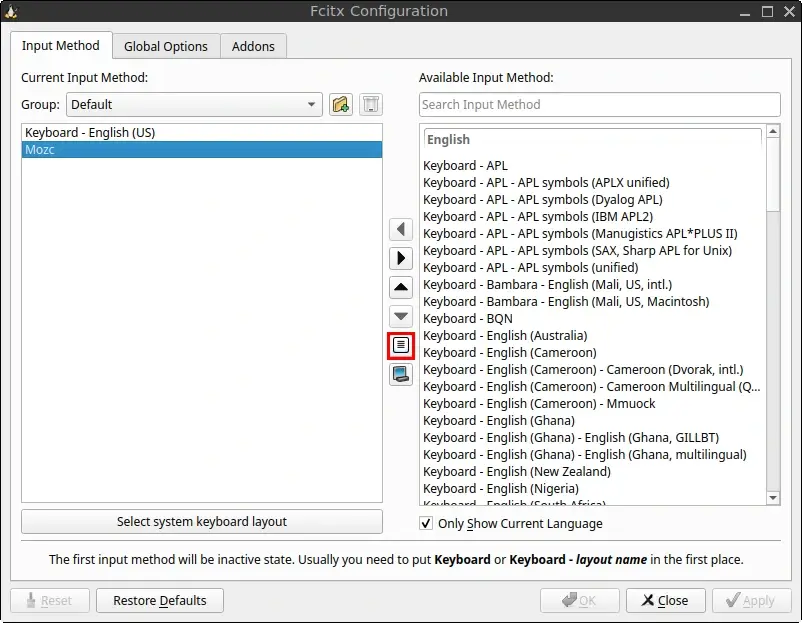
- Adjust the available options.
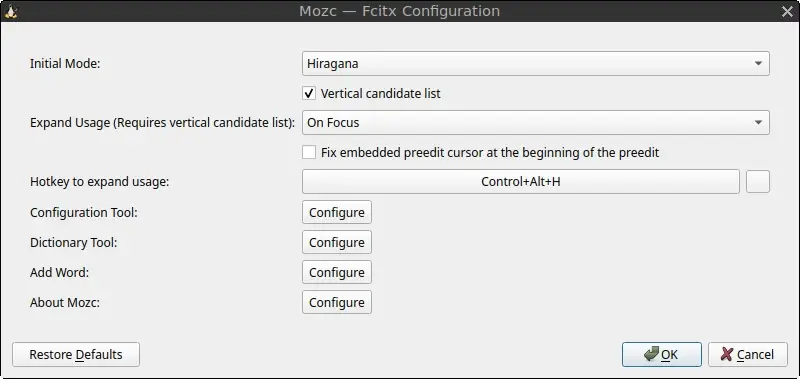
- Click OK to save the changes.
Depending on the selected engine, you may be able to change:
- The keyboard or input style
- Candidate selection keys
- Punctuation behavior
- Page size for candidate lists
- Romaji preferences
- Simplified or Traditional Chinese behavior
- Vietnamese Telex or VNI input
- Hangul keyboard layout
The available options vary between input engines.
Conclusion
Fcitx 5 provides a flexible way to type Chinese, Japanese, Korean, Vietnamese, and many other languages in FunOS.
The general setup process is:
- Install Fcitx 5 and its application integration packages.
- Install an input engine for your language.
- Select Fcitx 5 using
im-config. - Log out and log back in.
- Add the desired input method using
fcitx5-configtool. - Use the configured shortcut to switch between normal keyboard input and the selected input method.
Once configured, Fcitx 5 should start automatically with your FunOS desktop session and work in supported GTK and Qt applications.