
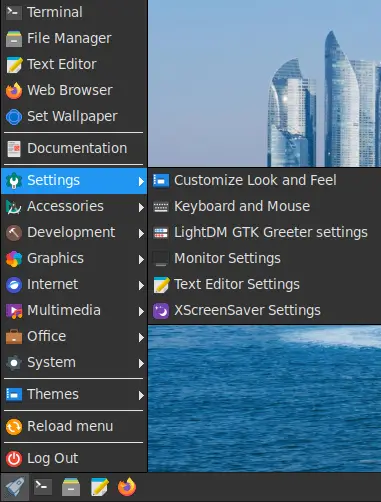
FunOS allows you to customize the JWM application menu to make it easier to read and use. You can increase or decrease the menu font size, adjust the vertical height of each menu item, or change both settings to suit your screen and personal preferences.
This guide explains how to change the menu font size by editing a JWM theme file and how to change the menu height by editing the JWM menu configuration file.
How to Change the Menu Font Size in FunOS
The menu font is defined separately in each JWM theme. Therefore, changing a theme file affects only that theme unless you repeat the change for the other themes.
Step 1: Open the File Manager
Open the File Manager using either of the following methods:
- Click the Menu button in the lower-left corner of the screen, then click File Manager.
- Click the File Manager icon in the tray.
Step 2: Show Hidden Files and Folders
The JWM configuration folder is hidden by default. To display hidden files and folders, use either of these methods:
- Press Ctrl + H.
- Click View in the File Manager menu, then select Show Hidden.
Step 3: Open the JWM Themes Folder
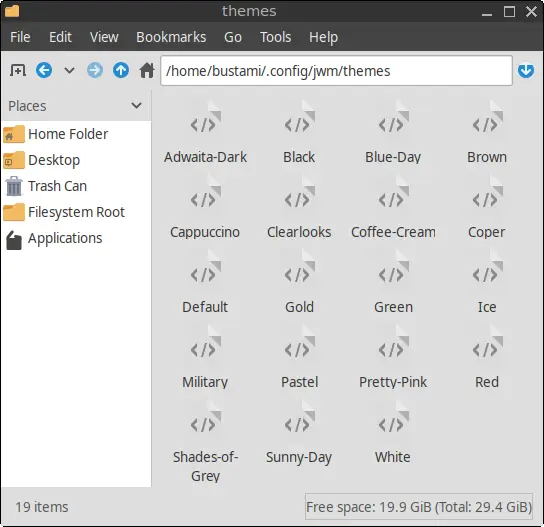
From your Home directory, open the following folders:
.configjwmthemes
The full path is:
~/.config/jwm/themesThis folder contains the theme files used by JWM.
Step 4: Open the Theme You Want to Modify
Find the theme whose menu font size you want to change. For example, to edit the Default theme:
- Right-click the theme file.
- Open it with Mousepad.
Make sure you edit the theme that is currently in use or the theme you plan to apply afterward.
Step 5: Locate the <MenuStyle> Section
In the theme file, find the <MenuStyle> section. It controls the appearance of the application menu, including its font, foreground color, background color, outline, and selected-item colors.
The section may look similar to this:
<MenuStyle>
    <Font>DejaVu Sans-10</Font>
    <Foreground>gray90</Foreground>
    <Background>gray20</Background>
    <Outline>black</Outline>
    <Active>
        <Foreground>white</Foreground>
        <Background>#2196F3</Background>
    </Active>
</MenuStyle>
In this example, DejaVu Sans is the font family and 10 is the font size.
Step 6: Change the Font Size
Change the number at the end of the <Font> value. For example, to increase the font size from 10 to 12, change:
<Font>DejaVu Sans-10</Font>to:
<Font>DejaVu Sans-12</Font>You can use a smaller or larger value depending on your preference.
Step 7: Save the Theme File
Save the file by clicking File > Save or pressing Ctrl + S.
Step 8: Apply the Updated Theme
To apply the change:
- Click the Menu button in the lower-left corner of the screen.
- Open Themes.
- Click the name of the theme you edited.
Selecting the theme again reloads its settings and applies the new menu font size.
Optional: Change the Menu Font Size in All Themes
Because each theme has its own <MenuStyle> setting, changing one file does not affect the others. You can edit every theme manually, or update all theme files at once with a terminal command.
Open a terminal and run the following command to set the menu font size to 12 in every theme:
sed -i -E '/<MenuStyle>/,/<\/MenuStyle>/ s|<Font>(.*)-[0-9]+</Font>|<Font>\1-12</Font>|' ~/.config/jwm/themes/*Replace 12 with your preferred font size.
This command modifies only the <Font> entry inside each <MenuStyle> section. Font settings used for window titles, the tasklist, or the tray are left unchanged.
After running the command, reselect your current theme from the Themes menu to apply the new font size.
How to Change the Menu Height in FunOS
The menu height setting controls the vertical size of each menu item. Increasing the value creates more space between items, while decreasing it makes the menu more compact.
Step 1: Open a Terminal
Open a terminal using one of the following methods:
- Click the Menu button in the lower-left corner of the screen, then click Terminal.
- Click the Terminal icon in the tray.
- Press Ctrl + Alt + T.
Step 2: Open the Menu Configuration File
Run the following command to open the JWM menu configuration file in Mousepad:
mousepad ~/.config/jwm/menuStep 3: Locate the <RootMenu> Tag
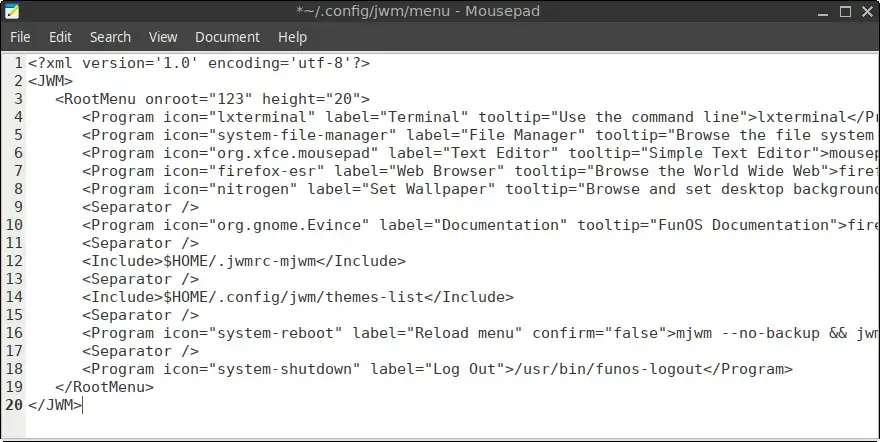
In the file, find the opening <RootMenu> tag. It should look similar to this:
<RootMenu onroot="123" height="20">The height attribute controls the height of each menu item. In this example, the value is 20.
Step 4: Change the Menu Height
Change the value of the height attribute. For example, to increase the menu item height from 20 to 25, change the line to:
<RootMenu onroot="123" height="25">A larger value provides more vertical spacing, while a smaller value creates a more compact menu.
Step 5: Save the File
Save the file by clicking File > Save or pressing Ctrl + S.
Step 6: Apply the Change
Reload JWM to apply the new menu height:
jwm -reloadIf the change does not appear after reloading, restart JWM instead:
jwm -restartThe application menu should now use the new height.
Restoring the Previous Settings
To undo your changes, reopen the relevant file and restore the previous value:
- For the menu font size, restore the original number in the
<Font>tag. - For the menu height, restore the original value of the
heightattribute in the<RootMenu>tag.
Save the file and reapply the theme or reload JWM as described above.
Conclusion
Changing the menu font size and menu height is a simple way to make the FunOS application menu more comfortable to use. A larger font can improve readability, while adjusting the menu height can provide more spacing or fit more items on the screen.
You can experiment with different values until you find the combination that works best for your display and preferences.