
If you value privacy and security when browsing the web, LibreWolf is an excellent choice. This browser is designed to give you more control over your online activity by removing telemetry, improving default privacy settings, and blocking unnecessary data collection features found in other browsers. In this guide, you’ll learn how to install LibreWolf on FunOS, step by step.
What is LibreWolf?
LibreWolf is a privacy-focused fork of Mozilla Firefox. It’s built from the Firefox source code but with several modifications aimed at protecting user privacy and freedom. LibreWolf removes telemetry, data collection, and sponsored content. It also includes privacy-enhancing default settings and ships with uBlock Origin preinstalled to block ads and trackers.
Some of LibreWolf’s main features include:
- No telemetry — LibreWolf doesn’t send usage data back to Mozilla or any other organization.
- Enhanced privacy settings — Tracking protection and fingerprinting resistance are enabled by default.
- Custom search engines — LibreWolf replaces Firefox’s default search engine (often tied to commercial partnerships) with privacy-friendly options.
- Frequent updates — The project is community-driven and regularly updated to include the latest Firefox security patches.
For users who prefer open-source, security-conscious software, LibreWolf is a perfect companion for FunOS.
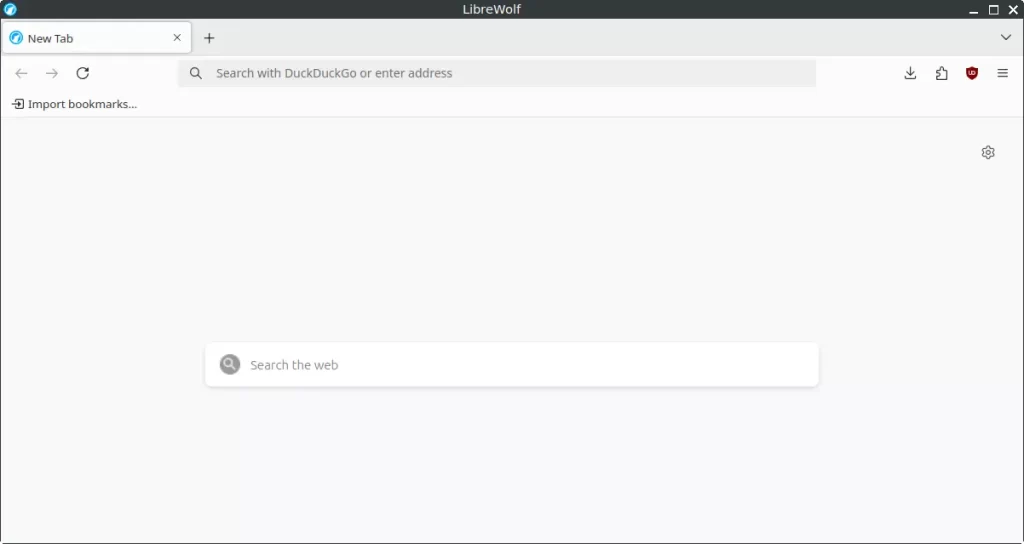
How to Install LibreWolf on FunOS
Work on: 22.04.5 ✅ | 24.04.3 ✅ | 25.04 ✅ | 25.10 ✅ | 26.04 ✅
Follow these steps to install LibreWolf on FunOS. The installation process is straightforward and uses the extrepo tool to add the official LibreWolf repository securely.
Step 1: Open a Terminal
You can open the Terminal using one of the following methods:
- Click Menu in the lower-left corner of the screen, then click Terminal
- Click the Terminal icon in the Tray
- Press Ctrl + Alt + T on your keyboard
Step 2: Update the Package List
Before installing any new package, it’s recommended to update your package list to ensure you’re using the latest repository information.
sudo apt updateStep 3: Install extrepo
The extrepo package makes it easy to enable third-party repositories on Ubuntu-based systems, including FunOS.
sudo apt install extrepoStep 4: Enable the LibreWolf Repository
Once extrepo is installed, you can enable the official LibreWolf repository using this command:
sudo extrepo enable librewolfStep 5: Update the Package List
After enabling the repository, update your package list again so your system recognizes the new LibreWolf packages.
sudo apt updateStep 6: Install LibreWolf
Now install LibreWolf by typing:
sudo apt install librewolfStep 7: Reload the Menu
After installation, you may need to reload the FunOS menu so that LibreWolf appears in the Internet category.
- Click the Menu button in the lower-left corner.
- Click Reload menu.
Launching LibreWolf
After reloading the menu, you can launch LibreWolf by following these steps:
- Click the Menu button in the lower-left corner.
- Navigate to the Internet category.
- Click LibreWolf to open the browser.
You can now start browsing securely with LibreWolf on FunOS.
How to Uninstall LibreWolf on FunOS
If you ever decide to remove LibreWolf, follow these steps to completely uninstall it and clean up any related files.
Step 1: Open a Terminal
Use one of the methods described earlier to open the Terminal.
Step 2: Remove LibreWolf
Uninstall the LibreWolf package and purge its configuration files:
sudo apt remove --purge librewolfStep 3: Remove the LibreWolf Repository
Disable the LibreWolf repository from extrepo:
sudo extrepo disable librewolfStep 4: Remove extrepo
If you no longer need extrepo for other repositories, you can remove it as well:
sudo apt remove --purge extrepoStep 5: Remove Any Unused Dependencies
Clean up any unnecessary packages left behind:
sudo apt autoremove --purgeStep 6: Update the Package List
Refresh your package list again to ensure your system stays up to date:
sudo apt updateStep 7: Remove User Data (Optional)
If you also want to delete all personal data and cache files created by LibreWolf, run:
rm -rf $HOME/.cache/librewolf
rm -rf $HOME/.librewolf
⚠️ Warning: This step will delete all your LibreWolf profiles, bookmarks, and browsing data.
Step 8: Reload the Menu
Finally, reload the FunOS menu to remove LibreWolf from the application list:
- Click the Menu button in the lower-left corner.
- Click Reload menu.
Conclusion
LibreWolf is an excellent browser choice for FunOS users who prioritize privacy, control, and security. Its telemetry-free design and enhanced privacy settings make it ideal for those who want a Firefox-like experience without the data collection. By following the steps above, you can easily install, use, or uninstall LibreWolf on FunOS using official repositories.
Whether you’re browsing the web, researching securely, or simply exploring open-source alternatives, LibreWolf gives you a cleaner, more private, and more transparent browsing experience.


Leave a Reply