MakeMKV is a popular application used to back up and convert DVD and Blu-ray discs into the MKV (Matroska Video) format without losing quality. On FunOS, which is based on Ubuntu LTS, MakeMKV can be installed easily using a third-party PPA. This article provides a complete, step-by-step guide to installing, launching, using, and uninstalling MakeMKV on FunOS, written in a clear and descriptive tutorial style.
What is MakeMKV?
MakeMKV is a disc ripping and backup tool that reads DVD and Blu-ray discs and converts them into MKV files. The MKV format preserves video, audio tracks, subtitles, and chapter information without re-encoding, which means there is no quality loss during the conversion process.
Key features of MakeMKV include:
- Supports DVD and Blu-ray discs
- Preserves original video and audio quality
- Keeps multiple audio tracks and subtitles
- Simple and user-friendly interface
- Available on Linux, Windows, and macOS
On Linux systems such as FunOS, MakeMKV is distributed as two packages:
- makemkv-bin – the closed-source binary components
- makemkv-oss – the open-source components
Both packages are required for MakeMKV to function properly.
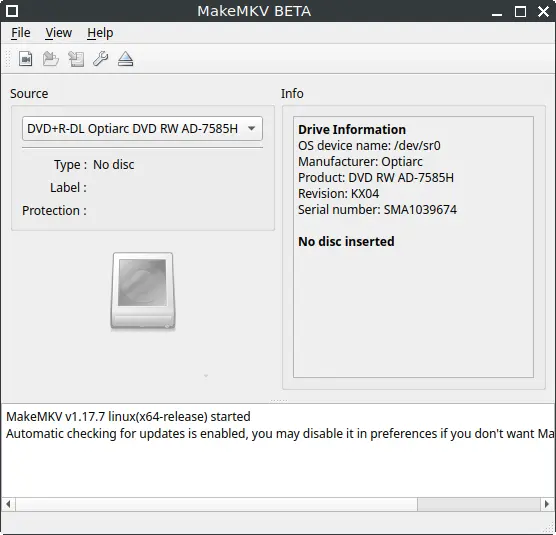
How to Install MakeMKV on FunOS
Work on: 22.04.5 ✅ | 24.04.4 ✅ | 25.10 ✅ | 26.04 ✅
Step 1: Open a Terminal
You can open a Terminal on FunOS using one of the following methods:
- Click Menu in the left corner of the screen, then click Terminal
- Click the Terminal icon in the Tray
- Press Ctrl + Alt + T on your keyboard
Step 2: Add the MakeMKV Beta PPA
MakeMKV is not available in the official Ubuntu repositories. To install it, you need to add the makemkv-beta PPA, which is maintained by hjmooses (heyarje) on Launchpad.
Add the PPA by running the following command in the Terminal:
sudo add-apt-repository ppa:heyarje/makemkv-betaYou may be prompted to press Enter to confirm adding the repository.
Step 3: Update the Package List
After adding the PPA, update the local package list so FunOS can recognize the newly available packages:
sudo apt updateStep 4: Install MakeMKV
Now install MakeMKV by installing both required packages:
sudo apt install makemkv-bin makemkv-ossDuring installation, you may be asked to accept a license agreement. Use the Tab key to select OK, then press Enter to continue.
Step 5: Reload the Menu
On FunOS, newly installed applications may not appear in the menu until it is refreshed.
To reload the menu:
- Click the Menu button in the lower-left corner
- Click Reload menu
After reloading, MakeMKV will appear in the application menu.
Launching MakeMKV
To start MakeMKV:
- Click the Menu button in the lower-left corner
- Navigate to the Multimedia category
- Click MakeMKV
When you launch MakeMKV for the first time, it will ask for a beta key.
MakeMKV Beta Key
MakeMKV for Blu-ray decryption requires a beta key. The current beta key is:
T-sJ5R5BKxhD671U9s0teXbyP19MhCkkkB7rmnNbb1aEHaqveiVqyI3RXGMHDXhoyNUCThis beta key is valid until the end of May 2026.
To obtain the latest beta key in the future, visit the official MakeMKV forum at:
Copy and paste the key into the MakeMKV registration dialog, then click OK to activate it.
How to Uninstall MakeMKV on FunOS
If you no longer need MakeMKV, you can completely remove it from FunOS by following the steps below.
Step 1: Open a Terminal
You can open a Terminal using any of these methods:
- Click Menu in the left corner of the screen, then click Terminal
- Click the Terminal icon in the Tray
- Press Ctrl + Alt + T
Step 2: Remove MakeMKV Packages
Remove MakeMKV along with its configuration files by running:
sudo apt remove --purge makemkv-bin makemkv-ossStep 3: Remove Unused Dependencies
Clean up any packages that were installed as dependencies and are no longer needed:
sudo apt autoremove --purgeStep 4: Remove the MakeMKV Beta PPA
After uninstalling MakeMKV, it is recommended to remove the PPA:
sudo add-apt-repository --remove ppa:heyarje/makemkv-betaStep 5: Update the Package List
Update the package list again to apply the repository changes:
sudo apt updateStep 6: Remove User Data (Optional)
If you want to remove MakeMKV user configuration and cache files, run:
rm -rf $HOME/.MakeMKVThis step is optional but recommended for a completely clean removal.
Step 7: Reload the Menu
Finally, reload the FunOS menu to ensure MakeMKV is removed from the application list:
- Click the Menu button in the lower-left corner
- Click Reload menu
Conclusion
MakeMKV is a powerful and reliable tool for backing up and converting DVD and Blu-ray discs into high-quality MKV files. On FunOS, installation is straightforward using the makemkv-beta PPA, and the application integrates well into the system menu after a simple menu reload.
By following this guide, you should now be able to install, activate, use, and uninstall MakeMKV on FunOS with confidence. This approach is consistent with other Ubuntu-based systems, making it familiar and easy for FunOS users to manage.